








Is there a way to archive iMessage conversations y'all know of? My best friend recently passed away and I'm trying to find a way to make everything a digital copy that can be stored independent of the iCloud backup I currently have."
——From Reddit
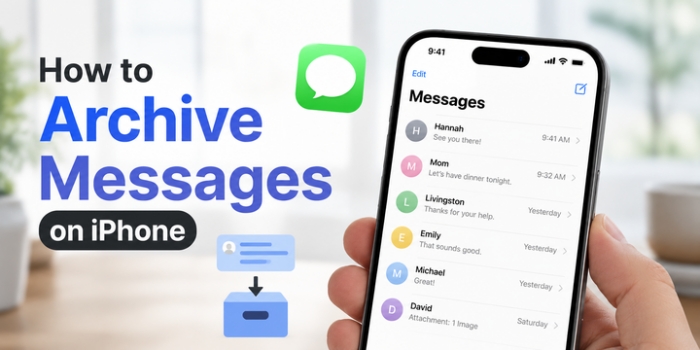
After coming across a Reddit post where users were asking how to archive messages on iPhone, I realized many people have the same question. Whether you want to save space or create an extra backup outside of iCloud, there are practical solutions. In this guide, you'll learn simple and effective ways to archive your iPhone messages without losing any important conversations.
- Part 1. Can You Archive Messages on iPhone?
- Part 2. How to Archive Messages on iPhone without Deleting Them
- Part 3. Conclusion
Part 1. Can You Archive Messages on iPhone?
The Messages app on iPhone doesn't offer a built-in Archive feature. However, if you want to securely save your messages, there are alternative methods available. You can archive your iPhone messages by forwarding them to your Mac or by backing them up to a computer. These options let you keep your important conversations safe, even without an official archive option.
| Method | Archived Messages | Readability | Archive Selectively |
|---|---|---|---|
| MagFone iPhone Unlocker | Text messages and non-text messages | Free and anytime | ✔️ |
| Text Messages Forwarding | Text messages | Free and anytime | ✔️ |
| iTunes | Text messages and non-text messages | ❌ | ❌ |
Part 2. How to Archive Text Messages on iPhone without Deleting Them
YIf you want to archive your text messages on iPhone without deleting them, there are reliable ways to do so. You can either back up your messages to a computer or forward them to your Mac for safekeeping.
Option 1. Archive iPhone Messages MagFone iPhone Data Recovery
MagFone iPhone Data Recovery is a versatile data management tool that allows you to archive iPhone messages independently from your current iCloud backup. With this tool, you can export and archive both text and media messages in a readable format. Whether you need to save existing conversations or recover deleted messages, MagFone gives you the flexibility to selectively export and archive what's important. If you're looking for a straightforward way to archive iPhone messages, MagFone is a solution worth considering. Just follow the steps below to safely store your messages.

MagFone iPhone Data Recovery
Export iPhone messages selectively—no overwrite, archive safely, restore anytime.
Step 1 Run MagFone iPhone Data Recovery
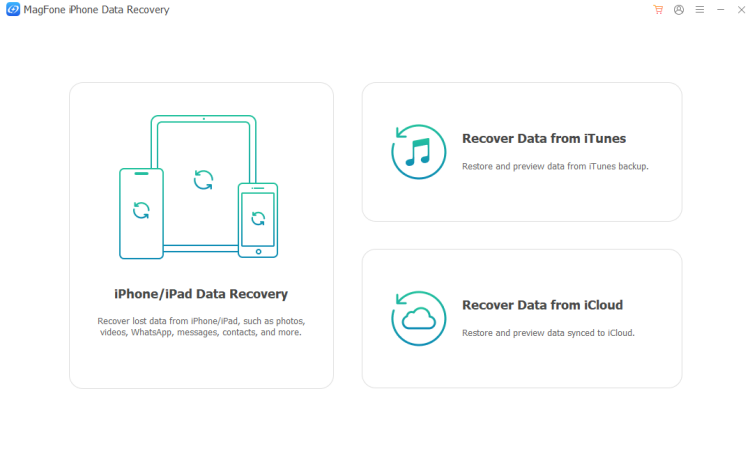
First, download and install MagFone iPhone Unlocker on your computer. Then use a data cable to connect your iPhone to the computer and run MagFone iPhone Data Recovery.
Step 2 Back Up iPhone Messages
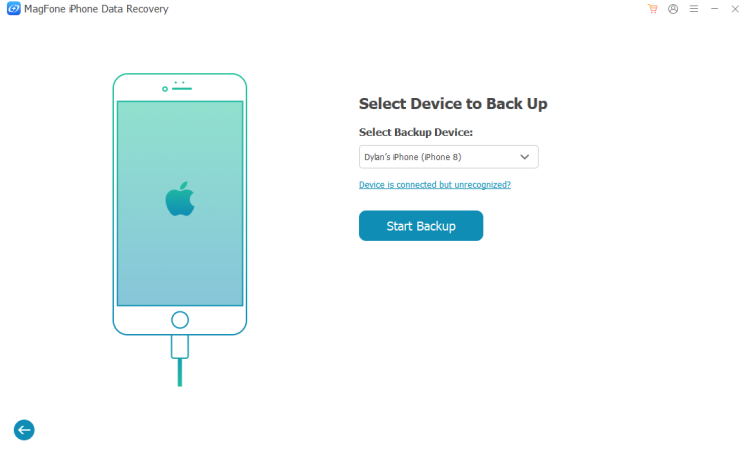
Click Backup & Restore > Back Up iOS Data, and click Start Backup to back up your iPhone to the computer.
Step 3 Scan iPhone Messages
<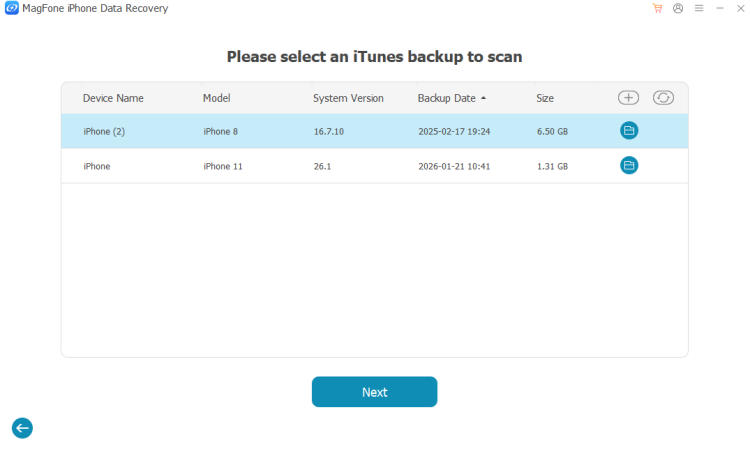
When the backup is done, click Done. Go back to the main interface and choose Extract from iTunes Backup. Select the backup you have created, click Next, select Messages, and click Scan to scan your iPhone messages.
Step 4 View and Archive iPhone Messages
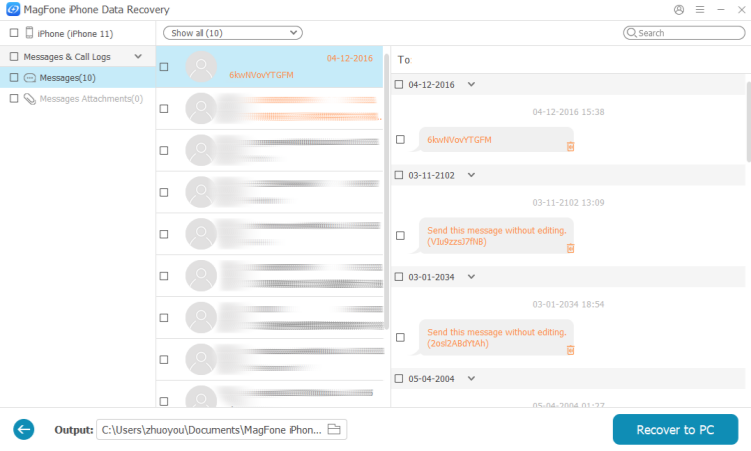
After scanning, you can view messages on your iPhone. If you want to archive one and store it somewhere, you can select and click Recover to PC or Recover to Mac to export and archive them.
 Pros
Pros- Selective export
- Readable formats
- Can recover deleted messages

- Requires third-party software
Option 2. Archive iPhone Messages via Text Forwarding
Another method is to back up your iPhone using iTunes or Finder. This process will archive all your messages on your computer, keeping them safe and available for restoration if needed. Keep in mind, though, that while your messages are securely stored, you won't be able to view the archived messages directly from your computer.
Text iPhone Messages to Mac:
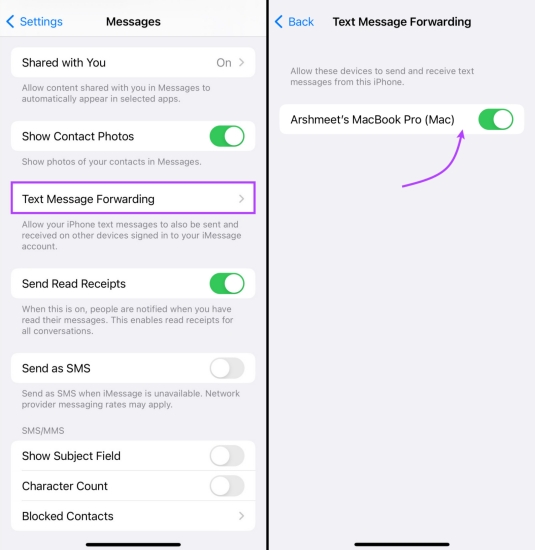
Step 1. Go to iPhone Settings > Apps > Messages.
Step 2. Tap Text Messages Forwarding and enable Text to Mac.
Archive iPhone Messages on Mac:
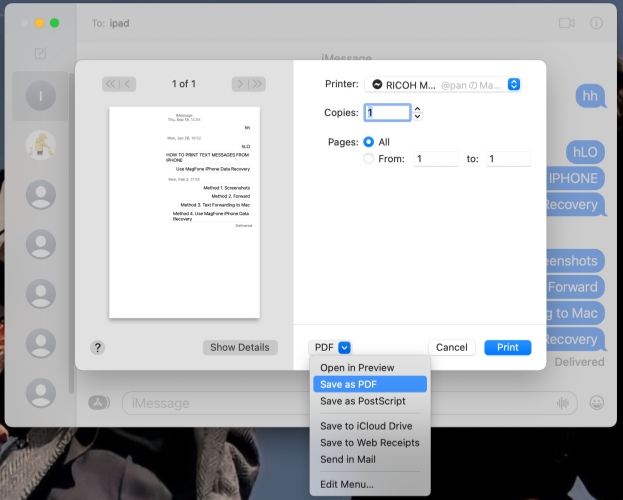
Step 1. Open Messages on your Mac and wait for iPhone messages to sync.
Step 2. Open a chat thread.
Step 3. Click File > Print from the menu bar.
Step 4. Choose Save as PDF in the drop-down box and click Save.
Pros- Simple setup
- View messages on Mac
- No extra software needed
- Only works with Mac
- Manual process
Option 3. Archive iPhone Messages via iTunes
You can also back up your iPhone with iTunes or Finder to archive your iPhone messages. In this way, your messages are stored safely on the computer and can be restored if you need. However, you can't view these archived messages directly.
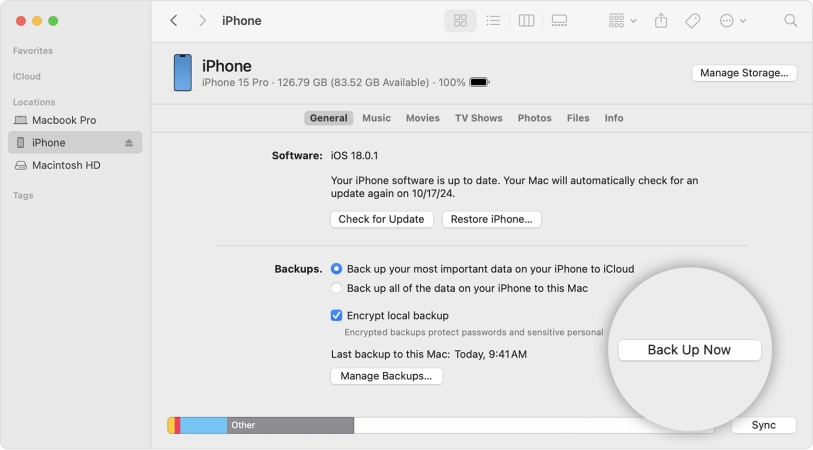
Step 1. Use a data cable to connect your iPhone to the computer.
Step 2. Open iTunes and click the iPhone icon.
Step 3. Click Back Up Now to back up your iPhone to the computer.
Pros- Free
- Backs up all messages
- Secure storage on computer
- Cannot view messages directly
- Full device backup (not just messages)
Part 3. Conclusion
In conclusion, while the iPhone doesn't offer a built-in way to archive messages, there are several effective methods to keep your important conversations safe. Whether you use a third-party tool like MagFone iPhone Data Recovery, forward messages to your Mac, or back up your device with iTunes or Finder, you can archive your texts without losing or deleting any valuable information. Choose the method that best fits your needs and ensure your messages are always securely stored for future access.

Edgar Davis
Editor in chief





