








Transferring contacts from your iPhone to your computer is a smart way to back up important information, manage your data, or prepare for a device switch. Whether you're moving to a new phone, safeguarding your address book, or just want more control over your contact list, there are several simple methods to get your contacts onto a Mac or Windows PC. In this guide, we'll walk you through the most effective solutions so you can choose the best fit for your needs.
- Part 1. How Can You Transfer Contacts from iPhone to Computer? [Quick Overview]
- Part 2. How to Transfer Contacts from iPhone to Mac/Windows PC
- Option 1. Transfer iPhone Contacts to Computer via AirDrop [Mac]
- Option 2. Transfer iPhone Contacts to Computer via iCloud Sync [Mac]
- Option 3. Transfer iPhone Contacts to Computer on iCloud Website [Mac & Windows]
- Option 4. Transfer iPhone Contacts to Computer via iTunes [Mac & Windows]
- Option 5. Transfer iPhone Contacts via Third-party Account [Mac & Windows]
- Part 3. Quickest Way to Transfer iPhone Contacts to Computer [Mac & Windows]
- Part 4. FAQs about Transferring iPhone Contacts to Computer
- Part 5. Conclusion
Part 1. How Can You Transfer Contacts from iPhone to Computer? [Quick Overview]
Whether you use a Mac or Windows PC, there are six effective ways to transfer contacts from your iPhone to your computer. Review each method below to find the one that best fits your preferences and situation.
| Method | Contacts Range | Compatibility | Selective Transfer | Operation | Pros | Cons |
|---|---|---|---|---|---|---|
| AirDrop | Any iPhone contacts | Mac | ✔️ | Easy | Quick share | Not available on Windows |
| iCloud Contacts Sync | Only iCloud contacts | Mac | ✔️ | Moderate | Auto sync contacts across devices | Not available on Windows |
| iCloud Contacts Website | Only iCloud contacts | Mac & Windows | ✔️ | Easy | Accessible on website | Contacts must be synced to iCloud first |
| iTunes | Any iPhone contacts | Mac & Windows | ❌ | Easy | Full device backup, including contacts | Can't see contacts details No direct contact export |
| Email Account | Only contacts in email account list | Mac & Windows | ✔️ | Moderate | Accessing contacts across multiple platforms | Requires tdird-party account |
| MagFone iPhone Data Recovery | Any iPhone contacts | Mac & Windows | ✔️ | Easy | Quick transfer, recovery, or backup of contacts | Requires tdird-party tool installation |
Part 2. How to Transfer Contacts from iPhone to Mac/Windows PC
Now, let's explore the specific ways to transfer iPhone contacts to your Mac or Windows PC. We'll cover built-in Apple solutions as well as cross-platform solutions, so you can find the method that works best for your setup.
Option 1. Transfer iPhone Contacts to Computer via AirDrop [Mac]
For Mac users, one quick way to transfer contacts from iPhone to Mac is to use the AirDrop feature. You can AirDrop a single contact or AirDrop all iPhone contacts at once.
Single Contact:
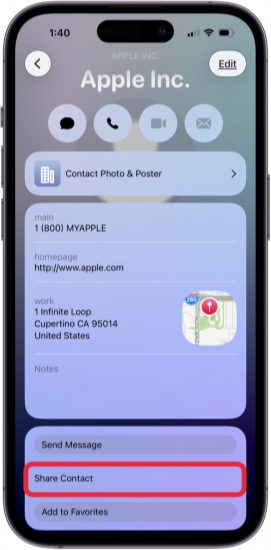
Step 1. Open the Contacts app and check the information of one contact.
Step 2. Tap Share Contact and tap the Confirm icon.
Step 3. Choose AirDrop and choose your MacBook to transfer the single contact to your computer.
All Contacts:
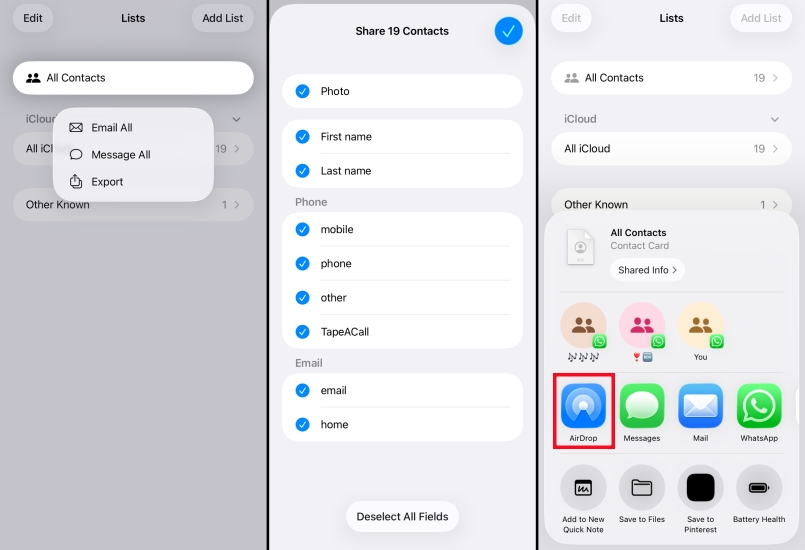
Step 1. Open the Contacts app and go to the Contact Lists page.
Step 2. Long-press the All Contacts list and choose Export.
Step 3. Check the information you need to export and tap the Confirm icon.
Step 4. Tap AirDrop and choose your MacBook. If prompted, click Accept on the MacBook to receive the exported contacts.
Option 2. Transfer iPhone Contacts to Computer via iCloud Sync [Mac]
If you are using the same Apple ID on your iPhone and Mac, you can enable iCloud Contacts to sync your contacts across your iPhone and Mac. Just make sure the contacts are in iCloud lists and iCloud Contacts is enabled on both devices.
On iPhone:
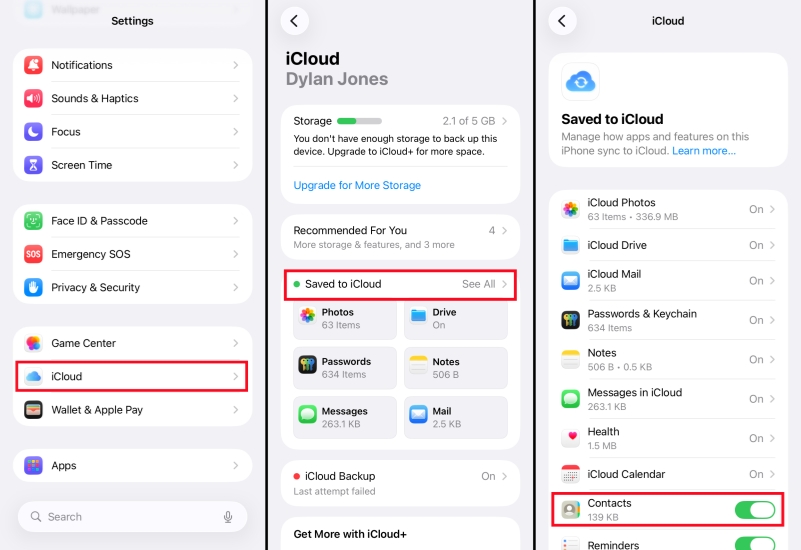
Step 1. Go to Settings > Apple ID > iCloud.
Step 2. Tap Saved to iCloud and make sure Contacts is enabled.
On Mac:
Step 1. Open System Preferences and click Apple ID.
Step 2. Click iCloud and check Contacts, then all iCloud contacts on iPhone will sync on your MacBook.
Option 3. Transfer iPhone Contacts to Computer on iCloud Website [Mac & Windows]
When iCloud Contacts is enabled on iPhone, you can also access contacts on the iCloud website. Then you can export the contacts to your computer. This is available on both Mac and Windows computers.
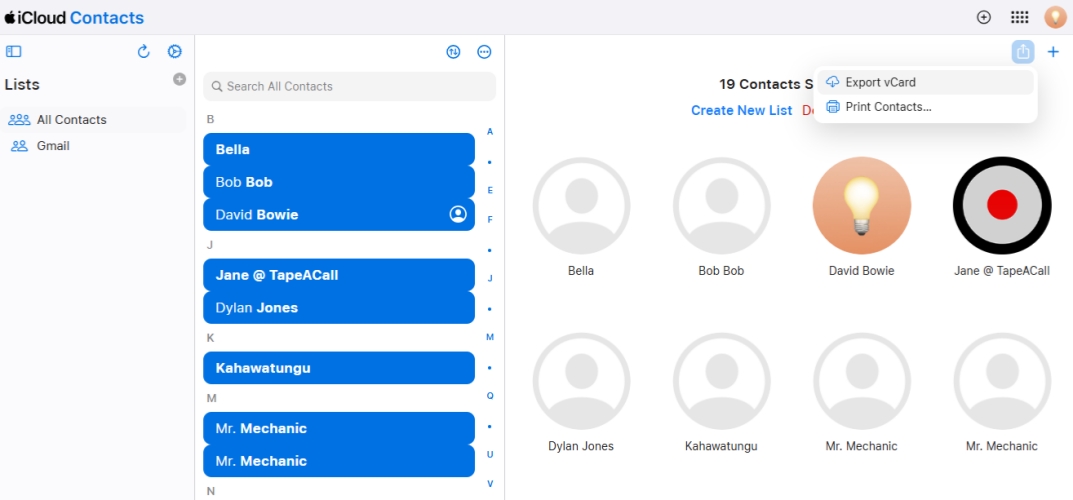
Step 1. Go to the iCloud Contacts website and sign in with your Apple ID.
Step 2. Click the triple-dot icon and choose Select All Contacts.
Step 3. Click the Share icon and click Export vCard. The vcf file will be downloaded in the browser. You can locate this vcf file and save it on your computer.
Option 4. Transfer iPhone Contacts to Computer via iTunes [Mac & Windows]
Another way to transfer iPhone contacts to a computer is iTunes backup. But you can't access detailed contacts in the iTunes backup.
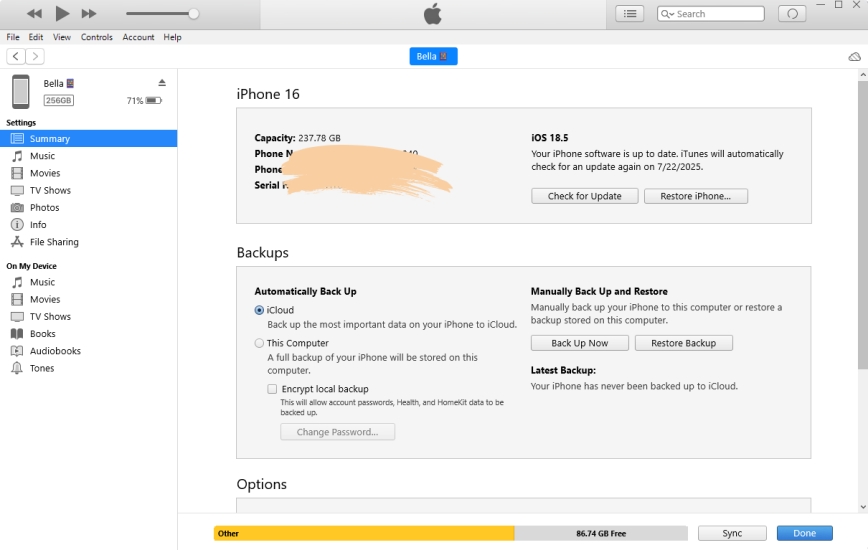
Step 1. Connect your iPhone to the computer via a data cable and open iTunes.
Step 2. Click the iPhone icon.
Step 3. Click Back Up Now to back up the iPhone to the computer. Contacts on the iPhone will be included.
Option 5. Transfer iPhone Contacts via Third-party Account [Mac & Windows]
If you use services like Google or Outlook, you can sync your iPhone contacts with your third-party account. Once synced, your contacts will be accessible from any computer.
On iPhone:
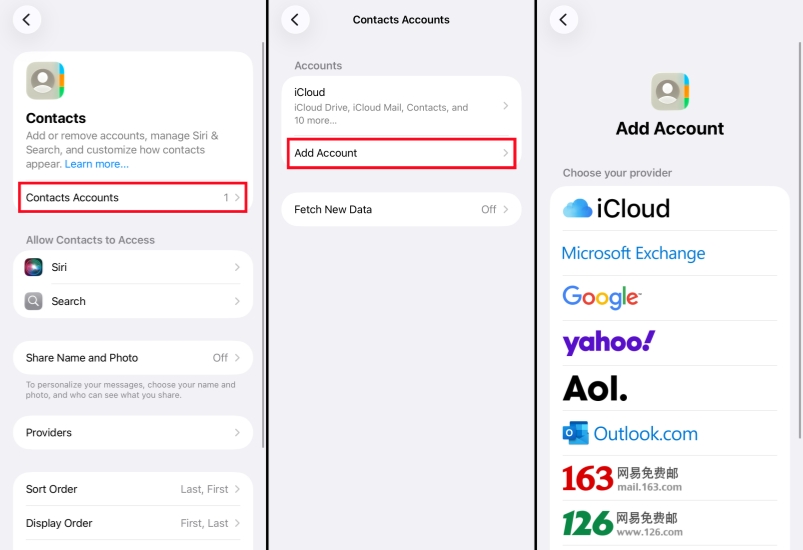
Step 1. Go to Settings > Apps > Contacts.
Step 2. Tap Contacts Account > Add Account.
Step 3. Choose the provider and enter your account credentials to add it to your iPhone.
Step 4. Go to the Contacts app to copy iPhone contacts to the Contacts account you have just added.
On Computer:
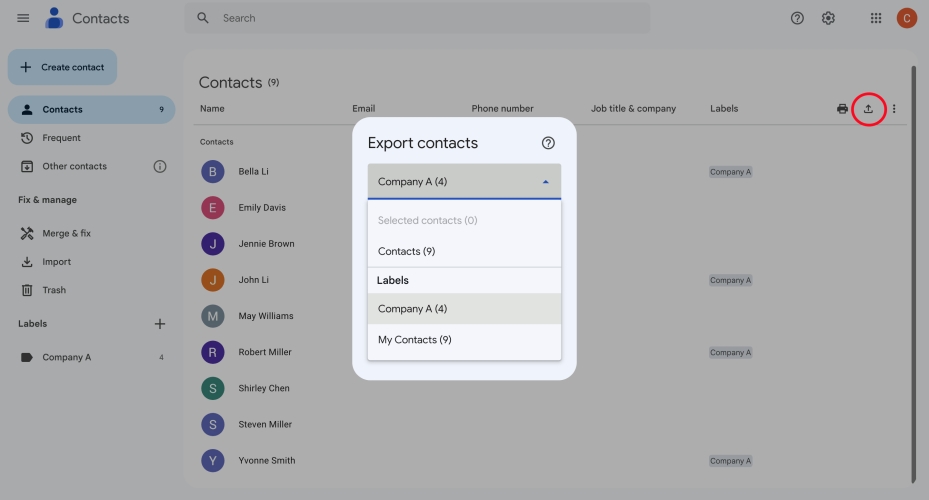
Step 1. Navigate to the corresponding internet account contact website and log in.
Step 2. Click the Export icon and select the contacts and format you need to export.
Step 3. Click Export to export them to your computer.
Note:
If you are transferring iPhone contacts to a Mac, you can also add the third-party account on your Mac and allow the contacts to sync on your Mac.
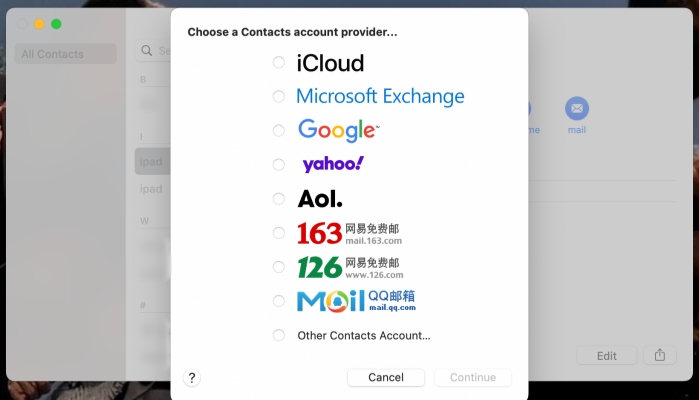
Step 1. Open Contacts and click Contacts from the Menu bar.
Step 2. Click Add Accounts and add the internet account that you used to store your contacts on your iPhone.
Step 3. After adding the account to your computer, toggle on Contacts so iPhone contacts will sync to your Mac.
Part 3. Quickest Way to Transfer iPhone Contacts to Computer
While the above methods work well for many users, sometimes you need a faster or more direct way to transfer contacts, especially if you want to transfer contacts to your computer more selectively or for specific recovery needs.
The quickest way to transfer iPhone contacts to your computer, whether you use a Mac or Windows PC, is by using MagFone iPhone Data Recovery. This powerful tool allows you to export contacts directly from your iPhone to your computer in just a few clicks, bypassing the need for iCloud, iTunes, or manual syncing. It's especially useful if you want to recover deleted contacts or transfer your contacts book efficiently. Just follow the steps below to transfer your contacts.

MagFone iPhone Data Recovery
Export and transfer iPhone Contacts to computer in Minutes.
Step 1 Install and Launch MagFone iPhone Data Recovery
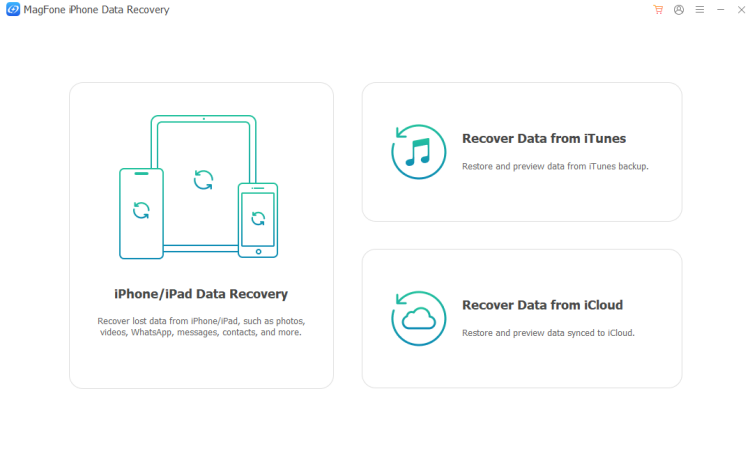
Download and install MagFone iPhone Data Recovery on your computer. Then use a data cable to connect your iPhone to the computer and launch this tool to start.
Step 2 Scan Contacts on iPhone
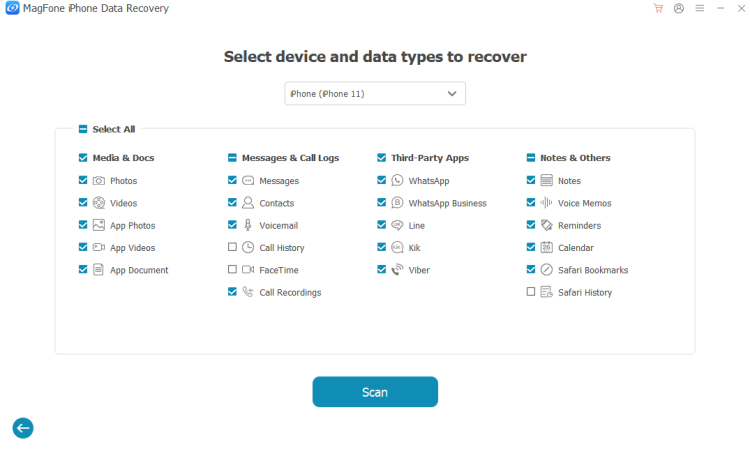
Choose iPhone/iPad Data Recovery. If your iPhone is detected, you will see the supported data list. Choose Contacts and click Scan to scan contacts on your iPhone. You need to enter your iPhone passcode to give full permission to the tool.
Step 3 Transfer iPhone Contacts to Computer
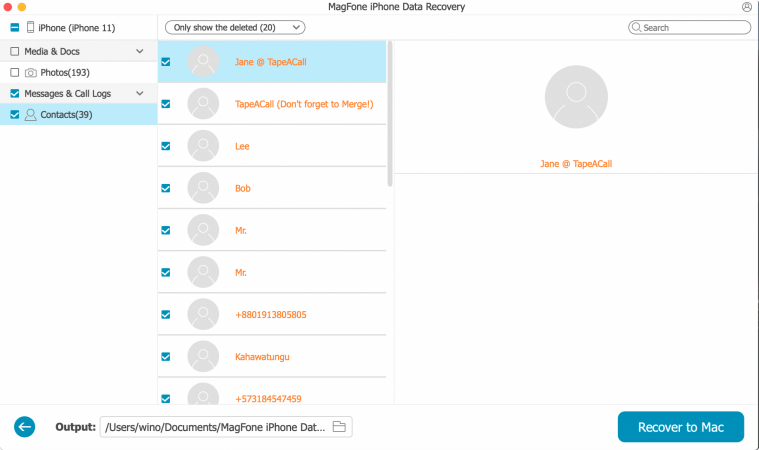
After scanning, you can view all your contacts. Check Contacts and click Recover to PC or Recover to Mac to transfer them to your computer.
Part 4. FAQs about Transferring iPhone Contacts to Computer
How to transfer contacts from iPhone to computer with USB?
You can first export contacts on iPhone, then transfer the exported iPhone contacts to a computer via USB.
How to transfer contacts from iPhone to computer without iCloud?
You can use AirDrop to share iPhone contacts to a Mac. You can also use MagFone iPhone Data Recovery to transfer contacts from iPhone to all computers without iCloud.
How to transfer contacts from iPhone to computer without iTunes?
You can transfer iPhone contacts to a computer via the iCloud Contacts website, AirDrop, or MagFone iPhone Data Recovery.
Part 5. Conclusion
You've now mastered all the effective methods for transferring iPhone contacts to your computer. Whether you prefer using built-in Apple tools, third-party accounts, or dedicated software like MagFone iPhone Data Recovery, you have a solution for any situation on both Mac and Windows. Choose the method that suits you best and keep your contacts secure with ease.

Edgar Davis
Editor in chief





