








Contacts are a vital asset for both personal communication and business. When you switch to a new iPhone, change platforms, or simply want to share important numbers, knowing how to export contacts from your iPhone becomes essential. Instead of copying each contact one by one, you can rely on smarter, faster methods that move your entire contacts list in just a few steps. In this guide, we'll walk you through how to export contacts from iPhone efficiently, whether you're creating a secure backup or transferring them to another device, so your connections are always safe and within reach.
- Part 1. How Can I Export Contacts from iPhone?
- Part 2. How to Export Contacts from iPhone for Use
- Part 3. How to Export Contacts from iPhone to Another Device
- Part 4. FAQs about Exporting Contacts on iPhone
- Part 5. Conclusion
Part 1. How Can I Export Contacts from iPhone?
The iPhone provides a built‑in way to export your contacts, making it easier to back them up or move them to other services and devices. In most cases, your contacts are exported in the standard vCard format, which is widely supported by email providers, address book apps, and other phones. If you need your contacts in a different format, you can also rely on reputable third‑party tools to convert or export your iPhone contacts accordingly.
Part 2. How to Export Contacts from iPhone for Use
With the official export options, you can easily export contacts from your iPhone. Thanks to Apple's built-in services, you can either export contacts directly on the device or access them through iCloud.com and export them from there, depending on which method is more convenient for you.
Method 1. Export iPhone Contacts from Contacts App
The Contacts app can help you export an entire contact list at once. If you want to export iPhone contacts in bulk, you can first create a dedicated list, add the contacts you need, and then share that list as a vCard file.
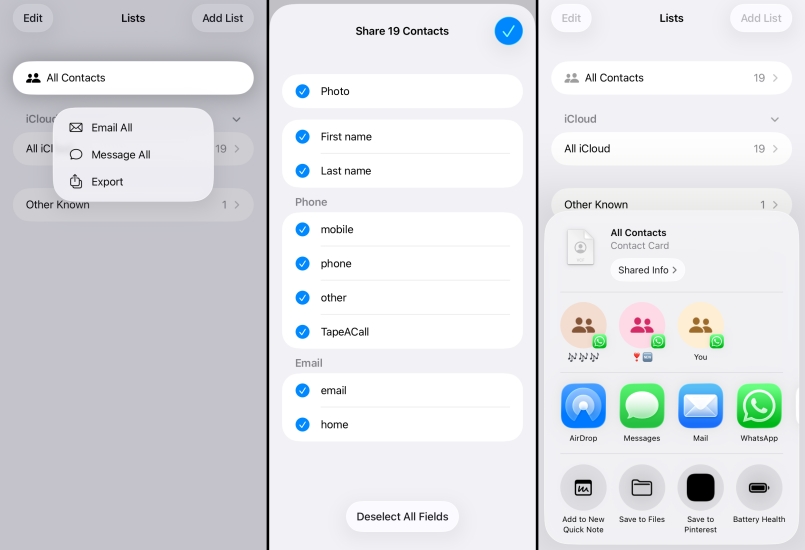
Step 1. Open the Contacts app and stay on the contacts category screen.
Step 2. Long-press your target contact list and tap Export. Then you can export and share the contact list to any platform you want.
Method 2. Export iPhone Contacts from iCloud Backup
When you've enabled iCloud for Contacts, all your iPhone contacts are automatically synced to your iCloud account. Then you can sign in to iCloud web and export your contacts as a vCard file. On the iCloud web, you can also create a new contact list and add the contacts you want to export to the list, then export the list.
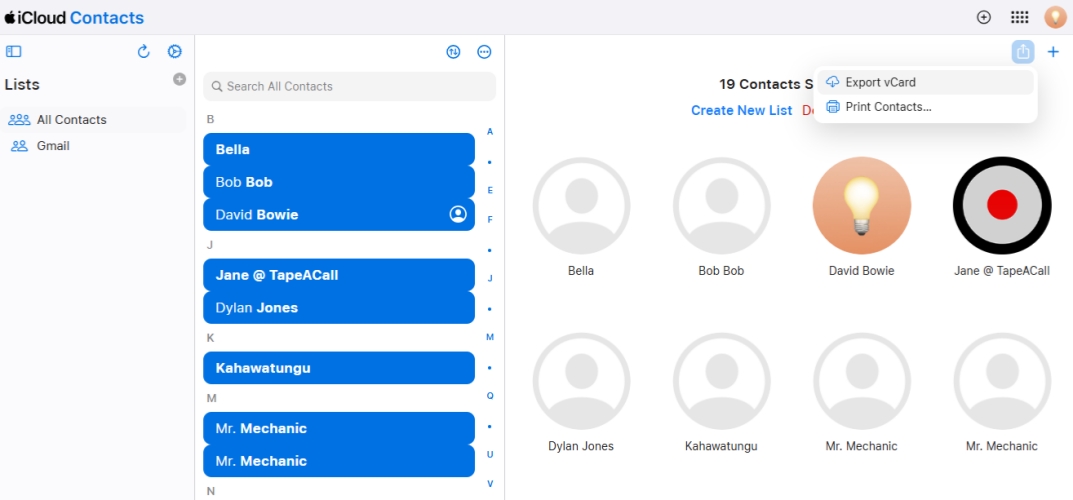
Step 1. Log in to your Apple account at the iCloud website.
Step 2. Click Contacts in the app list, and you can see all your iPhone contacts here.
Step 3. Then click the triple dot icon and choose Select All Contacts.
Step 4. Click the Share icon and choose Export vCard to export the iPhone contacts to vcf format, or choose Print Contacts to export iPhone contacts to another format you want.
How to export iPhone contacts to Gmail?
Once you have exported iPhone contacts from iCloud backup, you can open Gmail on your computer and import the exported iPhone contacts.
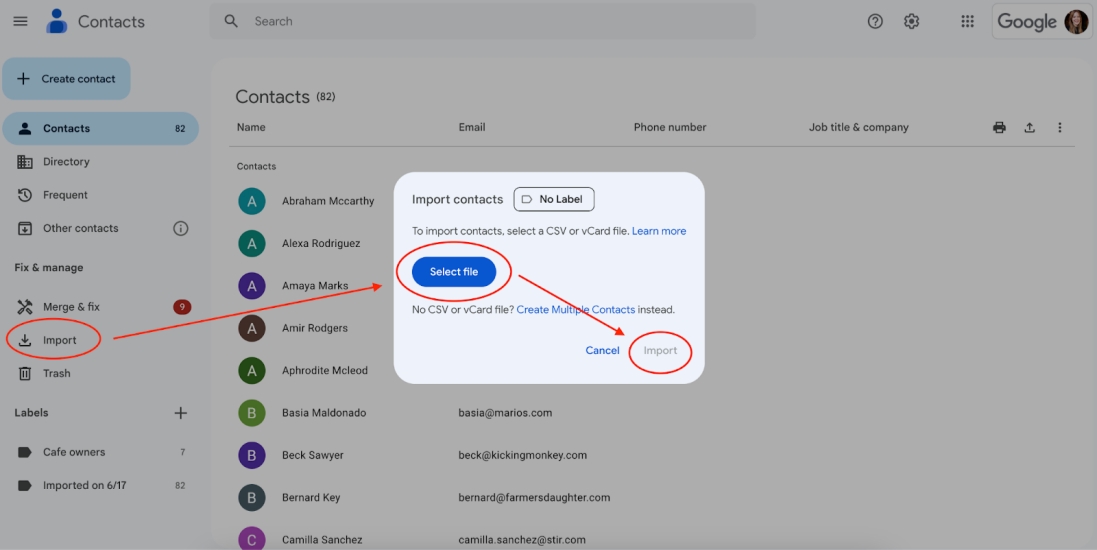
Step 1. Log in to your account at gmail.com.
Step 2. Click the Contact icon in the right bar and open it in a new window.
Step 3. Then click Import and choose the exported iPhone contacts file. Then click Import to import iPhone contacts to Gmail.
Part 3. How to Export Contacts from iPhone to Another Device
Besides exporting iPhone contacts for backup, data transfer, or business purposes, you may also need to move them directly to another device. The process is quite simple, whether you're exporting contacts from iPhone to another Apple device or to an Android phone. In this part, we'll show you how to export contacts from iPhone to different devices.
How to Export Contacts from iPhone to iPhone/iPad
The most convenient method to export contacts from an iPhone to another Apple device is using AirDrop. Once the exported contacts are received by another Apple device, a window will pop up asking if you want to import them to the Contacts app.
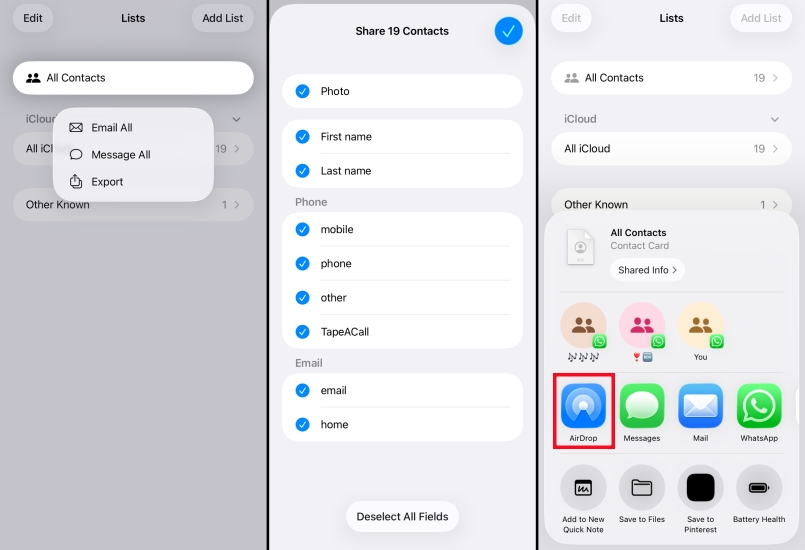
Step 1. Just open the Contacts app and long-press the contact list you want to export.
Step 2. Choose Export and choose AirDrop to share it with other iPhones or iPads.
How to Export Contacts from iPhone to Android
Due to the different operating systems, you can't export iPhone contacts to an Android phone with features like AirDrop. However, there are several simple ways if you want to export contacts from iPhone to Android. For example, you can use Google Contacts sync or share the exported vCard file from iCloud to Google and import it into your Google account.
How to Export Contacts from iPhone to Computer
Generally speaking, the contacts exported from iPhone will be exported as the vcf file. Though it is convinient to be recognized by any device, but unavailable when you want to check the contact details. So you need a more readable format for exported iPhone contacts. One dedicated iPhone data management tool is recommended. MagFone iPhone Data Recovery allows you to export iPhone contacts in a more flexible and readable format. Apart from iPhone contacts, it can export 17 kinds of iPhone data to a computer without data loss. You can follow the steps below to export iPhone contacts:

MagFone iPhone Data Recovery
Recover data from iPhone and iPad in three recovery modes without data overwritting and device reset.
Step 1 Launch MagFone iPhone Data Recovery

Download and install MagFone iPhone Data Recovery on your PC or Mac. Connect your iPhone to your computer via USB and open the software once the installation is completed.
Step 2 Scan iPhone Contacts
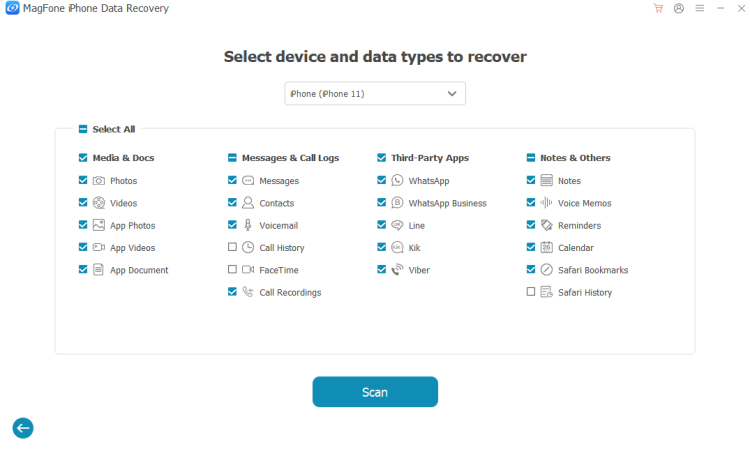
From the main interface, click iPhone/iPad Data Recovery. Tick the Contacts and click Scan to begin detecting your iPhone contacts.
Step 3 Export iPhone Contacts to Computer
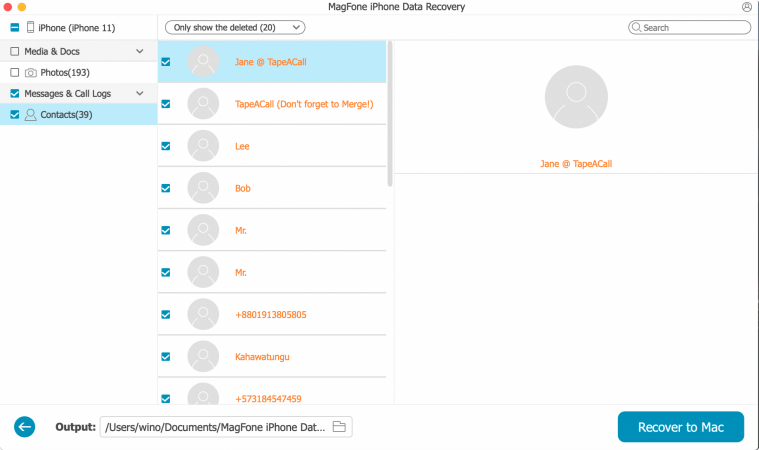
When the scan completes, you can preview the contacts from your iPhone. Then you can select and click Recover to PC/Mac to export contacts from iPhone to the computer.
Part 4. FAQs about Exporting Contacts on iPhone
How to export iPhone contacts to Google Contacts?
The easiest way to export iPhone contacts to Google Contacts is to add the Gmail account to your iPhone and turn on Contacts syncing. After turning it on, contacts from your iPhone's contacts will be automatically synced to Google Contacts.
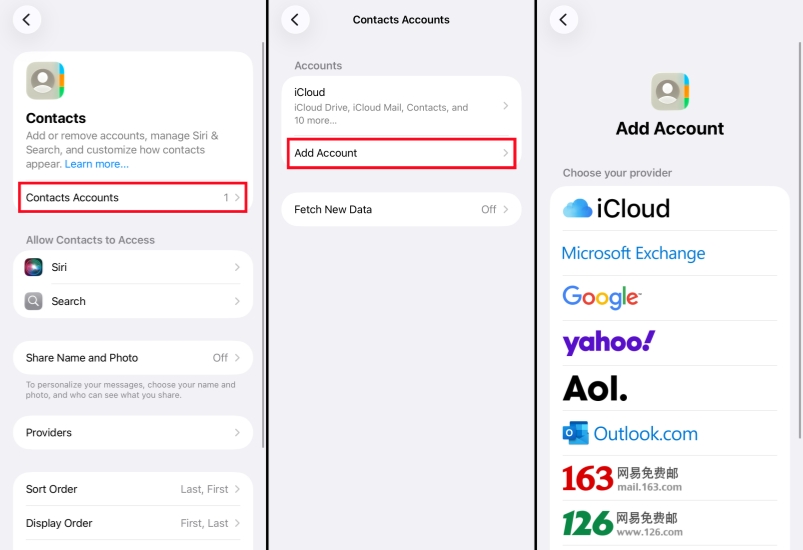
Step 1. Go to iPhone Settings > Apps > Contacts.
Step 2. Tap Contacts Account and add your Google account. Then the contacts will be synced to your Google account.
How to export iPhone contacts to SIM card?
iPhones do not natively support exporting contacts directly to the SIM card. To save your contacts to the SIM card, you typically need a third-party tool or an Android phone.
How to export iPhone contacts to Excel?
You can't directly export iPhone contacts to Excel. If you want to export iPhone contacts to Excel, you can utilize a third-party tool for direct export to Excel. Or you can export your iPhone contacts from iCloud backup, import them into Outlook or Google Contacts, and then open the CSV in Excel.
How to export contacts from iPhone to Outlook?
To import iPhone contacts into Outlook, you can first export your iPhone contacts as a vCard or CSV file from iCloud backup, and then manually import them into Outlook. Or you can use iCloud for Windows to automatically sync your iPhone contacts to Outlook.
Part 5. Conclusion
In general, exporting your iPhone contacts is quite simple. Whether you transfer them to a new phone, back them up to your computer, or sync them to third‑party services, choosing the right method lets you manage your contacts safely and efficiently. If you need to export contacts in a more readable format, MagFone iPhone Data Recovery is highly recommended. Try it to export and save your contacts clearly and conveniently.

Edgar Davis
Editor in chief




