








Finding that iPhone contacts are being deleted from the iPhone can be upsetting. Whether you accidentally deleted them, reset your device, or deleted phone numbers from the Phone app, there are several proven ways to bring them back. In this guide, we'll walk you through how to recover deleted contacts on iPhone, starting with options that work even if you don't have a backup, and then exploring methods that use iCloud or iTunes backups to restore your iPhone contacts.
- Part 1. Can You Recover Deleted Contacts on iPhone?
- Part 2. How to Recover Deleted Contacts on iPhone without Backup
- Part 3. How to Recover Deleted Contacts on iPhone with Backup
- Part 4. Conclusion
Part 1. Can You Recover Deleted Contacts on iPhone?
Yes, you can recover deleted contacts on iPhone. Though there is no recently deleted service for the Contacts app, the deleted contacts might still be stored in an iCloud Contacts archive, synced with your email account, stored in an iCloud, iTunes backup, or even recoverable with the help of a data recovery tool. You can check the basic information of each recovery method below:
| Method | Need Backup? | Recovery Limits | Contacts Location | Recommendation |
|---|---|---|---|---|
| iCloud Data Recovery | ❌ | Recover contacts deleted within 30 days | iCloud | ⭐⭐⭐ |
| Mail Trash | ❌ | ❌ | Email account | ⭐⭐⭐ |
| Data Recovery Tool | ❌ | ❌ | Any location | ⭐⭐⭐⭐⭐ |
| iCloud Backup | ✔️ | Recover contacts backed up before the deletion | Any location | ⭐⭐ |
| iTunes Backup | ✔️ | Recover contacts backed up before the deletion | Any location | ⭐⭐ |
Part 2. How to Recover Deleted Contacts on iPhone without Backup
Based on the location you used to store the deleted contacts, there are specific methods to recover them. iCloud's built-in data recovery, your email accounts, and professional data recovery tools can often locate and restore contacts that no longer appear in your iPhone's Contacts app.
Method 1. Restore Deleted iPhone Contacts via iCloud Data Recovery
If you use iCloud to store and sync your contacts, there's a good chance your deleted phone numbers are still stored in an iCloud contacts archive. You can recover deleted contacts on iPhone by accessing the iCloud data recovery feature.
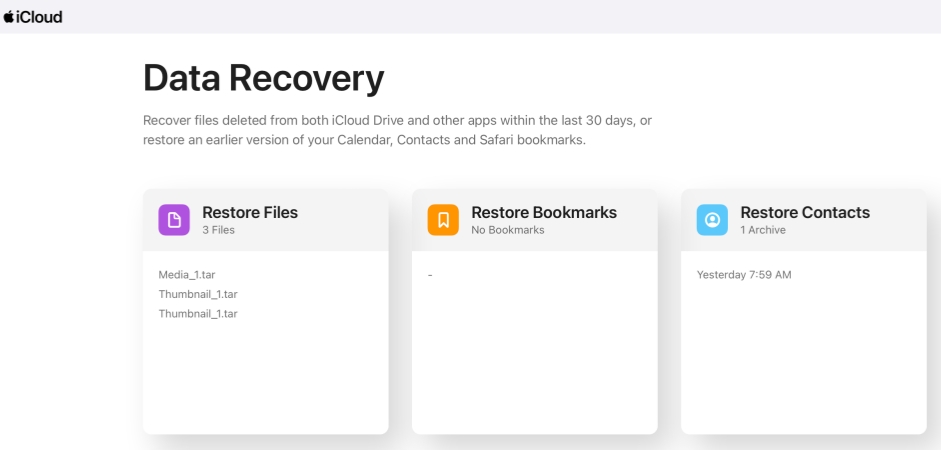
Step 1. Head to the iCloud Data Recovery web.
Step 2. Sign in to your iCloud account.
Step 3. Access Contacts, choose one archived file, then click Restore to restore the deleted contacts on your iPhone.
Method 2. Restore Deleted iPhone Contacts from Mail Trash
For users who sync and store their contacts with an email account such as Gmail, Outlook, or Yahoo, there is a chance to find the deleted iPhone contacts in the email trash. You can check the contact trash folder to restore the deleted iPhone contacts. Here are the steps to restore deleted iPhone contacts from Gmail trash.
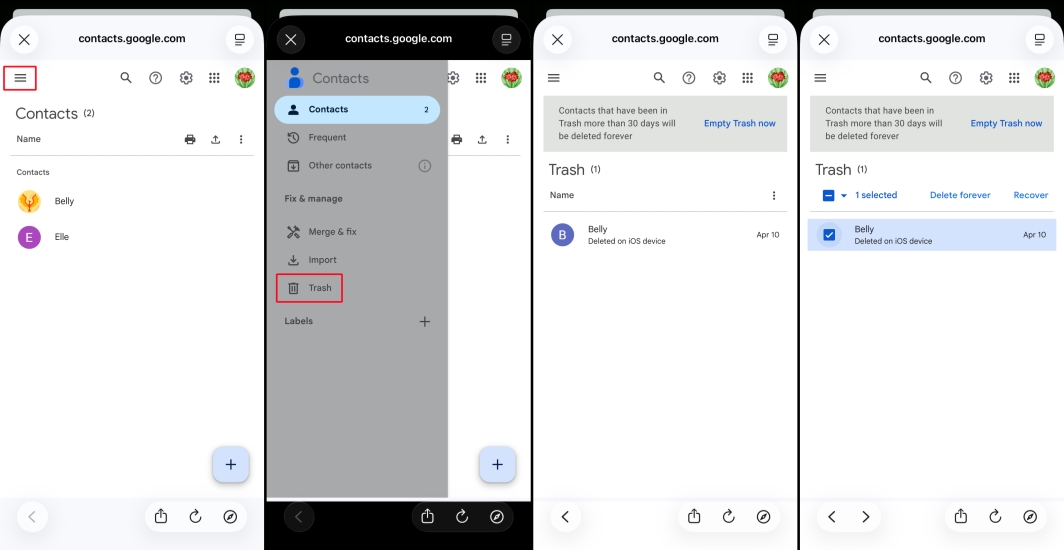
Step 1. Open the Google Contacts web and log in to your Google account.
Step 2. Tap the menu icon, then tap Trash.
Step 3. Here you can view the deleted contacts from the iPhone. Tap the deleted contact and restore it.
Method 3. Restore Deleted iPhone Contacts Using Data Recovery Tool
Whether your deleted contacts were stored in iCloud, linked to an email account, or saved directly on your device, an all‑in‑one way to retrieve them is by using a professional data recovery tool. Among these tools, MagFone iPhone Data Recovery stands out for its efficiency and transparency. It can help you recover not only deleted contacts, but also phone numbers that have been removed from your call history. If the former options haven't worked for you, follow the steps below to use MagFone iPhone Data Recovery and get your deleted contacts back.

MagFone iPhone Data Recovery
Recover data from iPhone and iPad in three recovery modes without data overwritting and device reset.
Step 1 Open MagFone iPhone Data Recovery

Download and install MagFone iPhone Data Recovery on your computer. Then launch it after installation.
Step 2 Scan Deleted Contacts on iPhone

Connect your iPhone to the computer using a data cable. Choose iPhone/iPad Data Recovery from the main interface. Select Contacts and click Scan to scan deleted contacts on your iPhone.
Step 3 Restore Deleted iPhone Contacts
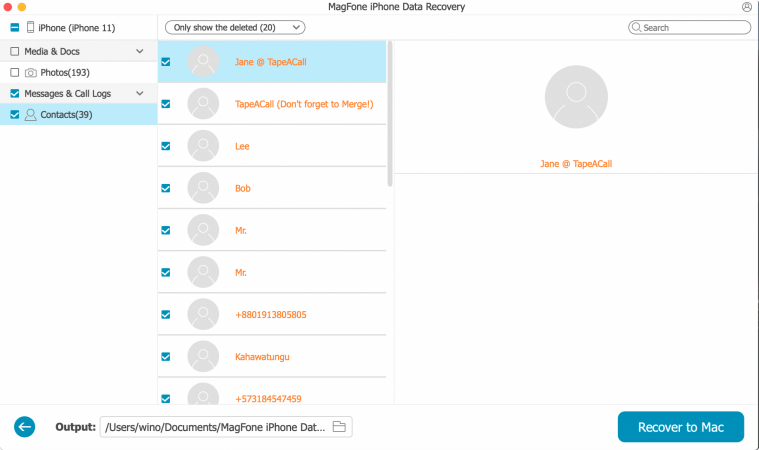
When the scan is completed, you can browse and find your deleted contacts. Then select the deleted contacts and click Recover to PC or Recover to Mac to restore them.
Part 3. How to Recover Deleted iPhone Contacts with Backup
If you have a backup of deleted iPhone contacts, you can also restore a backup to get back the deleted iPhone contacts. But notice that restoring a backup will cause data overwriting. And it's suggested to make a backup of your current iPhone to avoid uncertainty.
Method 1. Restore Deleted iPhone Contacts from iCloud Backup
If you have iCloud Backup turned on, your iPhone regularly saves copies of your data, including contacts, to Apple's servers. When contacts are deleted, you can restore an entire iCloud backup from a point in time when those contacts were still on your device. This method is effective, but it does require you to erase your iPhone and set it up again from the chosen backup, which means any data created after that backup may be overwritten.

Step 1. Go to iPhone Settings > General > Transfer or Reset iPhone.
Step 2. Tap Erase All Content and Settings > Erase.
Step 3. Enter the iPhone passcode and Apple ID password.

Step 4. Set up the erased iPhone after restarting. Set it up manually, and when you reach the Transfer Your Apps & Data screen, choose From iCloud Backup. Then choose an iCloud backup and restore it to your iPhone.
Step 5. After iPhone data sync from iCloud, you can open Contacts to find the deleted phone numbers.
Method 2. Restore Deleted iPhone Contacts from iTunes Backup
If there is an iTunes backup made before the contacts are deleted from the iPhone, you can also restore an iTunes backup to recover the deleted iPhone contacts. If you are not certain what the contents are in the iTunes backup, tools like MagFone iPhone Data Recovery may help you extract contacts from it.

Step 1. Use a data cable to link your iPhone to the computer where you have the iTunes backup.
Step 2. Open iTunes and click the iPhone icon. Then click Summary > Restore Backup and choose an iTunes backup to restore to your iPhone.
Step 3. After restoring an iTunes backup, open the Contacts app to check deleted contacts.
Part 4. Conclusion
From using iCloud data recovery and checking your email Trash, to relying on specialized tools like MagFone iPhone Data Recovery or restoring from iCloud and iTunes backups, there are multiple ways to get your deleted contacts back. Take a moment to choose the method that best fits your situation, then follow the steps to bring those numbers back to your iPhone so you can quickly reconnect with the people who matter.

Olivia Wood
Editor in chief





