








Many iPhone users have a specific need to extract photos from an iPhone backup after accidentally deleting photos, switching devices, or when their phones become unusable. Compared to a full device restore, users are more concerned with accessing only the photos without affecting the data on their current device. In this guide, we will detail how to effectively extract photos from iPhone backups in different situations, focusing on iCloud backup and iTunes backup.

- Part 1. Can You Extract Photos from an iPhone Backup?
- Part 2. How to Extract Photos from iPhone Backup [iCloud Backup]
- Part 3. How to Extract Photos from iPhone Backup [iTunes Backup]
- Part 4. Conclusion
Part 1. Can You Extract Photos from an iPhone Backup?
Yes, in many cases, you can extract photos from an iPhone backup, but it depends on how and where they were stored.
- If iCloud Photos is enabled, your images are usually in iCloud rather than only in the backup, and you can access them by signing in to iCloud in a browser.
- If you relied on iCloud Backup without iCloud Photos, some photos may still be inside the device backup, but you typically need to restore that backup to an iPhone to view them.
- For computer backups made with iTunes or Finder, you'll need a third‑party tool to scan the backup, preview the images, and export them.
Part 2. How to Extract Photos from iPhone Backup [iCloud Backup]
If you have enabled iCloud Photos backup, you can directly view and download photos and videos stored in iCloud by visiting the official iCloud website and signing in with your Apple ID. This does not require restoring your entire iPhone and will not affect the data on your current device.

Step 1. Just sign in to your Apple account at the iCloud Photos website.
Step 2. Then you can view all your iPhone photos here. Select the photos you want to extract and click the Download icon to extract them to your device.
If you haven't enabled iCloud Photos sync, then you may need to utilize a third-party tool to extract photos from the iPhone backup.
Part 3. How to Extract Photos from iPhone Backup [iTunes Backup]
If your photos are stored in an iTunes backup on your computer, it's not surprising that you can't open or view them directly. Just like with iCloud backups, iTunes backups are saved as compressed backup files, not as regular image folders you can browse. That means you'll need an iTunes backup extractor to pull those photos out.
Here, we recommend MagFone iPhone Data Recovery. This emerging iPhone data management tool can recover more than 17 types of iOS data and extract different kinds of content from both iTunes and iCloud backups. Best of all, it lets you get your photos back without overwriting any existing data on your iPhone and without having to restore the entire backup to the device. Follow the steps below to extract photos from your iTunes backup safely and efficiently.

MagFone iPhone Data Recovery
Recover data from iPhone and iPad in three recovery modes without data overwritting and device reset.
Step 1 Run MagFone iPhone Data Recovery

Start by downloading and installing MagFone iPhone Data Recovery on your computer. Then plug your iPhone into the computer using a data cable. Run MagFone iPhone Data Recovery when all is ready.
Step 2 Scan Photos in iTunes Backup
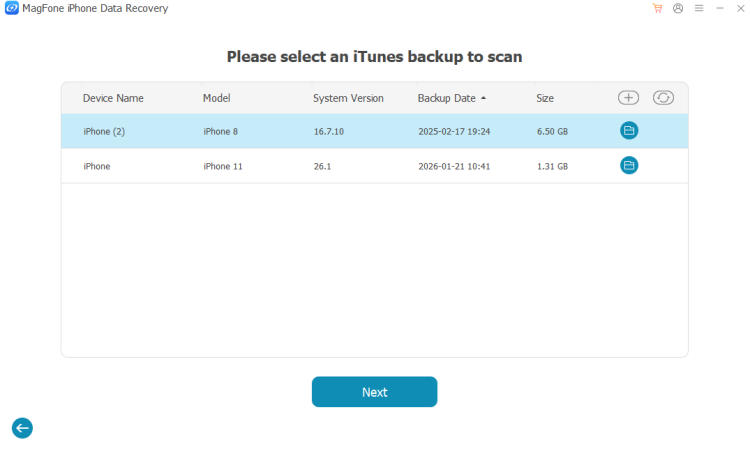
Click Recover Data from iTunes. The program will detect existing iTunes backups on your computer. Click the iTunes backup you want to extract from, then click Next > Scan to scan the data in the iTunes backup.
Step 3 Extract Photos from iTunes Backup
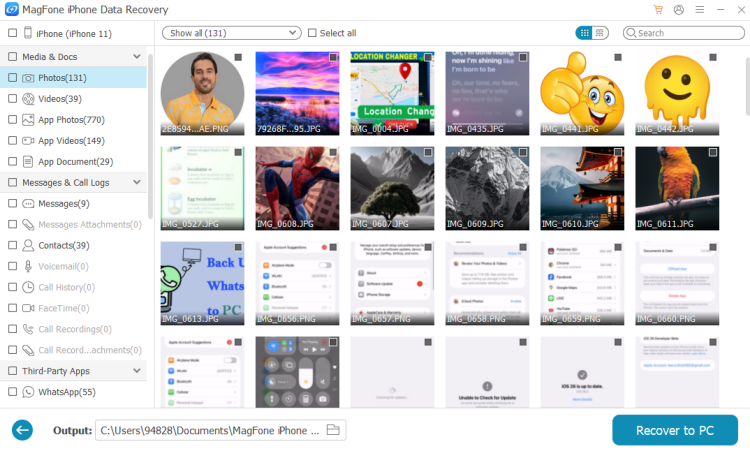
After scanning, you can access all iPhone data from the iTunes backup. To extract photos from iTunes backup, just select Photos in the left directory and click Recover to PC to extract the photos to your computer.
Part 4. Conclusion
Overall, extracting photos from iPhone backups is entirely doable. If the photos are synced to iCloud Photos, they can be quickly downloaded via the web page. For photos that are backed up via iTunes, using a tool like MagFone iPhone Data Recovery allows for more flexible and controlled extraction. Choose the right method according to your own situation to not only recover important photos, but also avoid the risk of unnecessary data overwriting.

Edgar Davis
Editor in chief




