








Backing up your iPhone is one of the simplest ways to protect your photos, messages, contacts, and other important data from being lost. So when something goes wrong — whether it's a system crash, accidental deletion, or a device upgrade — having a backup can save you a lot of stress. In this guide, we'll walk you through how to back up iPhone with iTunes on a computer step by step, show you how to fix common iTunes backup problems, and introduce two alternative methods to back up iPhone without iTunes.
- Part 1. How to Back Up iPhone with iTunes on Computer
- Part 2. How to Fix iPhone Not Backing Up to iTunes
- Part 3. Alternative Ways to Back Up iPhone without iTunes
- Part 4. FAQs about Backing Up iPhone to iTunes
- Part 5. Conclusion
Part 1. How to Back Up iPhone with iTunes on Computer
Before you back up your iPhone with iTunes, there's one important thing to note: the backup steps may look a little different depending on the computer you're using. If you're on a Mac, the tool you use to back up your iPhone depends on your macOS version.
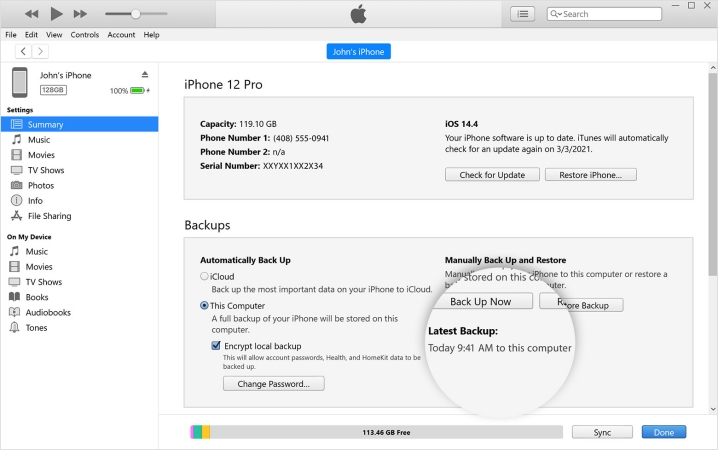
Step 1. Link your iPhone to the computer using a data cable.
Step 2. Open iTunes and click the iPhone icon in the portal.
Step 3. Click General, then click Back Up Now to back up your iPhone with iTunes on the computer.
Note:
If you're using a newer Mac, such as macOS Catalina or later, iTunes is no longer available. In that case, use Finder to back up your iPhone instead of iTunes.
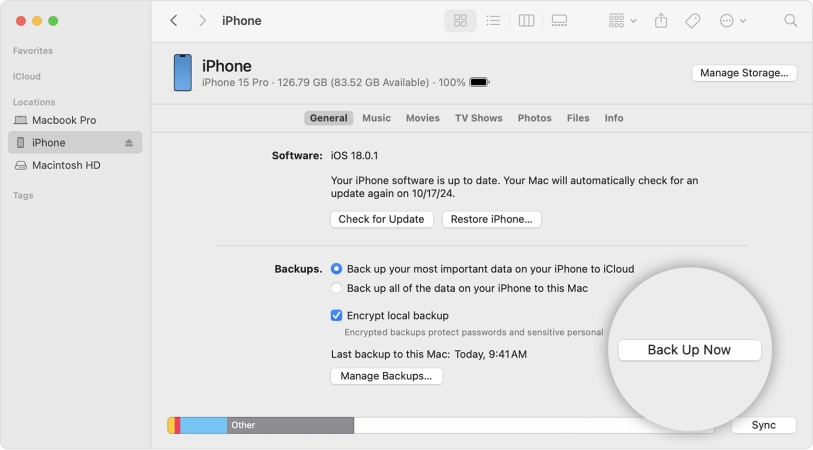
Step 1. Use a data cable to connect your iPhone to a Mac.
Step 2. Open Finder and click your device on the left.
Step 3. Click General, then click Back Up Now to back up the iPhone to your Mac.
Part 2. How to Fix iPhone Not Backing Up to iTunes
If you encounter an issue while backing up iPhone to iTunes, such as “iTunes could not back up the iPhone because an error occurred” or “iTunes could not back up the iPhone because the backup session failed,” don't worry. These issues are usually caused by connection problems, outdated software, or insufficient storage space. To fix iPhone not backing up to iTunes, make sure the following points are checked:
Check the USB Connection: Make sure your iPhone is connected securely to the computer with a working USB cable.
Update iTunes: An outdated version of iTunes may cause backup errors, so install the latest version.
Restart Both Devices: Restart your iPhone and computer to clear temporary glitches that may interrupt the backup.
Free Up Storage Space: If your computer is low on storage, iTunes may fail to create a full backup.
Remove the Old Backup: Deleting a corrupted backup and creating a new one can often solve repeated backup failures.
Part 3. Alternative Ways to Back Up iPhone without iTunes
iCloud offers a convenient way to back up your iPhone wirelessly, so you don't need a computer or a cable. As long as your device is connected to Wi‑Fi, plugged in, and signed in to your Apple ID, your backup can run in the background.
| Method | Backup Option | Restore Option | Backup Readability |
|---|---|---|---|
| iTunes Backup | Full backup | Full restore | ❌ |
| iCloud Backup | Full backup | Full restore | ❌ |
| MagFone iPhone Data Recovery | Full backup | Selective restore | ✔️ |
Option 1. Back Up iPhone with iCloud
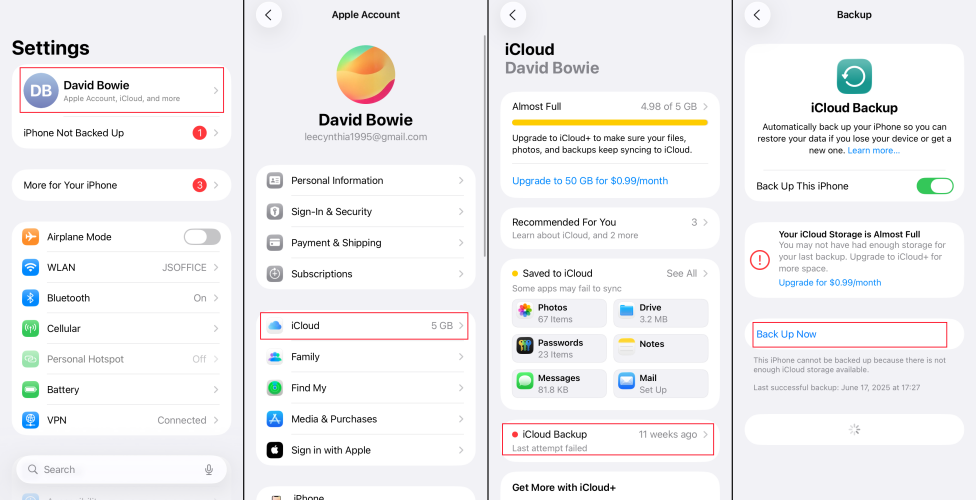
Step 1. Open your iPhone Settings and tap your Apple ID.
Step 2. Tap iCloud > iCloud Backup.
Step 3. Turn on Back Up This iPhone, and your iPhone will be automatically backed up to iCloud when it's connected to a network and is charging. You can also tap Back Up Now to back it up manually.
Option 2. Back Up iPhone with MagFone
MagFone iPhone Data Recovery offers a flexible way to back up your iPhone without using iTunes or iCloud. It's a useful choice if you want more control over the backup process, especially when you need to restore only specific data from a backup instead of recovering everything at once. It can also help you recover lost or deleted iPhone data without a backup, while keeping your existing data intact.

MagFone iPhone Data Recovery
Safely back up iPhone data and restore iPhone data without iTunes or iCloud.
Let's see how to use MagFone iPhone Data Recovery to back up your iPhone and read the data in iPhone backup.
Step 1 Run MagFone iPhone Data Recovery
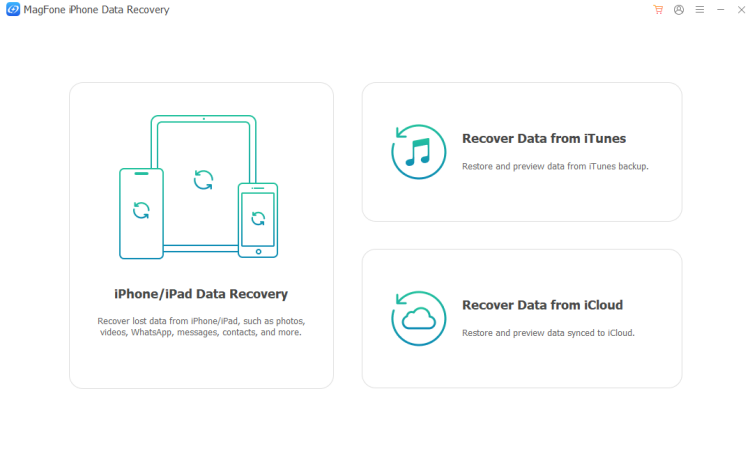
First, download and install MagFone iPhone Data Recovery on your computer. Then use a data cable to link your iPhone to the computer for backup.
Step 2 Back Up iPhone to Computer
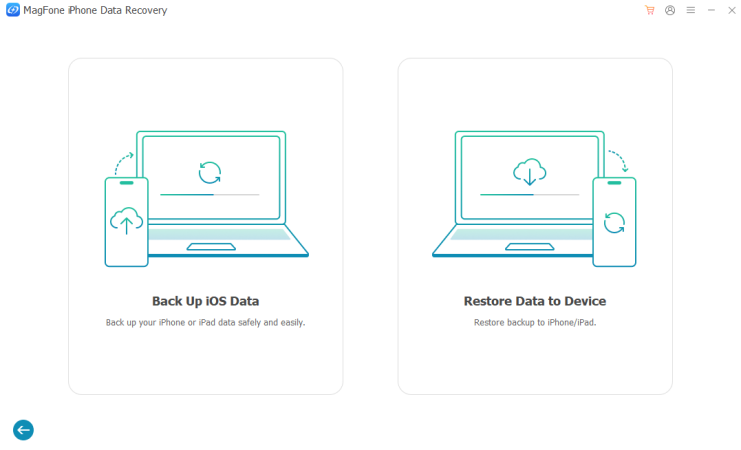
Click Backup & Restore from the features, then choose Back Up iOS Data. When your iPhone is detected successfully, click Start Backup to back up your iPhone data.
Step 3 Scan Data in iPhone Backup
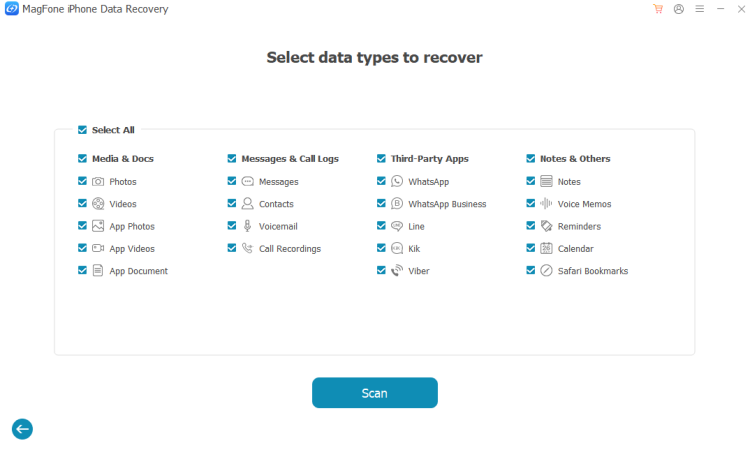
When the backup is done, click Done. And back to the main interface of MagFone. If you want to read the iPhone backup, you can click Extract Data from iTunes Backup. Choose the backup you've just created, click Next > Scan to scan the iPhone backup.
Step 4 Access and Restore iPhone Backup
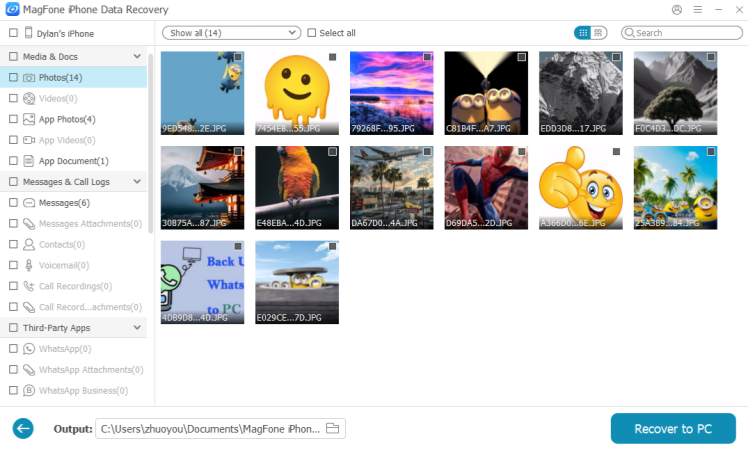
When the scan is done, you can check your data in the iPhone backup, including photos, videos, notes, call logs, messages, etc.
Part 4. FAQs about Backing Up iPhone to iTunes
Can I make a full backup of iPhone using iTunes?
Yes, iTunes can create a full backup of your iPhone, including important data like photos, messages, contacts, settings, and app data.
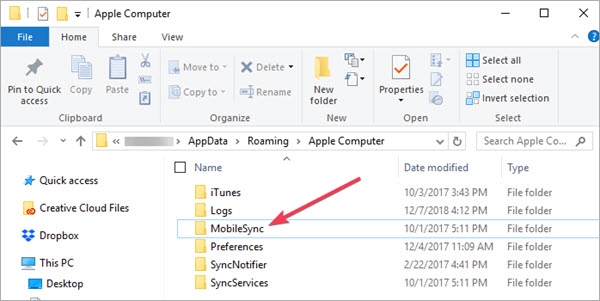
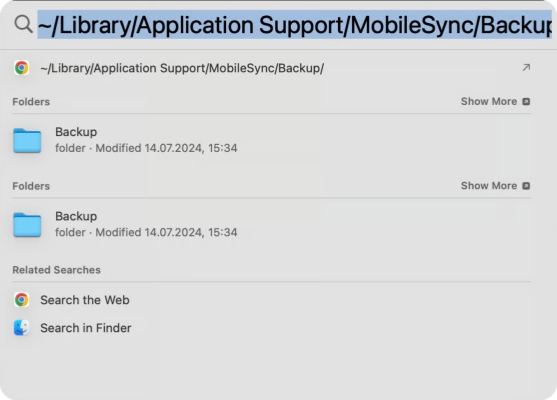
Where is the iPhone backup on computer?
iPhone backups are stored in a default backup folder on your computer, but the exact location depends on whether you're using Windows or Mac.
- On Windows: Press Windows + R to run the dialog box. Tap %USERPROFILE% or %AppData% in the typing box, then click OK to find the iPhone backup folder in the path: Apple Computer > MobileSync > Backup.
- On Mac: Press Command + Shift + G at the same time. Go to the path: /Users/wino/Library/Application Support/MobileSync/Backup.
How to restore an iPhone from iTunes backup?
To restore a full iTunes backup to your iPhone, just:
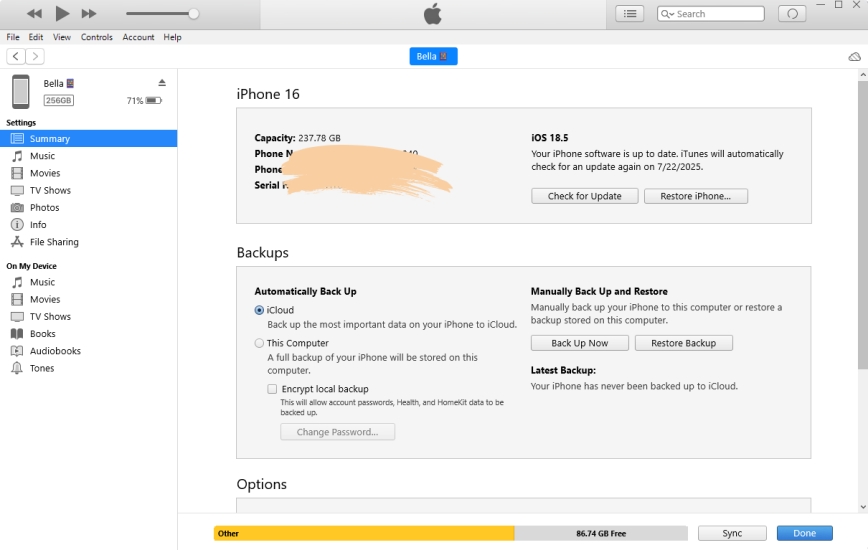
Step 1. Use a data cable to connect your iPhone to the computer where you created the iTunes backup.
Step 2. Open iTunes and click the iPhone icon.
Step 3. Click Restore Backup and choose an iTunes backup to restore to your iPhone.
How to back up iPhone on computer without iTunes?
Without iTunes, you can use a third-party backup tool like MagFone to back up your iPhone to a computer more easily and flexibly.
Part 5. Conclusion
Backing up your iPhone with iTunes helps keep your data safe and ready to restore when you need it most, especially when switching to a new iPhone. In addition to iTunes, iCloud and MagFone iPhone Data Recovery give you two more reliable ways to protect your iPhone data, so you can choose the method that best fits your needs. We'd also suggest you back up your iPhone using multiple methods, so you have multiple guarantees.

Olivia Wood
Editor in chief




