








Have you ever tapped Clear History and Website Data in Safari to free up storage on your iPhone, and only to realize you still need something from your browsing history? Whether it's an important article, a website you forgot to bookmark, or proof of an online activity, losing that history can be frustrating. The good news is that there is a chance you can still get it back. In this guide, we'll show you how to see and recover deleted Safari history on your iPhone, with and without backups.
- Part 1. Can You Recover Deleted Safari History on iPhone?
- Part 2. How to See Deleted Safari History on iPhone
- Part 3. How to Recover Deleted Safari History without Backup
- Part 4. How to Recover Deleted Safari History with Backup
- Part 5. FAQs about Safari History on iPhone
- Part 6. Conclusion
Part 1. Can You Recover Deleted Safari History on iPhone?
Yes, you can recover deleted Safari history on iPhone. But the success rate varies with different methods. If you have an iCloud or iTunes/Finder backup from before the deletion, you may be able to restore that backup and bring your browsing history back with it. If you don't have any backups, professional iPhone data recovery software can sometimes scan your device's storage and locate trace data that hasn't yet been overwritten. You can choose the suitable method as you like.

MagFone iPhone Message Recovery
Recover deleted data from iPhone, iCloud, or iTunes, without overwriting existing files.
Part 2. How to See Deleted Safari History on iPhone
When you browse in Safari using the standard mode, all the pages you visit are saved to your Safari history. To view this browsing history on your iPhone, open Safari, tap the triple-dot icon or the Bookmarks icon, then tap the clock icon to see a list of all saved websites you've visited.
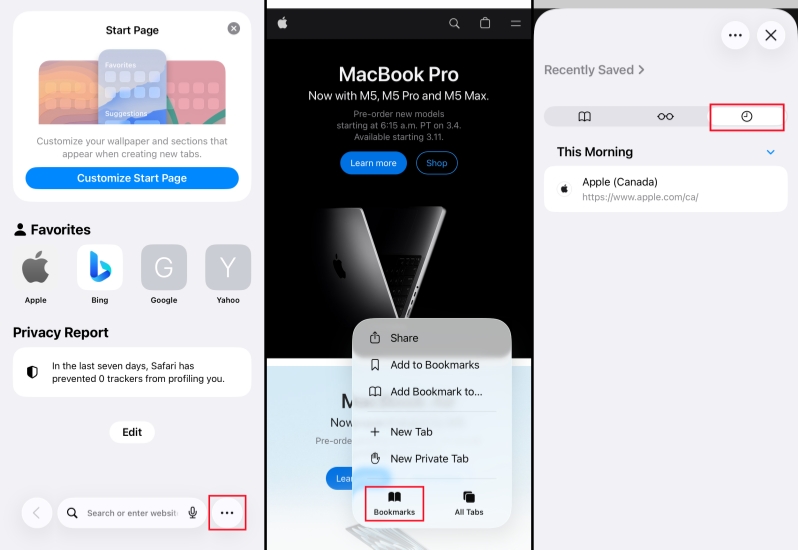
If you've turned on iCloud for Safari, your tabs and browsing history can sync across devices signed in with the same Apple ID. So, you can find the deleted Safari history on other devices as well.
Note:
The History view only shows existing browsing records. Once Safari history is deleted or cleared, it will no longer appear in this list on that device.
Part 3. How to Recover Deleted Safari History without Backup
When you've cleared all Safari history on your iPhone and need to get it back after clearing, the most effective option is to use a professional data recovery tool. MagFone iPhone Message Recovery is a dedicated iOS recovery program that can help you restore more than 20 types of data from iPhone, iPad, or iPod. Whether your data was accidentally deleted, lost due to system issues, or disappeared after an update, you can rely on MagFone to scan your device and recover it with just a few clicks. In addition to recovering data directly from your iPhone, MagFone also supports extracting data from iCloud and iTunes backups when needed. Now, follow the steps below to recover deleted Safari history on iPhone without a backup:
MagFone iPhone Data Recovery
Recover data from iPhone and iPad in three recovery modes without data overwritting and device reset.
Step 1 Access MagFone iPhone Data Recovery

First, download and install MagFone iPhone Data Recovery on your computer, then connect your iPhone to the computer using a data cable. Once the tool is installed successfully, launch it.
Step 2 Scan Deleted Safari History on iPhone

Choose iPhone/iPad Data Recovery from the main interface. Select Safari History and click Scan to allow MagFone to scan your iPhone data. When required, enter the passcode on the iPhone to trust the computer.
Step 3 Retrieve Deleted Safari History on iPhone
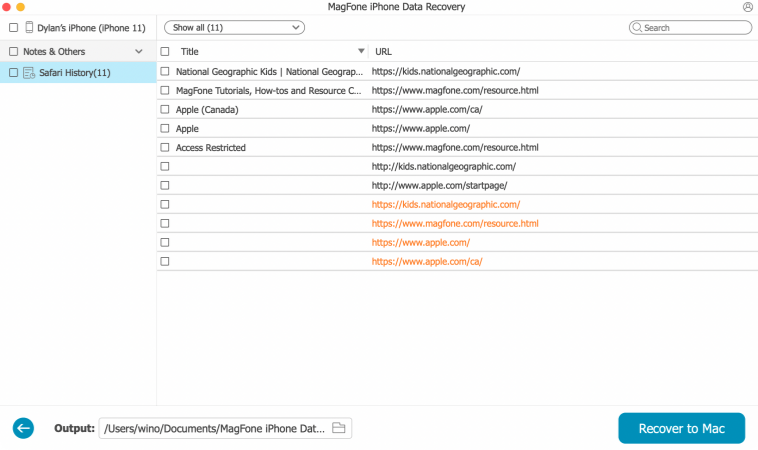
When data is being scanned completely, you can view deleted Safari history on the computer. Select the deleted Safari history and click Recover to PC or Recover to Mac. Then you can access the deleted pages on your iPhone.
Part 4. How to Recover Deleted Safari History with Backup
Method 1. Retrieve Deleted Safari History from iCloud Backup
If you enable iCloud Backup on your iPhone, Safari history may be included in the iCloud backup. By erasing your device and restoring it from a suitable iCloud backup, you can often bring back deleted browsing history along with other app data and settings.
Limitations:
- Requires a backup made before deletion
- Needs stable Wi‑Fi and enough iCloud storage
- Full device restore overwrites current data
- Can't preview just Safari history before restoring

Step 1. Access iPhone Settings > General > Transfer or Reset iPhone.
Step 2. Choose Erase All Content and Settings > Continue > Erase iPhone.
Step 3. Enter the iPhone passcode, then the Apple ID password to forward.

Step 4. After the iPhone restarts, follow the on-screen instructions to set it up. When you see the Transfer Apps & Data request, choose From iCloud Backup to restore iPhone data from an iCloud backup.
Step 5. When your iPhone is set up, open Safari to check the deleted browsing history.
Method 2. Retrieve Deleted Safari History from iTunes Backup
If you have once backed up your iPhone to iTunes, you can also restore deleted Safari history from one of these local backups. When you restore an iTunes backup, your iPhone is rolled back to the exact state it was in when that backup was created, including Safari bookmarks, history, and other app data.
Limitations:
- Must have access to the original computer/backup
- Backup must predate the history deletion
- Restoring replaces all current data on iPhone
- No way to selectively restore only Safari history

Step 1. Run iTunes on your computer. At the same time, connect your iPhone to the computer using a data cable.
Step 2. Click the device icon, click Summary.
Step 3. Click Restore Backup and choose a backup to restore to your iPhone. After the restore, you can see the deleted Safari history on iPhone.
Part 5. FAQs about Safari History on iPhone
Does Safari automatically delete history on iPhone?
No. Safari does not automatically delete your browsing history on iPhone. All history is kept until you remove it yourself.
How long does Safari keep history on iPhone?
By default, Safari keeps your browsing history on iPhone until you delete it. It does not automatically remove history after a set number of days.
Can you recover private browsing history on iPhone?
No. When you use Private Browsing Mode in Safari, your iPhone does not save the pages you visit, your search history, or AutoFill information. Because that data is never stored, it cannot be recovered later.
How to clear Safari history on iPhone?
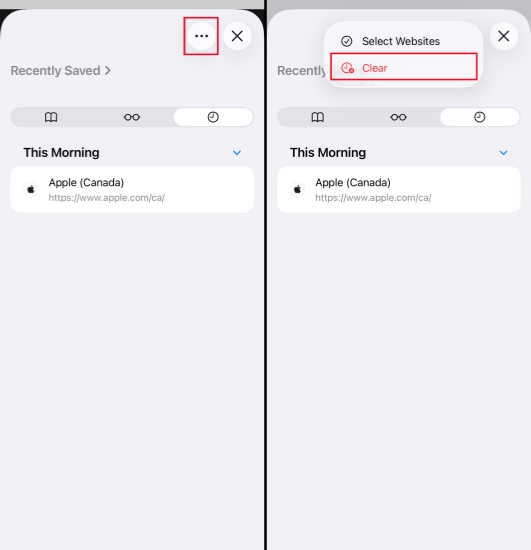
To delete or clear Safari history on iPhone, just open Safari and tap the triple-dot icon. Then tap the clock icon and tap the Clear option to clear Safari history.
How to delete Safari history on iPhone with parental controls?
If Screen Time or content restrictions are enabled, you may be prevented from clearing Safari history. To allow deletion, you need to turn off Screen Time first.
Part 6. Conclusion
When you accidentally delete or clear Safari history on your iPhone, it can feel like a major loss, especially if those pages contained important information you didn't save anywhere else. Fortunately, by following the methods in this guide, you still have a good chance to recover deleted Safari history on iPhone. If you want to retrieve deleted Safari history quickly and efficiently, MagFone iPhone Data Recovery is highly recommended. Alternatively, you can try restoring an iCloud or iTunes backup that was created before you cleared your history. Choose the method that best matches your situation!

Edgar Davis
Editor in chief




