








A month ago I accidentally deleted some photos from my recently deleted album on my iPhone. The photos were synced to iCloud when I deleted them. I went to my iCloud account under the data recovery tab but there is nothing there to recover. Is there a way to get them back or are they gone forever?"
——From Reddit
Accidentally deleted precious photos from your iPhone and now feel like they're gone forever? You're not alone. Whether it was a mistaken tap or something else, losing important photos can be heartbreaking. The good news is that in many cases, these deleted photos can still be brought back with the right tools and methods. In this guide, we'll walk you through possible solutions to recover permanently deleted photos from iCloud and some alternative methods to recover permanently deleted photos on iPhone without iCloud.

- Part 1. Can You Recover Permanently Deleted Photos from iCloud?
- Part 2. How to Recover Permanently Deleted Photos from iCloud
- Part 3. How to Recover Permanently Deleted Photos without iCloud
- Part 4. Conclusion
Part 1. Can You Recover Permanently Deleted Photos from iCloud?
Whether photos can be recovered after being permanently deleted from iCloud is not a definitive answer. In most cases, if photos are more than 30 days old and have been removed from the Recently Deleted folder, Apple does not provide a direct recovery option. However, under certain conditions, photos may still exist within iCloud or in an incompletely synced state.
For example, if iCloud photo sync is not yet complete, photos are still stored in iCloud backups, or the original photos were previously stored via iCloud Drive, these situations may create opportunities for recovery. However, it's important to understand that all iCloud-based recovery methods are limited by time, sync status, and backup conditions, and the success rate cannot be guaranteed.
Part 2. How to Recover Permanently Deleted Photos from iCloud
If your photos were once stored in iCloud, you may still have several ways to bring them back. In this part, we will show you 4 possible methods to help you recover permanently deleted photos from iCloud. What should be noted is that the success rate is not guaranteed.
Method 1. Recover Permanently Deleted Photos from iCloud Photos
If you often switch iCloud Photos on and off because of limited storage and happen to permanently delete some photos during the process, those photos might still exist in your iCloud account. In this case, you can try re-downloading them from iCloud Photos to your device.
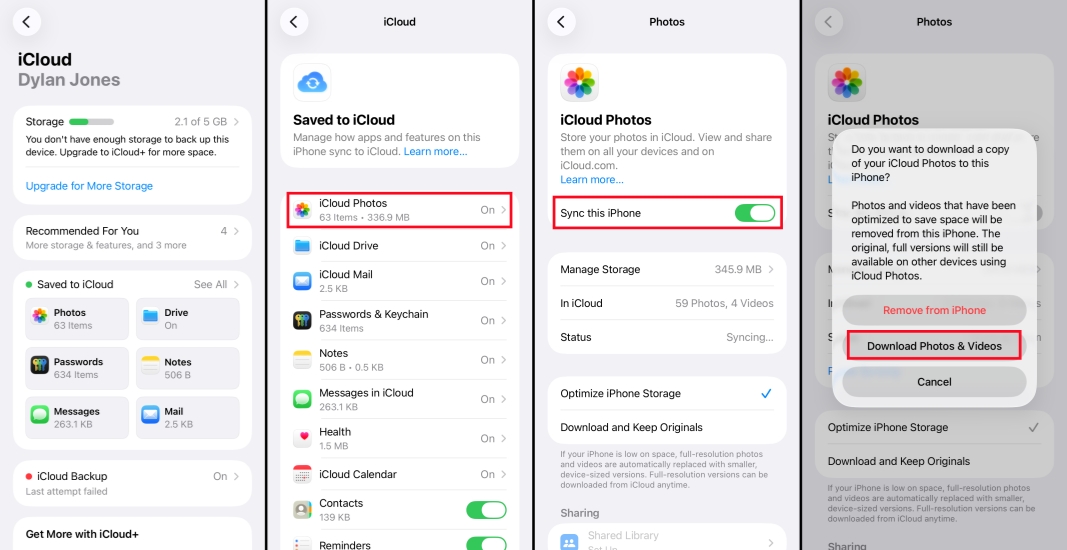
Step 1. Open iPhone Settings and tap your Apple ID.
Step 2. Tap iCloud > Saved to iCloud > iCloud Photos.
Step 3. Disable Sync this iPhone and choose Download Photos & Videos. Then the permanently deleted photos will be restored to your iPhone.
Method 2. Recover Permanently Deleted Photos from iCloud Website
When iCloud Photos is enabled, any changes you make on your device, such as deleting photos, are typically synced to iCloud. This means that if you permanently remove photos from your iPhone, they're usually erased from iCloud as well. However, in rare cases, a sync delay or error may leave copies of those photos accessible via the iCloud website. Although the chances are slim, it's still worth signing in to iCloud.com to check whether your permanently deleted photos are unexpectedly still there.

Step 1. Log in to your Apple account at iCloud.com.
Step 2. Click Photos and check if the deleted photos are still in iCloud. If they are, you can download it to your device.
Method 3. Recover Permanently Deleted Photos from iCloud Backup
iCloud Photos lets you view your photos online at any time, but if you never turned it on and only used iCloud Backup, your deleted photos may still be stored inside a previous device backup. In this case, you can restore those permanently deleted photos by restoring your iPhone from an iCloud backup created before the deletion. Keep in mind that you'll need to erase your iPhone first and then set it up again using the appropriate iCloud backup.

Step 1. Go to iPhone Settings > General > Transfer or Reset iPhone.
Step 2. Choose Erase All Content and Settings > Continue.
Step 3. Tap Erase iPhone and enter your iPhone passcode to confirm the operation.

Step 4. Turn on the iPhone after erasing and follow on-screen instructions to set it up. Choose the From iCloud Backup option when forwarded to the Transfer Your App & Data screen.
Step 5. Enter your Apple ID and choose a backup to restore. Then, finish setting up your iPhone and check if the permanently deleted photos are recovered.
Method 4. Recover Permanently Deleted Photos from iCloud Drive
Because of format compatibility issues, some photos you receive via AirDrop may not be saved directly to the Photos app on your iPhone. In such cases, you might choose to store them in iCloud Drive through the Files app instead. You can also check if the permanently deleted photos are available in iCloud Drive.

Step 1. Log in to the iCloud Drive website.
Step 2. Click Browse to browse for deleted photos. Then recover permanently deleted photos if possible.
Part 3. How to Recover Permanently Deleted Photos without iCloud
If the above iCloud methods fail to recover the photos, it doesn't mean there's no hope. In this case, with the help of iTunes backup or professional data recovery tools, there's still a chance to recover permanently deleted photos.
Method 1. Retrieve Permanently Deleted Photos from iPhone via iPhone Data Recovery
It's possible to recover permanently deleted photos from iCloud. However, there are some limitations and uncertainty. When you don't have an iCloud backup, how can you recover the deleted photos? Here, you may need to ask for help with some professional data recovery tools. MagFone iPhone Data Recovery is an emerging tool that is designed to recover various data, including deleted photos on an iPhone. You can preview the deleted iPhone photos in this tool. Besides, you can also recover iCloud photos and extract photos from iTunes using this tool. Just follow the following steps to retrieve permanently deleted photos from iPhone.

MagFone iPhone Data Recovery
Recover data from iPhone and iPad in three recovery modes without data overwritting and device reset.
Step 1 Download and Install MagFone iPhone Data Recovery

Download and install MagFone iPhone Data Recovery on your computer, then use a USB cable to connect your iPhone. Once everything is set up and your device is connected, open the program to begin.
Step 2 Scan Deleted Photos from iPhone
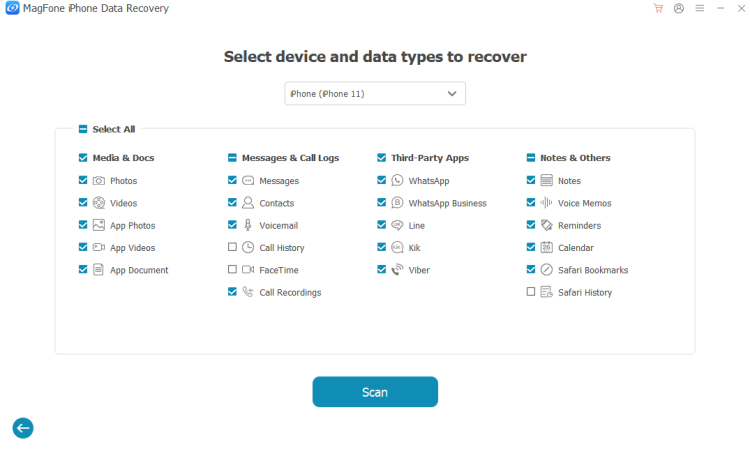
Click iPhone/iPad Data Recovery on the main screen. Next, select the types of data you'd like to restore, then hit Scan to start scanning your iPhone for the selected items.
Step 3 Recover Permanently Deleted Photos
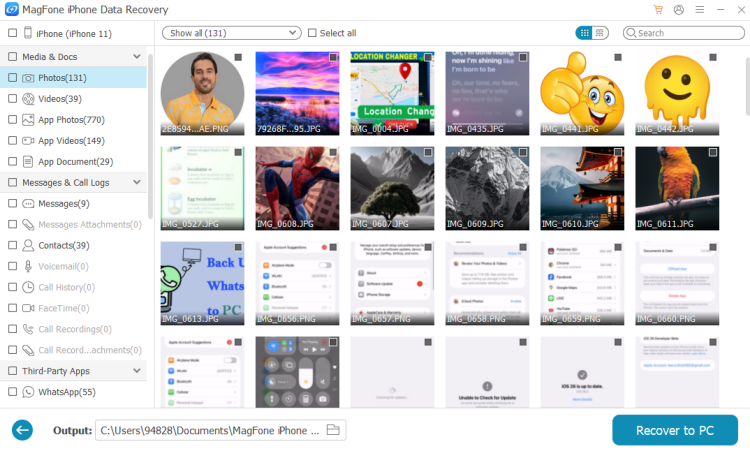
You can view your iPhone data after the scan is completed. Just click Photos to check and select the deleted photos, then click Recover to PC. Then you can import the photos to your iPhone.
Method 2. Get Back Permanently Deleted Photos from iPhone via iTunes Backup
If you've ever used a computer to create a local backup of your iPhone through iTunes, your photos may still be saved in the backup file even if they've been deleted from your device and iCloud. By restoring an iTunes backup, you can restore your photos to your iPhone, provided the backup was created before the photos were deleted.

Step 1. Connect your iPhone to your computer and launch iTunes.
Step 2. Click the device icon and click Summary.
Step 3. Click Restore backup to restore the permanently deleted photos to your iPhone.
Part 4. Conclusion
Accidentally deleting photos from the Recently Deleted file is unexpected but not impossible. Fortunately, you can still try some possible solutions to retrieve permanently deleted photos on iPhone from iCloud. If none of these options work or you never had iCloud properly set up, a dedicated tool like MagFone iPhone Data Recovery becomes your most powerful option. Test it and tell us your experience!

Edgar Davis
Editor in chief




