








iMessage is a convenient messaging service widely used among Apple users. With iMessage, Apple users can enjoy a rich messaging experience that supports text chats, photo and video sharing, location sharing, voice notes, and more. However, there is a large chance that messages on iMessage will be deleted. How can you recover deleted iMessages? In this guide, we will show you 4 methods to recover deleted iMessages on iPhone, including using the Recently Deleted folder, iCloud backup, iTunes backup, and the iDevice storage.
- Part 1. How Can I Recover Deleted iMessages on iPhone?
- Part 2. How to Recover Recently Deleted iMessages
- Part 3. How to Recover Deleted iMessages
- Part 4. FAQs about Recovering Deleted Messages on iMessages
- Part 5. Conclusion
Part 1. How Can I Recover Deleted iMessages on iPhone?
The way to recover deleted iMessages on iPhone depends on how long ago the messages were deleted and whether you have an available backup. If the messages were deleted within the last 30 days, you may be able to restore them from the Recently Deleted folder. If they have already been removed from Recently Deleted, you can try recovering them from an iCloud backup, an iTunes backup, or with the help of a data recovery tool that scans your device storage.
To help you quickly understand the differences between these recovery options, the comparison table below highlights the main methods, their requirements, and performance.
| Method | Requirements | Data Overwrite | Reliability |
|---|---|---|---|
| Recently Deleted | iMessages are deleted in recent 30 days | ❌ | 90% |
| iCloud Backup | An iCloud backup made before the deletion | ✔️ | 85% |
| iTunes Backup | An iTunes backup made before the deletion | ✔️ | 85% |
| MagFone iPhone Data Recovery | Your iPhone | ❌ | 99% |
Part 2. How to Recover Recently Deleted iMessages on iPhone
Just like other messages, deleted iMessages will also be removed to the Recently Deleted folder first. So, you can recover recently deleted iMessages from the Recently Deleted folder within 30 days.
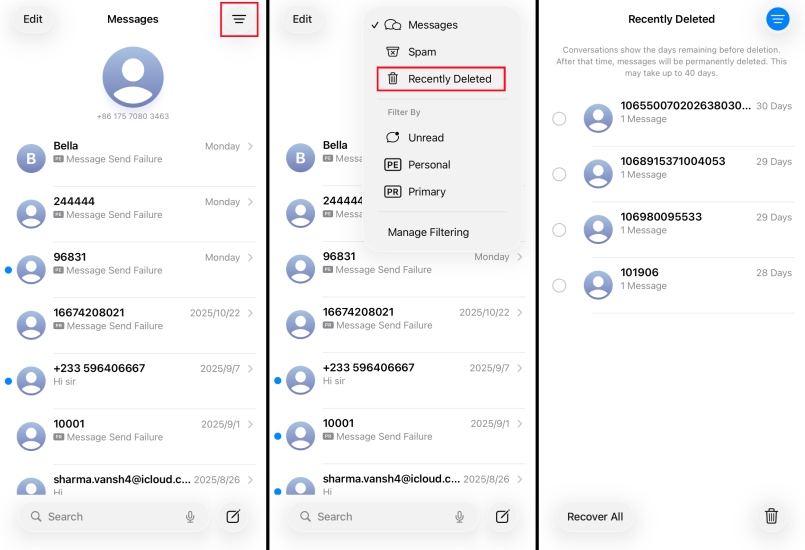
Step 1. Open Messages on iPhone, and tap Edit or the triple-line icon to show Recently Deleted.
Step 2. In the Recently Deleted folder, check if your target iMessages are in.
Step 3. Tap Edit to select the deleted iMessages, then tap Recover to restore them.
Part 3. How to Recover Deleted iMessages on iPhone
Once iMessages are deleted from the Recently Deleted folder, recovering them usually requires either an existing backup or a tool that can scan device storage for lost data.
Method 1. Recover Deleted iMessages from iCloud Backup
If you have backed up the deleted iMessages to iCloud, you can restore the iCloud backup to the device. This method requires erasing the iPhone. If you don't want to erase your current iPhone, you can also use an extra device to be factory reset and restore the iCloud backup.

Step 1. Open iPhone Settings and go to General.
Step 2. Tap Transfer or Reset iPhone > Erase All Content and Settings > Continue > Erase iPhone.
Step 3. Enter the required iPhone passcode and Apple ID password to proceed.

Step 4. When the iPhone restarts, you can follow the onscreen instructions to set it up. When you see the Transfer Your Apps & Data screen, choose From iCloud Backup.
Step 5. Sign in to your Apple ID and choose an iCloud backup to restore. After restoring the iCloud backup, you can check the deleted iMessages on your iPhone.
Method 2. Recover Deleted iMessages from iTunes Backup
If you used to back up the iPhone using iTunes and the iTunes backup happened to include the deleted messages on iMessage, then it's lucky that you can restore the iTunes backup to your iPhone to get back the deleted iMessages. But this involves overwriting the current iPhone data, so you can first back up your iPhone to iTunes to avoid further data loss.

Step 1. Use a data cable to link your iPhone to a computer, then open iTunes.
Step 2. Click the iPhone icon, then click Restore backup and choose an iTunes backup to restore to your iPhone.
Note:
If you have encrypted the iTunes backup, you will be required to enter the password to restore the backup to your iPhone.
Method 3. Recover Deleted iMessages from iDevice Storage
Even if no backup contains the deleted iMessages, there is a way to recover deleted iMessages without any backup or data loss. That's to use a data recovery tool. Among the tools we have tried before, we find MagFone iPhone Data Recovery can be trusted. It supports scanning data on your iPhone storage and recovering deleted data selectively to a computer and even the device directly. Whether you are deleting the iMessages in a chat or removing the iMessage from chat threads, MagFone iPhone Data Recovery can help you get the deleted iMessages back.
If you are curious about this effective tool, you can download and install it to try. Below is how to use MagFone iPhone Data Recovery to recover deleted iMessages on iPhone:

MagFone iPhone Data Recovery
Recover data from iPhone and iPad in three recovery modes without data overwritting and device reset.
Step 1 Run MagFone iPhone Data Recovery

Run MagFone iPhone Data Recovery and use a data cable to connect your iPhone to the computer using a data cable.
Step 2 Scan Deleted iMessages on iPhone

Click iPhone/iPad Data Recovery from the main interface, and select Messages from the data list. Then click Scan to let the tool scan your iPhone storage.
Step 3 Recover Deleted iMessages on iPhone
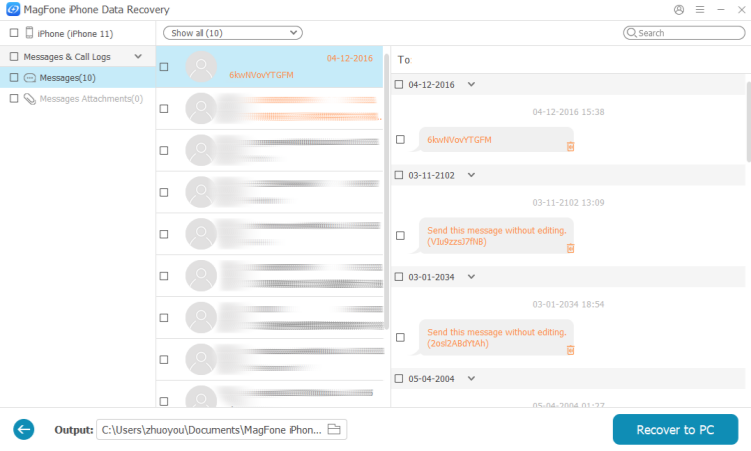
After scanning, you can read your iMessages on the computer. To recover deleted iMessages, just select and click Recover to PC or Recover to Mac.
Part 4. FAQs about Recovering Deleted Messages on iMessage
How to recover deleted attachments from iMessage?
The most recommended way to recover deleted attachments from iMessage is to use a data recovery tool like MagFone iPhone Data Recovery. With MagFone, you can scan and recover deleted attachments from iMessages directly.
How to retrieve expired audio messages iPhone?
If the audio messages have expired on your iPhone, you can first check the synced messages on other Apple devices, or you can ask the contact to send them again. If this is not convenient, you can use tools like MagFone iPhone Data Recovery to recover it quickly.
Can the recipient still see a deleted iMessage?
If you delete an iMessage, the recipient will still see it. But if you undo sending an iMessage within 2 minutes, the recipient may not see it.
Part 5. Conclusion
Recovering deleted iMessages on iPhone is always possible. As long as you choose the right method, you can get deleted iMessages back. Whether the iMessages were deleted recently or deleted earlier, you may still be able to restore them through the Recently Deleted folder, an iCloud backup, an iTunes backup, or a reliable recovery tool. Among these recovery options, using a tool like MagFone iPhone Data Recovery can be a more flexible choice for many users, as it helps recover deleted iMessages without causing additional data loss.

Edgar Davis
Editor in chief





