








If an important reminder is deleted from your iPhone due to a quick swipe or accidental tap, you are not alone. Is there a way to recover deleted reminders on iPhone? Yes. Depending on when the reminder was removed and how your iPhone is backed up, you may be able to bring it back from a Recently Deleted folder, iCloud, or a previous backup. In this guide, we'll walk through step-by-step methods to recover deleted reminders on iPhone within 30 days and solutions that can still help even if more time has passed.
- Part 1. How Do I Recover Deleted Reminders on My iPhone?
- Part 2. How to Recover Deleted Reminders on iPhone [Within 30 Days]
- Part 3. How to Retrieve Deleted Reminders on iPhone [Beyond 30 Days]
- Part 4. Conclusion
Part 1. How Do I Recover Deleted Reminders on My iPhone?
When this happens, many people assume those reminders are permanently gone, but that's not always the case. iOS and iCloud both offer built‑in protections that can keep deleted reminders accessible for a limited time, and there are also backup and recovery options that can help even after the limited time. Understanding how these different recovery methods work is the first step to getting your deleted reminders back.
| Recovery Methods | Deletion | Data Overwriting | Success Rate |
|---|---|---|---|
| Recently Deleted | Within 30 days | ❌ | High |
| iCloud Recovery | Within 30 days | ✔️ | Moderate |
| iTunes Backup | Beyond 30 days | ✔️ | Low |
| iCloud Backup | Beyond 30 days | ✔️ | Low |
| Data Recovery Tool | Beyond 30 days | ❌ | High |
Part 2. How to Recover Deleted Reminders on iPhone [Within 30 Days]
When you delete reminders on an iPhone running a recent version of iOS, they usually aren't erased right away. If the reminders are deleted within the past 30 days, there is a high possibility that you can find them in the Recently Deleted folder or restore them using iCloud Recovery. Check the details below.
Method 1. Restore from Recently Deleted [iOS 18+]
Since iOS 18, Apple has added the Recently Deleted feature for the Reminders app, so users can find deleted reminders within 30 days in the Recently Deleted folder. If your deleted reminders meet the case, you can check the Recently Deleted folder to restore them.
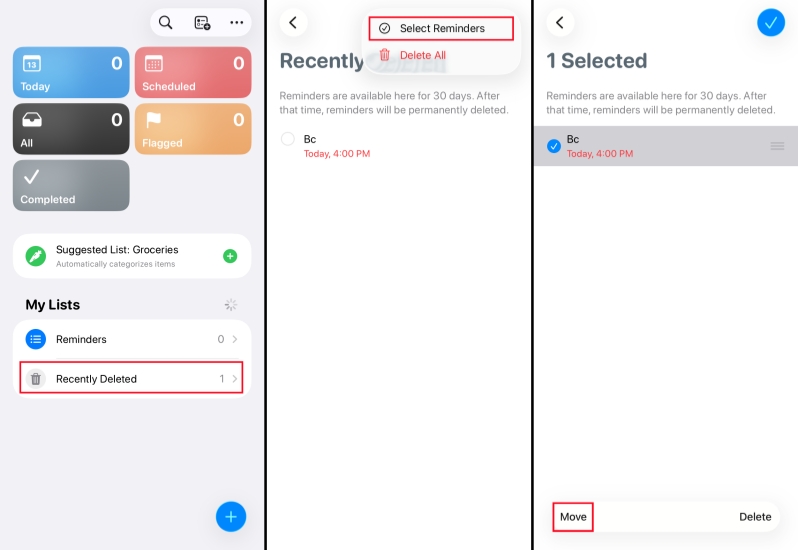
Step 1. Open Reminders on your iPhone and tap the back arrow to the main page.
Step 2. Tap Recently Deleted at the bottom.
Step 3. Tap the triple dot icon to select the deleted reminders, and tap Move to restore them to the default list.
Method 2. Restore via iCloud Recovery
If your reminders are synced with iCloud, Apple's cloud service will have an archive of your calendars' data, along with the reminders data that you can roll back to. iCloud Recovery lets you restore an earlier version of your reminders list from the web, which can bring back items that were deleted within the last 30 days. However, this method may replace your current reminders with an older version.
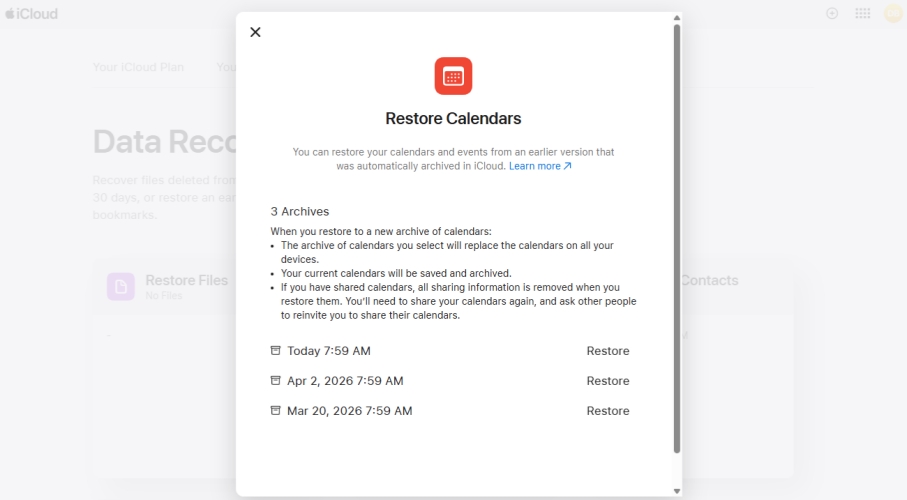
Step 1. Open the iCloud Recovery website in a browser.
Step 2. Click Calendars and choose one archived file, then click Restore. Be noted that this will overwrite the current calendar and reminders data on your iPhone.
📝Note: If you have a shared calendar, you need to re-add it because all calendar events will be removed when restoring an old version.
Part 3. How to Recover Deleted Reminders on iPhone [Beyond 30 Days]
If more than 30 days have passed since your reminders were deleted, the quick, built‑in recovery options may no longer be enough. You can only restore them from a previous backup or use a data recovery tool to find them.
Method 1. Restore from iTunes Backup
If you used to back up your iPhone using iTunes before the deletion, then you may be able to restore deleted reminders from the backup. But restoring an iTunes backup will overwrite the current data on your iPhone, so be careful when restoring.

Step 1. Connect the iPhone to the computer using a data cable.
Step 2. Launch iTunes and trust the computer if required.
Step 3. Click the device icon, then click Summary > Restore Backup to choose an iTunes backup to restore to your iPhone.
Method 2. Restore from iCloud Backup
For users who rely on automatic iCloud backups, an older backup can serve as a snapshot of your iPhone from an earlier day. By erasing your device and restoring it from a suitable iCloud backup, you may be able to recover reminders that are no longer available through iCloud Recovery or Recently Deleted. As with an iTunes backup, this process replaces your current data with whatever was stored at the time of the backup.

Step 1. Open iPhone Settings and tap General.
Step 2. Choose Transfer or Reset iPhone > Erase All Content and Settings.
Step 3. Choose Continue > Erase iPhone, and enter the iPhone passcode and Apple ID password if required. Then your iPhone will be erased.

Step 4. After the iPhone restarts, follow the onscreen instructions to set it up manually. When you see the Transfer Your Apps & Data screen, choose From iCloud Backup to sync iCloud data to your iPhone.
Step 5. After restoring iCloud backup, go to Reminders to find the deleted items.
Method 3. Restore with the Data Recovery Tool
Compared to restoring an iTunes backup or an iCloud backup, using a data recovery tool seems to be more effective and reliable. Without overwriting iPhone data, an iPhone data recovery tool can help scan deleted reminders on iPhone, preview scanned data, and restore deleted data selectively. Among the tools, MagFone iPhone Data Recovery stands out with its high success rate and operation transparency. Just follow the steps below to retrieve deleted reminders on your iPhone:

MagFone iPhone Data Recovery
Recover data from iPhone and iPad in three recovery modes without data overwritting and device reset.
Step 1 Open MagFone iPhone Data Recovery

Download and install MagFone iPhone Data Recovery on your computer. Also, connect your iPhone to the computer using a data cable. Afterwards, launch this tool.
Step 2 Scan Deleted Reminders on iPhone

Click iPhone/iPad Data Recovery from the main interface. Then choose Reminders and click Scan to scan deleted data on your iPhone.
Step 3 Restore Deleted Reminders on iPhone
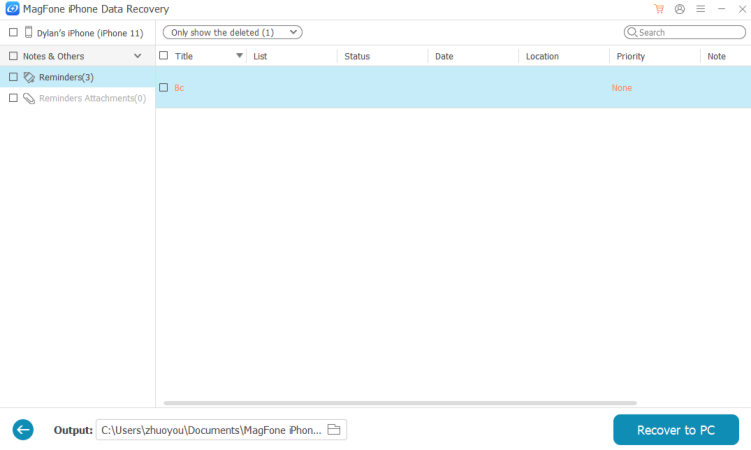
Browse the scanned reminders data from your iPhone. Select and click Recover to PC or Recover to Mac to restore the deleted reminders on iPhone.
Part 4. Conclusion
If you're able to locate your deleted reminders in the Recently Deleted folder, that's usually the quickest and easiest way to restore them. If they no longer appear there or in your backups, you can turn to a dedicated iOS data recovery tool like MagFone iPhone Data Recovery to scan your device and help you retrieve deleted reminders more efficiently.

Olivia Wood
Editor in chief





