








You opened Safari on your iPhone only to find your Favorites missing without warning. This situation can be both frustrating and confusing. Sometimes, the Favorites are simply hidden within your Settings, but in other cases, they might disappear from your device for reasons that aren't immediately clear. There's no need to panic. This guide will walk you through the common causes behind Safari Favorites disappeared and provide effective solutions to restore your missing favorites.
Quick Check: Are Your Safari Favorites Really Gone?
Before going ahead, here is a quick check to figure out if the Favorites are just being hidden on the Safari start page, rather than really disappearing from Safari.
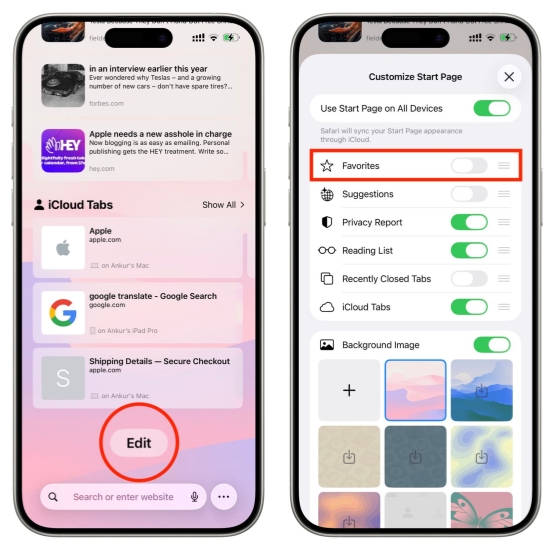
- Step 1. Open Safari and open a new tab.
- Step 2. Tap Edit and make sure Favorites is enabled so you can see your favorite websites on the Safari start page.
If the favorite websites are back on the start page, congratulations. If not, keep reading this guide to recover missing Safari Favorites.
- Part 1. Why Did Safari Favorites Disappear on iPhone?
- Part 2. How to Fix iPhone Safari Favorites Disappeared
- Part 3. Tip to Export Safari Favorites for Data Security
- Part 4. Conclusion
Part 1. Why Did Safari Favorites Disappear on iPhone?
It's not uncommon for iPhone users to suddenly find their Safari Favorites missing. This problem can occur for a variety of reasons. Here are some of the most common factors, and you can check if you have met one of them:

System Update
Many users notice their Safari Favorites disappear right after installing an iOS update. This is a widespread issue reported frequently on forums like Reddit and the Apple Community. Updates can sometimes reset or alter settings that affect your bookmarks, causing them to temporarily disappear or become hidden.
Low Storage
If you've seen alerts such as "iPhone Storage Full," "Storage Almost Full," or "iCloud Storage Is Full," low storage space may be to blame. Insufficient storage can interfere with Safari's ability to sync or save Favorites properly, leading to missing bookmarks.
iCloud Syncing Issues
There are always iCloud issues reported by users. If there is a problem with your iCloud account, like disabled Safari sync, iCloud storage, or sign-in issues, your Favorites may not appear as expected.
Device Bugs or Glitches
Occasional software bugs, glitches, or unexpected shutdowns can disrupt Safari's data and cause Favorites to vanish. Restarting your device or updating to the latest iOS version can sometimes resolve these temporary problems.
Manual Changes or Settings Adjustments
Sometimes Favorites are simply hidden due to changes in Safari settings or by accidentally moving them to a different folder. Reviewing your Safari settings and bookmarks folders can help you locate missing Favorites.
By identifying the likely cause, you can choose the best approach to restore your Safari Favorites quickly and prevent them from disappearing again in the future.
Part 2. How to Fix iPhone Safari Favorites Disappeared
As you know the reasons why your iPhone Safari Favorites disappeared, you can follow the methods below to fix the issue and recover your favorite websites.
Method 1. Restart iPhone and Safari
A simple restart can often resolve minor glitches. Restart your iPhone and reopen Safari to see if your Favorites reappear.
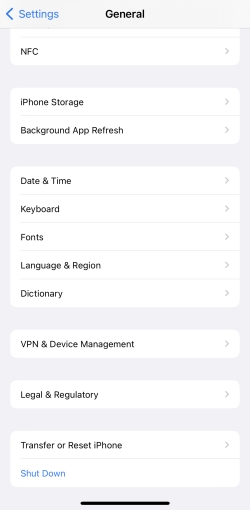
Step 1. Go to Settings > General.
Step 2. Tap Shut Down at the bottom and drag the slide to shut down your iPhone.
Step 3. Long-press the Power button to restart your iPhone.
Method 2. Free Up iPhone Storage or iCloud Storage
If you've seen messages like "iCloud Storage Full" or "iPhone Storage Full," your device may not have enough space to properly save and sync Safari Favorites and tabs. Insufficient storage can prevent Safari from retaining your data. To resolve this, delete any unnecessary apps, files, or photos to free up space and ensure Safari can store your Favorites without issues.
Method 3. Check Other Apple Device
If you've enabled iCloud for Safari, your Favorites may still be available on another Apple device signed in with the same Apple ID. Open Safari on your iPad or Mac and check the Favorites list there. If your missing Favorites appear on another device, you can export them and then import them back to your iPhone.
Export Safari Favorites:
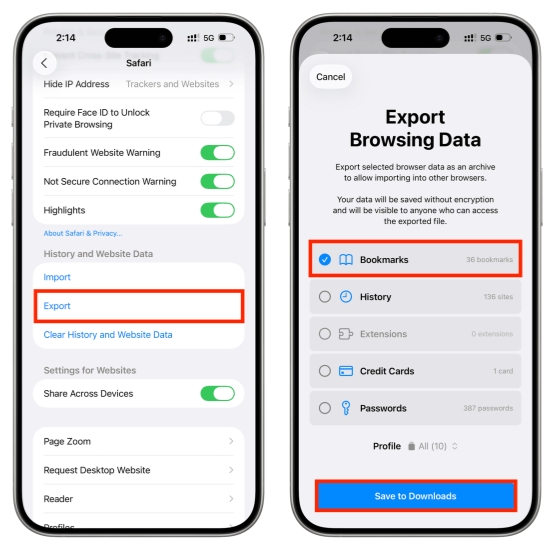
Step 1. Go to Settings > Apps > Safari.
Step 2. Scroll down and tap Export > Export to Files.
Step 3. Select Bookmarks and tap Save to Downloads to save the Safari Favorites.
Step 4. Open the exported Safari data in the Files app. And AirDrop the file to your iPhone.
Import Safari Favorites to iPhone:
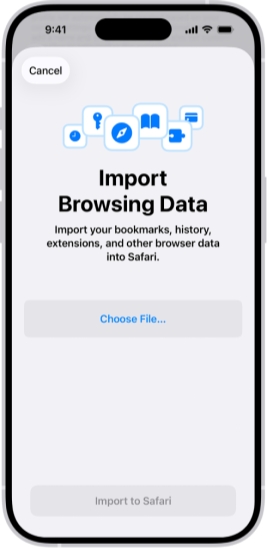
Step 1. Go to Settings > Apps > Safari.
Step 2. Scroll down and tap Import > Import from Files.
Step 3. Tap Choose File to choose the Safari file from the Files app.
Step 4. Enter your iPhone passcode and tap Import to Safari. Then you can check your Favorites in Safari.
Method 4. Toggle Safari in iCloud Settings
If the issue is caused by a syncing glitch between your iPhone and iCloud. In many cases, simply toggling the Safari option in your iCloud settings can refresh the connection and prompt your Favorites to re-sync.
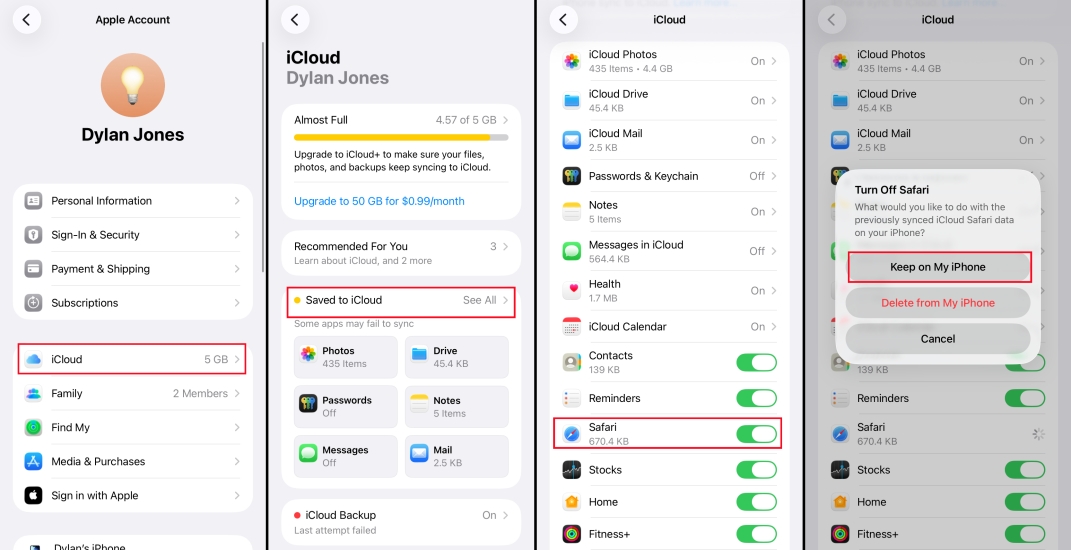
Step 1. Go to Settings > [your Apple ID] > iCloud.
Step 2. Tap Saved to iCloud.
Step 3. Turn off Safari sync and choose Delete from My iPhone.
Step 4. Wait a few seconds, then turn it back on.
Method 5. Sign Out of Apple ID
Signing out of your Apple ID and then signing back in can refresh your account's connection with iCloud, often resolving syncing problems and restoring missing Safari Favorites.
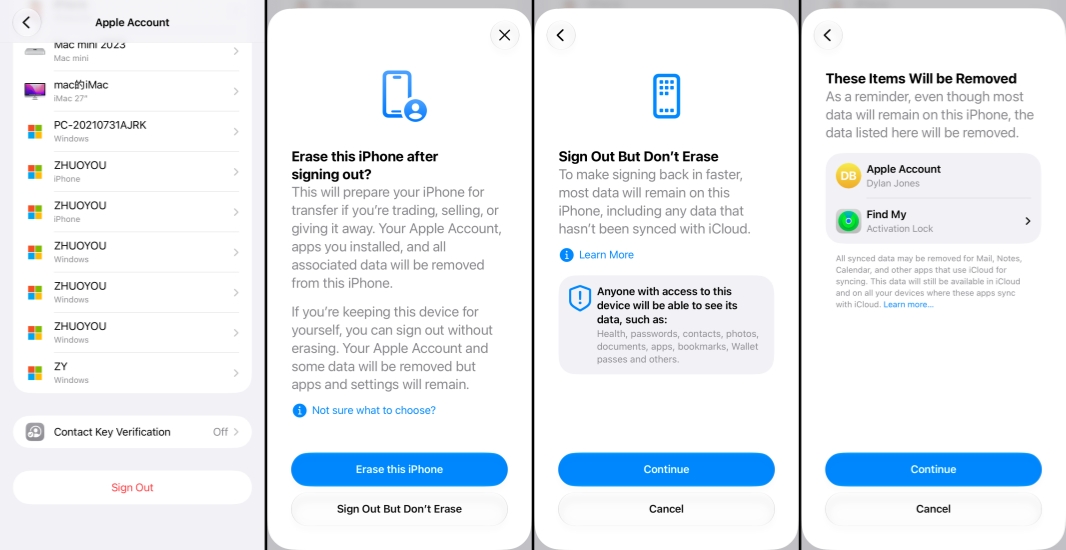
Step 1. Go to Settings and tap your Apple ID.
Step 2. Tap Sign Out at the bottom.
Step 3. Choose Sign Out But Don't Erase > Continue > Continue.
Step 4. Enter the Apple ID password to confirm. Afterwards, you can tap Sign in to sign back into your Apple ID.
Method 6. Recover with MagFone iPhone Data Recovery
If none of the above methods bring back Safari Favorites, using a specialized recovery tool like MagFone iPhone Data Recovery can be an effective solution. MagFone Safari Data Recovery is designed to help you recover disappeared Safari history, Favorites, and bookmarks directly from your iPhone, even if you don't have a recent backup. The software scans your device for lost or deleted Safari data and allows you to preview and selectively restore the items you need, without requiring a full backup or resetting your iPhone. This is a convenient and user-friendly option for retrieving missing Safari Favorites. Just follow the steps below to restore your favorite websites.

MagFone iPhone Data Recovery
Recover disappered, missing, and deleted Safari Favorites & Bookmarks without data overwritting and device reset.
Step 1 Open MagFone iPhone Data Recovery
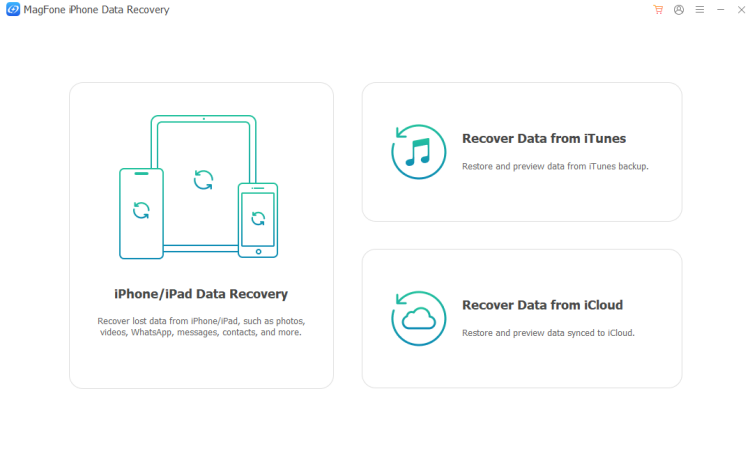
Download and install MagFone iPhone Data Recovery on your computer. Use a data cable to connect your iPhone to the computer.
Step 2 Scan Disappeared Safari Favorites
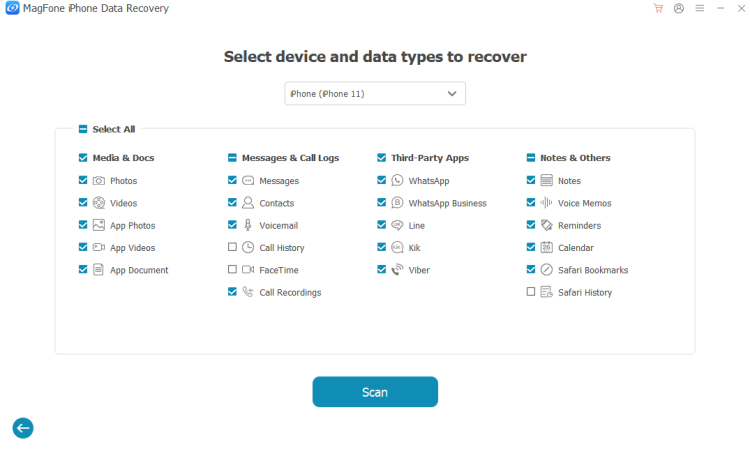
Click iPhone/iPad Data Recovery on the main interface. Choose Safari Bookmarks and click Scan to scan your iPhone Safari bookmarks as well as the missing Favorites.
Step 3 Recover Disappeared Safari Favorites
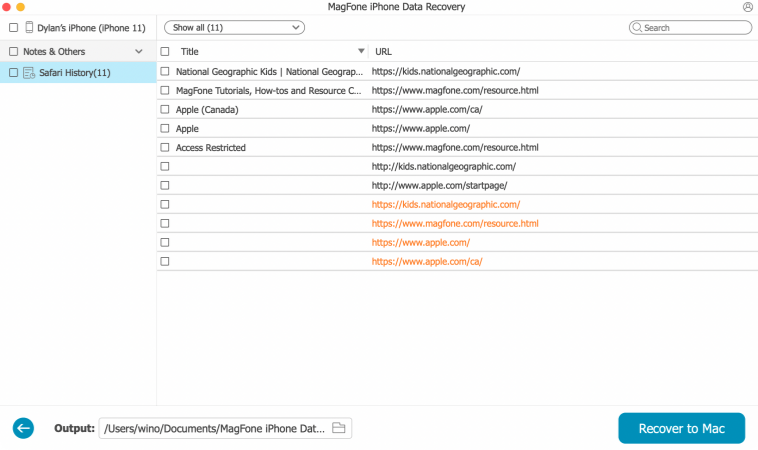
After scanning, go through the result to check and find disappeared Safari Favorites on your iPhone. Then select and click Recover to PC or Recover to Mac to recover them.
Part 3. Tip to Export Safari Favorites for Data Security
Since the issue of Safari Favorites disappearing from your iPhone can happen unexpectedly, it's wise to create a backup for added peace of mind. If you're concerned about losing your important bookmarks, we highly recommend exporting your Safari Favorites and saving a copy as a backup. This way, if your Favorites ever go missing again, you'll be able to restore them quickly and easily.
Step 1. Open Settings and scroll to the bottom.
Step 2. Tap Apps and find Safari.
Step 3. Scroll down and tap Export.
Step 4. You can choose Safari Bookmarks, or passwords to export, and tap Save to Downloads to save the Safari data to the Files app.
Part 4. Conclusion
In conclusion, losing Safari Favorites on your iPhone can be frustrating, but there are several effective methods to recover them and prevent future loss. By understanding the possible causes, following the recommended fixes, and regularly backing up your Favorites, you can safeguard your important bookmarks and ensure they're always accessible when you need them. Taking proactive steps now will help you avoid the stress of missing data in the future.

Olivia Wood
Editor in chief





