








No one user has reported that photos are missing from iCloud. In some cases, the photos are still available on your device but missing from iCloud, while in other situations, they may be missing from both. This issue can happen for several reasons, such as accidental deletion, insufficient iCloud storage, paused photo syncing, shared album problems, or even a recent software update. Fortunately, the missing iCloud photos can be fixed or recovered with the right steps. In this guide, we will show you how to fix the photos missing from iCloud issue and how to recover photos when they are missing from iCloud and your device.

- Part 1. Why Are My Photos Missing from iCloud?
- Part 2. How to Fix Photos Missing from iCloud
- Part 3. How to Recover Missing iCloud Photos
- Part 4. Conclusion
Part 1. Why Are My Photos Missing from iCloud?
Based on reported issues, we can conclude two main scenarios. One is that photos are missing from both iCloud and the device, while the other is that photos are missing from iCloud but are still on the device. As to the two different scenarios, there are different leading culprits.
| Scenarios | Reasons | Fixes |
|---|---|---|
| Photos missing from iCloud, but on device | Insufficient iCloud storage | Check the network, iCloud Photos sync setting |
| Software update | Recover from iCloud backup, iTunes backup, or use a data recovery tool |
|
| Photos missing from iCloud and device | Software update | Recover from iCloud backup, iTunes backup, or use a data recovery tool |
| Accidental deletion | Recover from Recently Deleted folder, iCloud backup, iTunes backup, or use a data recovery tool | |
| Unmatched iCloud Account | Sign into correct iCloud account to check iCloud Photos |
Scenario 1: Photos missing from iCloud, but on the device:
If photos are missing from iCloud but are still on your device, the most common reasons are a sync issue and insufficient iCloud storage. When the device is in Low Power mode or not connected to a WLAN network, the iCloud Photos sync will pause.

iCloud Shared album photos missing:
iCloud Shared album is only visible after iOS 16, so if your device is running a system before this, it may seem that iCloud photos are missing.
Insufficient iCloud storage:
When your iCloud storage is full, new photos and videos cannot upload properly, which may make you feel items are missing from iCloud.
iCloud Photos sync pause:
If iCloud Photos syncing is paused because of poor internet, low battery, or system restrictions, recent photos may not appear in iCloud.
Scenario 2: Photos missing from iCloud and the device
If the photos are missing from both iCloud and the device, the culprit may be a software update or accidental deletion.
Accidental deletion:
Photos may have been deleted by mistake on one device, and the deletion can sync across all devices using the same Apple ID.
Software update:
A system update can sometimes cause photos to disappear from iCloud and the device due to incompatibility.
Before Fix and Recover: Check Your iCloud Photos Total
Before trying any fixes or recovery methods, it is helpful to first check how many items are stored in iCloud Photos. By comparing the total number of photos and videos in iCloud with the number shown on your iPhone, iPad, or other Apple device, you can quickly tell whether some items are truly missing or whether the issue is only related to display or syncing issues.
If you are in the first scenario, check fixes in part 2. If you are in the second scenario, check how to recover missing iCloud photos in part 3.
Part 2. How to Fix Photos Missing from iCloud
In many cases, missing photos are not permanently lost but hidden by sync settings, storage limitations, or shared album issues. By checking a few key settings and locations, you may be able to restore access to your photos and resume normal iCloud syncing.
Method 1. Check Recently Deleted iCloud Photos
If your photos were accidentally removed, they may still be available in the Recently Deleted album. Apple keeps deleted photos there for a limited time before permanently erasing them. Checking this folder is one of the quickest ways to restore missing photos.

Step 1. Load the iCloud Photos website on your device and log in to your iCloud account.
Step 2. Access the Recently Deleted album to check if the missing iCloud photos are in.
Step 3. If you find missing iCloud photos, select and recover them to their original location.
Method 2. Check iCloud Photos Sync Setting
Sometimes photos stay on your device because iCloud Photos is turned off or syncing has been paused. Reviewing your sync settings can help confirm whether your photos are being uploaded properly to iCloud. If the feature is disabled, turning it back on may allow missing items to appear in your iCloud library.
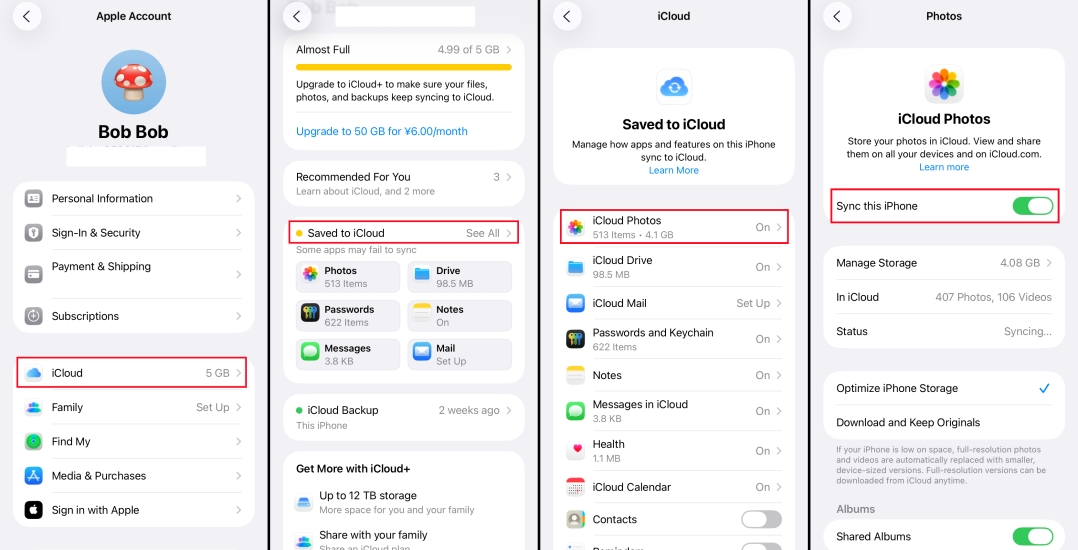
Step 1. Open Settings and tap your Apple ID.
Step 2. Tap iCloud > iCloud Photos and make sure Sync this iPhone is enabled.
Step 3. If Sync this iPhone is enabled, turn it off and choose Remove from iPhone.
Step 4. After a while, enable Sync this iPhone to sync iPhone photos to iCloud Photos.
Method 3. Enable Sufficient iCloud Storage
A full iCloud account can stop new photos from uploading, even though they still remain on your device. Freeing up storage or upgrading your iCloud plan can help resume uploads and keep your photo library updated.
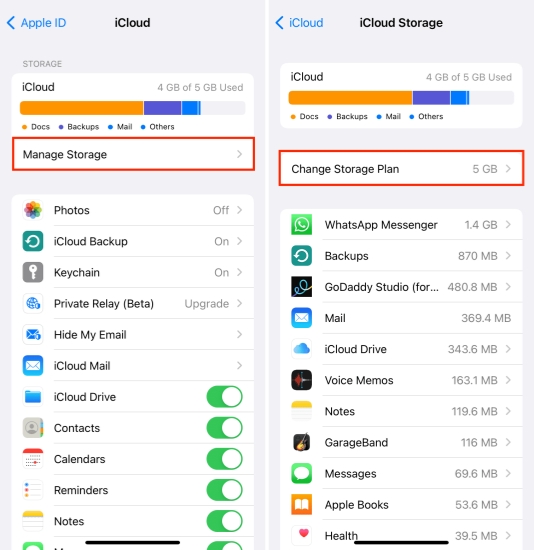
Step 1. Open Settings and tap your Apple ID.
Step 2. Tap iCloud > Manage iCloud Storage > Change Storage Plan.
Step 2. Choose an iCloud plan and tap Upgrade to iCloud+ to proceed.
Method 4. Check iCloud Shared Album
If the iCloud photos are missing after adding them to a shared album, that may be the issue. iCloud shared album is visible in the system version after iOS 16, so if your device is running a system version below iOS 16.1, you can update the software system to view the shared album, or you can check the iCloud shared album in iCloud Photos web.

Part 3. How to Recover Missing iCloud Photos
Since iCloud Photos are synced from your Apple device, when photos are missing on iCloud and not on your device, you can consider using a data recovery tool to find them, or restore an iCloud backup or iTunes backup to get them back.
Method 1. Recover Missing iCloud Photos from Your Device [No Backup]
Because iCloud Photos syncs photos from your device, such as an iPhone, iPad, or iPod touch, you may still have a chance to recover missing photos even if they are no longer available in iCloud Photos or on the device. In this case, using a data recovery tool can be helpful. Among various recovery tools, MagFone iPhone Data Recovery is a reliable option. It can scan your device for missing or deleted photos and recover them in a customized way. It is compatible with a wide range of iPhone, iPad, and iPod touch models, so you can use it to recover missing iCloud photos from your Apple devices.

MagFone iPhone Data Recovery
Recover data from iPhone and iPad in three recovery modes without data overwritting and device reset.
Step 1 Connect Your Device to Computer

Download and install MagFone iPhone Data Recovery on your computer. Then launch it and use a data cable to connect your iPhone or iPad to a computer.
Step 2 Scan Missing iCloud Photos from iPhone
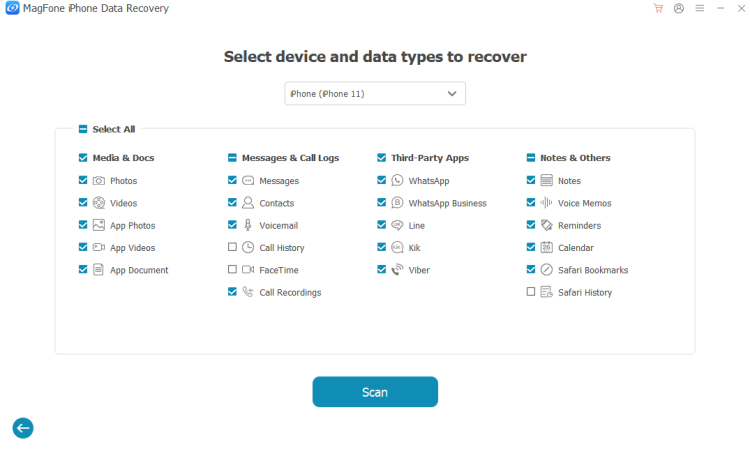
Click iPhone/iPad Data Recovery from the main interface. Mark Photos from the listed data and click Scan to scan photos from your device.
Step 3 Recover Missing iCloud Photos
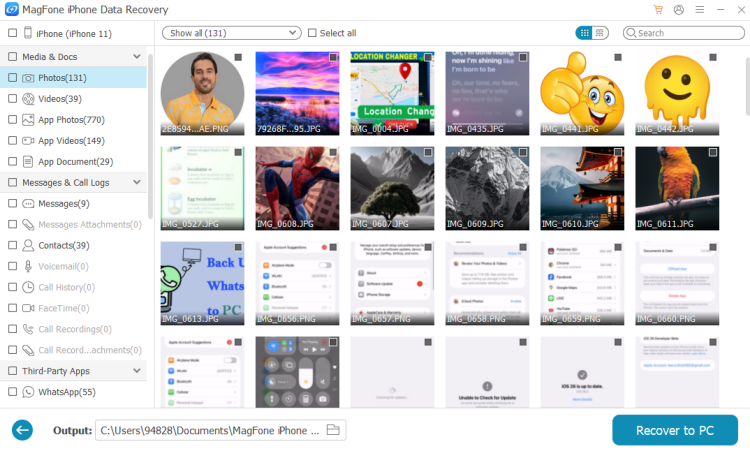
After scanning, you can preview all your photos. You can filter by data to find if the missing photos are detected. Then select and click Recover to PC or Recover to Mac to recover them.
Method 2. Recover Missing iCloud Photos from iCloud Backup
Using a data recovery tool is relatively the safest method to recover missing iCloud photos. When iCloud photos are missing, you can also recover them from an iCloud backup. This involves erasing all content and settings on your device, then setting it up and restoring data from an iCloud backup. If you can't ensure that the missing photos are included in the iCloud backup, be cautious when trying.

Step 1. Open Settings and tap General.
Step 2. Tap Transfer or Reset iPhone > Erase All Content and Settings.
Step 3. Tap Continue > Erase iPhone and enter the required passcode and Apple ID password to proceed.

Step 4. When the device restarts, manually set it up. When you see the Transfer Your Apps & Data screen, choose From iCloud Backup, then sign in to your iCloud and choose one iCloud backup to restore to your device.
Step 5. After setting up your device, you can go to Photos to find missing iCloud photos.
Method 3. Recover Missing iCloud Photos from iTunes Backup
If you have backed up your iPhone or iPad to a computer using iTunes, you can also recover missing iCloud photos from the iTunes backup. This involves replacing current device data with old iTunes backup data. If you are not willing to perform a full restore, you can use iTunes backup extractor to extract photos from iTunes backup.

Step 1. Connect your device to a computer using a data cable.
Step 2. Open iTunes and unlock your device.
Step 3. Click the device icon, then click Summary.
Step 4. Click Restore Backup and choose a backup to restore to your device.
Part 4. Conclusion
It's not alone that photos are missing from iCloud. If your iCloud photos are missing, you can follow the methods in this guide to fix the issue and recover your missing photos. Whether the photos are still on the device or no longer on the device, MagFone iPhone Data Recovery is a good helper to recover missing iCloud photos. To avoid issues like this, it's suggested you back up your iPhone to more than one cloud platform.

Olivia Wood
Editor in chief




