








I know it's unlikely but is it possible to restore any tabs after they all disappeared from Safari?"
——From Reddit
If your Safari tabs suddenly disappeared on your iPhone, don't worry. In most cases, they are not actually disappear from your iPhone and you can get them back. This issue is usually caused by a simple setting, a browsing mode change, or an iCloud sync issue rather than a serious problem. In this guide, we'll walk through the most common reasons Safari tabs disappear on iPhone and show you several practical ways to get Safari tabs back on iPhone quickly, including an easy recovery option if the usual fixes don't work.
- Part 1. Why Did My Safari Tabs Disappear on iPhone?
- Part 2. How to Fix Safari Tabs Disappearing on iPhone
- Part 3. Quickest Way to Restore Safari Tabs on iPhone
- Part 4. How to Avoid Safari Tabs Disappearing Automatically
- Part 5. Conclusion
Part 1. Why Did My Safari Tabs Disappear on iPhone?
Understanding why your Safari tabs keep disappearing on your iPhone can help you find the fix quickly. Several factors can cause your open Safari pages to vanish:

iOS Close Tabs Setting
iOS includes a feature that automatically clears open tabs after a set period, such as one day, one week, or one month, to reduce memory usage.
Accidental Mode Switching
You may have accidentally enabled Private Browsing or switched to a different Tab Group, making your regular tabs seem missing.
Accidental Closure
It is easy to accidentally tap Close All Tabs when managing your browser layout.
iCloud Sync Glitches
If you sync Safari tabs across multiple Apple devices, an iCloud sync failure can temporarily hide tabs on your phone.
System Resource Management
When your iPhone runs low on internal storage, iOS may terminate background Safari tasks, causing tabs to refresh or disappear upon opening or restarting.
Part 2. How to Fix Safari Tabs Disappearing on iPhone
If your browser tabs suddenly disappeared, work through these proven methods to locate and restore them.
Method 1. Check Safari History
If a tab was closed recently or cleared by the system, it remains recorded in your local browsing history. You can easily find and reopen it.
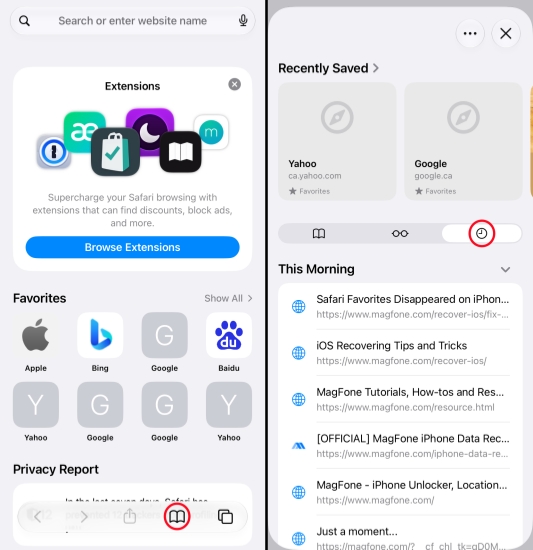
Step 1. Open Safari and open a new tab.
Step 2. Tap the Bookmarks icon, then tap the History icon to view all your Safari history.
Step 3. You can search for disappearing Safari tabs.
Method 2. Check Recently Closed Tabs
If tabs were closed accidentally, Safari may still keep them in the Recently Closed Tabs list. Checking this option can help you quickly reopen important pages.
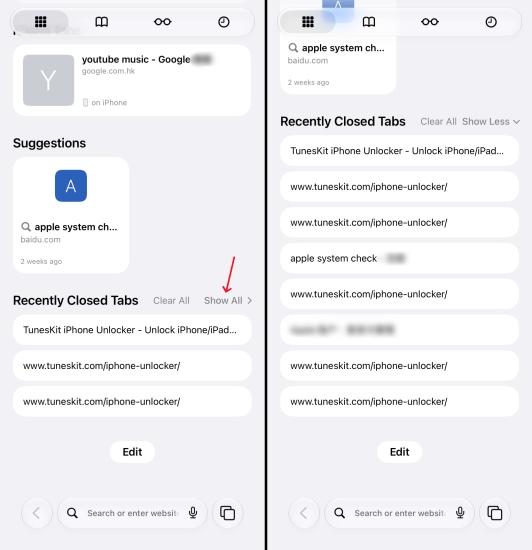
Step 1. Open Safari and open a new tab.
Step 2. Scroll down and find Recently Closed Tabs.
Step 3. Tap Show All to search for disappearing Safari tabs.
Method 3. Switch Among Tab Groups
Safari allows you to manage tabs and isolate your tab group from Private Browsing tabs. If you accidentally switch modes, your standard open tabs will disappear from view, but they are still saved.
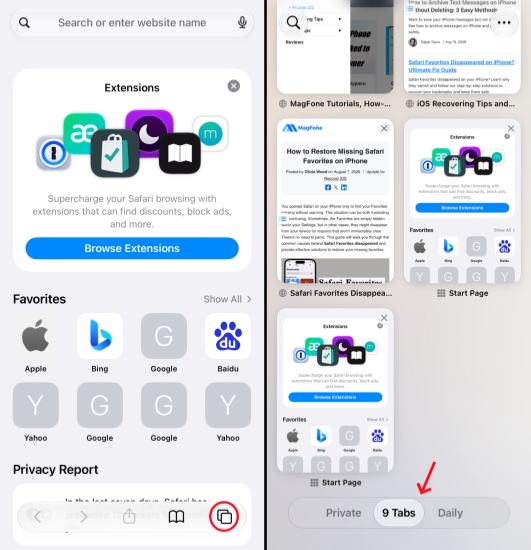
Step 1. Open Safari and tap the Tab Switcher icon.
Step 2. Check if you are in normal mode or Private mode.
Step 3. Switch between Private browsing mode and your tab groups to find the disappeared tabs.
Method 4. Search for Open Tabs in the Tab Switcher
Since Safari tabs can be replaced by swiping, you may have moved the disappearing tab to a different place. Try using the search feature to search for the disappearing Safari tab.
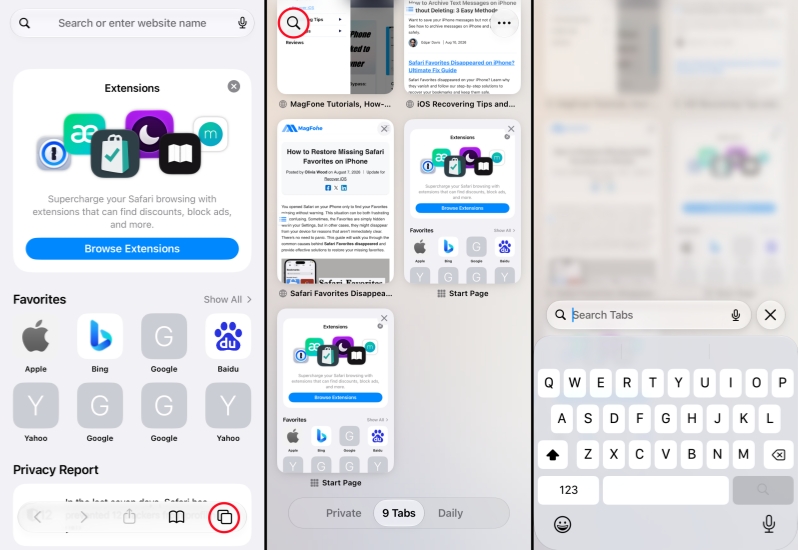
Step 1. Open Safari and tap the Tab Switcher icon.
Step 2. Tap the Search icon to search for the tab you want to find.
Method 5. Check Browsing History across iCloud Devices
If you have enabled iCloud sync for Safari, you may find the disappearing Safari tabs on another device. Just open Safari on your other Apple device and check iCloud tabs or Safari history.
Method 6. Toggle iCloud Safari On and Off
There may be a synchronization delay between your iPhone and iCloud, especially after a sudden restart. Refreshing the iCloud Safari connection often forces your device to reload missing tabs.
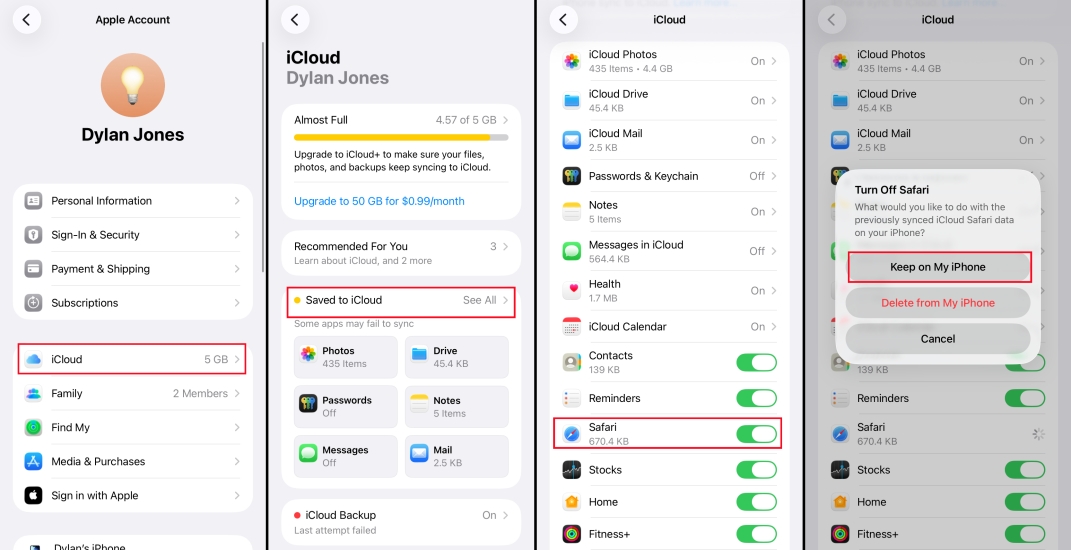
Step 1. Go to Settings and tap your Apple ID.
Step 2. Tap iCloud > Saved to iCloud.
Step 3. Toggle off Safari, and select Keep on My iPhone.
Step 4. After 30 seconds, toggle Safari on to resync the Safari history.
Part 3. Quickest Way to Restore Safari Tabs on iPhone
If you accidentally closed all Safari tabs on your iPhone, or Safari tabs disappear on iPhone unexpectedly, you can use MagFone Safari Data Recovery to restore your Safari tabs. As a useful iPhone data recovery tool, MagFone has helped many iPhone or iPad users recover deleted or lost data on iPhone, including Safari favorites, Safari bookmarks, photos, notes, etc. If you are unable to fix the disappearing issue, just follow the steps below to recover your Safari tabs and quickly access your browsing history.

MagFone iPhone Data Recovery
Recover disappered, missing, and deleted Safari tabs, Favorites, and Bookmarks without data overwritting and device reset.
Step 1 Download and Install MagFone iPhone Data Recovery
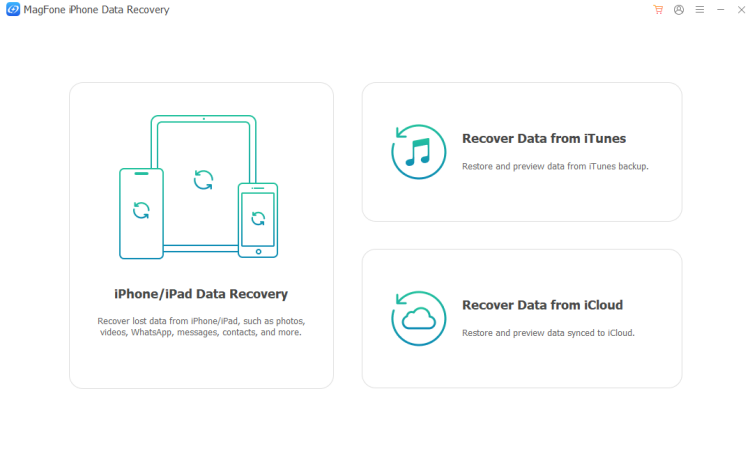
Click the MagFone iPhone Data Recovery box to download its package, then install the tool on your computer. When it's installed, run it to start recovery.
Step 2 Scan Safari Tabs on iPhone
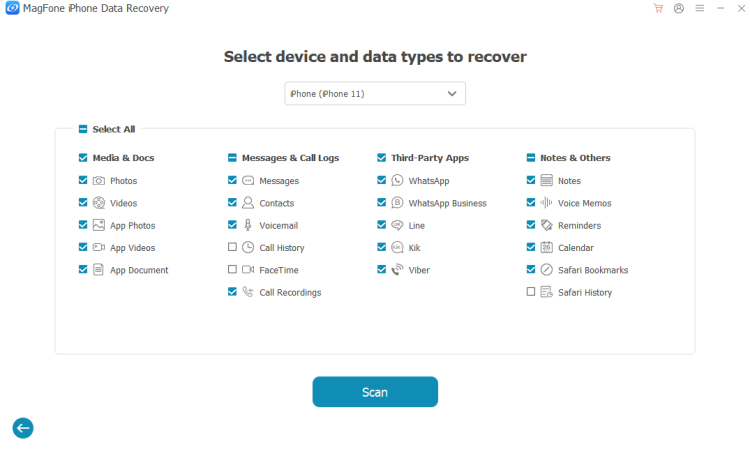
Use a data cable to connect your iPhone and the computer, then click iPhone/iPad Data Recovery from MagFone's interface. Select Safari History and click Scan to scan for disappeared Safari tabs on iPhone.
Step 3 Recover Safari Tabs on iPhone
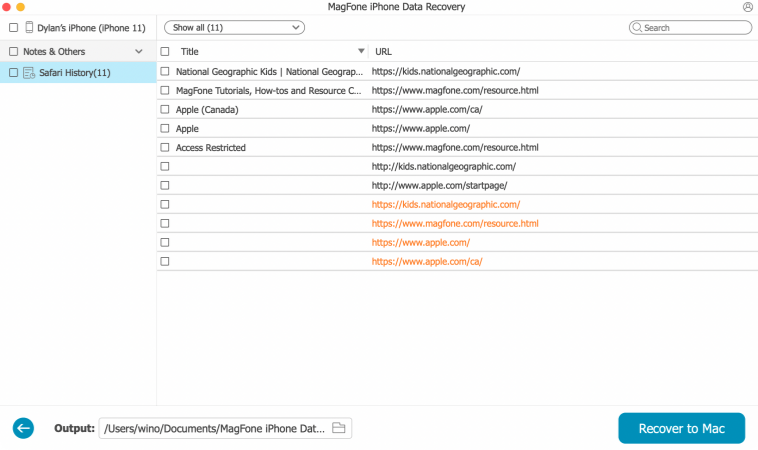
After scanning, all your Safari history will display on the screen. You can select all and click Recover to PC or Recover to Mac to export the disappearing Safari tabs to your computer. Then you can reload these tabs on your iPhone.
Part 4. How to Avoid Safari Tabs Disappearing Automatically
Once you have recovered your lost web pages, take these steps to ensure your Safari tabs don't keep disappearing in the future:
Turn Off Auto-Close Tabs in Settings
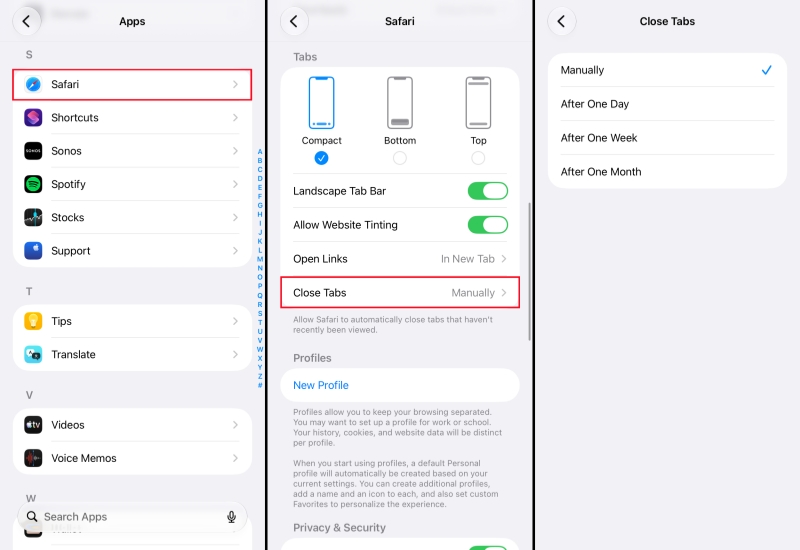
Step 1. Go to Settings > Apps > Safari.
Step 2. Tap Close Tabs and choose Manually. So your iPhone will not delete your Safari tabs automatically after a day, week, or month.
Bookmark Important Pages
Instead of keeping dozens of active tabs open indefinitely and worrying about them disappearing, add important pages to Bookmarks or Reading List.
Keep iOS Updated
Regularly update your iPhone to patch Safari or iPhone performance issues.
Ensure Sufficient Storage
Insufficient iPhone storage may lead your iPhone to shut down and restart, and cause Safari tabs to disappear. Always keep enough storage on your iPhone to use.
Part 5. Conclusion
In most cases, your Safari tabs are not actually missing on your iPhone. Checking the settings in Part 2 can generally help fix the Safari tabs disappearing issue. If the Safari tabs keep disappearing on your iPhone, you may consider MagFone iOS System Recovery to fix iPhone glitches. If the Safari tabs have really disappeared on your iPhone, MagFone iPhone Data Recovery is reliable for scanning and restoring all Safari tabs on your iPhone.

Olivia Wood
Editor in chief




