








If you use the Notes app to capture to‑dos, ideas, or important information, you'll eventually want a safe copy on your computer. Whether you're switching to a new device, need a local backup, or simply prefer editing notes on a bigger screen, moving notes from iPhone to computer is straightforward. This guide walks you through several proven methods to transfer notes from iPhone to computer so you can choose the one that fits your needs on both Windows and Mac.
- Part 1. How Can I Transfer Notes from iPhone to Computer? [Comparison Table]
- Part 2. How to Transfer Notes from iPhone to Computer
- Part 3. Easiest Way to Transfer iPhone Notes to Computer
- Part 4. FAQs about Transferring Notes from iPhone to Computer
- Part 5. Conclusion
Part 1. How Can I Transfer Notes from iPhone to Computer?
Depending on your needs and the devices you use, there are several ways to transfer notes from your iPhone to a computer. If you're on a Mac, you can move notes with AirDrop, simple copy-and-paste, or iCloud Notes sync. If you're using Windows, you can transfer notes with iCloud Notes or an email account. For a more comprehensive and hassle-free solution on both Windows and Mac, you can also use MagFone iPhone Data Recovery to transfer your notes quickly and securely.
| Method | Notes Scope | Computer | Operation | Available to Download |
|---|---|---|---|---|
| iCloud Notes | Notes stored under iCloud account | Windows & Mac | Moderate | ❌ |
| Email Account | Notes stored under the email account | Windows & Mac | Complex | ❌ |
| Copy | All notes, but single note at once | Mac | Easy | ❌ |
| AirDrop | All notes | Mac | Easy | ✔️ |
| MagFone iPhone Data Recovery | All notes | Windows & Mac | Easy | ✔️ |
Part 2. How to Transfer Notes from iPhone to Computer
When it comes to moving notes from your iPhone to a computer, your best option depends on your actual needs and situation. In this section, we will share with you all the main choices.
Method 1. Transfer iPhone Notes to Computer via iCloud Notes
By enabling iCloud Notes on your iPhone, any notes saved in the iCloud folder will automatically sync to your iCloud account. Once synced, you can access and view these notes on any computer by signing in to iCloud, either on a Mac or through a web browser on Windows.
Enable iCloud Notes on iPhone:
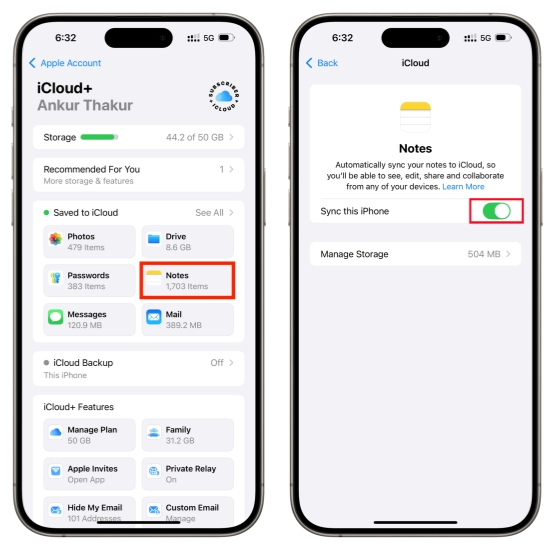
Step 1. Go to iPhone Settings > Apple ID > iCloud.
Step 2. Tap Saved to iCloud > Notes.
Step 3. Enable Sync this iPhone.
Check iCloud Notes on Computer:
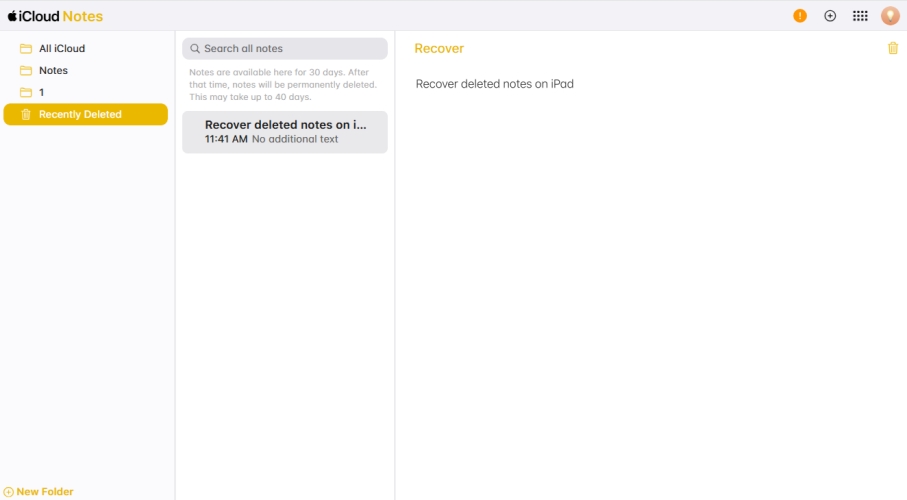
Step 1. Navigate to the iCloud Notes website and log in to your iCloud account.
Step 2. You can edit and download the notes on the website.
Method 2. Transfer iPhone Notes to Computer via Email Account
You can also add a third‑party email account, such as Gmail, Outlook, or Yahoo, to your iPhone and save notes under that account. Once synced, these notes will be available in the same email account on your computer, allowing you to view and manage them directly from your mail or notes client.
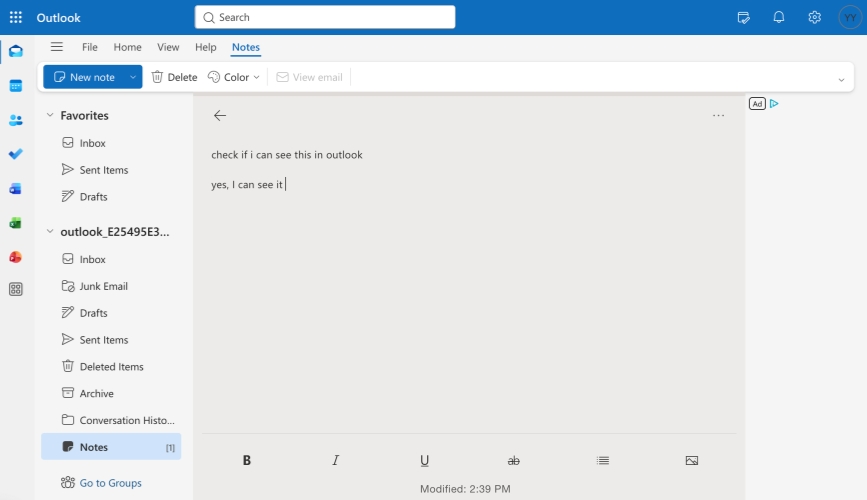
Step 1. Head to iPhone Settings > Apps > Notes.
Step 2. Tap Accounts > Add Account and add an email account to your iPhone.
Step 3. Go to the Notes app and move the notes you want to transfer to your iPhone to a folder under your email account.
Step 4. Then you can log in to your email account on a computer and find the Notes location and check your iPhone notes there.
Method 3. Transfer iPhone Notes to Computer via AirDrop [Mac]
AirDrop is a quick wireless option for Apple users who want to transfer notes directly to a nearby Mac. With Wi‑Fi and Bluetooth enabled on both devices, you can share a note from your iPhone via AirDrop, then accept it on your Mac and save it in Notes or another app.
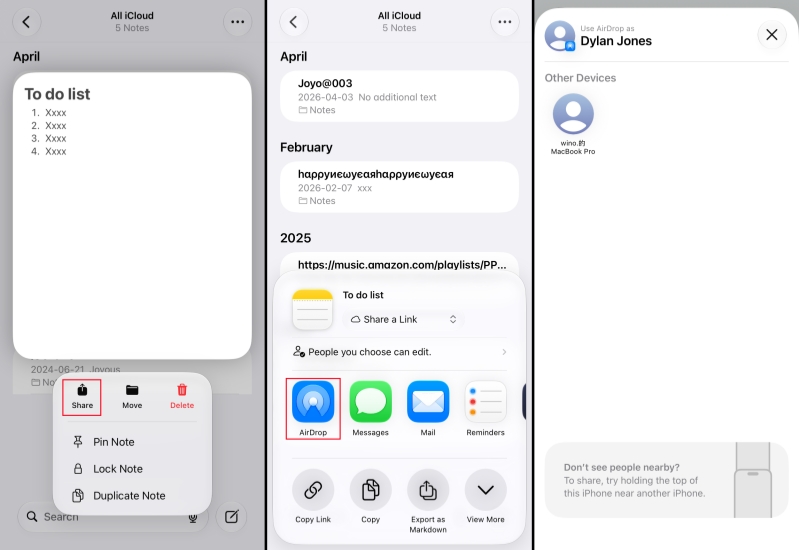
Step 1. Open the Notes app on your iPhone.
Step 2. Long-press a note and tap Share.
Step 3. Tap AirDrop and choose your Mac to transfer your iPhone notes to your Mac.
Step 4. If needed, click Receive on your Mac to receive the notes.
Method 4. Transfer iPhone Notes to Computer via Copy [Mac]
If your iPhone and Mac are signed in with the same Apple ID, you can use the Universal Clipboard to copy notes from your iPhone to your Mac. When you copy the content in a note on your iPhone, then switch to your Mac and paste, the text will appear automatically, ready to save in any app you like.
Part 3. Easiest Way to Transfer iPhone Notes to Computer
Is there a way to transfer all notes from an iPhone to a computer in one go? Absolutely. MagFone iPhone Data Recovery is a powerful tool that helps you move iPhone data to your computer easily and without data loss. It works on both Windows and Mac, so you don't have to worry about cross‑platform compatibility.
Whether you want to back up your notes, edit them on a larger screen, or export them for safekeeping, MagFone iPhone Data Recovery can handle it. Even better, it can help recover permanently deleted notes from your iPhone in many cases, still keeping your existing data intact. If you need a reliable way to manage and protect your iPhone notes, MagFone is a smart option to try. Below is how to use MagFone to transfer iPhone notes to your computer.

MagFone iPhone Data Recovery
Extract and transfer iPhone Notes from Your Device or Backup in Minutes.
Step 1 Download and Install MagFone iPhone Data Recovery
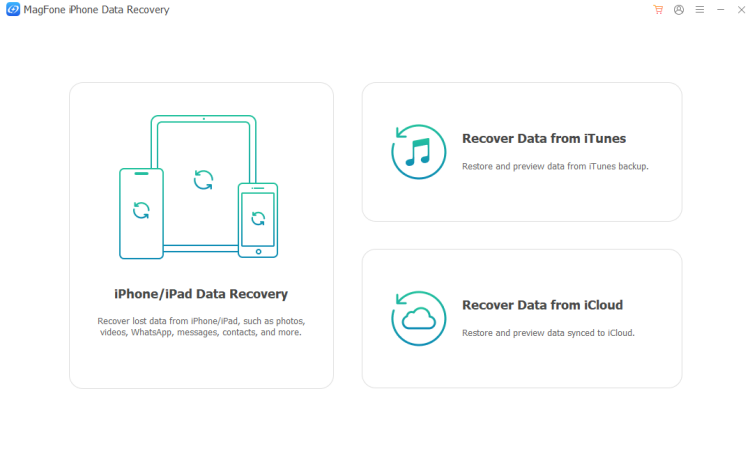
Download and install MagFone iPhone Data Recovery on your computer, then use a data cable to link your iPhone with your computer. Launch this tool when installed successfully.
Step 2 Back Up Notes on iPhone
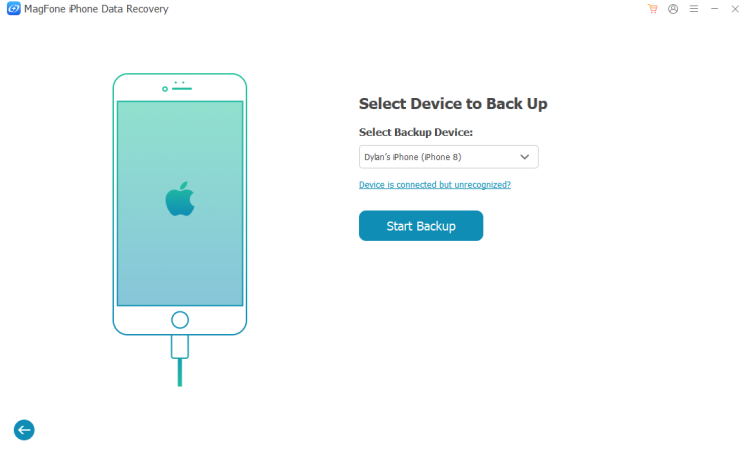
Click iOS Backup & Restore > Back Up iOS Data, then click Start Backup to back up your iPhone data to the computer. When the backup is done, go back to the main interface of MagFone.
Step 3 Scan Notes on iPhone
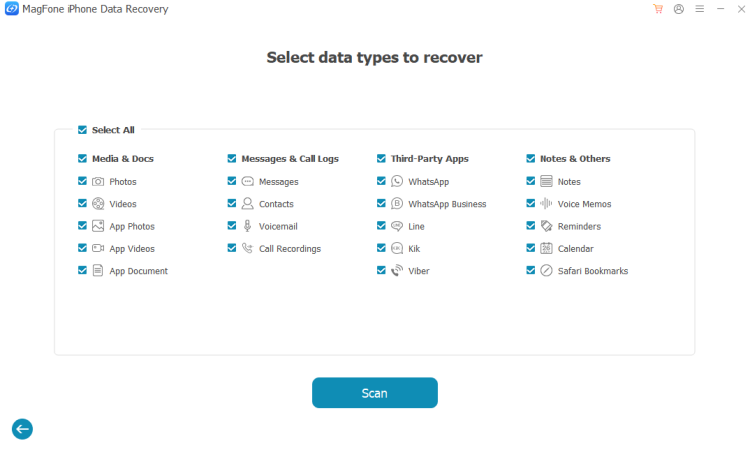
Click Recover Data from iTunes, then click the backup you've just created and click Next. Select Notes and click Scan to scan for notes on your iPhone.
Step 4 Transfer iPhone Notes to Computer
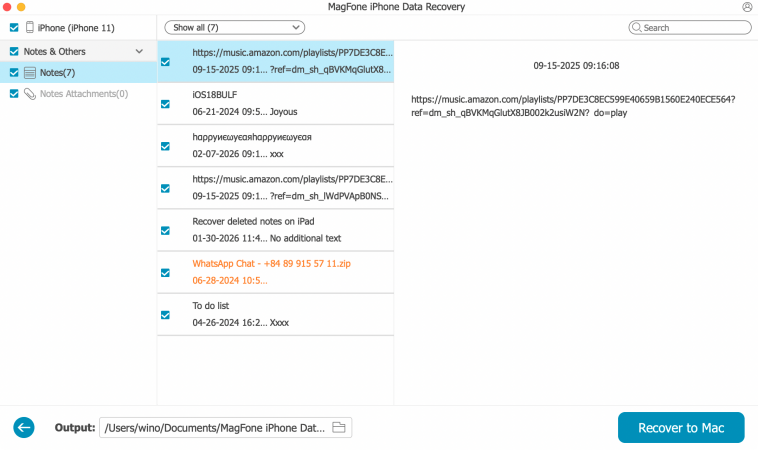
After scanning, you can select notes and click Recover to PC or Recover to Mac to export them to your computer.
Part 4. FAQs about Transferring Notes from iPhone to Computer
How to transfer notes from iPhone to computer with iTunes?
You can use iTunes to create a full backup of your iPhone on your computer, which includes your notes. However, the notes inside an iTunes backup are not directly readable. To view or export the actual note content, you'll need an iTunes backup extractor such as MagFone iPhone Data Recovery.
How to transfer notes from iPhone to computer without iTunes?
If you prefer not to use iTunes, you can transfer iPhone notes to your computer via iCloud Notes, a linked email account, AirDrop (for Mac), or a third‑party tool like MagFone iPhone Data Recovery.
How to transfer notes from iPhone to computer without iCloud?
To transfer notes without relying on iCloud, you can use AirDrop to send notes directly to a Mac, back up your device with iTunes and extract notes using MagFone iPhone Data Recovery, or let MagFone scan your iPhone and export notes straight to your computer.
Part 5. Conclusion
Transferring notes from iPhone to computer can be simple, whether you choose iCloud Notes, AirDrop, or a linked email account. If you need bulk export, easy viewing, or recovering deleted notes, MagFone iPhone Data Recovery offers a more powerful solution, letting you download and manage all your iPhone notes on Windows and Mac with ease.

Edgar Davis
Editor in chief





