








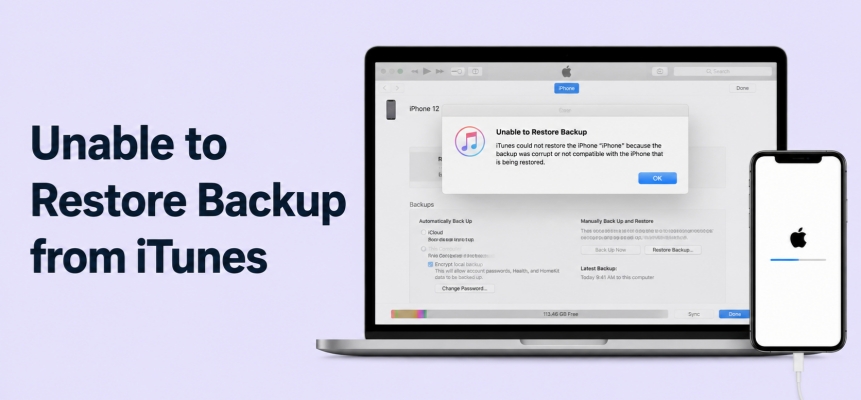
Restoring your iPhone from an iTunes backup should be a simple process, but sometimes things don't go as planned. Whether you're upgrading to a new device or recovering important data, hitting a roadblock when iTunes can't restore your backup can be incredibly frustrating. Fortunately, there are clear reasons this problem occurs and practical solutions to help you get your data back safely. In this guide, we'll explore why iTunes may fail to restore your backup, step-by-step methods to fix the issue, and a bonus tip for extracting your data with ease. Let's get started on making your iPhone restoration smooth and stress-free.
- Part 1. Reasons Why You Can't Restore Backup from iTunes?
- Part 2. How to Fix Unable to Restore iPhone Backup from iTunes
- Part 3. Bonus Tip: Extract iTunes Backup with MagFone iPhone Data Recovery
- Part 4. Conclusion
Part 1. Reasons Why You Can't Restore Backup from iTunes?
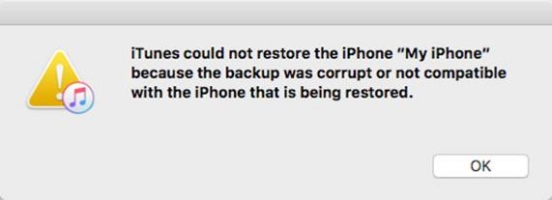
When you can't restore an iTunes backup to your iPhone, iTunes has always told you the reasons in its messages. You may encounter the following messages while restoring an iTunes backup to iPhone:
- iTunes could not restore backup because iPhone disconnected.
- The backup cannot be restored to this iPhone because the software on the iPhone is too old.
- iTunes could not restore the iPhone because the backup was not compatible with the iPhone that is being restored.
- iTunes could not restore the iPhone because the backup was corrupt or not compatible with the iPhone that is being restored.
- iTunes could not restore the iPhone because not enough storage space is available on the iPhone.
- iTunes could not restore the iPhone because the backup does not exist.
We can ascribe the issue to insufficient storage on the iPhone, temporary device bugs, backup incompatibility, old iPhone system, unstable USB connection, etc. No matter which case you are in, keep reading this guide to fix the issue and restore iPhone from an iTunes backup successfully.
Part 2. How to Fix Unable to Restore Backup from iTunes
No matter whether you are restoring an iTunes backup to an old iPhone or a new iPhone, if you are unable to restore iPhone from iTunes backup, follow the methods below to quickly fix the issue.
Method 1. Verify Cable Connection and USB Ports
A faulty or loose cable connection is one of the most common reasons iTunes cannot restore a backup. Make sure you're using a compatible USB cable, and check both ends for any signs of damage. If the connection is inconsistent, try connecting your iPhone to a different USB port on your computer, or even test with another cable if possible.
Method 2. Restart iPhone and Computer
Try restarting your iPhone, iTunes, or the computer. This may resolve temporary glitches that interfere with the backup restoration process.
Restart iPhone:
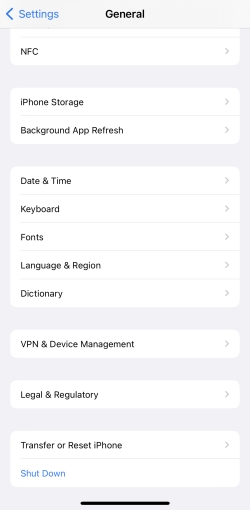
Step 1. Go to iPhone Settings and tap General.
Step 2. Tap Shut Down at the bottom and drag the slide to shut it down.
Step 3. When the iPhone is dead, long-press the Power button to restart it.
Restart Computer:
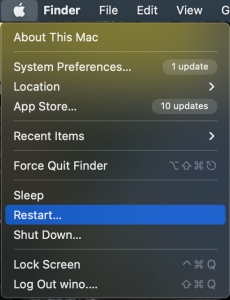
- On Windows: Click the Windows icon, click the Power icon, and click Restart to restart the computer.
- On Mac: Click the Apple icon at the upper-left corner, then click Restart to restart the MacBook.
Method 3. Ensure Enough iPhone Storage
Insufficient storage space on your iPhone can prevent iTunes from restoring your backup. Before starting the process, you can check the available space on your device and compare it to the size of your backup. If your iPhone is running low on storage or its storage space is much smaller than the iTunes backup size, try deleting unnecessary files or apps to free up enough space or use a bigger-size iPhone for the restore.
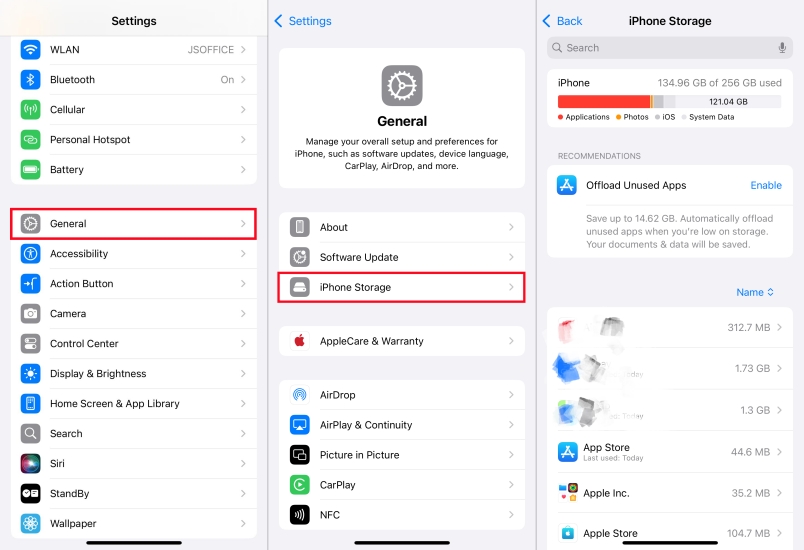
Step 1. Go to Settings > General > iPhone Storage.
Step 2. Check your spare iPhone storage and compare it with the iTunes backup size.
How to Check iTunes Backup Size:
On Windows:
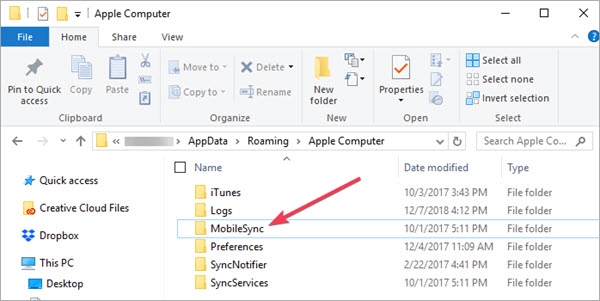
Step 1. Press the Windows key and R to open the Run dialog box.
Step 2. Paste %USERPROFILE% in the box and press Enter.
Step 3. Right-click the backup file and click Properties, and you can see the size of the iTunes backup.
On Mac:
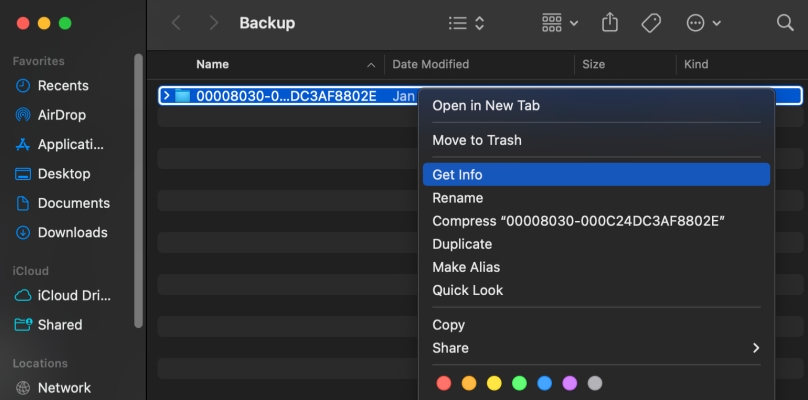
Step 1. Open Finder and click Go in the Menu bar.
Step 2. Click Go to Folder and paste ~/Library/Application Support/MobileSync/Backup/ in the pathname window.
Step 3. Press the Enter key, and right-click the iTunes backup file.
Step 4. Click Get Info, and you can see the size of the iTunes backup.
Method 4. Update iPhone and iTunes
Software version mismatches between your iPhone and the backup can also cause restore failures. Make sure your iPhone is updated to the latest version of iOS and make sure iTunes is always up-to-date.
Update iPhone:
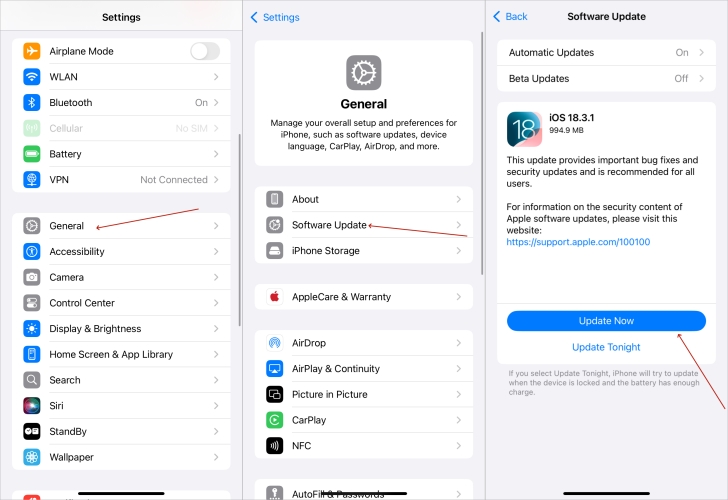
Step 1. Go to iPhone Settings > General.
Step 2. Tap Software Update and check for updates.
Step 3. If there is a newer iOS version, tap Download Now or Install Now to upgrade.
Update iTunes:
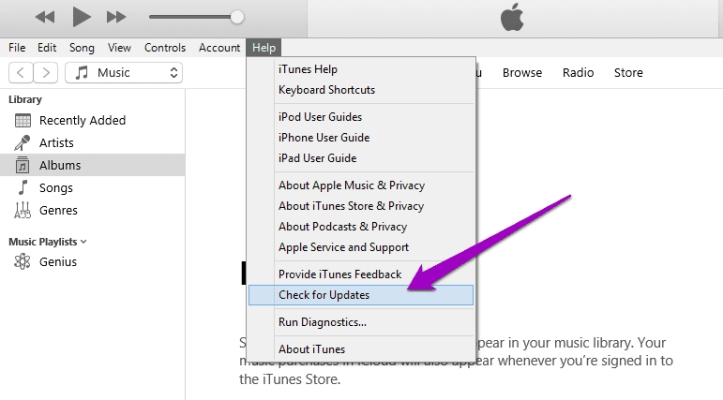
Step 1. Open iTunes and click Help in the menu.
Step 2. Click Check for Updates.
Step 3. When there is an available update, click Download iTunes.
Method 5. Erase All Content and Settings on iPhone
Since restoring a backup from iTunes will overwrite current data on your device, you can also erase all content and settings on your iPhone, then choose to restore iPhone data from iTunes when setting up the iPhone.
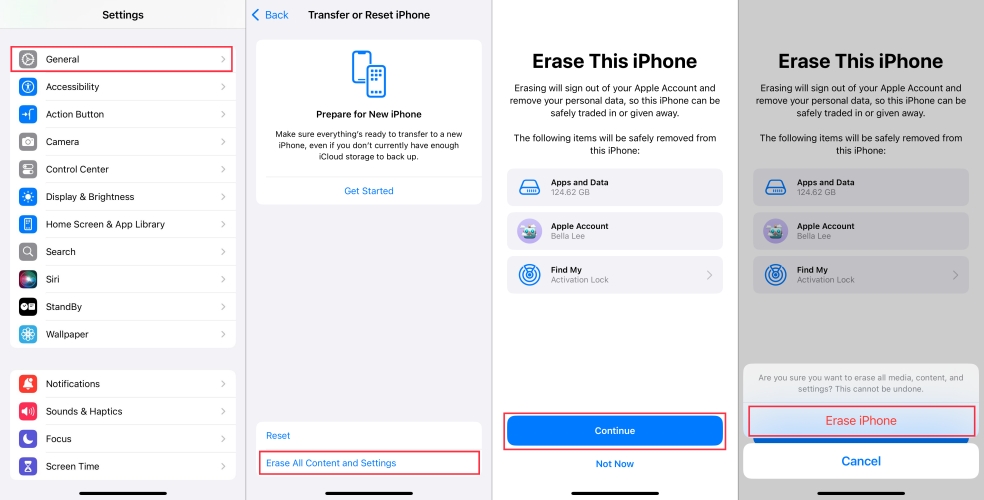
Step 1. Go to iPhone Settings > General > Transfer or Reset iPhone.
Step 2. Tap Erase All Contents and Settings > Continue > Erase iPhone.
Step 3. Enter the required iPhone passcode and Apple ID password, and tap Erase iPhone. Then all content and settings on your iPhone will be erased.
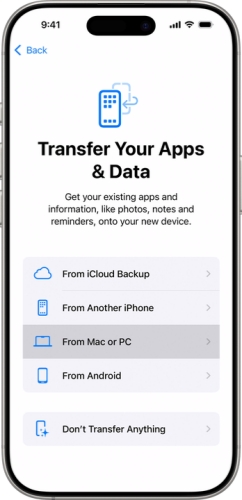
After erasing, you can set up the iPhone from the Hello screen. When you see the Transfer Your Apps & Data screen, choose From Mac or PC. Then you can connect the iPhone to your computer and restore the iTunes backup to your iPhone.
Part 3. Bonus Tip: Extract iTunes Backup with MagFone iPhone Data Recovery
When you are unable to restore an iPhone backup from iTunes, there is an extra solution to help you restore an iTunes backup. You can consider using an iTunes backup extractor to extract data from iTunes backup.
MagFone iPhone Data Recovery allows you to restore data from iTunes backup without erasing the iPhone and overwriting data. In addition, it can recover deleted data on iPhone without backup, help back up iPhone and restore backup to iPhone. If iTunes can't restore the backup to your iPhone, just follow the steps below to extract your data!

MagFone iPhone Data Recovery
Safely back up iPhone data and extract data iTunes backup.
Download the MagFone iPhone Data Recovery package on the computer and install it after downloading. Then run the software.
Step 1 Run MagFone iPhone Data Recovery
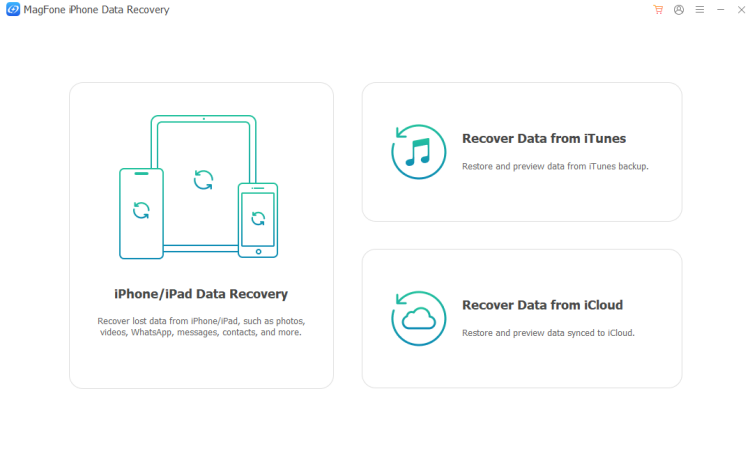
First, download and install MagFone iPhone Data Recovery on your computer. Then use a data cable to link your iPhone to the computer for backup.
Step 2 Scan iTunes Backup
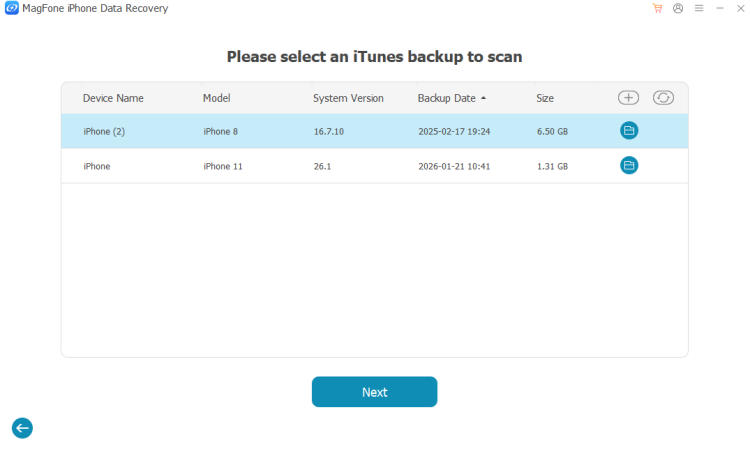
Click Recover from iTunes Backup, and you can see all available iTunes backups on the screen. Choose the iTunes backup you want to scan and click Next. Then choose the data you want to extract and click Scan.
Step 3 Extract Data from iTunes Backup
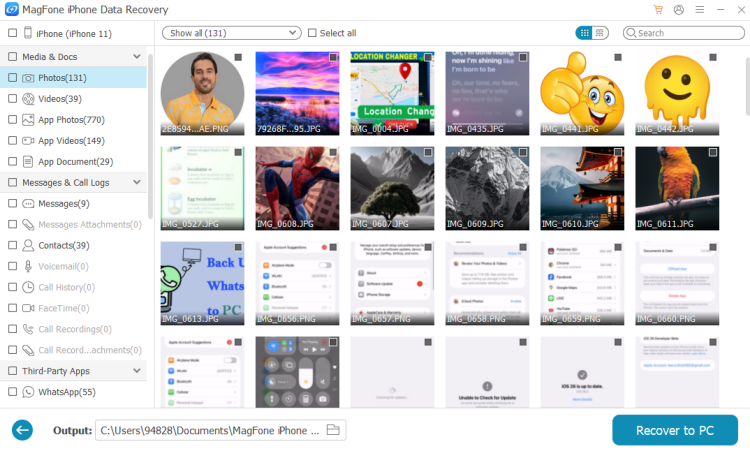
After scanning, you can check the scanned result on your computer. And you can select the data and click Recover to PC or Recover to Mac to extract them from the iTunes backup.
Part 4. Conclusion
In conclusion, being unable to restore your iPhone backup from iTunes can be frustrating, but you can often resolve most issues with the instructions. If the methods suggested by the iTunes message don't work, specialized tools like MagFone iPhone Data Recovery offer an alternative way to extract your important data. With patience and the right approach, you can overcome backup restore problems and keep your information safe.

Olivia Wood
Editor in chief





