








You assume your iPhone has been backing up to iCloud automatically—until you check the backup status in Settings and realize it hasn't backed up in days, or even weeks. Don't panic. In this guide, we'll explain the most common reasons your iPhone isn't backing up to iCloud, walk you through practical fixes that actually work, and introduce reliable alternative backup methods to make sure your data stays safe.
- Part 1. Why Is My iPhone Not Backing Up to iCloud?
- Part 2. How to Fix iPhone Not Backing Up to iCloud
- Part 3. Alternative Ways to Back Up iPhone
- Part 4. FAQs about Backing Up iPhone to iCloud
- Part 5. Conclusion
Part 1. Why Is My iPhone Not Backing Up to iCloud?
Before you try fixing the issue, it helps to understand what's actually stopping your iPhone from backing up to iCloud. Below are the most common factors:

Unstable or no Wi‑Fi connection:
iCloud backups require a stable Wi‑Fi network. If the signal is weak or dropping, or if you're not connected at all, the backup may fail or never start.
iCloud storage is full:
When your iCloud storage runs out, your iPhone can't upload a new backup.
iPhone not plugged into power:
Automatic iCloud backups usually run when your iPhone is locked, on Wi‑Fi, and charging. If it's not connected to power for long, the backup might not have time to complete.
iPhone is in low battery level or Low Power mode:
If your battery is low, iOS may postpone or skip iCloud backups to save power. The system prioritizes keeping your phone usable over running a backup.
Temporary iOS or iCloud glitches:
Background processes related to iCloud can sometimes get stuck or bug out and cause backups to fail.
Outdated iOS version:
Older iOS versions may have known bugs or compatibility issues with iCloud. If you haven't updated in a while, those issues can interfere with backups.
Part 2. How to Fix iPhone Not Backing Up to iCloud
Once you know the possible causes, you can start fixing them one by one. The methods below will help you fix the iPhone not backing up to iCloud issue.
Method 1. Check the Network
A stable Wi‑Fi connection is essential for iCloud backups. Make sure your device is connected to a reliable Wi‑Fi network and that the signal is strong before you try again.
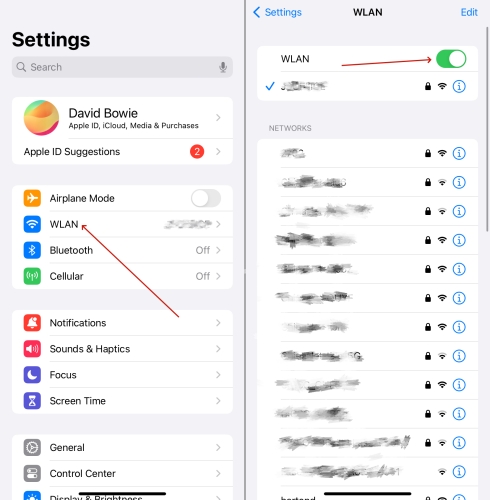
Step 1. Open Settings and tap WLAN.
Step 2. Keep your iPhone connected to a strong network.
Method 2. Ensure Enough iCloud Storage
If your iCloud storage is nearly full or completely used up, your iPhone simply can't upload a new backup. Check how much iCloud storage you have left, and free up storage or upgrade your plan if your backup size is larger than the available space.
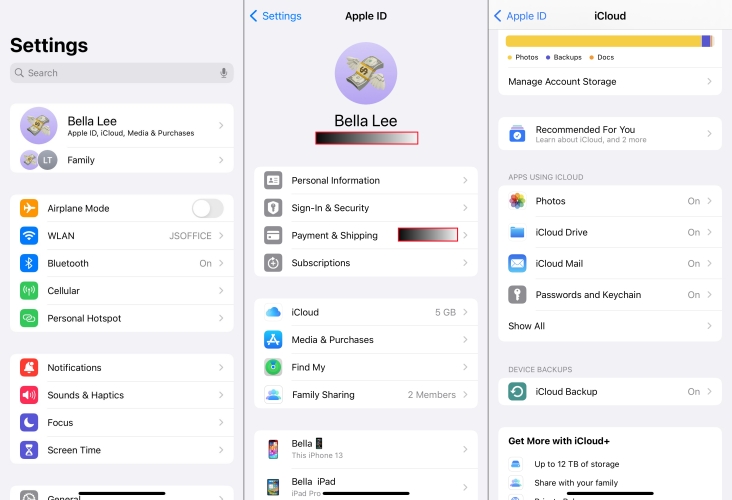
Step 1. Go to iPhone Settings > Apple ID > iCloud.
Step 2. Tap Manage Account Storage to check if there is sufficient space to back up your iPhone.
Step 3. If there is not enough iCloud storage, you may see a message saying that your iPhone can't be backed up. Tap Upgrade to iCloud+ to enlarge your iCloud storage so you can back up your iPhone.
Method 3. Connect Your iPhone to Power
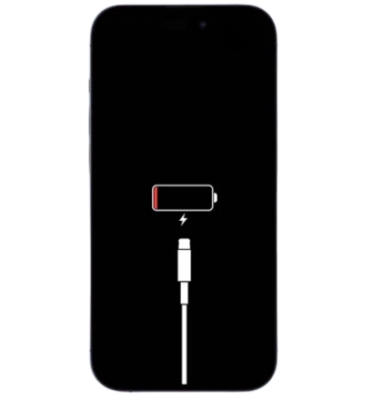
iCloud backups are designed to run automatically when your iPhone is locked, connected to Wi‑Fi, and plugged into power. Connecting your iPhone to a charger and leaving it locked for a while often allows the backup to complete in the background.
Method 4. Restart Your iPhone
Sometimes a simple restart is all it takes to clear minor software glitches that interfere with iCloud backup. Restarting your iPhone can help if the backup process has become stuck or unresponsive.
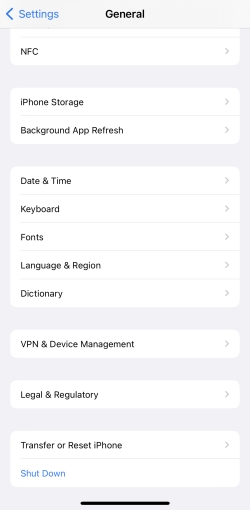
Step 1. Head to iPhone Settings > General.
Step 2. Tap Shut Down at the bottom.
Step 3. Drag the slide to shut off your iPhone.
Step 4. Long-press the Volume-up button and the Power button at the same time to restart your iPhone.
Method 5. Update iOS System
Running an outdated version of iOS can cause compatibility issues with iCloud services. Check for any available iOS updates and install them. Updating your system can often fix backup errors.
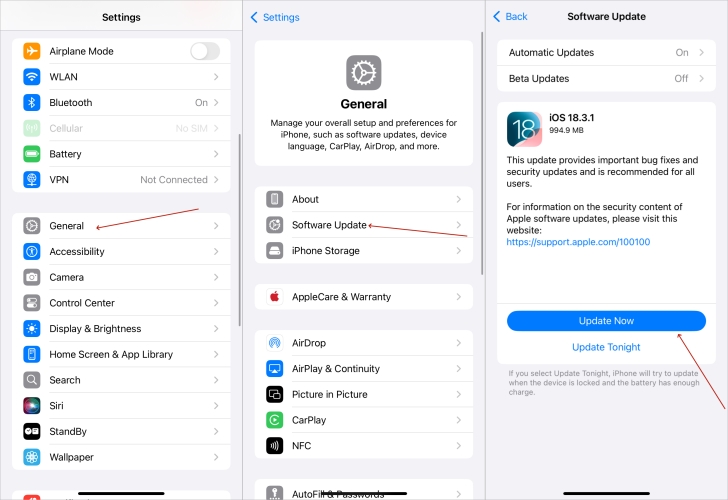
Step 1. Head to iPhone Settings > General > Software Update.
Step 2. Tap Download Now or Install Now when there is an update available.
Method 6. Disable iCloud Backup and Re-enable
If everything looks fine but your iPhone still won't back up, the iCloud Backup feature itself may be stuck. Turning iCloud Backup off and then back on forces your device to re-establish its connection with Apple's servers and can clear temporary glitches. After re‑enabling it, try a manual backup to see if it runs successfully.
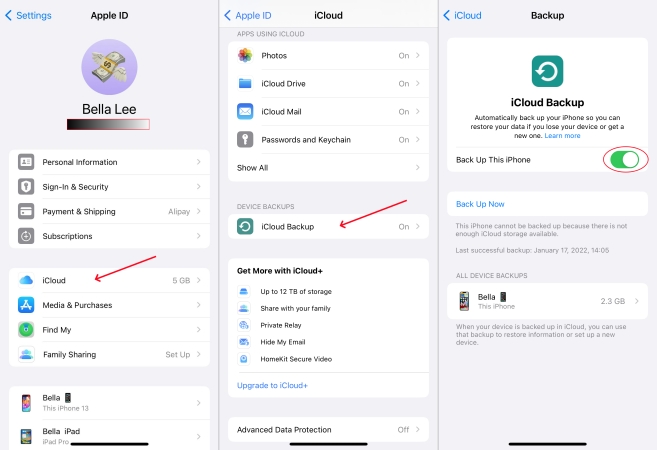
Step 1. Open iPhone Settings and tap your Apple ID.
Step 2. Tap iCloud > iCloud Backup.
Step 3. Disable Back Up This iPhone and choose Turn Off.
Step 4. Re-enable Back Up This iPhone and tap Back Up Now to back up your iPhone to iCloud.
Method 7. Reset All Settings
When none of the above methods work, your iPhone's settings might be misconfigured in a way that affects iCloud backup. Resetting all settings can resolve deeper configuration problems that prevent backups from completing.
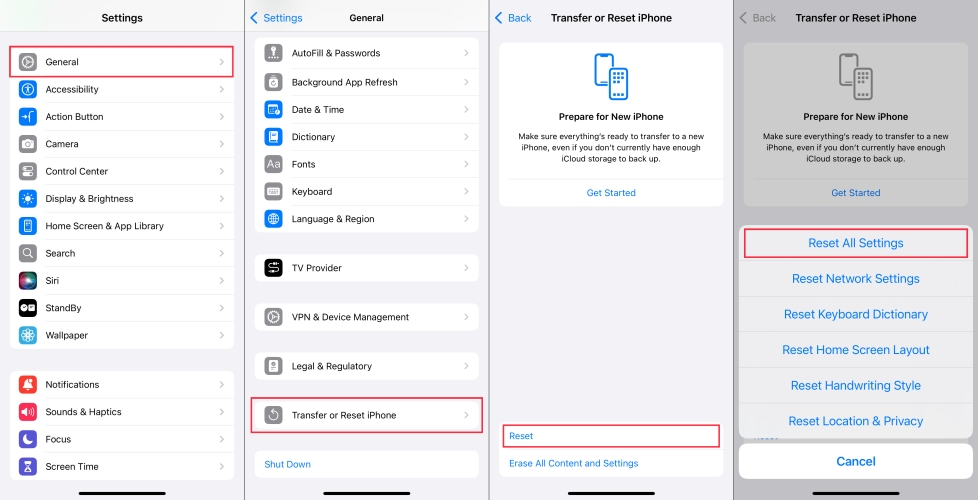
Step 1. Head for iPhone Settings > General.
Step 2. Tap Transfer or Reset iPhone at the bottom.
Step 3. Tap Reset and choose Reset All Settings.
Step 4. Enter your iPhone passcode and tap Reset All Settings again. Afterwards, try backing up your iPhone to iCloud.
Part 3. Alternative Ways to Back Up iPhone
When you're unable to back up iPhone to iCloud, there are other reliable ways to back up your iPhone. You can use a computer to back up your iPhone to iTunes or turn to specialized third-party software for more control over what gets backed up and how you restore it.
Option 1. Back Up iPhone Using iTunes
iTunes or Finder lets you create a full backup of your iPhone directly to your computer. This type of backup doesn't depend on Wi‑Fi or iCloud storage. It's a good choice if you want an offline backup that you fully control.
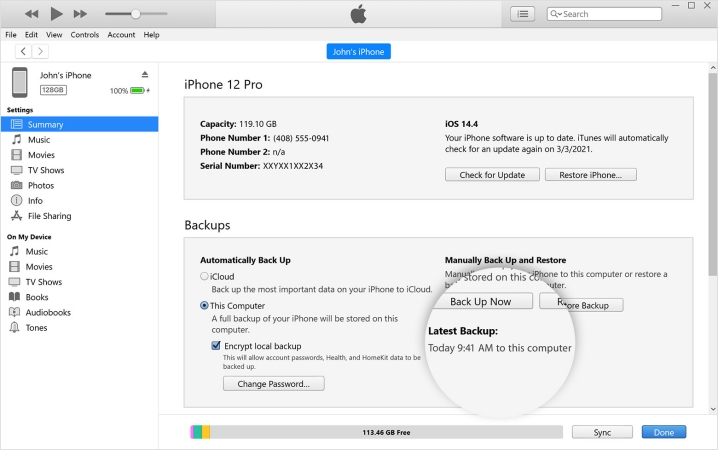
Step 1. Open iTunes on your computer and use a data cable to connect your iPhone to the computer.
Step 2. Click the iPhone icon, then click Back Up Now to back up your iPhone to computer using iTunes.
Option 2. Back Up iPhone Using MagFone
If you don't want to rely on iTunes or iCloud, MagFone iPhone Data Recovery offers another flexible way to back up your iPhone. MagFone is designed to help iPhone and iPad users manage and recover data. It lets you back up your iPhone to a computer, restore those backups to your device, and even preview the contents of each backup. On top of that, it can recover deleted data from an iPhone or iPad even if you don't have a previous backup.
As long as your computer has enough free storage, you can use MagFone to back up your iPhone without worrying about iCloud limits or subscription plans.

MagFone iPhone Data Recovery
Securely back up, manage, and restore your iPhone data without relying on iCloud or iTunes.
Step 1 Download and Install MagFone iPhone Data Recovery
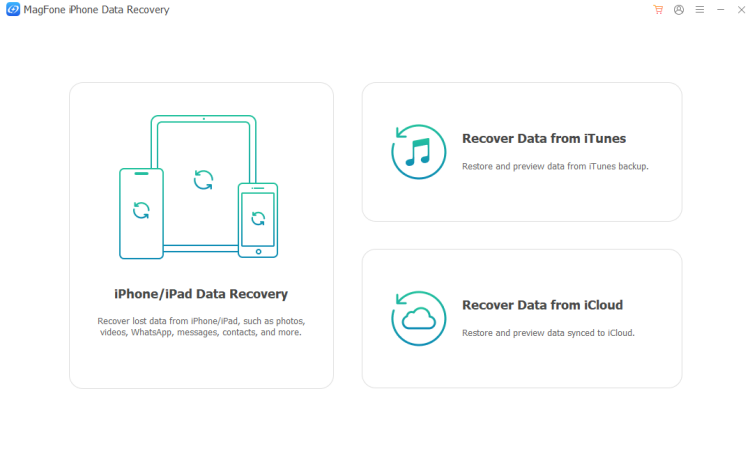
First, download and install MagFone iPhone Data Recovery on your computer. Then you can use this tool for further backup.
Step 2 Back Up iPhone to Computer
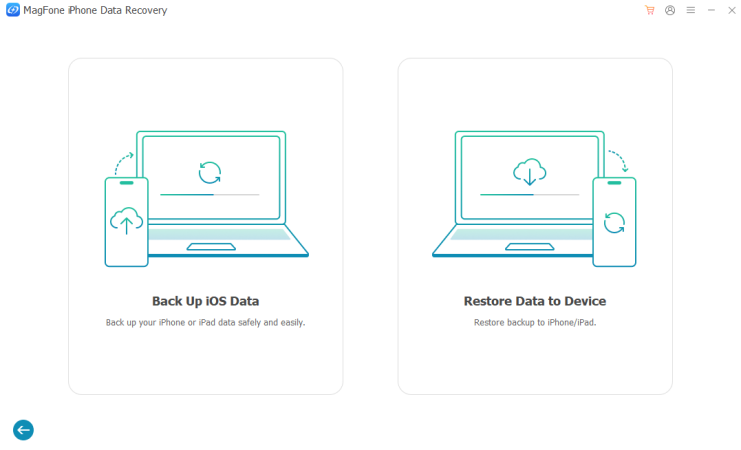
Connect your iPhone to the computer via a data cable. Choose Backup & Restore > Back Up iOS Data. Then click Start Backup to back up your iPhone to the computer.
Step 3 Extract iPhone Backup

Now you have a backup file of your iPhone on the computer. If you want to read the contents in the backup, you can choose Recover Data from iTunes and follow the instructions to extract data. If you want to restore the iPhone backup in the future, you can click Restore Data to Device to restore it.
Part 4. FAQs about Backing Up iPhone to iCloud
How to automatically sync everything to iCloud?
You can go to iPhone Settings > Apple ID > iCloud > iCloud Backup. Enable Back Up This iPhone, and when there is a network, charging power, and storage, your iPhone will sync to iCloud automatically.
Why does my iPhone not automatically backup to iCloud?
If you have enabled automatic iCloud backup for iPhone, your iPhone will be backed up to iCloud automatically when there is enough storage in iCloud, there is a strong Wi-Fi network on your iPhone, and the iPhone is charging.
Part 5. Conclusion
By now, you should have a clear idea of why your iPhone wasn't backing up to iCloud and how to fix it, plus two alternative ways to protect your data. For data protection, we highly recommend you regularly check your iCloud backup status and back up your iPhone to a computer either with iTunes or MagFone. If we have helped you fix the iPhone not backing up to iCloud issue, leave a comment to let us know!

Olivia Wood
Editor in chief





