








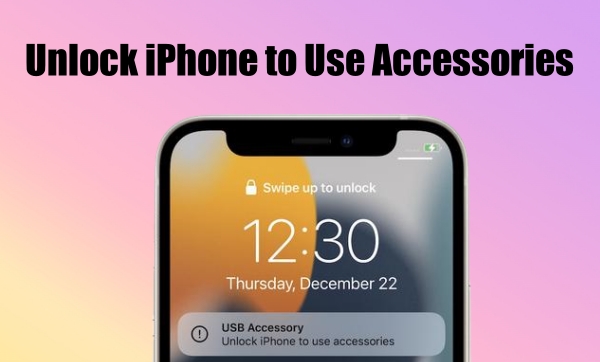
Have you ever received a message saying "Unlock iPhone to use accessories" when you connect your iPhone to your computer for charging through a USB cable? To unlock iPhone to use accessories, you have to enter your screen unlock passcode on the lock screen. However, some users are tired of unlocking the passcode-protected iPhone to connect it to a Mac, PC or accessory. Today here, we'll tell you how to turn off unlock iPhone to use accessories. Also, we will share several solutions to help you out when you want to unlock iPhone to use accessories without passcode.
- Part 1. What Does Unlock iPhone to Use Accessories Mean?
- Part 2. How to Turn Off Unlock iPhone to Use Accessories
- Part 3. How to Unlock iPhone to Use Accessories without Passcode [Data Loss]
- Part 4. Troubleshooting: This Accessory Is Not Supported by This iPhone
- Part 5. FAQs about Unlock iPhone to Use Accessories
- Part 6. Conclusion
Part 1. What Does Unlock iPhone to Use Accessories Mean?
The 'Unlock iPhone to use accessories' means that you need to unlock your passcode-protected iPhone for use or charging when you connect it to a Mac, PC, or accessory with a USB cable. On all models of iPhone running iOS 11.4 or later, users would receive this prompt as it is a security feature developed by Apple, which prevents someone from accessing your iPhone without entering a passcode. In the following scenarios, you have to unlock your iPhone for it to recognize and connect to some accessories.
- USB accessories
- Thunderbolt accessories
- Smart Connector accessories
- Mac or PC computers
Once unlocking your iPhone, you can use your iPhone with those accessory-connected devices. What's more, your accessory remains connected, even if your iPhone is locked again. However, if you don't enter a passcode to unlock your iPhone at first, your device won't communicate with the accessory-connected device. Without a doubt, it might not charge even though you have connected it to your computer with a USB cable. Thus, it is not surprising that some users come across issues like charging iPhone accessory not supported.
Part 2. How to Turn Off Unlock iPhone to Use Accessories
If you regularly connect your iPhone to accessories, having to enter your passcode each time can be inconvenient. While USB Restricted Mode is designed to protect your data, you can turn off this feature to allow accessories to connect automatically without unlocking your device every time. In this section, we'll show you how to disable the “Unlock iPhone to Use Accessories” setting on different versions of iOS, so you can streamline your accessory connections.
Note:
Disabling Unlock iPhone to Use Accessories will reduce your data security. Once this setting is turned off, anyone who connects your iPhone with a data cable may be able to access your data without needing your passcode. For this reason, it is generally not recommended to disable this feature.
iOS 18 and later:
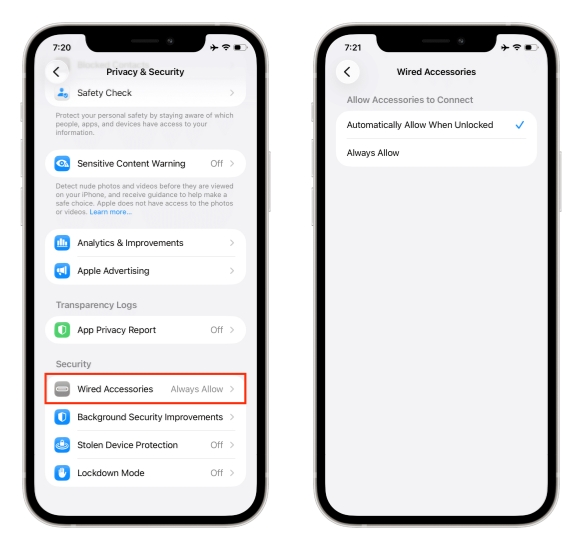
Step 1. Open Settings and tap Security & Privacy.
Step 2. Tap Wired Accessories under Security.
Step 3. If you want to turn off the Unlock iPhone to Use Accessories alert, choose Always Allow.
iOS 17 and earlier:
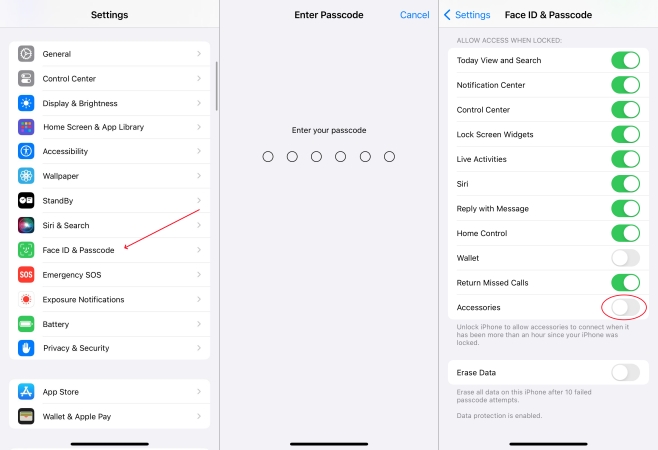
Step 1. On your iPhone, open the Settings app and head to Face ID & Passcode or Touch ID & Passcode.
Step 2. Enter your passcode to locate the settings of Face ID & Passcode or Touch ID & Passcode.
Step 3. Scroll down to Allow Access When Locked and turn on Accessories.
By the way, you need to know that administrators can control the Accessories setting on those supervised devices. If you use a company-owned device and don't want those kinds of things to happen, you can remove device supervision from your iPhone.
Part 3. How to Unlock iPhone to Use Accessories without Passcode
Once you disable USB restricted mode on your iPhone, you won't see a prompt saying "Use iPhone to unlock accessories". But if you don't turn off USB restricted mode and can't unlock your iPhone to use accessories, you can try other methods to bypass unlock iPhone to use accessories. Here are the steps you can follow to fix unlock iPhone to use accessories.
Method 1. Remove USB Restricted Mode by Erasing iPhone Directly
Once your iPhone is updated to iOS 15.2 or later, you can easily erase your iPhone on the Security Lockout screen with your Apple ID password. It will reset your device to factory settings, so you won't be required to unlock the iPhone to use accessories with a passcode anymore.
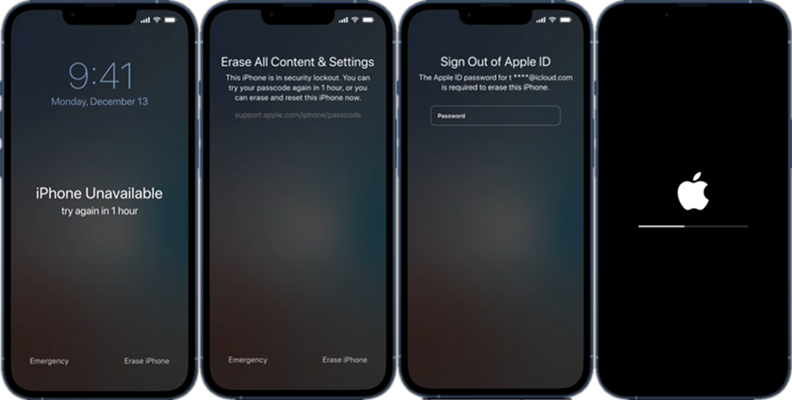
Step 1. Enter the passcode on your iPhone Lock Screen until the iPhone Unavailable screen appears.
Step 2. Tap Erase iPhone or Forgot Passcode? at the bottom of the screen.
Step 3. On the Security Lockout screen, tap Erase iPhone or Start iPhone Reset to confirm.
Step 4. Enter your Apple ID password to sign out of your Apple ID on your device.
Step 5. Tap Erase iPhone to start deleting all of your data and settings.
Method 2. Unlock USB Restricted Mode by Using MagFone iPhone Unlocker
Rather than erasing your iPhone on the iPhone Unavailable screen, you can unlock your iPhone without your Apple ID and password by using a professional unlocking tool. MagFone iPhone Unlocker has the ability to unlock an iPhone, iPad, and iPod touch without entering the screen lock passcode. Beyond that, MagFone software can remove Apple ID, Screen Time, and MDM profile without password. If you want to quickly get your iPhone unlocked, you can use MagFone iPhone Unlocker by following the steps below.

MagFone iPhone Unlocker
Unlock various locks on iOS devices, including screen locks, MDM, Apple ID, and Activation Lock without needing a password.
Step 1 Connect Disabled iPhone to Computer
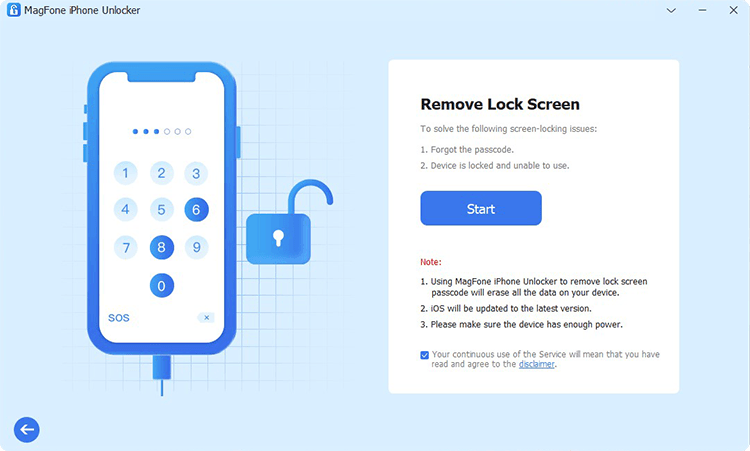
First up is to connect your disabled iPhone to your computer with a USB cable. Then run MagFone iPhone Unlocker and enter Unlock iOS Screen. After your device is detected by the computer, click on the Start button.
Step 2 Put Disabled iPhone into DFU Mode
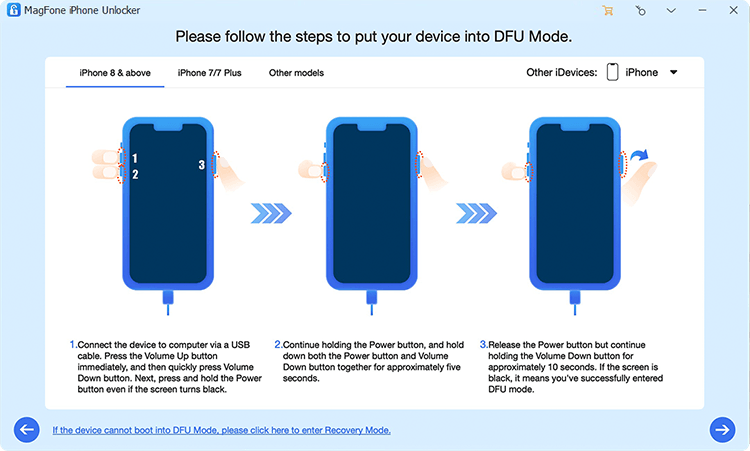
To solve the problem with your device, you need to boot your disabled iPhone into DFU mode. If you don't know how to, then simply follow the onscreen instructions to get it done.
Step 3 Download the Firmware Package

Now the device information of your device will appear on the screen of MagFone iPhone Unlocker. Carefully check the device information and correct the wrong information. Then click the Download button to download the firmware.
Step 4 Fix Unlock iPhone to Use Accessories
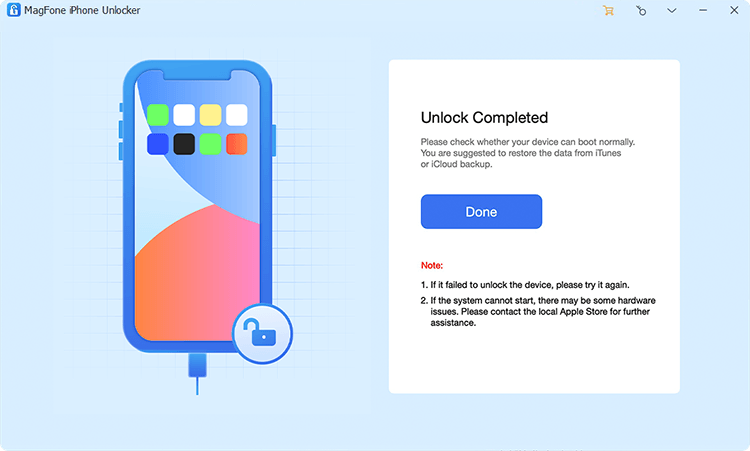
The final step is to click the Unlock button after the firmware is downloaded. MagFone iPhone Unlocker can quickly remove the lock screen passcode on iPhone. In the whole process, you need to keep your device connected to the computer.
Method 3. Restore USB Restricted Mode through iTunes or Finder
The process of unlocking your iPhone with iTunes or Finder is different. iTunes and Finder can help you restore your iPhone in recovery mode if you have a computer. After restoring your iPhone, you can reset your device and create a new passcode. Here's how to.
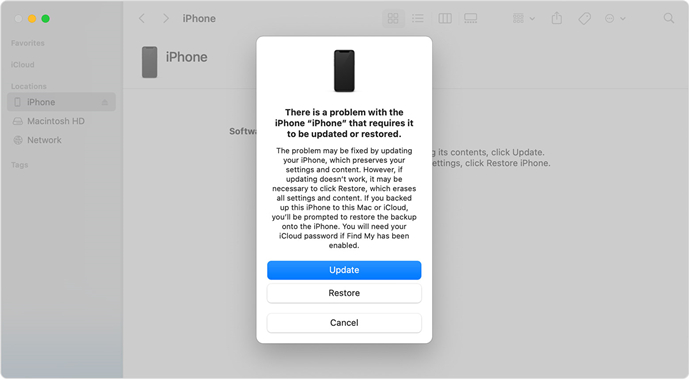
Step 1. Turn off your iPhone and connect it to your computer via a USB cable.
Step 2. Go to put your iPhone into recovery mode with the steps below.
- iPhone 8 or later: Press and quickly release the volume up button. Do the same with the volume down button. Then press and hold the power button until you see the recovery mode screen.
- iPhone 7 or iPhone 7 Plus: Press and hold the power and volume down buttons at the same time. Keep holding them until you see the recovery mode screen.
- iPhone 6 or earlier: Press and hold both the Home and the power buttons at the same time. Keep holding them until you see the recovery mode screen.
Step 3. Open iTunes or Finder on your computer, then click on the Restore button on the pop-up window./p>
Step 4. After the restore completes, you can unlock the device and set it up.
Method 4. Get out of USB Restricted Mode by Signing into iCloud
If you want to unlock your iPhone without a computer, then you can consider remotely erasing your device in iCloud. Only if you can remember your Apple ID credentials and have Find My iPhone enabled can you reset your iPhone in iCloud.
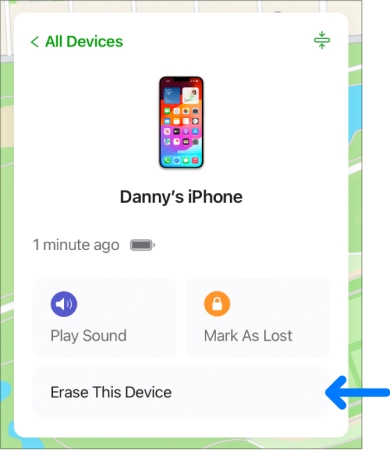
Step 1. Visit iCloud.com and navigate to Find My.
Step 2. Find your locked iPhone from the device list.
Step 3. Click the Erase This iPhone or Erase button on the next page.
Step 4. Pass phone number fillment and enter the Apple ID password to confirm. Then you can reset your device after restoring.
Method 5. Bypass USB Restricted Mode by Using the Find My App
Like signing into iCloud to remotely erase your iPhone, you can choose to use the Find My app to reset your iPhone. With more than one Apple device, you can reset your device in the Find My app if you use one Apple ID on all your Apple devices. Just follow the steps below.
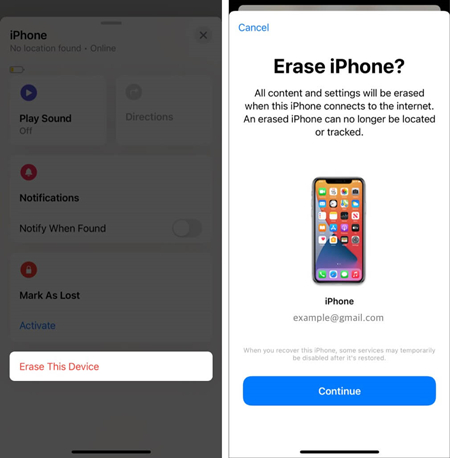
Step 1. Launch the Find My app on your Apple device and tap Devices at the bottom of the screen.
Step 2. In the device list, find and tap your locked iPhone, then select Erase This iPhone or Erase.
Step 3. Tap Continue to enter your trusted phone number and tap Erase to confirm.
Step 4. Enter your Apple ID password and tap Erase to start resetting your device remotely.
Part 4. Troubleshooting: This Accessory Is Not Supported by This iPhone
By adjusting the USB accessories settings, you can unlock iPhone to use accessories without entering the passcode. If you forget your screen lock passcode and want to unlock iPhone to use accessories, you can refer to methods introduced in Part 3. However, when using accessories on the iPhone, some users encounter an alert saying that this accessory is not supported by this device, you can try the following methods. You can try the following methods to fix the accessory not supported on iPhone.
Solution 1. Check for Software Updates
When you encounter the issue of accessory not supported on iPhone, you can check whether your iPhone is running the latest version of iOS. If not, update your iPhone to the latest iOS.
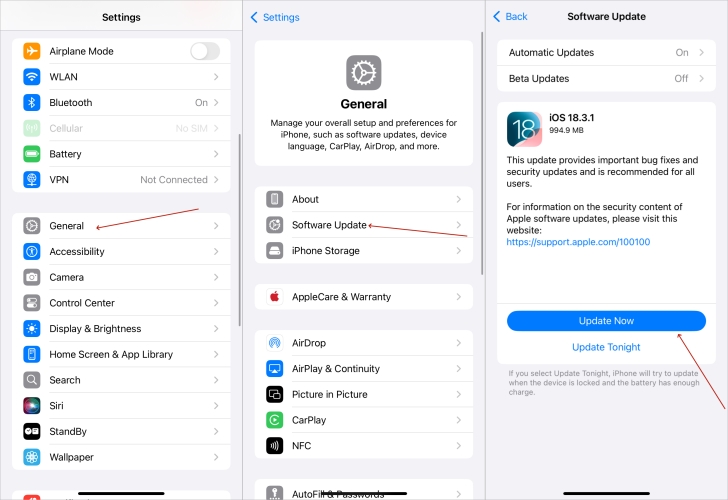
Step 1. Go to Settings > General > Software Update.
Step 2. Check for any available updates, then tap Download and Install.
Step 3. Enter the screen lock passcode and tap Install Now.
Solution 2. Inspect the Lightning Port
Debris or lint in the Lightning port can interfere with connections. Gently clean the port using a soft, dry brush or compressed air.
Solution 3. Test with Different Accessories
The issue might be with the accessory itself. Try connecting a different accessory to determine if the problem persists. Sometimes, this can resolve the issue.
Solution 4. Restart Your iPhone
A simple restart can resolve many connectivity issues. When the accessory is not supported on the iPhone, you can perform a simple restart.
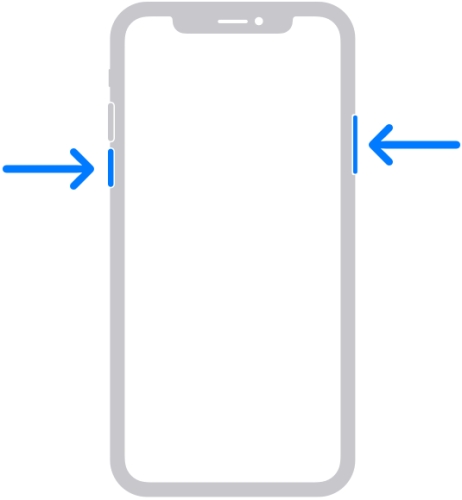
Step 1. Press and hold the power button until the slider appears.
Step 2. Slide to power off your iPhone.
Step 3. Wait for a while, then power on your device.
Solution 5. Reset All Settings
If the problem continues, resetting all settings might help. It will erase all the settings on the iPhone, but doesn't delete any data and content on the device.
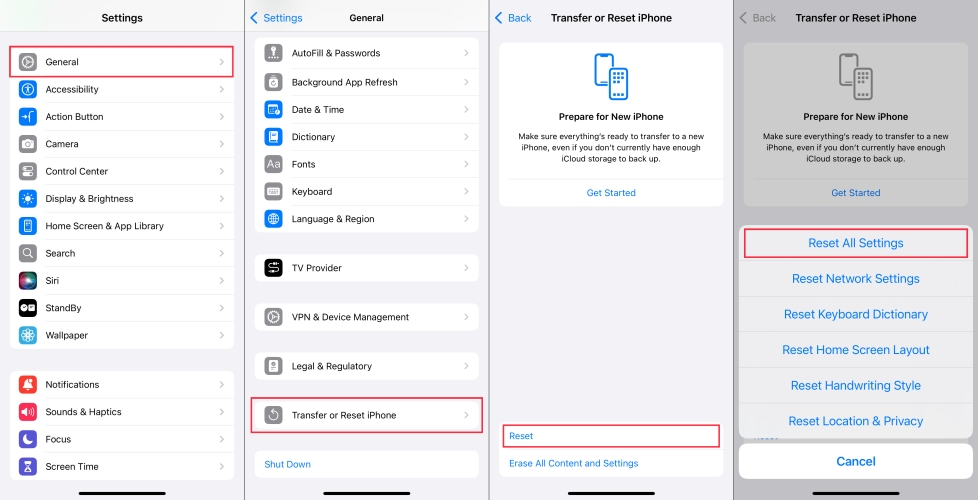
Step 1. Head to Settings > General > Transfer or Reset iPhone.
Step 2. Tap Reset and select Reset All Settings.
Step 3. Enter the screen lock passcode and tap Erase Now.
Part 5. FAQs about Unlock iPhone to Use Accessories
How to access USB accessories on iPhone?
If you want to access USB accessories on iPhone, you need a Lightning to USB Female adapter or a USB-C to USB adapter.
What accessories come with iPhone?
Accessories that come with iPhone depend on the iPhone models, either a USB-C to USB-C cable, or USB-C to Lightning cable.
How to turn off accessory mode on iPhone?
To turn off accessory mode on the iPhone, tap Settings > Face ID & Passcode or Touch ID & Passcode and disable Accessories. Or go to Settings > Privacy & Security > Wired Accessories, and choose Always Allow.
Part 6. Conclusion
Now you know why your phone say unlock iPhone to use accessories. You can disable USB restricted mode in Settings, then you don't need to enter a passcode while connecting your iPhone to accessories. To fix unlock iPhone to use accessories, you can try the above methods. Using MagFone iPhone Unlocker could be an efficient and simple method to bypass unlock iPhone to use accessories when you forgot your screen lock passcode.

Teresa Miller
Editor in chief




