








Whether the latest iPhone 17 or the old iPhone 5, the iPhone is still the most popular smartphone on Earth. But the iPhone has its fair share of nagging problems. In the Apple community, we found a lot of complaints from iPhone users, and one of the common issues is that your iPhone keeps saying passcode expired.
I keep getting a message that my iPhone says passcode expired and I need to reset it. I have done the force shut down and it comes back up but the message keeps appearing. How do I keep this message from coming back?"
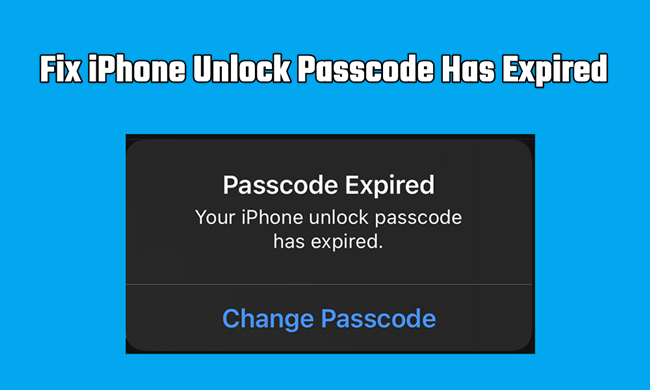
While using the iPhone, some users received the message - Your iPhone unlock passcode has expired. The problem has received a lot of attention on the internet, and Apple has released a document about this issue. If you're wondering how to stop iPhone passcode expired alert, keep reading this guide.
- Part 1. Why Does iPhone Passcode Expire?
- Part 2. How to Stop iPhone Unlock Passcode Expired
- Part 3. Advanced Fix to Passcode Expired on iPhone
- Part 4. FAQs about iPhone Keeps Saying Passcode Expired
- Part 5. Conclusion
Part 1. Why Is My iPhone Saying Passcode Expired?
According to Apple's latest support documentation, receiving a message that your iPhone passcode has expired is most commonly caused by an MDM profile. This issue typically occurs on devices that are managed by schools or companies. Additionally, if you sign in with a work or school email account and install the corresponding profile, your iPhone may also become subject to these management policies. To determine if your device is managed by an MDM system, follow the steps below for a quick check.
How to Check if MDM Is Installed on Your iPhone:
After successfully removing MDM from your iPhone or iPad with jailbreak, you can follow the steps below to restore the iTunes backup to your device if you want to.
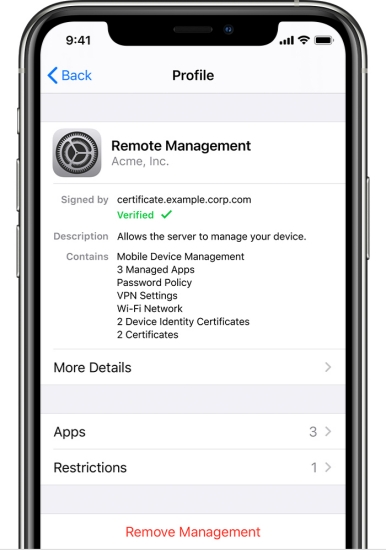
Step 1. Open the Settings app on your iPhone.
Step 2. Tap General, then scroll down and select VPN & Device Management.
Step 3. Look for any profiles listed under Mobile Device Management.
Step 4. Tap on the profile to view its details. Check if there are any restrictions or policies related to passcode requirements.
If you find an MDM profile, your device may be subject to security policies that cause passcode expiration issues. Removing or modifying the MDM profile could help resolve the problem.
Unlock iPhone, iPad, and iPod touch without passcode in several clicks.
Part 2. How to Stop iPhone Passcode Expired
After figuring out what's causing the iPhone passcode expired problem, you can try the following methods to fix the problem. Let's dive into the details!
Method 1. Change iPhone Passcode
When your iPhone says passcode expired, you can tap Change Passcode in the pop-up message to change it. After updating the passcode, the iPhone passcode expired message won't pop up again.
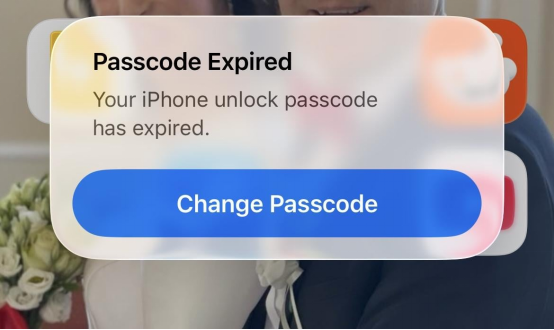
Step 1. Tap Change Passcode on the pop-up window.
Step 2. Enter your current iPhone passcode.
Step 3. Enter a new iPhone passcode to change it.
Method 2. Update iOS System
Many users have reported receiving the Passcode Expired message on managed devices after updating to iOS 26. Apple Support has acknowledged this issue and suggests that it will be addressed in future iOS updates. If you encounter this error, installing the newest version may resolve the passcode expiration problem.
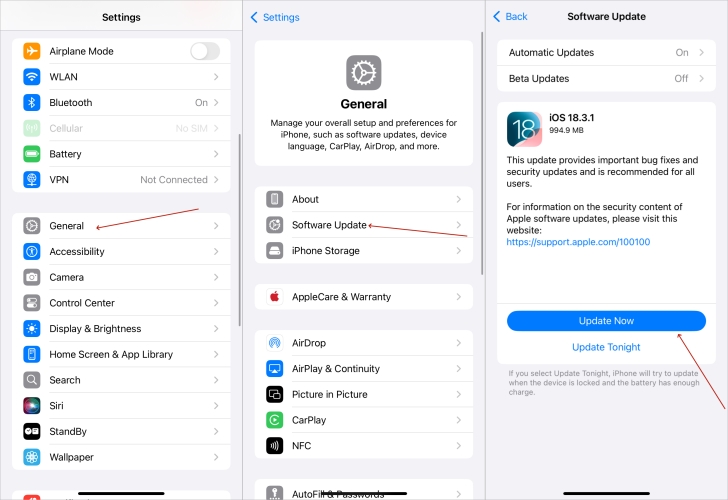
Step 1. Open Settings on iPhone and tap General.
Step 2. Tap Software Update, and wait for an update check.
Step 3. If there is a newer software version, tap Update Now, Download Now, or Install Now to proceed.
Method 3. Unenroll iPhone from MDM System
A company-owned device will enforce passcode changes regularly. In this case, you can remove MDM from your device so that the iPhone will not be managed and passcode expiration will not be enforced in the future.
Step 1. Go to Settings > General > VPN & Device Management.
Step 2. Find the MDM profile installed and tap Remove Management.
Step 3. Enter the MDM removal password and tap Remove to confirm.
Method 4. Delete Work/School Email Account on iPhone
If you have added a work or school email account to your iPhone, you might be automatically enrolled in organizational policies, including those that enforce passcode expiration. MDM profiles linked to these accounts can set passcode expiration dates, which trigger the "Passcode Expired" alert when the time limit is reached. To stop these alerts, you can delete the work or school account on your iPhone.
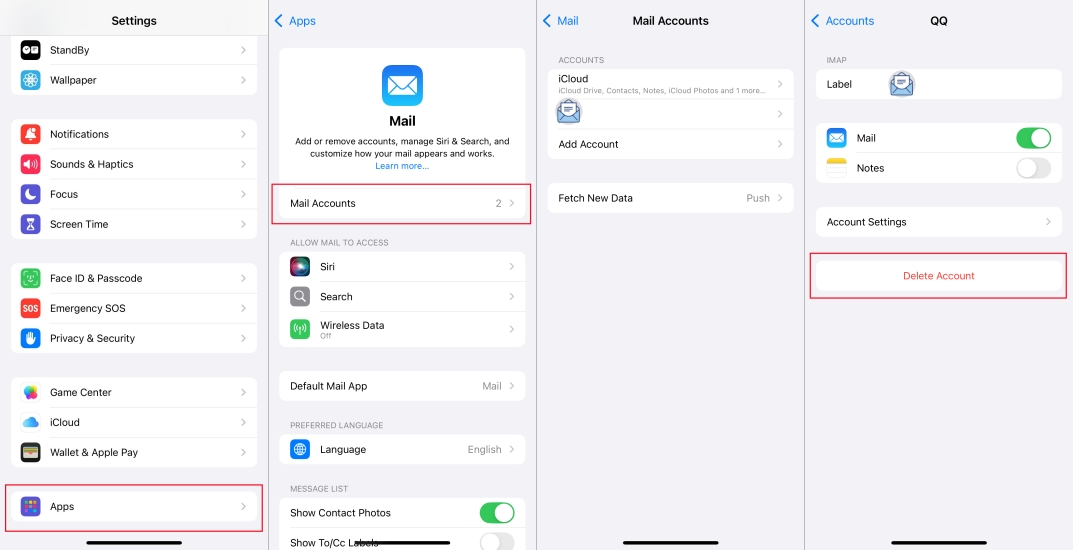
Step 1. Go to Settings > Apps > Mail.
Step 2. Tap Accounts and tap your work or school mail account.
Step 3. Tap Delete Account and tap Delete from My iPhone to confirm.
Part 3. Advanced Fix to Passcode Expired on iPhone
If you are unable to fix the issue after trying the above methods, you may need a more advanced solution. MagFone iPhone Unlocker is a professional tool designed to remove MDM profiles from your iPhone without needing a password. This software can help you regain full control of your device, bypassing restrictions and passcode expiry issues set by organizations. Simply install MagFone, follow the on-screen instructions, and unlock your device securely and quickly.
If you are stuck with the Passcode Expired alert on your personal device, you can consider using MagFone iPhone Unlocker to remove this frustrating message. Just download MagFone iPhone Unlocker on your computer and follow the steps below to get full control of your iPhone passcode.

MagFone iPhone Unlocker
Unlock various locks on iOS devices, including screen locks, MDM, Apple ID, and Activation Lock without needing a password.
Step 1 Launch MagFone iPhone Unlocker
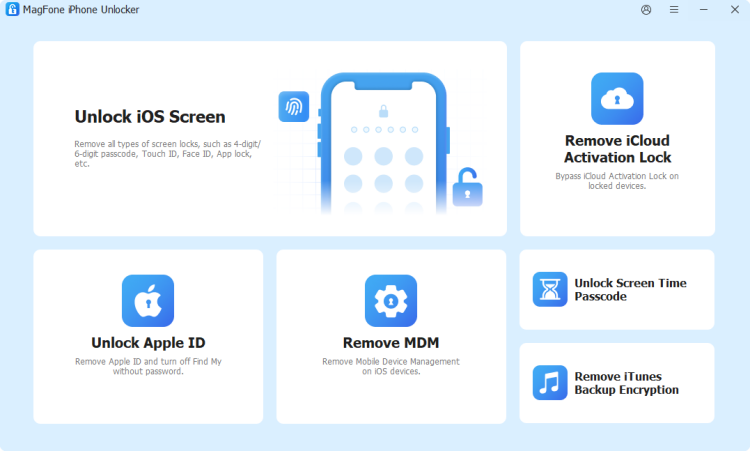
Launch MagFone iPhone Unlocker on your computer. Use a data cable to link your iPhone to the computer. Then choose Remove MDM from the main portal.
Step 2 Remove MDM Profiles from iPhone without Password
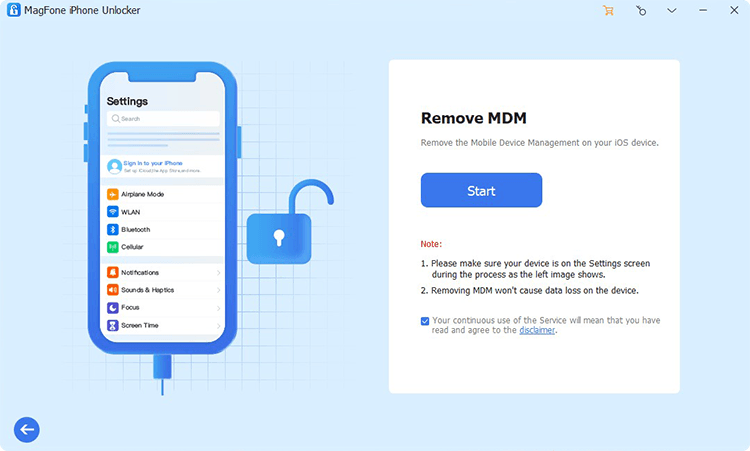
Make sure Find My is disabled on your iPhone. Then click Remove to remove the MDM profile from your iPhone without a password and without data loss.
Part 4. FAQs about iPhone Keeps Saying Passcode Expired
Does iPhone passcode expire?
Yes, your iPhone passcode can expire if there is an MDM profile installed on your device. The administrator of the MDM system has the ability to set policies that require passcode changes after a certain period.
How often does iPhone passcode expire?
This depends on the settings in the MDM profile. The administrator can specify how many days your passcode remains valid before you are required to update it.
How to prevent iPhone unlock passcode from expiring?
Passcode expiration on iPhone is generally caused by MDM profile restrictions. To prevent your passcode from expiring, you can contact your organization's MDM administrator and request more information or changes to the restriction settings. Alternatively, you can use an MDM removal tool such as MagFone iPhone Unlocker to remove the MDM profile and stop the Passcode Expired alerts if you no longer need the device to be managed.
Part 5. Conclusion
For a variety of reasons, you see a message saying your iPhone unlock passcode has expired. If you have this problem, you can follow the above steps to fix the issue. But when you forget your passcode and your iPhone says the passcode has expired, you can use MagFone iPhone Unlocker directly to get your iPhone out of locked mode. You can then create a new passcode for your iPhone.

Dylan Jones
Editor in chief




