








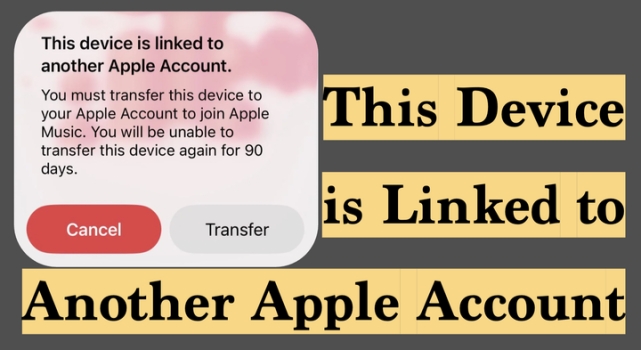
"This Device is linked to another Apple Account" keeps popping up on your device? And you are confused about what it has to do with? This usually means that your iPhone, iPad, or another Apple device is still associated with a different Apple ID for purchases, app downloads, or other Apple services. Although this message can be frustrating, it's usually fixable with a few practical steps. In this guide, we will explain what this message means and share 5 effective ways to fix this issue.
- Part 1. "This Device is Linked to Another Apple Account" Meaning
- Part 2. How to Fix This Device is Linked to Another Apple Account
- Part 3. How to Prevent the "This Device is Linked to Another Apple Account" Message
- Part 4. Conclusion

Part 1. "This Device is Linked to Another Apple Account" Meaning
When Apple says "This device is linked to another Apple Account," it means the device is still associated with a different Apple ID for content purchased from the App Store or other Apple services. In some cases, this refers to a purchase association that limits how soon you can switch to another Apple account for downloading past purchases, updating apps, or accessing certain subscriptions. In some cases, this means that the iPhone is locked by Activation Lock.
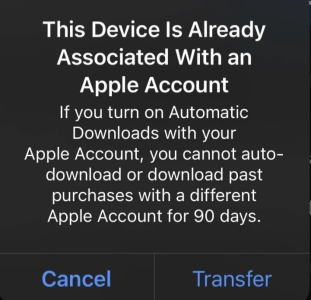
This can happen after signing into a new account, buying a second-hand device, or switching Apple IDs without fully removing the old account connection. And this message often appears in situations like these:
- This device is linked to another Apple Account.
- This device is linked to another Apple ID.
- This device is already associated with an Apple Account.
- This device is already associated with an Apple ID.
Part 2. How to Fix This Device is Linked to Another Apple Account
When you see the message, don't panic. The good news is that there are several ways to solve the issue. Whether you are using a brand-new device, your own old device, or a second-hand device, just walk through the methods in this section.
Note:
Before you fix this issue, you can first check if you are using the universe Apple ID on your iPhone.
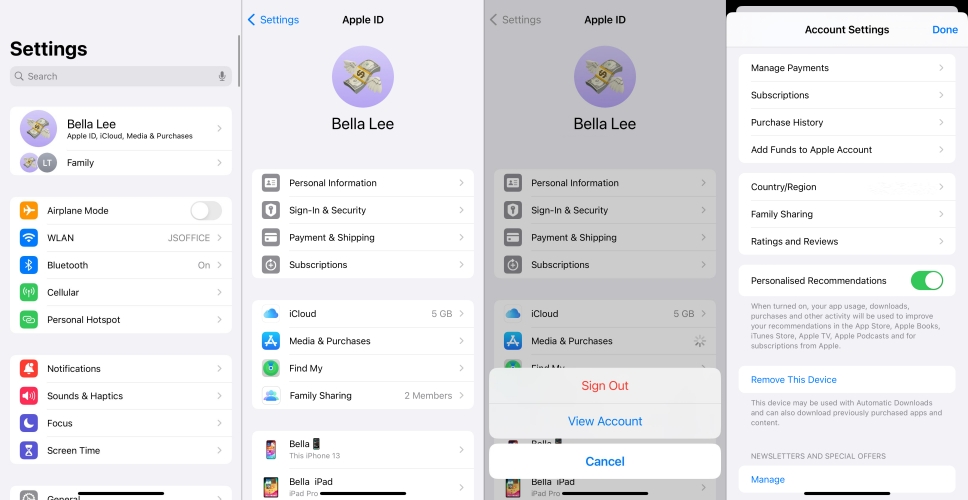
Step 1. Go to iPhone Settings and tap your Apple ID.
Step 2. Tap Media & Purchases > View Account, and on this page, you can see the Apple account your device is linked to.
If you know the details of this Apple ID, then you can choose to transfer the purchases, remove the device from the Apple account, or sign out of the Apple ID to fix this issue. If you don't know the details, just switch to Method 5.
Method 1. Delete and Re-download Apps
One possible reason for the "This device is linked to another Apple Account" message is that some apps on your iPhone were originally downloaded with a different Apple ID. When the device tries to update or automatically re-download those apps, Apple may display this warning because the purchases are tied to another account.
A simple way to stop the message is to delete the affected apps and then download them again using your own Apple ID. This reconnects the apps to your current account and can help remove the purchase conflict that is triggering the pop-up.
Method 2. Transfer Purchases
Another possible fix is to transfer your purchases if the Apple Account used for Media & Purchases is different from the Apple Account signed in under Settings. When these accounts do not match, Apple may show the "This device is linked to another Apple Account" message because some apps, media, or subscriptions are still connected to the other account.
In some cases, Apple will give you the option to tap Transfer directly when the message appears. This allows you to move eligible purchases to the Apple Account you are currently using. You can also complete the transfer manually through Settings, which helps keep your purchases and downloads tied to one account and may prevent the message from appearing again.
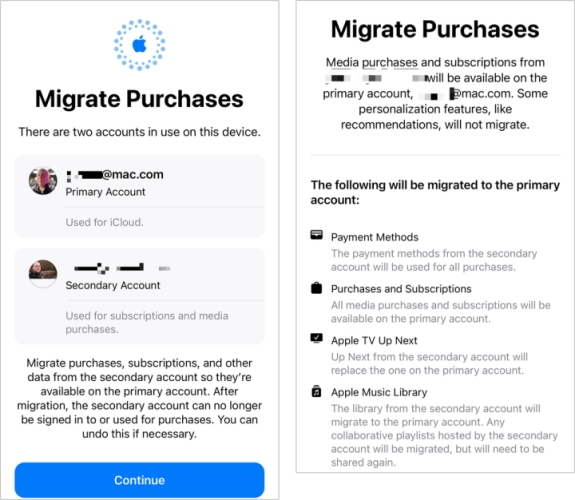
Step 1. Go to iPhone Settings and tap your Apple ID.
Step 2. Tap Media & Purchases > View Account > Migrate Purchases.
Step 3. Check the information of the two Apple Accounts, then follow the instructions to migrate the purchases.
Step 4. When migrated, sign out of the previous Apple ID in Media & Purchases and sign in with the Apple ID you used in Settings.
Method 3. Remove Device via Manage Linked Device
If the device is still linked to another person's Apple Account, you may need to ask the original account owner to remove it from their linked devices list. This situation often happens with second-hand iPhones or iPads that were previously used with a different Apple ID. After the device has been removed from the Apple ID, you can use the device more normally with your own account.
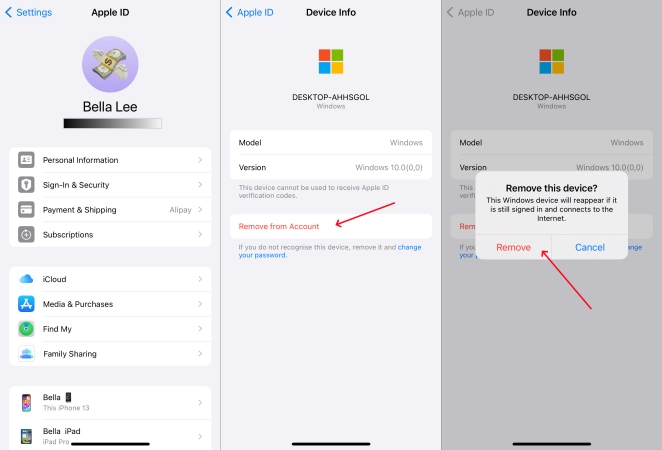
Step 1. Open iPhone Settings and tap your Apple ID.
Step 2. Scroll down, and you can see a list of linked devices with this Apple ID.
Step 3. Tap the target device and tap Remove from Account to unlink this device.
Method 4. Sign Out of Apple Account with Password
If you know the Apple Account password and have full access to the Apple ID, you can also sign out of the Apple account currently linked to the device to fix the issue. Once you sign out properly, you can sign in with the correct Apple Account and check whether this message disappears.
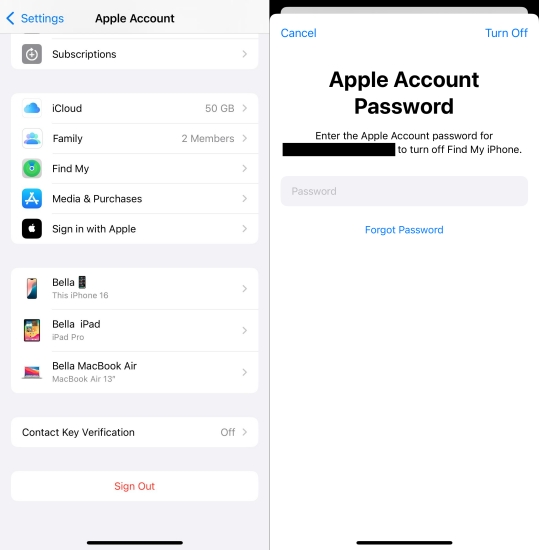
Step 1. Go to Settings and tap your Apple ID.
Step 2. Scroll to the bottom and tap Sign Out.
Step 3. Enter the Apple ID password to sign out. Afterward, you can sign in with a new Apple account.
Method 5. Remove Apple Account from iPhone without Password
If you do not know to whom the linked Apple Account belongs and cannot access the account details, there is still another option to consider. In this situation, a third-party tool such as MagFone iPhone Unlocker may help remove the Apple ID from the device without requiring the password. No matter which situation you see the message, using apps or setting up devices, MagFone iPhone Unlocker can solve the issue for you. Now follow the steps below to remove the Apple Account from the iPhone without password.

MagFone iPhone Unlocker
Unlock various locks on iOS devices, including screen locks, MDM, Apple ID, and Activation Lock without needing a password.
Step 1 Run MagFone iPhone Unlocker
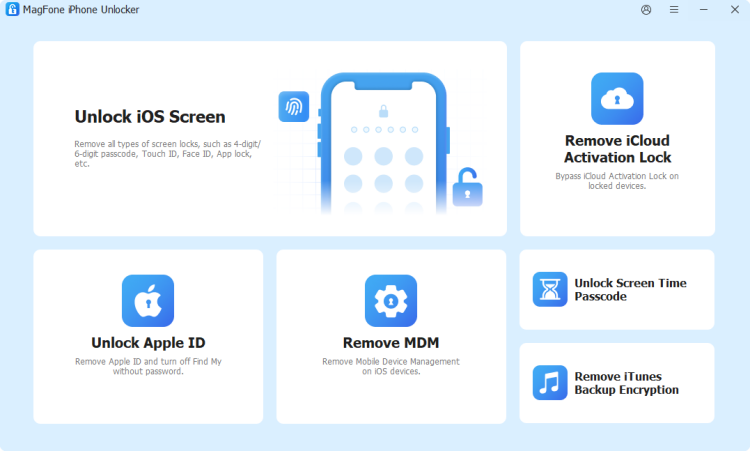
Download and install MagFone iPhone Unlocker on your computer. And use a data cable to connect your iPhone to the computer. Then run this tool to start.
Step 2 Remove Apple ID from iPhone without Password
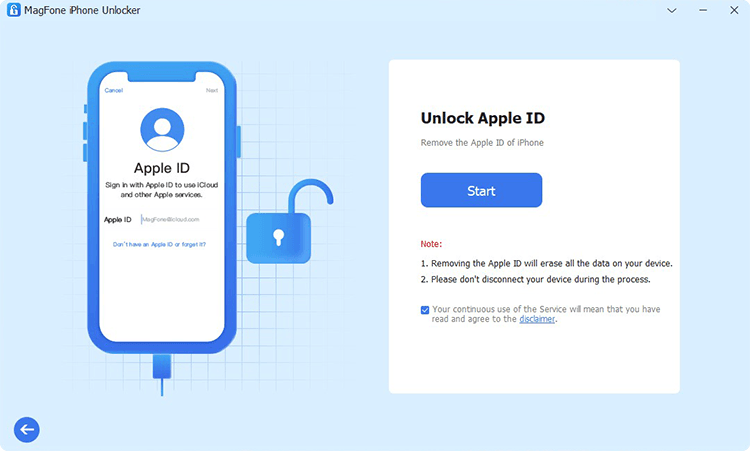
Choose Unlock Apple ID on screen, then click Start to remove the Apple ID from your iPhone without the password. Afterwards, you can sign in to the correct Apple account.
Part 3. How to Prevent the "This Device is Linked to Another Apple Account" Message
To avoid seeing the "This device is linked to another Apple Account" message in the future, it is important:
- Use your device with only your own trusted Apple Account whenever possible.
- Avoid signing in with an unfamiliar Apple ID on your iPhone or iPad, even temporarily, as this can create purchase or account-linking conflicts later on.
- Make sure that apps, media, and subscriptions are downloaded through the same Apple Account you normally use for Media & Purchases.
- If you are buying a second-hand device, confirm that the previous owner has fully signed out of their Apple Account and removed the device from their account before you start using it.
Taking these simple precautions can help keep your device properly linked and reduce the chance of this warning appearing again.
Part 4. Conclusion
Whether it's an issue related to media purchases, downloads, or Activation Lock, the 5 methods in this guide will help you solve this problem. For users who want to remove the affected Apple Account from their iPhone quickly, MagFone iPhone Unlocker is a useful option. Besides, keep the prevention suggestions in mind, so you will not see the "This device is linked to another Apple Account" message again.

Teresa Miller
Editor in chief





