








Removing an iCloud account from an iPhone can be straightforward when you know the password, but it becomes much more difficult if the account is locked or the password is unavailable. In this guide, we'll walk through several ways to remove an iCloud account from your iPhone, including standard methods in Settings, alternative options through iCloud.com and Find My, and what to do if you need to remove an account without a password.
- Part 1. How to Remove iCloud Account from iPhone with Password
- Part 2. How to Remove iCloud Account From iPhone without Password
- Part 3. FAQs about Removing iCloud Account from iPhone
- Part 4. Conclusion
Part 1. How to Remove iCloud Account from iPhone with Password
If you already know the password, removing an iCloud account from an iPhone is usually simple. In the following sections, we'll introduce four practical ways to do it: the most direct option through iPhone Settings, two remote methods that work well when you need to manage the device from elsewhere, and an alternative approach using iTunes.
Method 1. Sign Out from Settings
The easiest way to remove an iCloud account is directly on the iPhone itself. If you have the password, you can sign out from Settings in just a few taps, which will remove the account from the device and turn off related iCloud services. You can also decide to remove an iCloud account from iPhone while keeping the data.
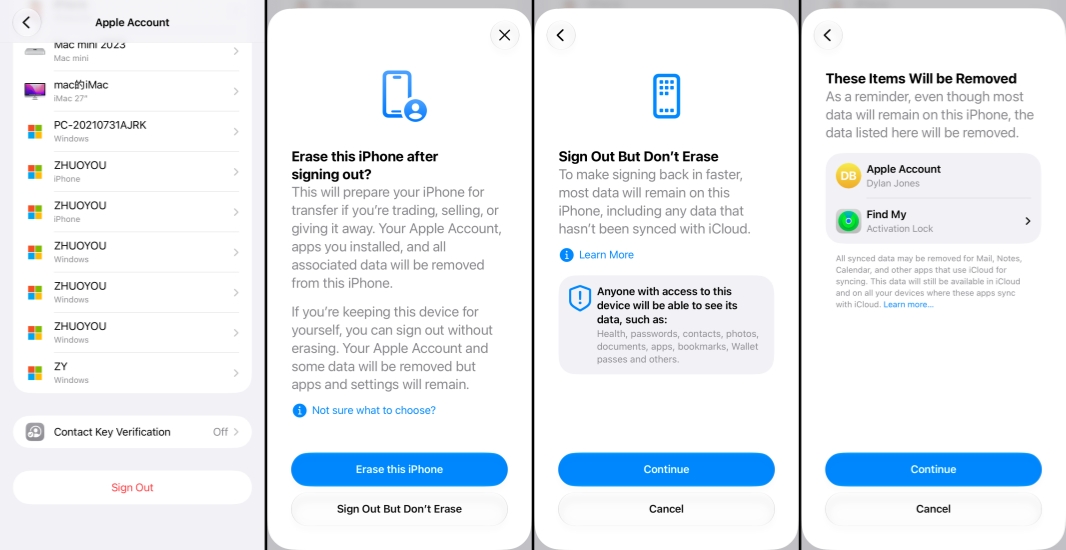
Step 1. Go to Settings and tap your Apple ID.
Step 2. Tap Sign Out at the bottom.
Step 3. Choose whether to Erase this iPhone or Sign Out But Don't Erase depending on your need.
Step 4. If you choose to keep the data, tap Continue twice and enter your Apple ID password to turn off Find My. If you choose to erase the data, tap Continue > Erase iPhone, and enter the Apple ID password to confirm.
Method 2. Remove via iCloud.com
If you need to remove an iCloud account from an iPhone remotely, iCloud.com is a convenient option. By signing in to your Apple account on the web, you can access your devices and erase your device to remove the iCloud account on your iPhone without needing to use the phone directly.
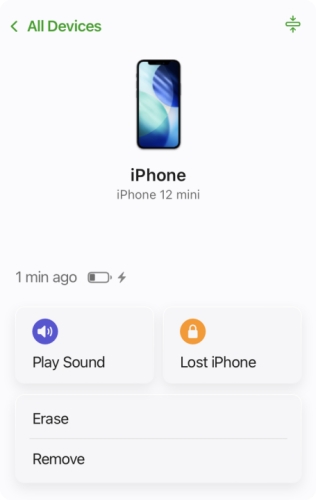
Step 1. Sign in to the iCloud Find Device website with the iCloud account on your iPhone.
Step 2. Choose your iPhone from the device list.
Step 3. Click Erase and click Next.
Step 4. Enter your Apple ID password, and enter the verification code if required. Then the iCloud account will be removed from your iPhone once it's connected to a network.
Method 3. Remove via Find My App
The Find My app also allows you to erase the iPhone remotely to remove the iCloud account. On another Apple device that is signed in with the same Apple ID, you can choose the device and erase it from the list, which helps disconnect the account from the iPhone when you're not holding the device in person.
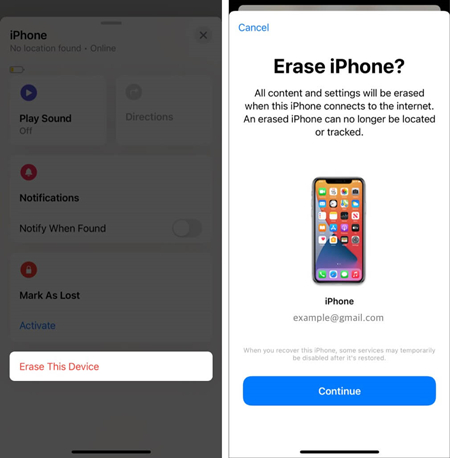
Step 1. Open Find My on another Apple device that is signed in with the same iCloud account.
Step 2. Tap Devices and tap the iPhone you want to remove the iCloud account from.
Step 3. Tap the triple-dot icon to get more information.
Step 4. Tap Erase > Continue, don't enter a phone number, and tap Erase.
Step 5. Enter the Apple ID password to erase all content and settings on the iPhone. Your iCloud account will also be removed.
Method 4. Remover via iTunes
If the iPhone is available and you know the iCloud account password, iTunes can be another option. By connecting the device to iTunes and restoring it, you can erase the iPhone and remove the iCloud account from the device. Before restoring your iPhone with iTunes, you need to disable Find My on your iPhone first.
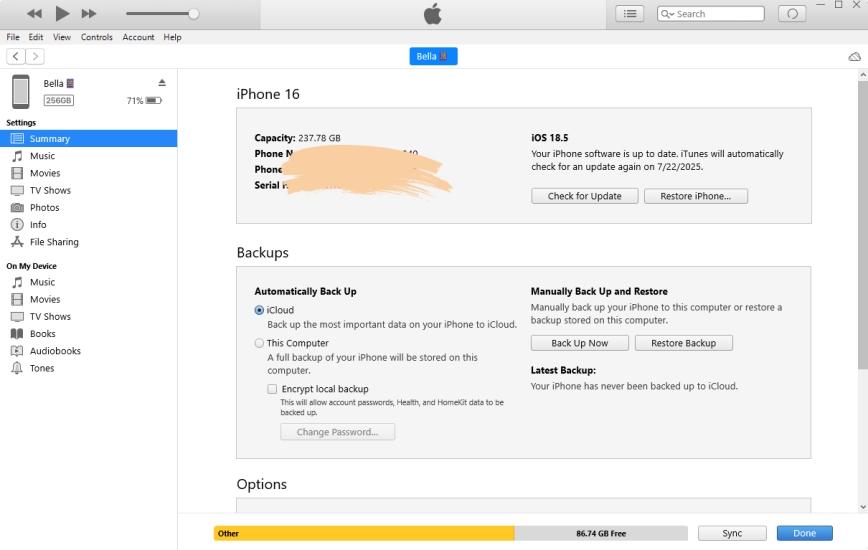
Step 1. Use a data cable to connect the iPhone to a computer.
Step 2. Open iTunes. When your iPhone is detected, click the iPhone icon.
Step 3. Click Summary and click Restore iPhone.
Step 4. Click Restore again to restore your iPhone to factory settings.
Part 2. How to Remove iCloud Account From iPhone without Password
Removing iCloud account from an iPhone is easy since you have the iCloud password. If the iPhone is tied to a locked, old, or previous owner's iCloud account and you can't access the password, a dedicated unlocking tool like MagFone iPhone Unlocker can be a practical solution. In addition to removing iCloud accounts, MagFone can also handle a range of iPhone password issues, including Screen Time passcodes, MDM passwords, iTunes backup passwords, lock screen passcodes, and even saved passwords on the device. Next, we'll show you how to use MagFone to remove an iCloud account from an iPhone step by step.

MagFone iPhone Unlocker
Remove iCloud Account or Apple Account from iPhone, iPad without the password.
Step 1 Run MagFone iPhone Unlocker
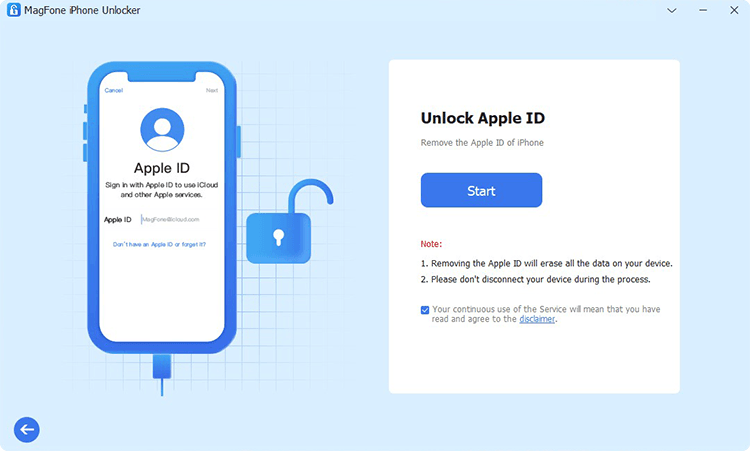
You need to download and install MagFone iPhone Unlocker on your computer first. Then run this tool and click Unlock Apple ID from the main interface.
Step 2 Confirm Two-factor Authentication and Screen Passcode
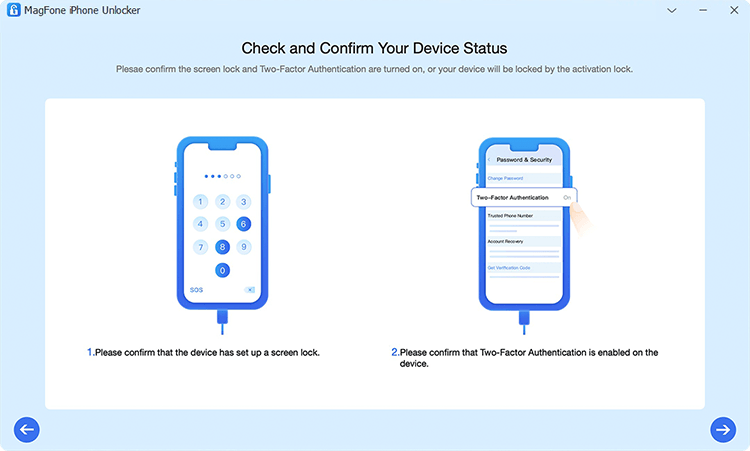
Click Start and use a data cable to connect your iPhone to the computer. When it's detected, follow the instructions to check your iPhone status.
Step 3 Download and Verify the Firmware for the iPhone
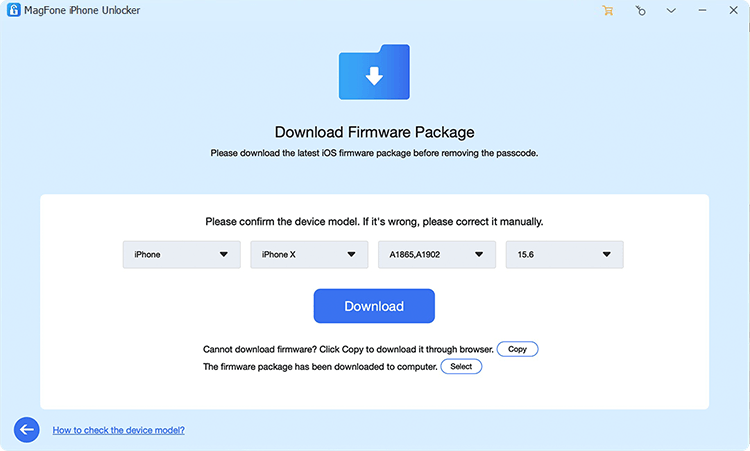
After confirming the device, choose the correct firmware and click the Download button to download the firmware for your iPhone.
Step 4 Remove iCloud Account from iPhone
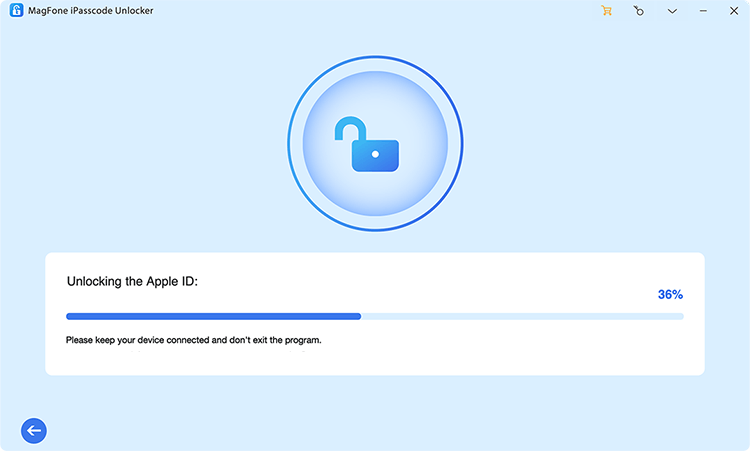
Once the download is complete, click Unlock to let MagFone iPhone Unlocker remove iCloud account from your iPhone.
Part 3. FAQs about Removing iCloud Account from iPhone
How to remove a locked iCloud account from iPhone?
If the iCloud account is locked, you usually cannot remove it directly from the iPhone settings. In this case, the only way to remove it is to restore the device using iTunes or use a professional iPhone unlocking tool like MagFone iPhone Unlocker that can bypass the account lock under supported conditions.
How to remove old iCloud account from iPhone without password?
If you don't have the password for an old iCloud account, you may consider using iTunes or a dedicated tool to remove the account from the device.
How do I completely remove an iCloud account from my iPhone?
To completely remove an iCloud account from your iPhone, you can choose to erase iPhone data when signing out. After signing out, you can remove the device from your Apple ID on the iCloud Find Device website to unlink it.
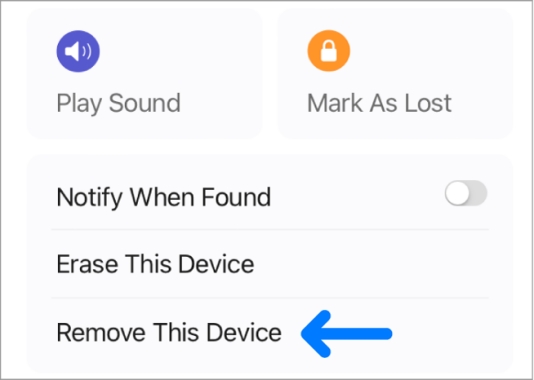
Step 1. Log in to the iCloud account on the iCloud Find Device website.
Step 2. Choose your iPhone and click Remove twice to unlink the iPhone from your iCloud account.
Part 4. Conclusion
Now that you've learned the different ways to remove an iCloud account from an iPhone, you can choose the method that best fits your situation. If you already have the password, Apple's built-in options may be enough. But when the iPhone is linked to a locked, old, or previous owner's iCloud account and you don't have the password, MagFone iPhone Unlocker stands out as a practical solution to remove the iCloud account without a password and regain access to the device more easily.

Teresa Miller
Editor in chief




