








Can You Lock Apps On Iphone Without Using Screen Time? I'm trying to lock certain apps on my iPhone so nobody can open them without permission, but I'd rather not use Screen Time since I've heard it can be easily bypassed or that it tracks too much usage data. Are there any third-party apps or other built-in features that can actually lock individual apps with a password or Face ID?"
——From mSpy Community
If you are wondering the same thing, how to lock apps on iPhone without Screen Time, keep reading! Whether you want to keep your apps under privacy protection, or you want to limit daily app use, locking apps can be a good solution. In this guide, we will discuss how to lock apps on iPhone with Screen Time and without Screen Time.
- Part 1. How Can I Lock an App on My iPhone?
- Part 2. How to Lock Apps on iPhone with Screen Time
- Part 3. How to Lock Apps on iPhone without Screen Time
- Part 4. Conclusion
Part 1. How Can I Lock an App on My iPhone?
There are built-in features that can help you lock an app on an iPhone with a custom password, Face ID, Touch ID, lock screen passcode, or Screen Time passcode. Besides, some third-party apps may also offer app-locking features. Whether you want to prevent others from accessing your apps or lock yourself out of an app, in the following section, we will discuss how to lock apps on iPhone without Screen Time and with Screen Time.
💡Note:
If you want to keep your iPhone restricted to a single app, you can use Guided Access. This can prevent someone from opening other apps on iPhone when they are holding your iPhone.
Part 2. How to Lock Apps on iPhone with Screen Time
Screen Time helps users manage daily app usage and limit daily app use. If you set app limits and lock the Screen Time settings, only you can open the apps with the Screen Time passcode. But the app lock isn't permanent, and it will reset every day. Once you enter the Screen Time passcode, you can continue opening and using the app in the following hours of the day.
For users who want to restrict app usage, Screen Time is a helpful tool. You can schedule daily app usage and set a Screen Time passcode for the schedule. Here's how to set it up.
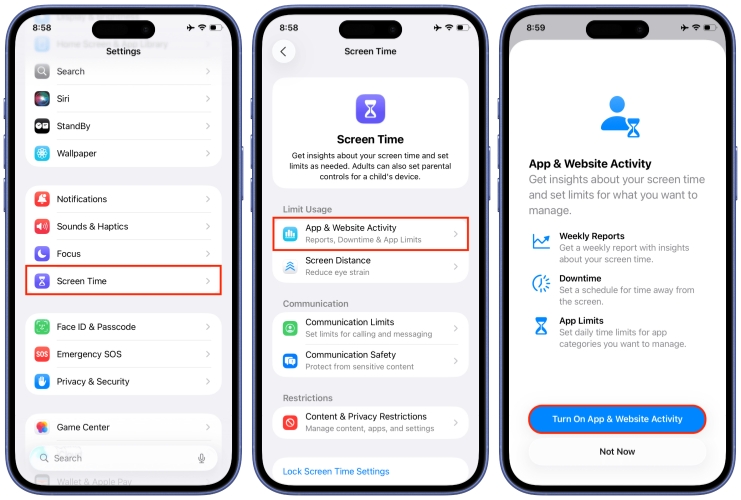
Step 1. Go to iPhone Settings > Screen Time.
Step 2. If you haven't turned on App & Website Activities, tap App & Website Activities and tap Turn on App & Website Activities.
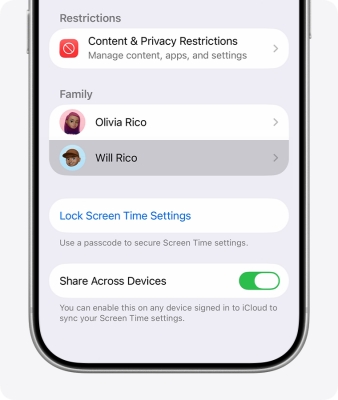
Step 3. Tap Lock Screen Time Settings to set a Screen Time passcode, and provide an Apple ID credential for Screen Time passcode recovery.
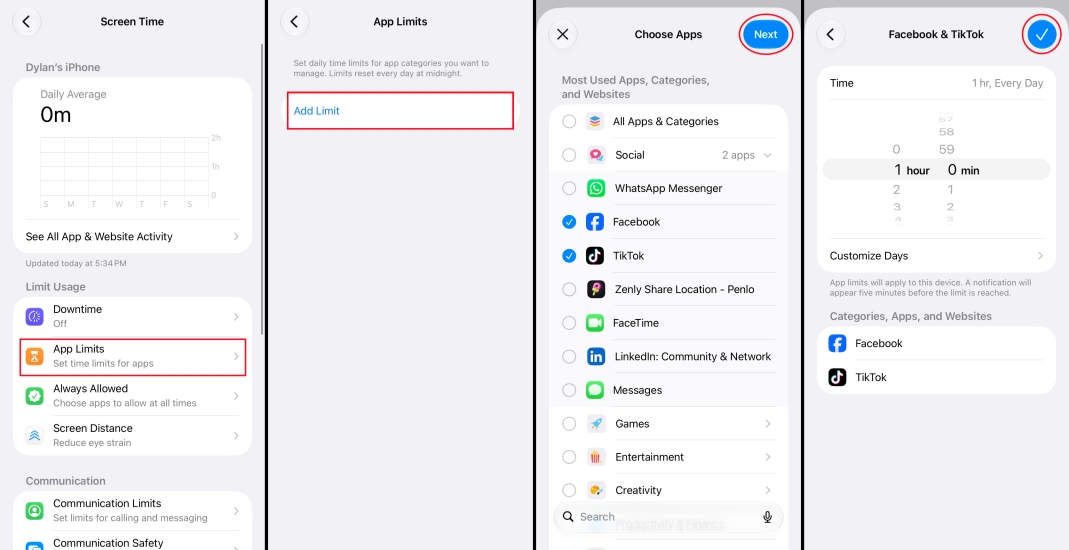
Step 4. Tap App Limit > Add Limit, select the target apps, and tap Next.
Step 5. Set the timer for how long you allow these apps to be used every day. Or you can directly set the timer to 0.
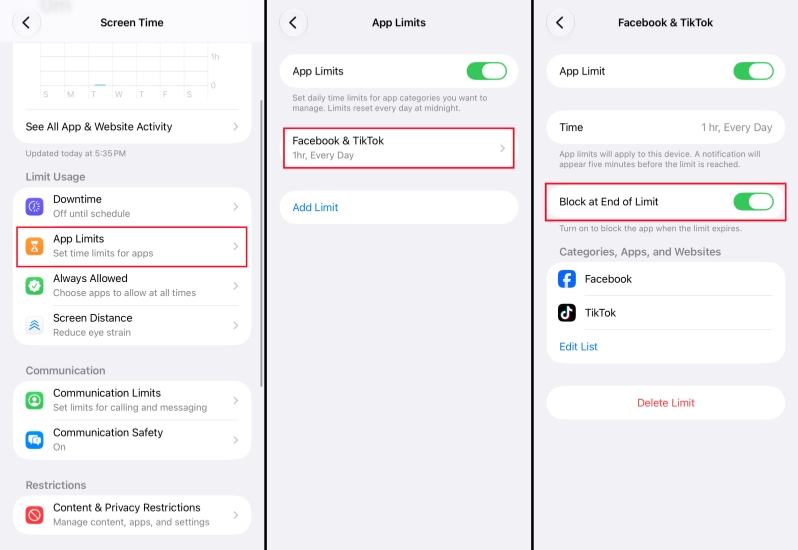
Step 6. Enable Block at End of Limit and tap Add. Then, when you reach the scheduled time, your iPhone will ask for the Screen Time passcode for more usage.
💡Note:
If you lock apps with Screen Time, don't forget the Screen Time passcode. If you have forgotten the Screen Time passcode, don't worry. MagFone iPhone Unlocker can help remove it from your iPhone.
Part 3. How to Lock Apps on iPhone without Screen Time
For users who need to lock apps every time they open the app, you can use other iPhone features: locking apps with Face ID, Touch ID, iPhone passcode, or a custom password. Check the methods below to see which one fits your needs.
Method 1. Lock an App on iPhone Using Face ID/ Touch ID/ Passcode
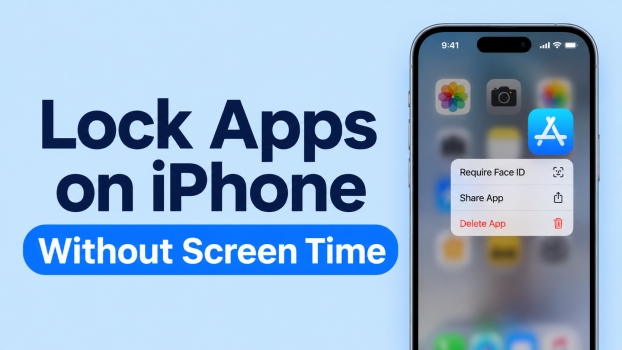
Since iOS 18, supported iPhone models allow you to lock and hide supported apps with Face ID, Touch ID, or your lock screen passcode. Some third-party apps may also have their own security settings; you may also be able to require authentication when accessing important information.
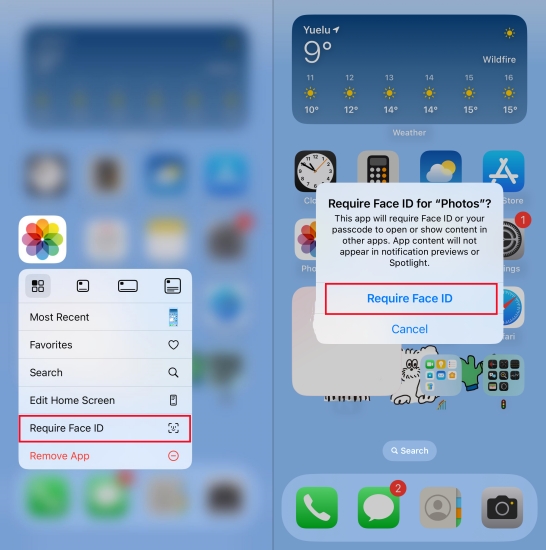
Step 1. Long-press the app you want to lock.
Step 2. Choose Require Face ID, Require Touch ID, or Require Passcode.
Step 3. Tap Require Face ID, Require Touch ID, or Require Passcode again. Then, every time you open the app, you need to authenticate.
Method 2. Lock an App on iPhone Using a Shortcut
You can use a shortcut to lock apps on an iPhone with a custom passcode. You can create an automation to require a passcode every time you open an app.
Configure App Lock Shortcut:
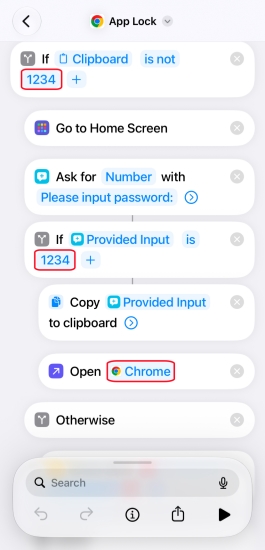
Step 1. Add the App Lock shortcut to your Shortcuts.
Step 2. Long-press the App Lock shortcut and choose Edit.
Step 3. You can customize the passcode and the app to your target one.
Create Automation to Lock App:
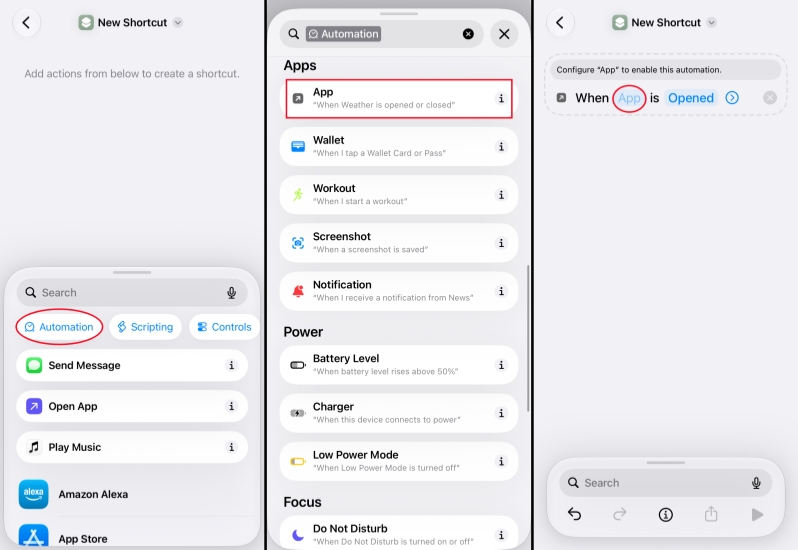
Step 1. Open Shortcuts and tap the + icon.
Step 2. Tap Automation, scroll down, and tap Apps.
Step 3. Select an app you want to lock and save.
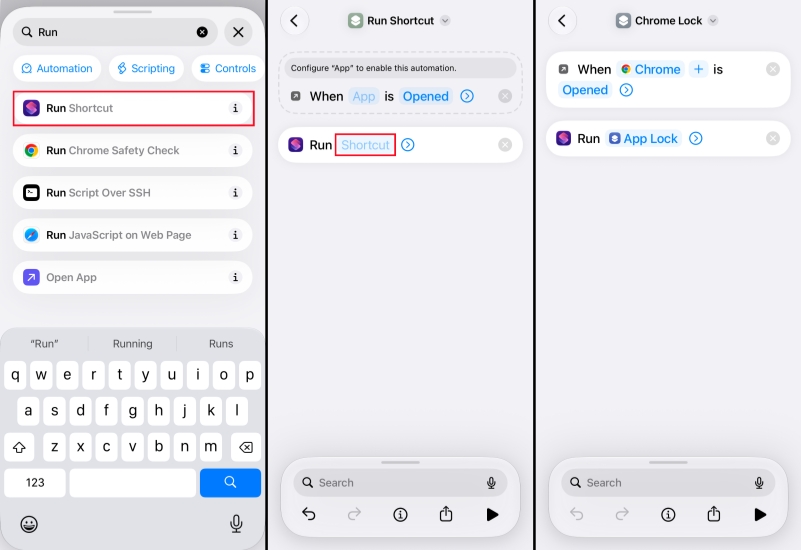
Step 4. Type Run Shortcuts in the search box and tap it.
Step 5. Choose the App Lock shortcut you have just added. When you open the app, you'll be asked to enter the custom passcode.
💡Note:
- If you need to put locks on more apps, you need to duplicate the shortcut and automation for a specific app.
- When we tested this app lock shortcut and automation, we found that it may not work every time.
- If someone deletes the automation, the app lock won't work.
Part 4. Conclusion
Locking apps on iPhone can help protect your privacy and prevent distractions. With Screen Time, you can easily set daily limits. Without Screen Time, you can set automatic app lock using a shortcut automation or built-in app authentication features. If you need to lock apps on iPhone, just check the methods in this guide and test which option is more suitable for you.

Dylan Jones
Editor in chief




