








Recently, my iPhone screen broken and I just go it fixed today. But my iPhone says iPhone Unavailable with no time limit. And the charger port isn't working. I'm trying to connect it to my computer but the charger port isn't letting it connect. How do I reset it? Any solutions?"
—— From the Apple Community
Imagine picking up your iPhone only to see the dread "iPhone Unavailable" with no timer message starting back at you. Frustrating, right? Now, add a twist—there's no timer to indicate when you can try again. This issue can leave you feeling helpless, but don't worry. This guide will provide step-by-step solutions to fix the iPhone Unavailable no timer. Let's dive into why this happens and how to fix it with ease.
- Part 1. What Does iPhone Unavailable Mean with No Timer?
- Part 2. How to Fix iPhone Unavailable without Timer
- Part 3. How to Fix iPhone Unavailable with Timer
- Part 4. FAQs about iPhone Unavailable No Timer
- Part 5. Conclusion
Part 1. What Does iPhone Unavailable Mean with No Timer?
If your iPhone is showing "iPhone Unavailable," it usually means too many incorrect passcode attempts were made. Normally, the device imposes a temporary lock with a visible countdown timer. However, when there is no timer, it often means you can no longer enter the passcode to unlock it. Your device requires an advanced fix, such as connecting to iTunes or iCloud, or using a professional iPhone unlocking tool. Here's why it might happen.
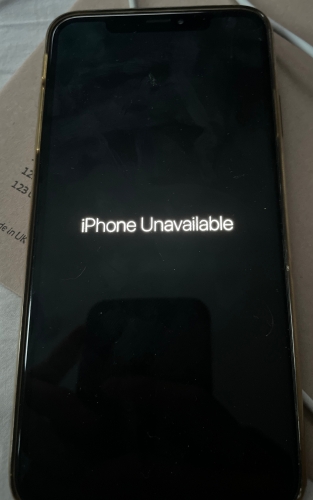
Reason 1. Multiple Failed Passcode Attempts: Repeated incorrect entries trigger this state.
Reason 2. iOS System Glitches: Sometimes, a bug in the iOS can cause unexpected lockouts.
Reason 3. Forgotten Passcode: If you forget your passcode and exceed the allowed attempts, your device may be locked.
Reason 4. Security Feature Activation: Apple's enhanced security measures may require more robust recovery methods.
Reason 5. Jailbreaking Issues: If your iPhone is jailbroken, it's more prone to errors, including this one.
To make things clearer, here is a video tutorial of each method. You can watch this to get an overview, then follow the detailed instructions in the next sections.
Part 2. How to Fix iPhone Unavailable without Timer
Typically, after entering multiple wrong passcodes, you'll see a timer counting down before you can try again. However, when the "No Timer" issue appears, your options are limited. In this situation, you cannot directly unlock your iPhone with the Erase option. Fortunately, you can try the methods below to fix iPhone Unavailable with no timer.
| Methods | Find My iPhone | Network on iPhone | Apple ID Password |
|---|---|---|---|
| iCloud Web | Enabled | Required | ✔️ |
| Find My App | Enabled | Required | ✔️ |
| MagFone iPhone Unlocker | / | Not required | ❌ |
| iTunes | Enabled | Not required | ❌ |
Method 1. Fix iPhone Unavailable No Timer at iCloud Web
If you have enabled Find My iPhone, you can remotely erase your device and regain access. With iCloud, you can manage your devices, removing a device from the Apple ID or erasing a device remotely. Make sure that you can remember your Apple ID and password, then follow the steps.
Requirements:
- Apple ID and password details
- Find My iPhone was previously enabled on the unavailable iPhone
- The unavailable iPhone is connected to the network and online
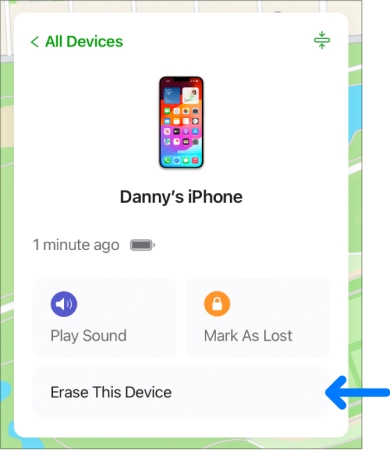
Step 1. Sign in to iCloud.com with your Apple ID and password.
Step 2. Select the unavailable iPhone and click Erase.
Step 3. Click Next and confirm by entering your Apple ID password.
Step 4. Click the Erase iPhone button. When the unavailable iPhone is connected to a network and online, iCloud will perform the erase on your iPhone automatically.
Step 5. Click the Erase iPhone button. Then your device will be reset to the original state.
Method 2. Fix iPhone Unavailable No Timer in Find My App
Similar to using iCloud, using the Find My app to remotely unlock an unavailable iPhone is another option. If you have other Apple devices logged in with the same Apple ID and Find My iPhone is enabled on the unavailable device, it is a simple and quick way to make your device available.
Requirements:
- Apple ID and password details
- Another Apple device that is linked to the same Apple ID as the unavailable iPhone
- Find My iPhone is enabled on the unavailable iPhone
- The unavailable iPhone is connected to a network
- The unavailable iPhone is online
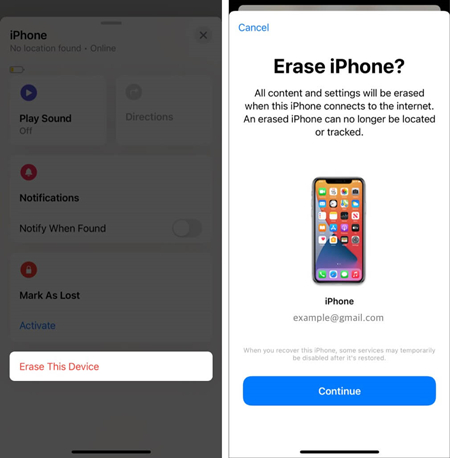
Step 1. Open the Find My app on your other Apple device.
Step 2. Tap the Devices button at the bottom of the screen.
Step 3. Choose your unavailable iPhone from the list and tap Erase This Device.
Step 4. Enter your trusted phone number and the Apple ID password, then tap Erase iPhone to confirm.
Method 3. Fix iPhone Unavailable No Timer Using iPhone Unlocker
A network connection on iPhone is required, whether using iCloud web or the Find My app, to erase the iPhone. You can choose a more advanced method to fix the issue. There are some third-party tools designed to fix iPhone issues, including iPhone Unavailable with no timer error. Some popular unlocking tools include MagFone iPhone Unlocker. It is an effective and efficient unlocking tool for iPhone, iPad, and iPod touch to fix various locking issues. By using MagFone iPhone Unlocker, you can fix issues on an iPhone, whether the iPhone is unavailable with a timer or not. When your iPhone says iPhone Unavailable with no time limit, you can fix it with MagFone iPhone Unlocker by following the steps below.

MagFone iPhone Unlocker
Unlock various locks on iOS devices, including screen locks, MDM, Apple ID, and Activation Lock without needing a password.
Step 1 Run MagFone iPhone Unlocker and Link iPhone

Install and run MagFone iPhone Unlocker on your computer, then connect your unavailable iPhone to the computer via a USB cable. Select the Unlock iOS Screen option on the main interface and click the Start button. Once your iPhone is detected, click the Next button.
Step 2 Put the Unavailable iPhone into DFU or Recovery Mode
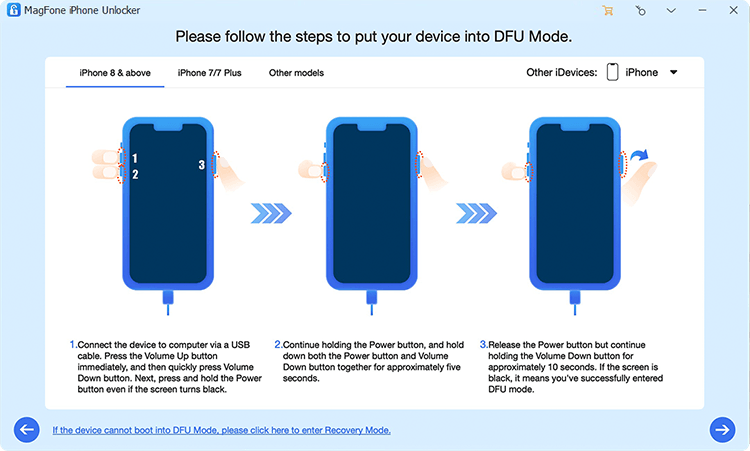
Before unlocking your unavailable iPhone, you need to put it into DFU or recovery mode. Simply follow the onscreen instructions to do it. After your device is in DFU or recovery mode, click the right arrow at the bottom to continue.
Step 3 Download and Verify the Firmware Package

Then you'll see the device information shown on the screen. Confirm the device information. If the information is incorrect, you can manually correct it. Proceed to click the Download button to get the appropriate firmware package for iPhone.
Step 4 Start to Fix iPhone Unavailable No Timer

After downloading the firmware package, you can click the Unlock button to fix the issue. Wait for a few minutes until the Done button appears. In the whole process, keep your device connected to the computer.
Method 4. Fix iPhone Unavailable No Timer with iTunes
iTunes is another advanced method that can help fix the iPhone Unavailable without a timer issue. Once you put the unavailable iPhone into recovery mode, iTunes will detect the device and allow you to update or restore the device. You can restore the unavailable iPhone in recovery mode to regain access.

Step 1. Connect your iPhone to a computer with a USB cable.
Step 2. Follow these steps to enter Recovery Mode, based on your iPhone model.
- iPhone 8 or later: Quickly press and release the Volume Up button, then the Volume Down button. Hold the Side button until the Recovery Mode screen appears.
- iPhone 7/7 Plus: Hold the Volume Down and Side buttons simultaneously until the Recovery Mode screen appears.
- iPhone 6s or earlier: Hold the Home and Top buttons simultaneously until the Recovery Mode screen appears.
Get an iPad, iPhone, or iPod touch into recovery mode with one click for free.
Step 3. Open iTunes or Finder on your computer, then select your device.
Step 4. Click Restore to erase and reinstall iOS software.
Part 3. How to Fix iPhone Unavailable with Timer
When your iPhone says iPhone Unavailable with no time limit, you can resolve it with the aforementioned methods. But if you encounter the issue of iPhone Unavailable with a timer, you can directly resolve the issue on the Security Lockout screen. Here's how to.
Option 1. Use Previous Passcode to Unlock iPhone [Within 72 Hours]
When you change your screen lock passcode within 72 hours, you can unlock your unavailable iPhone with your previous passcode, which won't erase any data and settings on the device. But these steps only work for the iPhone running iOS 17 and later. Follow the steps to use Passcode Reset to unlock your unavailable iPhone.
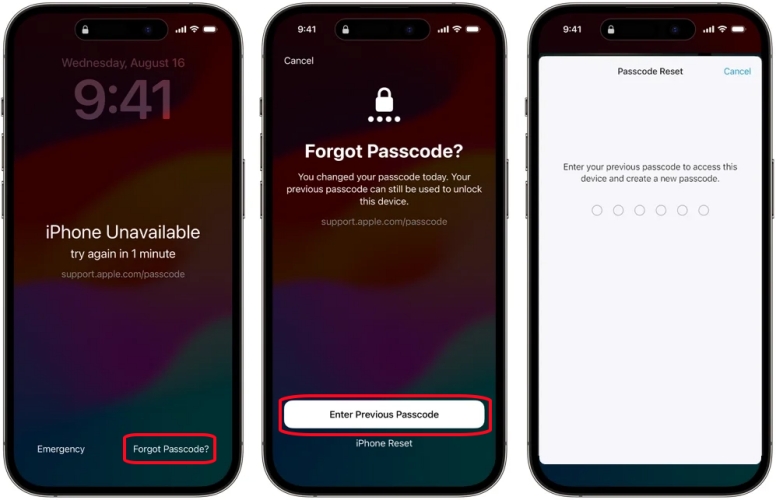
Step 1. On the iPhone Unavailable screen, tap the Forgot Passcode? button.
Step 2. Tap Try Passcode Reset and enter your old passcode.
Step 3. Follow the onscreen instructions to set a new passcode.
Option 2. Unlock iPhone with the Erase Option [Need Apple ID Password]
If you cannot use your old passcode to temporarily sign into your unavailable iPhone, you can reset your device with your Apple ID password. Only if you have updated your iPhone to iOS 15.2 or later, can you use the Erase iPhone option to reset your device. But this will erase all the settings and content on your device.
For iOS 17 and later:
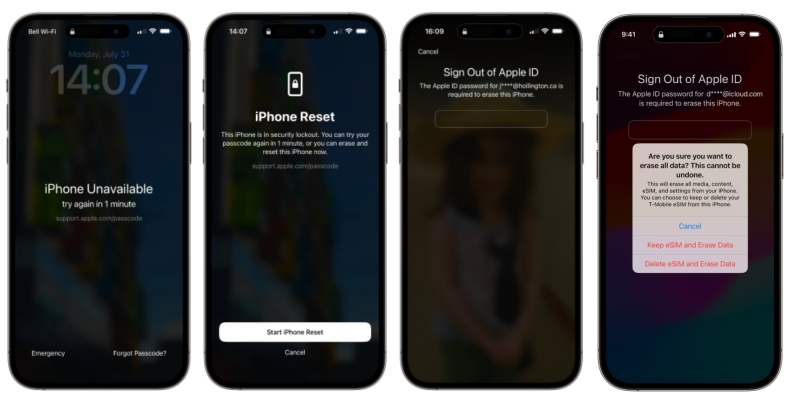
Step 1. On the iPhone Unavailable screen, tap the Forgot Passcode? button.
Step 2. Enter the Security Lockout screen, then tap Start iPhone Reset.
Step 3. Enter your Apple ID password to sign out of your Apple ID.
Step 4. Tap Erase iPhone to confirm and select Keep eSIM and Erase Data.
Step 5. Wait to restart your device and set it up again.
For iOS 15.2 and later:
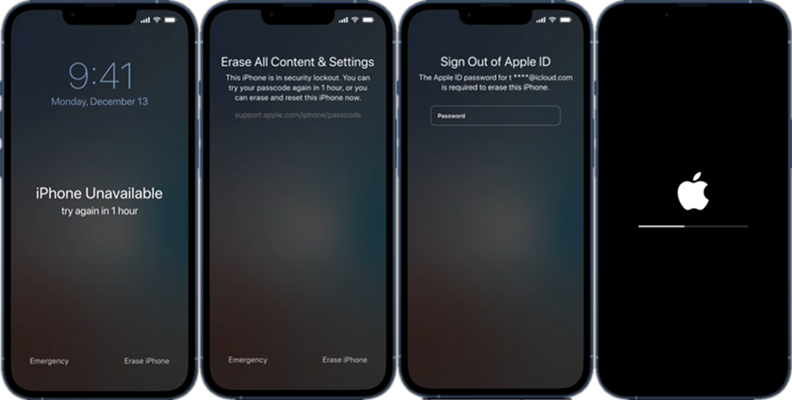
Step 1. On the iPhone Unavailable screen, tap the Erase iPhone button.
Step 2. Tap the Erase iPhone button again and enter your Apple ID password.
Step 3. After signing out of your Apple ID, tap Erase iPhone to confirm.
Step 4. Wait for a while, and your device will be reset to the factory settings.
Part 4. FAQs about iPhone Unavailable No Timer
How to fix iPhone Unavailable no timer without losing data?
Unfortunately, most methods involve erasing the device. There is no way to fix the error without losing data. If you have a backup, you can restore your data after resolving the issue.
How to Fix iPhone Unavailable, no timer, no erase option?
If your iPhone says unavailable without a timer and an erase option, you can use iCloud, Find My app, or iTunes to restore your iPhone to factory state, or use a tool like MagFone iPhone Unlocker to bypass the lock screen.
What to do when iPhone Unavailable timer not going down?
If the iPhone Unavailable timer is not going down, you can tap the Forgot Passcode? option on the screen to erase your iPhone. In addition, you can also erase an iPhone using iCloud website, Find My app, iTunes, or MagFone iPhone Unlocker to regain access.
Part 5. Conclusion
Fixing the iPhone Unavailable no timer issue may seem daunting, but with the right approach, it's entirely manageable. Whether you use iCloud, iTunes, or an iPhone unlocker, remember to stay patient and follow the steps carefully. If you want to resolve the issue efficiently, try using MagFone iPhone Unlocker directly. And once your iPhone is back in action, take steps to prevent future lockouts.

Teresa Miller
Editor in chief





