








How do I unlock iPad without using computer? I locked my iPad forgot the password cant get back in. How do I get back in without using my computer because I don't know what wires to hook up."
—— From the Apple Community
Setting a passcode on your iPad is essential to keep your device secure from unauthorized access. However, situations arise where users are locked out because they forgot their passcode or acquired a second-hand iPad only to find it locked. While creating a passcode is simple, bypassing a locked screen without the passcode can be challenging. To help, we create a comprehensive guide covering various methods to bypass iPad lock codes. Whether you have a computer or not, there is an appropriate way for you. Let's dive in and explore more details!

- Part 1. Can You Bypass an iPad Lock Screen? [Comparison Table]
- Part 2. How to Bypass iPad Lock Screen without Computer
- Part 3. How to Bypass iPad Lock Screen with Computer
- Part 4. FAQs about iPad Lock Screen Bypass
- Part 5. Conclusion
Part 1. Can You Bypass an iPad Lock Screen? [Comparison Table]
If you know the passcode, you can enter the passcode directly to bypass the lock screen. But if you can't figure out the passcode, you can unlock a locked iPad using a few methods that Apple supports. Depending on your situation, you might use previous passcode, your Apple ID, the Find My app, the iCloud website, or a computer with iTunes or an unlocking tool. The comparison table below will give you a comprehensive knowledge of these methods, so you can choose the option that fits you best.
| Methods | Supported OS | Find My iPad | Network | Computer | Difficulty |
|---|---|---|---|---|---|
| Old Passcode | iOS 17 or Later | Enabled | ✔️ | ❌ | ⭐⭐ |
| Security Lockout | iOS 15.2 or Later | Enabled | ✔️ | ❌ | ⭐⭐ |
| Find My App | iOS 13 or Later | Enabled | ✔️ | ❌ | ⭐⭐⭐ |
| iCloud.com | iOS 7 or Later | Enabled | ✔️ | ❌ | ⭐⭐⭐ |
| iTunes | iOS 4 or Later | Disabled | ✔️ | ✔️ | ⭐⭐⭐ |
| Screen Lock Remover | iOS 7 or Later | / | ❌ | ✔️ | ⭐ |
Part 2. How to Bypass iPad Lock Screen without Computer
In this part, we will introduce 4 methods to bypass the lock screen on iPad without a computer. These methods require that you can figure out the Apple ID password or the previous iPad passcode.
Method 1. Bypass iPad Lock Screen with Previous Passcode
Apple gives you a chance to regret and reset the passcode within 72 hours after setting up a new screen passcode. So if you have just changed iPad passcode in the past 72 hours, you can use the previous passcode to bypass the lock code on iPad. Here's how to.
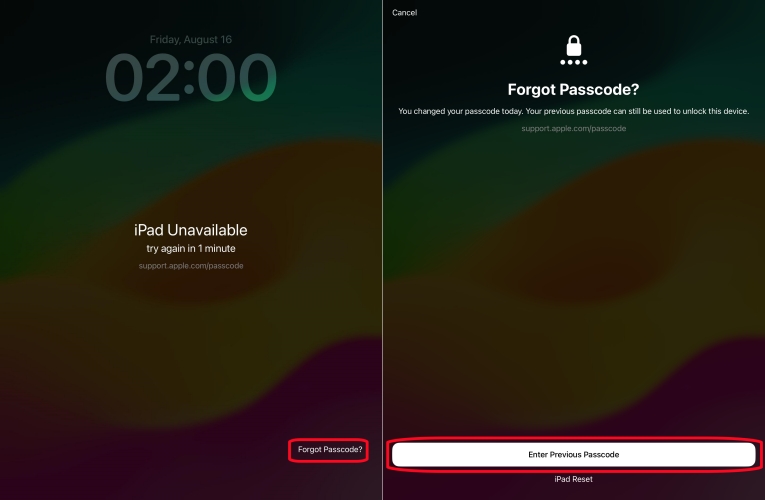
Step 1. On the iPhone unavailable screen, tap Forgot Passcode?.
Step 2. Continue to select the Enter Previous Passcode option.
Step 3. Type the old passcode to unlock your iPad. After unlocking, you'll be asked to set up a new screen passcode for this iPad.
Method 1. Bypass iPad Lock Screen via Security Lockout
When you enter the incorrect passcode too many times, you will find that your iPad is unavailable. In this case, you can make use of your Apple ID password to erase your iPad directly. Then you can set up your iPad and recover all the data to your device.
For iPadOS 15.2 to 17:
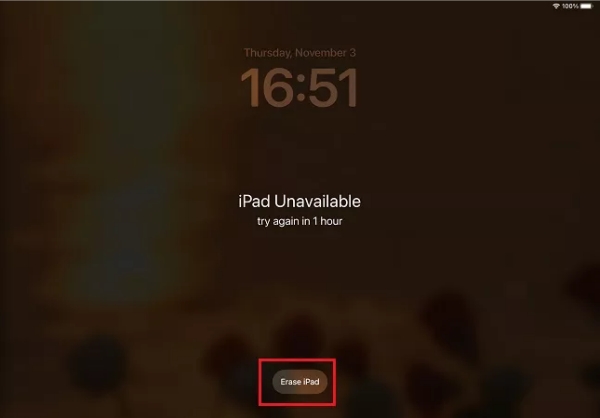
Step 1. Find the Erase iPad option at the bottom of the unavailable screen and tap on it.
Step 2. Tap on Erase iPad again to confirm, then type your Apple ID password.
Step 3. After signing out of your Apple ID, tap on Erase iPad to erase all the settings and data including the screen passcode.
For iPadOS 17 or later:
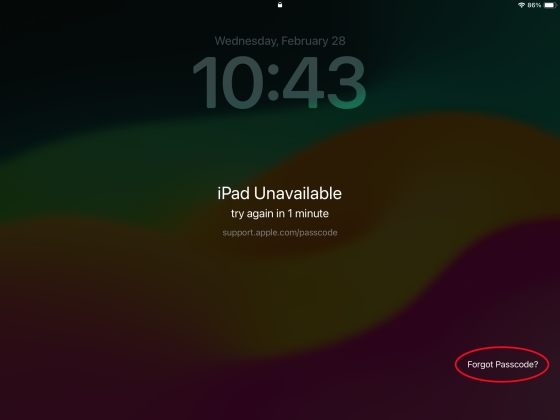
Step 1. Hit Forgot Passcode? in the bottom corner of the unavailable screen.
Step 2. Tap Start iPad Reset and enter your Apple ID password to sign out of the Apple ID of this iPad.
Step 3. Press Erase iPad to completely erase all passcodes on your iPad.
Method 3. Bypass iPad Lock Screen on Find My App
Another method is to use the Find My app to wipe out all the data and settings on your iPad if you have another Apple portable device like an iPhone. The Find My app can enable you to manage all the Apple devices where you use the same Apple ID.
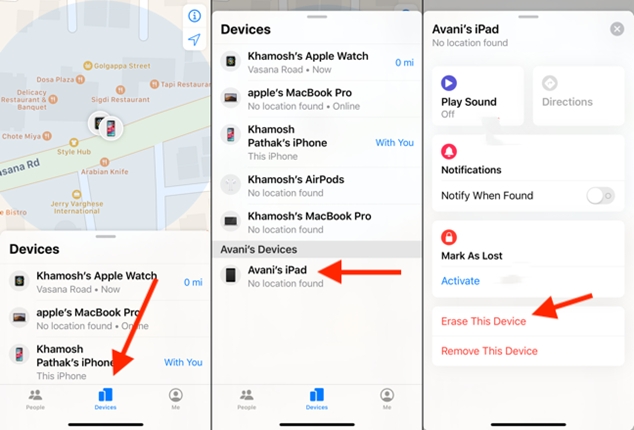
Step 1. Start by launching the Find My app on your device then tap on Devices.
Step 2. In the device list, choose the iPad that you want to erase.
Step 3. Tap on Erase, then tap on Continue and enter your phone number.
Step 4. Tap Erase to enter your Apple ID and tap Erase to completely wipe out all the contents and settings on the iPad.
Method 4. Bypass iPad Lock Screen at iCloud.com
In iCloud.com, you can remotely manage and control all of your Apple devices, including the iPhone, iPad, iPod touch, and Mac. By logging into iCloud, you can erase your iPad to the default factory settings. Then you can get access to your iPad again.
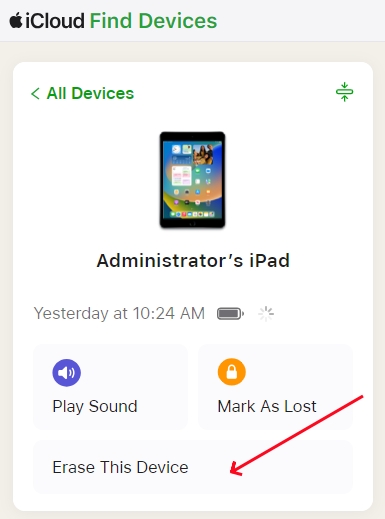
Step 1. Log into iCloud Find Devices website by entering your Apple ID and password.
Step 2. In the device list, click your iPad, and a window will pop up.
Step 3. Click Erase > Next. And enter your Apple ID password to confirm the operation. Under this decision, your iPad will be completely erased.
Part 3. How to Bypass iPad Lock Screen with Computer
For users with access to a computer, solutions to bypass the lock screen can be more. Whether using iTunes, Finder, or third-party tools, these methods offer reliable options for bypassing the iPad lock code.
Method 1. Bypass iPad Lock Screen in iTunes
With a computer, you can bypass the lock screen on your iPad easily. That is to use iTunes on a PC or Finder on a Mac. There are two options to restore your iPad to factory settings with the help of iTunes or Finder.
Option 1. Bypass iPad Screen Lock on a Trusted Computer
Once you get your iPad synced with your computer and the Find My iPad is disabled, you can directly connect your iPad to the computer and then restore it by using iTunes. Here's how to bypass screen lock on iPad via iTunes.
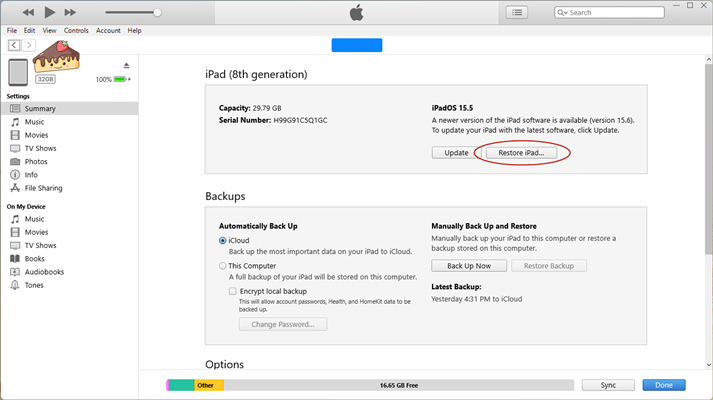
Step 1. Connect your iPad to your computer and launch iTunes or Finder.
Step 2. In iTunes, select your iPad and go to the Summary tab.
Step 3. Click Restore iPad and click it again to confirm that you want to restore your device.
Option 2. Bypass iPad Screen Lock in Recovery Mode
If you have never synced your iPad with your computer, then you are not able to directly restore your device in iTunes or Finder. Here you can put your iPad into Recovery Mode, then use iTunes or Finder to reset your device.
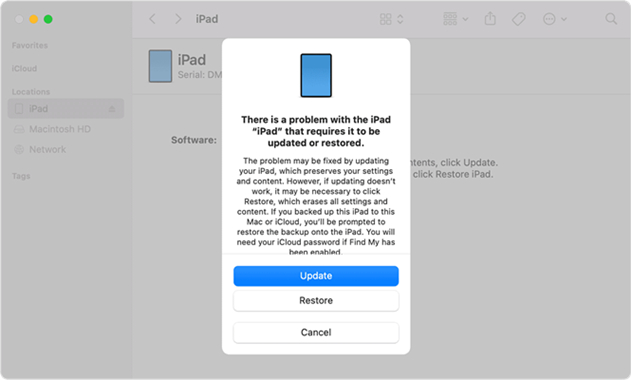
Step 1. Turn off your iPad and connect it to your computer with a USB cable.
Step 2. Enable your device in Recovery Mode, then open iTunes or Finder.
Step 3. Select Restore in the pop-up window. Your iPad will be restored and updated soon.
Method 2. Bypass iPad Lock Screen via Screen Lock Remover
There are some limitations to the above methods. If you try to erase your iPad with your Apple ID, then make sure that you have enabled Find My on your device. Provided that the Find My feature is disabled on your device, you can use iTunes to restore your iPad. To unlock your iPad lock screen without restrictions, you can resort to an iPad screen lock remover——MagFone iPhone Unlocker.
MagFone iPhone Unlocker is your best bet when you forget your screen lock on your iPad and don't require the Apple ID password. It is designed to crack all kinds of screen locks, including Face ID, Touch ID, and digit code, on the iPad, iPhone, and iPod touch. Besides, the MagFone iPhone Unlocker can also turn off the Screen Time passcode easily and quickly. Here's how to bypass the lock code on iPad using MagFone.

MagFone iPhone Unlocker
Unlock various locks on iOS devices, including screen locks, MDM, Apple ID, and Activation Lock without needing a password.
Step 1 Connect iPad to Computer and Open MagFone

Get your iPad connected to your computer with a USB cable, then launch MagFone iPhone Unlocker. To bypass the screen lock on your iPad, select the Unlock iOS Screen option and click the Start button.
Step 2 Go to Boot iPad into Recovery Mode or DFU Mode
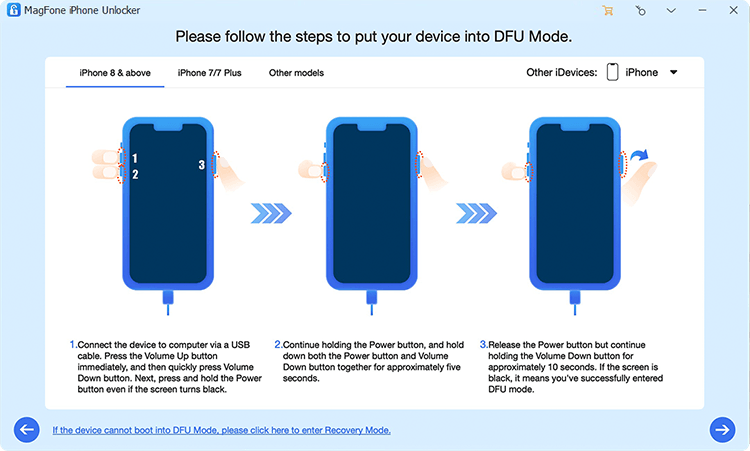
Then you need to put your iPad into recovery mode or DFU Mode by following the onscreen instructions. When the iPad enters recovery mode or DFU mode, you can click the link at the bottom of the program.
Step 3 Download the Matching Firmware Package for iPad

Now you have to check to see if the device information of your iPad shown on the program is right. If the information is wrong, you can correct it manually. Then you can click the Download button to download the firmware package.
Step 4 Start to Bypass Screen Lock on iPad Mini/Air

The final step is to click the Unlock button on the program. After verifying and unzipping the firmware package, the screen lock on your iPad will be removed by MagFone iPhone Unlocker. Now you can access your iPad without the screen lock passcode.
Part 4. FAQs about iPad Lock Screen Bypass
-
Can I unlock my iPad without an Apple ID password?
Yes, certain methods, like using iTunes or MagFone iPhone Unlocker, can bypass the iPad lock screen without needing any Apple ID password.
-
Can you unlock an iPad without a passcode or computer?
Yes, you can unlock your iPad from the iPad unavailable screen through your Apple ID password. Or, you can use features like the Find My app or iCloud.com to erase and unlock your iPad without a computer.
-
How to bypass iPad lock screen without losing data?
To retain your data, you can choose to unlock your iPad with the old passcode or resort to Siri. However, most of the methods can be data-lossy, so you can back up your data first and then restore your iPad via iTunes to bypass the lock screen.
Part 5. Conclusion
Being locked out of your iPad can be annoying, but the good news is that there are multiple ways to bypass the lock screen, and each method offers a practical solution for specific scenarios. By following the steps in this guide, you can regain access to your iPad and use it without any hassles. Always remember to back up your data regularly to minimize loss during such situations.

Teresa Miller
Editor in chief





