








How do I solve the problem of being unable to update apps from App Store? I get an message that ‘There is a billing problem with a previous purchase'. Even after signing in, I still cannot update apps. What can I do to fix this issue?"
—— From Apple Support Community
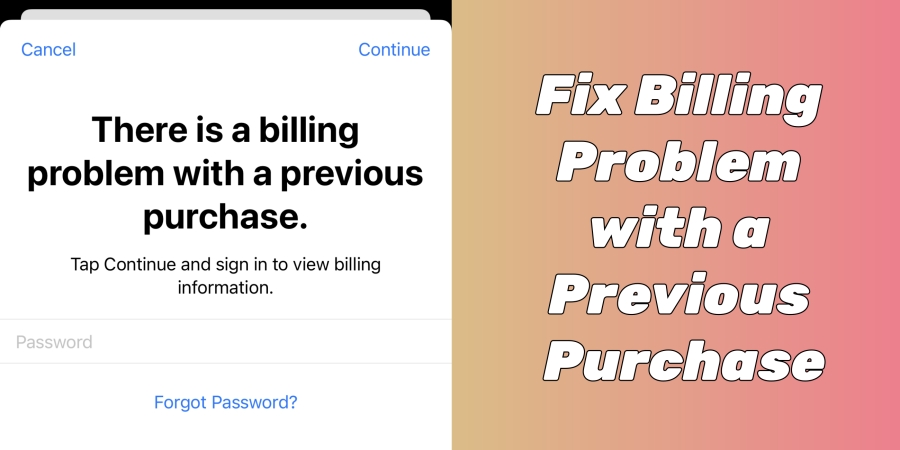
Encountering the message saying "There is a billing problem with a previous purchase" on your device can be frustrating. This notification indicates that Apple was unable to process payment for a past transaction, leading to restrictions on new purchases or downloads. Resolving this issue promptly ensures uninterrupted access to Apple's services and content. This comprehensive guide will walk you through understanding the problem and detailed troubleshooting steps.
- Part 1. What Does There Is a Billing Problem with a Previous Purchase Mean?
- Part 2. How to Fix a Billing Problem with a Previous Purchase
- Part 3. Ultimate Fix to There Is a Billing Problem with a Previous Purchase
- Part 4. FAQs about There Is a Billing Problem with a Previous Purchase
- Part 5. Conclusion
Part 1. What Does There Is a Billing Problem with a Previous Purchase Mean?
Understand the "Billing Problem with a Previous Purchase" Message
When Apple cannot process a payment for a previous purchase, it flags the account to prevent further transactions until the outstanding balance is settled. Common reasons why your iPhone has a billing problem with a previous purchase include:
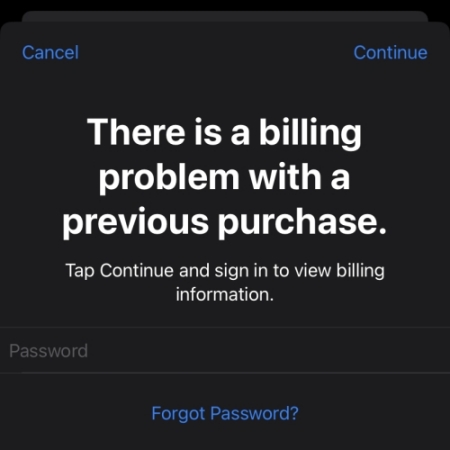
Reason 1. Expired or invalid payment method: The credit or debit card on file has expired or is no longer valid.
Reason 2. Insufficient funds: The linked payment method lacks sufficient funds to cover the purchase.
Reason 3. Bank declines: The bank has declined the transaction due to various reasons, such as suspected fraudulent activity or exceeding spending limits.
Reason 4. Unpaid balances: Previous purchases remain unpaid due to payment failures.
Identify Your Scenario of "Billing Problem with a Previous Purchase"
Understanding the root cause is crucial for effective resolution. However, the message saying "billing problem with previous purchase" often appears in several scenarios. To tailor the solution to your situation, select the scenario that best describes your experience. Based on your selection, check the corresponding troubleshooting steps below.
| Scenarios | Solutions |
|---|---|
| There is a billing problem with a previous purchase | Verify payment method details Change your payment method Use an Apple Gift Card or App Store Card |
| There is a billing problem with a family member's previous purchase | Ask the Family organizer to change their payment method Add a new and valid payment method Use an Apple Gift Card to pay the unpaid balance |
Part 2. How to Fix There Is a Billing Problem with a Previous Purchase
The message - There is a billing problem with a previous purchase - can disrupt your ability to download apps, make purchases, or access subscriptions on your Apple device. There are some interactive approaches to help you resolve the issue efficiently, whether there is a billing problem with your previous purchase or a family member's previous purchase. Let's dive into the details.
📝Check Purchase History and Unpaid Balance on iPhone
When there is a billing problem with a previous purchase, you should first know what the order is about. So you can fix the issue, make new purchases, and download the free app again.
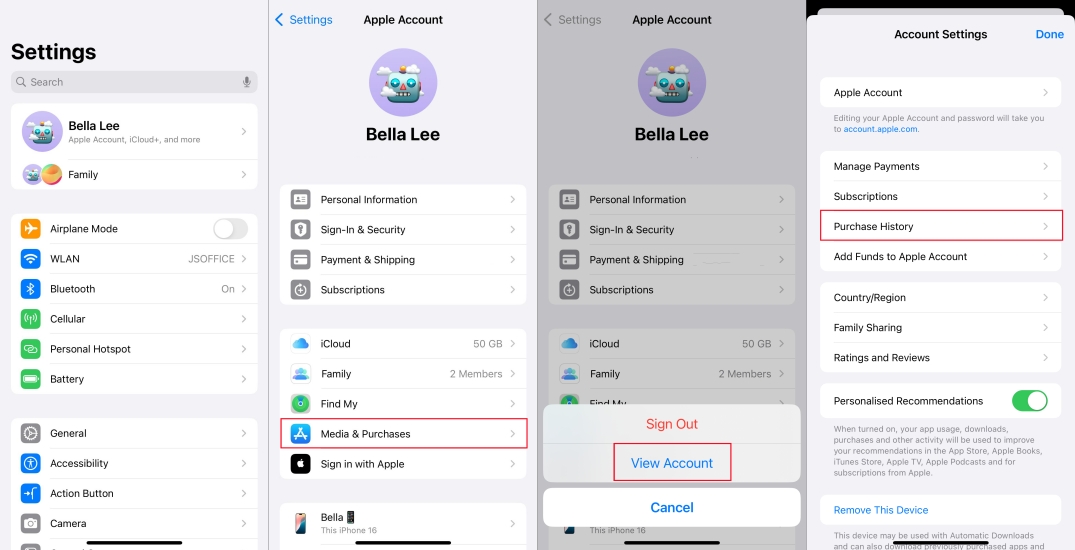
Step 1. Head to Settings and tap your Apple ID name at the top.
Step 2. Select Media & Purchases > View Account.
Step 3. Tap Purchase History to view any unpaid purchases.
Step 4. Pay the unpaid or outstanding balance.
Solution 1. Verify Payment Method Details and Retry
An outdated or invalid payment method can cause billing issues. When you encounter "There is a billing problem with a previous purchase alert" on your iPhone, you will also be asked to view your billing information. You can tap Continue to verify your payment method or check the billing information in iPhone Settings. Make sure that your payment method is current and valid.
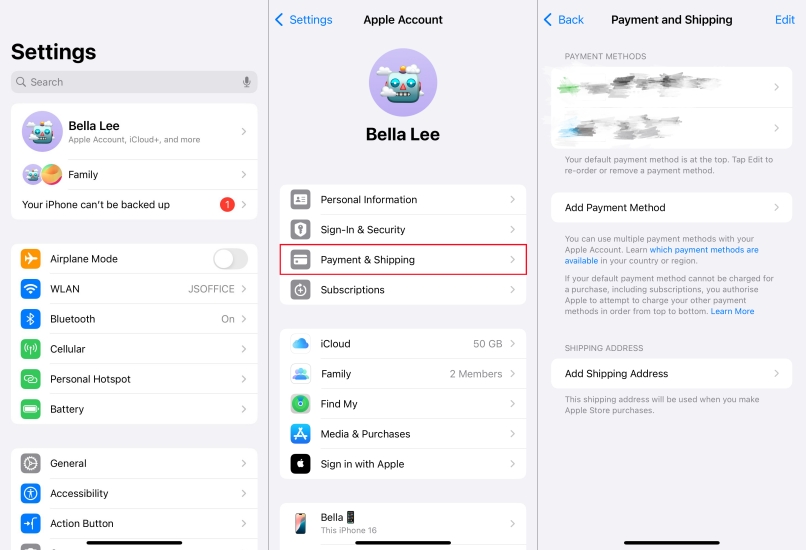
Step 1. Open Settings on your iPhone and tap your Apple ID name.
Step 2. Select Payment & Shipping and check the listed payment method.
Solution 2. Add a New and Valid Payment Method
Sometimes, re-entering payment details can resolve verification issues. In this case, you can remove the old payment method, then add a new, valid payment method.
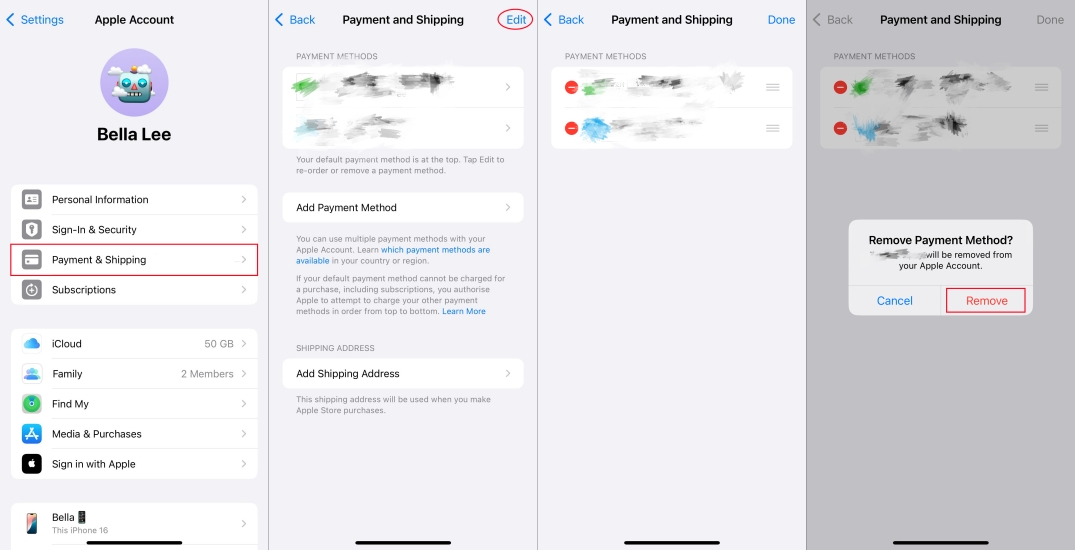
Step 1. Go to Settings > your Apple ID name and tap Payment & Shipping.
Step 2. In Payment & Shipping, tap Edit.
Step 3. Tap the red minus sign next to the existing payment method and select Remove.
Step 4. Tap Add Payment Method to add your payment information again.
Solution 3. Redeem an Apple Gift Card or App Store Card
If you have an unpaid Apple purchase, redeeming an Apple Gift Card or App Store Card can help clear the outstanding balance without using your usual payment method.
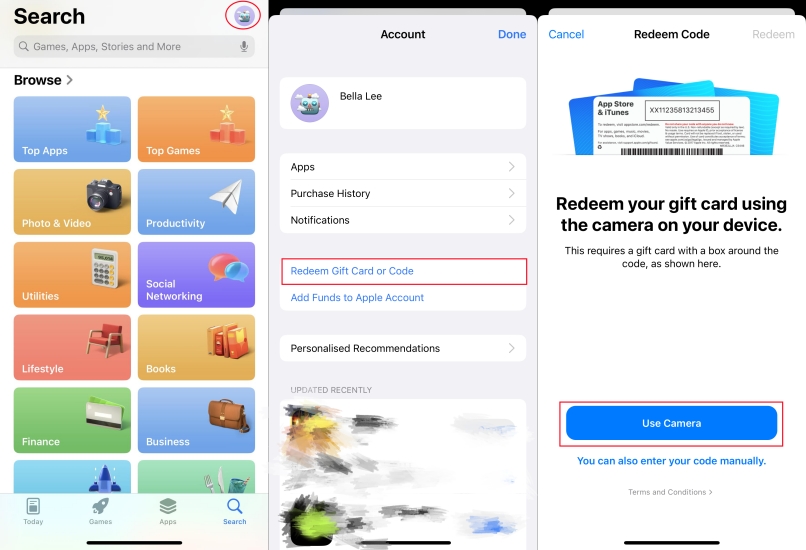
Step 1. Purchase an Apple Gift Card from a reputable retailer.
Step 2. Open the App Store and tap your profile picture.
Step 3. Select Redeem Gift Card Code and redeem your gift card.
Step 4. Go to iPhone Settings > Apple ID > Media & Purchases.
Step 5. Tap Purchase History and tap the unpaid order that says Amount You Owe.
Step 6. Tap Pay with Apple Account Credit.
Solution 4. Contact Apple Support
If the billing issue continues after checking your payment details and trying another payment method, contacting Apple Support may be the best option.
Part 3. Ultimate Fix to There Is a Billing Problem with a Previous Purchase
If the above steps don't resolve the issue, signing out of Apple ID on the iPhone is advisable. But to completely remove Apple ID from an iPhone, you need to enter the Apple ID details. If you cannot remember your Apple ID password, you can try using an Apple ID removal called MagFone iPhone Unlocker. With this tool, you can easily and quickly delete Apple ID on your iPhone without entering the account details.

MagFone iPhone Unlocker
Remove Apple ID to fix billing problems on iPhone and iPad quickly.
Step 1 Connect iPhone to Computer and Open MagFone
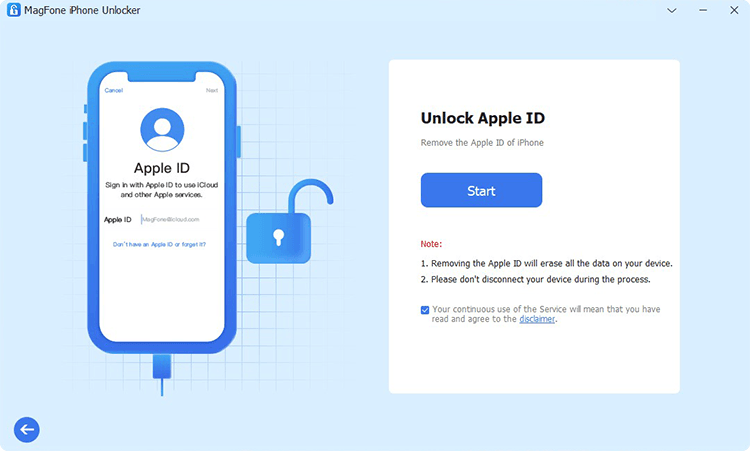
Start by launching MagFone iPhone Unlocker on your computer, select the Unlock Apple ID option. Go to plug your iPhone into the computer using a USB cable. Proceed to click the Start button on the MagFone software.
Step 2 Confirm Two-factor Authentication and Screen Passcode
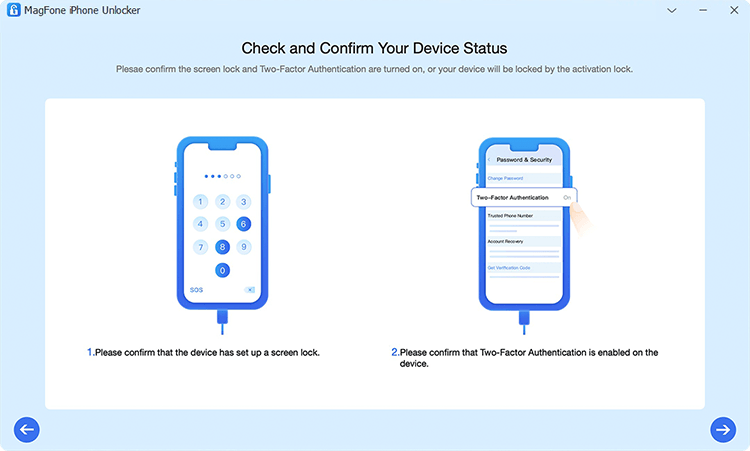
Confirm your iPhone with two-factor authentication and screen passcode when the Find My feature is enabled on your device. If the Find My feature is disabled on your iPhone, you can directly skip this step.
Step 3 Download and Verify the Firmware for iPhone

Check to see if the device information is correct after confirming the device. If anything is wrong, you can manually correct it. Then click the Download button to download the firmware for your iPhone.
Step 4 Start to Remove Apple ID from iPhone
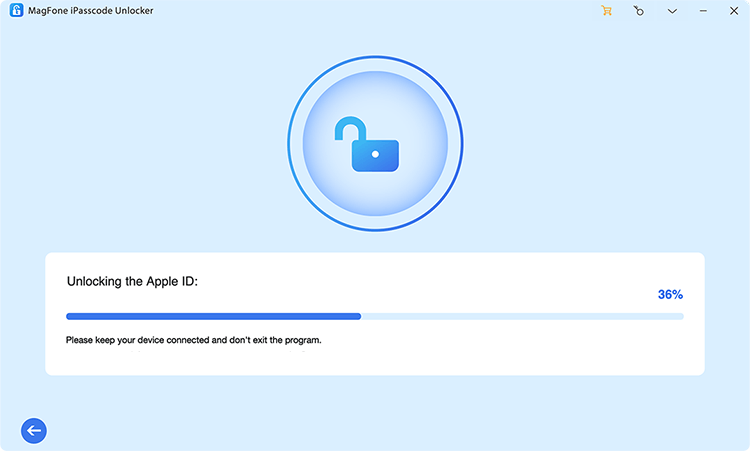
Once the download is complete, click the Unlock button to let MagFone iPhone Unlocker remove Apple ID from your iPhone. Keep your iPhone connected to the computer until the process finishes. Now you can add a new Apple ID on your device.
Part 4. FAQs about There Is a Billing Problem with a Previous Purchase
How to fix there is a billing problem with a family member's previous purchase?
If there is a billing problem with a family member's previous purchase, you can ask the Family organizer to resolve the issue. To solve the issue, you can refer to the solutions introduced above.
Can I remove a payment method with an unpaid balance?
No, you cannot remove a payment method with an unpaid balance. Apple requires all outstanding balances to be paid before removing a payment method.
How long does it take for payments to process?
Payments typically process immediately, but some methods may take up to 24 hours.
There is a billing problem with a previous purchase how to fix without paying?
One way to fix a billing problem without paying is to sign out of the Apple ID on your iPhone. Then sign in with a new Apple ID.
Can I download free apps with a billing problem?
If there is a billing problem, you can't download free apps from the App Store until the unpaid balance is resolved.
Part 5. Conclusion
Addressing the "There is a billing problem with a previous purchase" message promptly ensures uninterrupted access to Apple's service. By understanding the causes, following the outlined troubleshooting steps, you can effectively resolve billing issues on your iPhone. If challenges persist, don't hesitate to seek assistance from Apple Support.

Dylan Jones
Editor in chief





