








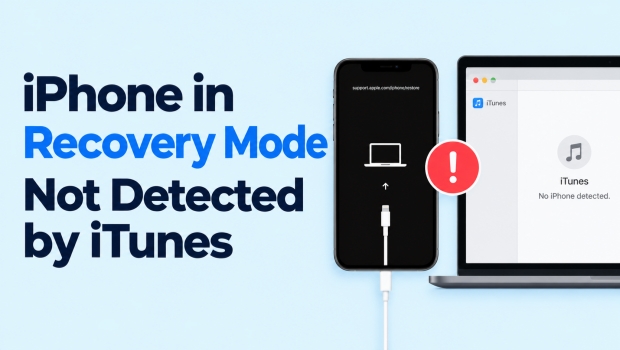
Want to restore iPhone using recovery mode, but iTunes is not recognizing it? This is a common issue many users encounter while restoring an iPhone with iTunes. In this guide, we will show you why iTunes is not detecting your iPhone in recovery mode, how to fix the issue of iPhone in recovery mode not detected by iTunes, and we'll also introduce an alternative way to restore your iPhone when iTunes still fails to detect it.
- Part 1. Why Is iTunes Not Recognizing iPhone in Recovery Mode?
- Part 2. How to Fix iPhone in Recovery Mode Not Detected by iTunes
- Part 3. Alternative Ways to Restore iPhone in Recovery Mode
- Part 4. Conclusion
Part 1. Why Is iTunes Not Recognizing iPhone in Recovery Mode?
When iTunes fails to recognize an iPhone in recovery mode, the problem may be related to the connection, software, or recovery process itself. Applying the corresponding solution to each cause can help you quickly fix the issue.
- Incompatible data cable: A damaged, low-quality, or charge-only cable may not support data transfer, preventing iTunes from detecting the iPhone.
- Outdated iTunes: An older iTunes version may lack compatibility or contain bugs that interfere with recognizing an iPhone in recovery mode.
- Temporary iPhone or iTunes bug: A brief software or connection glitch can stop the devices from communicating; reconnecting or restarting them may help.
Part 2. How to Fix iPhone in Recovery Mode Not Detected by iTunes
Once you know the possible reasons your iPhone isn't detected by iTunes, follow the methods below to fix the issue.
Method 1. Try Another Data Cable
A damaged, incompatible, or non-certified Lightning or USB-C cable may prevent iTunes from communicating with your iPhone in recovery mode. Try using another compatible cable and connect it directly to your computer. You should also test a different USB port and avoid using USB hubs or adapters when possible.
Method 2. Update iTunes or Mac
Outdated iTunes or macOS software may not properly support your iPhone or its recovery mode connection. Check for the latest version of iTunes on Windows, or update macOS if you are using a Mac. After updating, restart your computer and connect the iPhone again to see whether iTunes detects it.
Update iTunes:
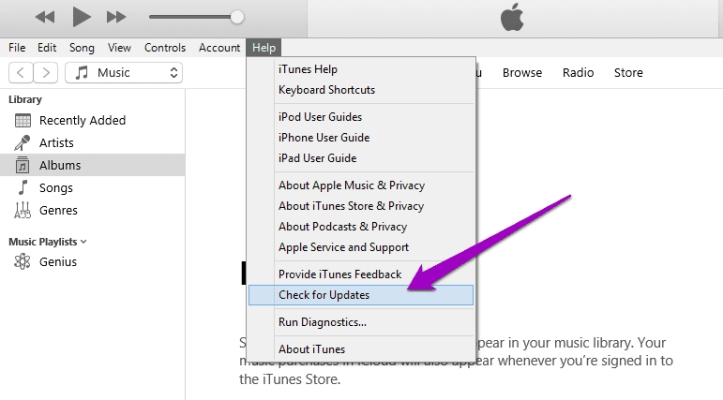
Step 1. Open iTunes and click Help > Check for Updates.
Step 2. If there is a newer version, click Download iTunes to update.
Update Mac:
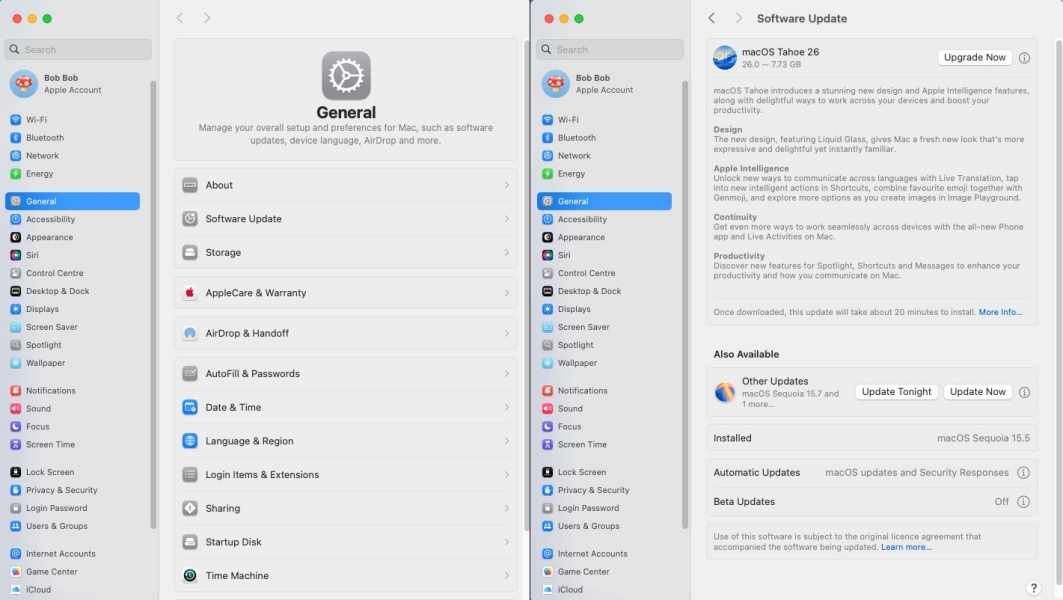
Step 1. Open System Preferences on your Mac.
Step 2. Click General > Software Update.
Step 3. If there is a newer software version, click Upgrade Now to update the system.
Method 3. Exit Recovery Mode and Try Again
Temporary system errors can sometimes prevent iTunes from recognizing an iPhone in recovery mode. If possible, exit recovery mode, restart the iPhone, and then enter recovery mode again. Reconnecting the device after repeating the process may help iTunes detect it correctly. If your iPhone is stuck in recovery mode, follow the steps below to exit and enter again.
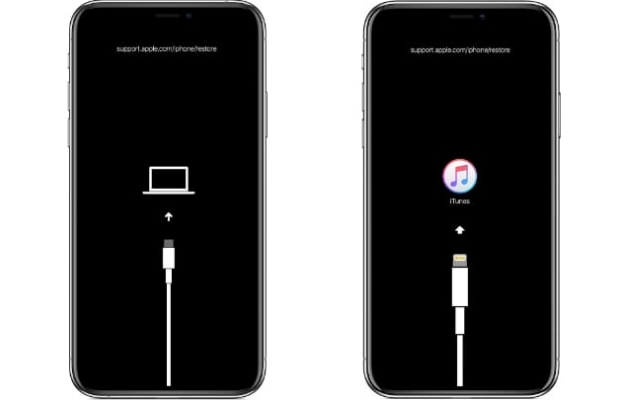
- iPhone 8 and later: Press the Volume Up button, press the Volume Down button, then keep holding the Power button until the Apple logo appears.
- iPhone 7 series: Keep holding the Power button and the Volume Up button at the same time until the Apple logo appears.
- iPhone 6 and earlier: Keep holding the Power button and the Home button at the same time until the Apple logo appears.
Method 4. Get iPhone into DFU Mode
When iTunes is not recognizing your iPhone in recovery mode, consider putting the iPhone into DFU mode. DFU mode provides a deeper connection between the iPhone and the computer, which may allow iTunes to recognize and restore the device when recovery mode fails.
- iPhone 8 and later:
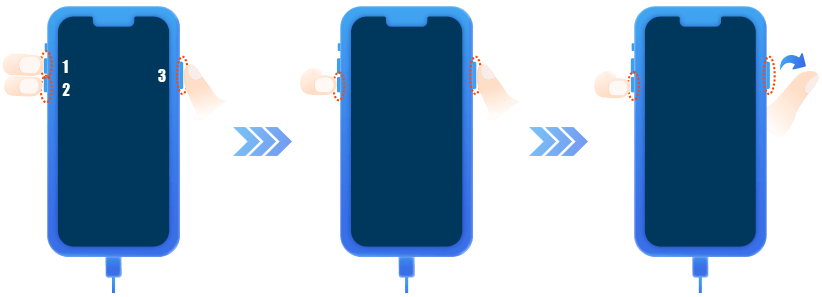 01Quickly press the Volume Up button.02Quickly press the Volume Down button.03Keep pressing the Power button until the screen goes black, then keep pressing the Volume Down button for 5 seconds.04Only release the Power button and keep pressing the Volume Down button for another 10 seconds.
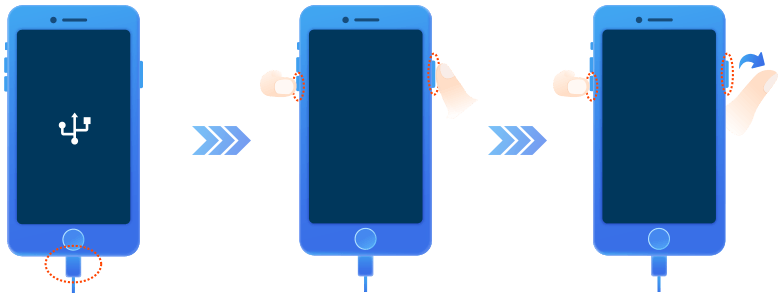
 - iPhone 7 series: Keep holding the Power button and the Volume Down button for 8 seconds, then release the Power button while holding the Volume Down button until iTunes detects the iPhone.
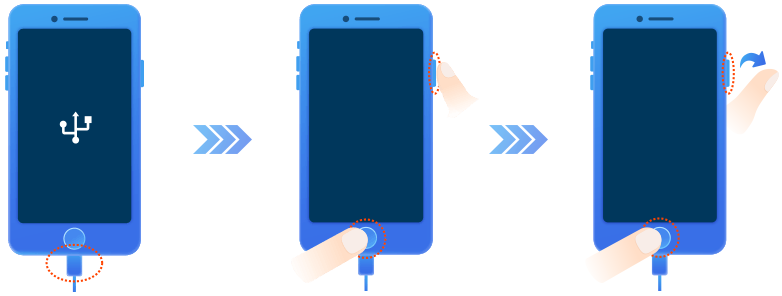
- iPhone 6 and earlier: dddKeep holding the Power button and the Home button for 8 seconds, then release the Power button while holding the Home button until iTunes detects the iPhone.
Part 3. Alternative Way to Restore iPhone in Recovery Mode
If iTunes still cannot detect your iPhone, you may consider another tool to restore your iPhone, either the Apple Devices app or a third-party management tool.
Method 1. Use MagFone iPhone Unlocker
If your iPhone cannot be detected by iTunes while in recovery mode, you can consider MagFone iPhone Unlocker to restore your iPhone. It is compatible with almost all iPhone models and all iOS versions, so you will never encounter a detection issue. It supports restoring your iPhone without an iPhone passcode or Apple ID password. Besides, it also supports removing the lock screen passcode, Screen Time passcode, Apple ID password, MDM password, and iCloud Activation password from the iPhone. No matter why you put your iPhone into recovery mode, just follow the steps below to get your iPhone restored.

MagFone iPhone Unlocker
Restore iPhone and iPad without Apple ID password, no detecting error.
Step 1 Install MagFone iPhone Unlocker
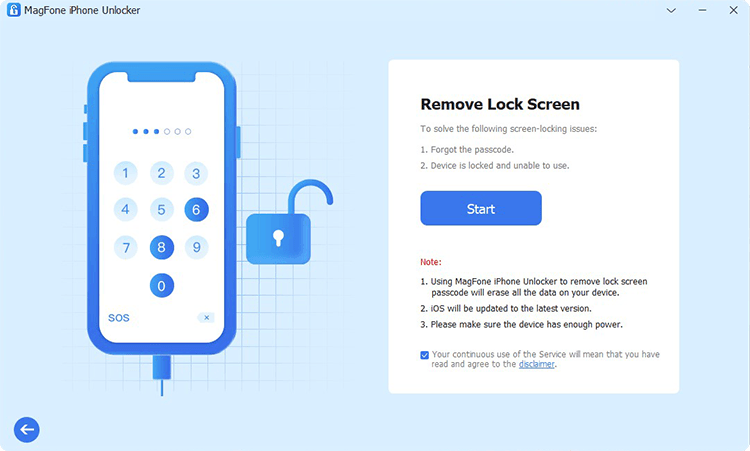
First, download and install MagFone iPhone Unlocker on your computer. Then open this tool and use a data cable to connect your iPhone to the computer.
Step 2 Put the iPhone into Recovery Mode
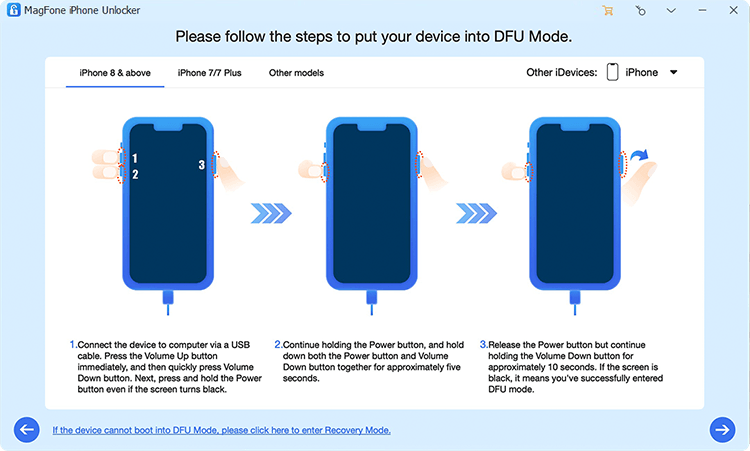
Choose Unlock iOS Screen on MagFone, and click Start. Then follow the on-screen instructions to get your iPhone into recovery mode.
Step 3 Download Firmware Package

Once the iPhone is detected, click the Next button. Then check the device information and click Download to download the firmware package.
Step 4 Restore iPhone without iTunes
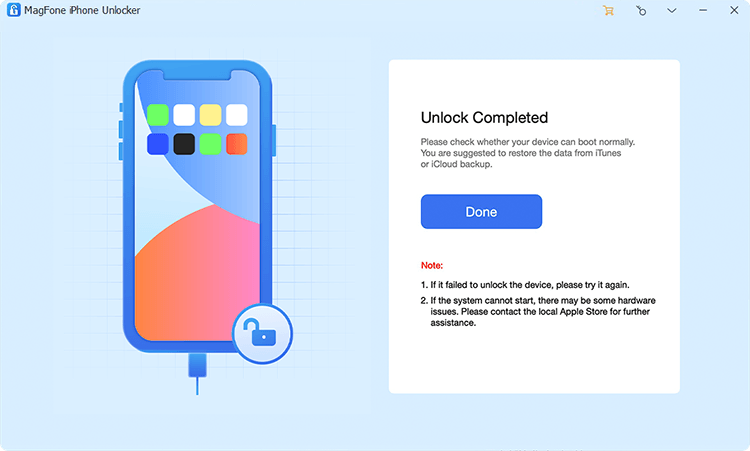
After downloading and verifying the firmware package, click Unlock to restore the iPhone.
Method 2. Use Apple Devices App
On newer Windows computers, Apple recommends using the Apple Devices app instead of iTunes to manage and restore an iPhone. You can install the Apple Devices app from the Microsoft Store and use it to restore your iPhone. Since you can't run the Apple Devices app and iTunes on a computer, to use the Apple Devices app on your computer, you need to first uninstall iTunes.
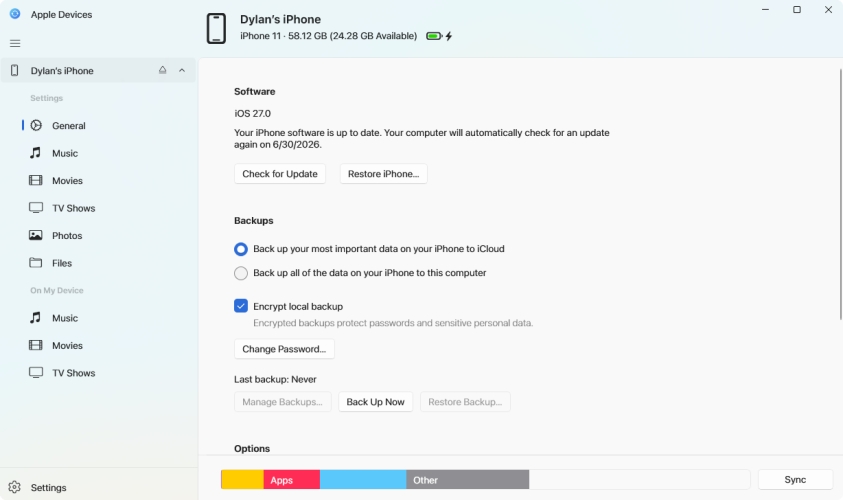
Step 1. Use a data cable to connect your iPhone to a computer and open the Apple Devices app.
Step 2. Click Allow when the computer asks whether to Allow accessory to connect?.
Step 3. Click the device icon, and click Restore iPhone. Then follow the prompts to complete the restore.
Part 4. Conclusion
iTunes not detecting iPhone is quite a common issue among iPhone users. When your iPhone can't be detected by iTunes, first try a different data cable, updating iTunes, re-entering recovery mode, or using DFU mode. If these methods fail, alternative tools like MagFone iPhone Unlocker and Apple Devices may be worth considering.

Dylan Jones
Editor in chief





