








Nowadays, many Samsung users get locked out of their devices because of FRP or Knox security. The ZeroKnox Removal Tool is designed to help users regain access by bypassing Factory Reset Protection and removing certain security restrictions. But is this tool free to use? Is it really reliable? If you want to learn more, read on to explore the features, download process, usage instructions, advantages, drawbacks, and a reliable alternative to the ZeroKnox Removal Tool for FRP unlocking.
- Part 1. What Is ZeroKnox Removal Tool?
- Part 2. How to Download ZeroKnox Removal Tool
- Part 3. How to Use ZeroKnox Removal FRP Bypass
- Part 4. Benefits and Limitations of ZeroKnox Removal
- Part 5. Best FRP Bypass Tool: MagFone FRP Unlocker
- Part 6. Conclusion
Part 1. What Is ZeroKnox Removal Tool?
The ZeroKnox Removal Tool is a utility primarily designed for Samsung smartphones and tablets. In addition to FRP unlocking, the software also supports Knox security removal and various device management functions. Below are the main features available in the ZeroKnox Removal tool.
- Samsung FRP bypass support
- Knox security removal
- Enable ADB debugging
- Quick factory reset function
- Download mode activation
- KG lock bypass support
- MTP mode operations
- Verizon fix test mode
- Reboot download mode
Part 2. How to Download ZeroKnox Removal Tool
You can download both the free and paid versions from the official ZeroKnox Removal website by following the steps below. This application supports Windows 7 through Windows 11, and here's how to download the ZeroKnox Removal tools.
01ZeroKnox Removal Tool Latest Version Download:
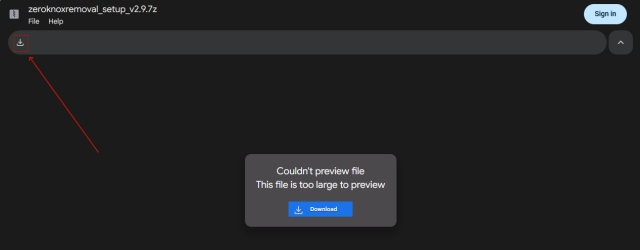
Step 1. Download the latest version of the ZeroKnox Removal Tool and extract the ZIP file.
Step 2. Open the ZeroKnox Removal.exe file. If an alert appears stating it's a malicious file, click More info and then Run anyway.
Step 3. Then click Finish in the pop-up window to launch it.
02ZeroKnox Removal Tool Free Version Download:
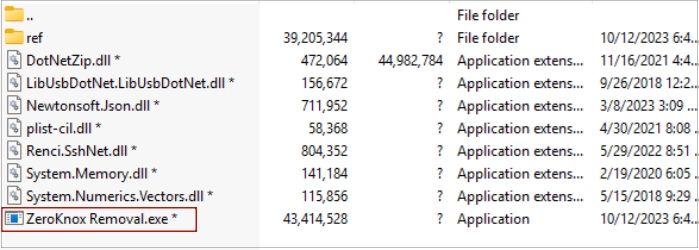
Step 1. Download the free ZeroKnox Removal Tool from the official ZeroKnox Removal website.
Step 2. Complete the human verification, then click Generate Link and select the Download button. (If prompted to download the Opera GX browser, install it first to access the download page.)
Step 3. Extract the ZIP file, double-click the .exe file, and enter the password 123 to launch the ZeroKnox Removal application.
Part 3. How to Use ZeroKnox Removal FRP Bypass
Using the ZeroKnox Removal application is relatively simple for users familiar with Android unlocking tools. The process mainly involves enabling ADB mode and resetting FRP through the software interface. Here's how to use ZeroKnox Removal to bypass FRP.
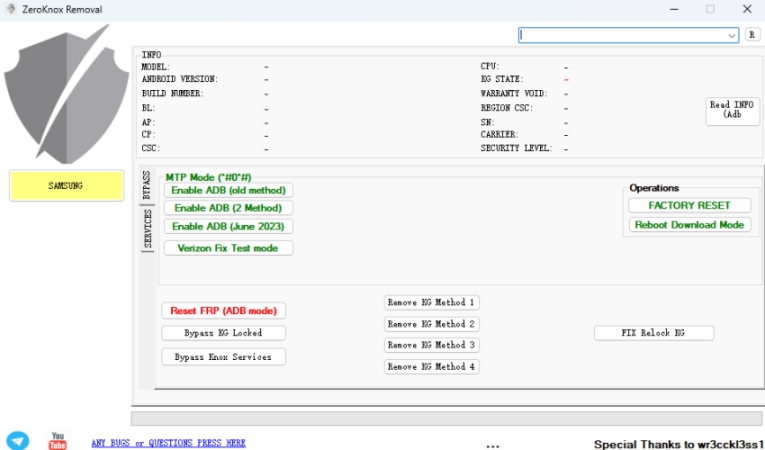
Step 1. Temporarily deactivate any active security software, including Windows Defender, to prevent the tool's components from being erroneously flagged or blocked.
Step 2. Navigate to the unzipped folder and launch the ZeroKnox Removal v1.6 executable on your PC.
Step 3. Verify that the necessary Samsung USB drivers are functional on your system. If they aren't already present, install them now to ensure the computer recognizes your mobile device.
Step 4. On your Samsung phone, connect to a stable Wi-Fi network. Access the Emergency Call dialer and input the code *#0*# to trigger the hardware diagnostic (test) menu.
Step 5. Use a USB cable to link your handset to the computer.
Step 6. Within the application interface, you will see three distinct activation buttons: Enable ADB (Old Method), Enable ADB (Method 2), and Enable ADB (June 2023). You should attempt these sequentially until the device prompts you to allow USB debugging.
Step 7. Confirm and authorize the ADB permissions on your phone's screen for all attempted methods to ensure a secure bridge is established.
Step 8. Once the connection is confirmed, select the Reset FRP (ADB Mode) option within the tool.
Step 9. Maintain the connection while the software processes the command. Your device will automatically restart once the FRP lock has been successfully cleared.
Part 4. Benefits and Limitations of ZeroKnox Removal
The ZeroKnox removal tool offers convenient solutions for Samsung FRP bypass and Knox unlocking. Many users prefer it because of its simple interface and fast operation. However, like most third-party Android unlocking tools, it also carries certain security concerns and technical limitations that users should understand before using the software.
 Pros
Pros- Fast FRP bypass process
- Supports many Samsung models
- User-friendly software interface
- Free basic unlocking functions
- Quick ADB activation support

- Only supports Windows PC
- Limited non-Samsung compatibility
- Possible device warranty loss
- Risk of software instability
- Advanced knowledge sometimes required
Part 5. Best FRP Bypass Tool: MagFone FRP Unlocker
While the ZeroKnox Removal tool can handle Samsung FRP unlocking, many users look for safer and more stable alternatives. MagFone Android Unlocker is considered a professional unlocking solution that supports several Android brands, including Samsung, Xiaomi, and Motorola. This tool is easy to use and can bypass FRP locks quickly. It also offers better device compatibility and regular updates for newer Android systems. Here's how to use MagFone Android Unlocker.

MagFone Android Unlocker
Remove multiple kinds of screen locks on over 5000 Android devices and delete Google FRP lock without a password.
Step 1 Connect Your Phone and Run Software
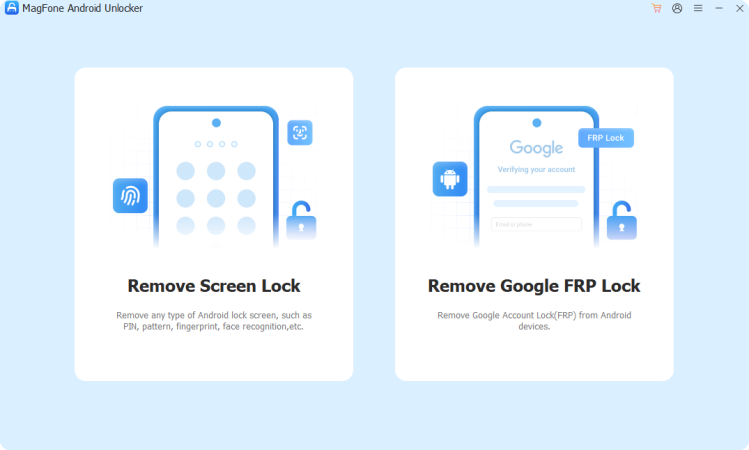
Connect your Realme device to the computer using a USB cable. After the connection is established, launch MagFone FRP Unlocker and choose the FRP bypass feature from the main interface.
Step 2 Detect the Device and Continue
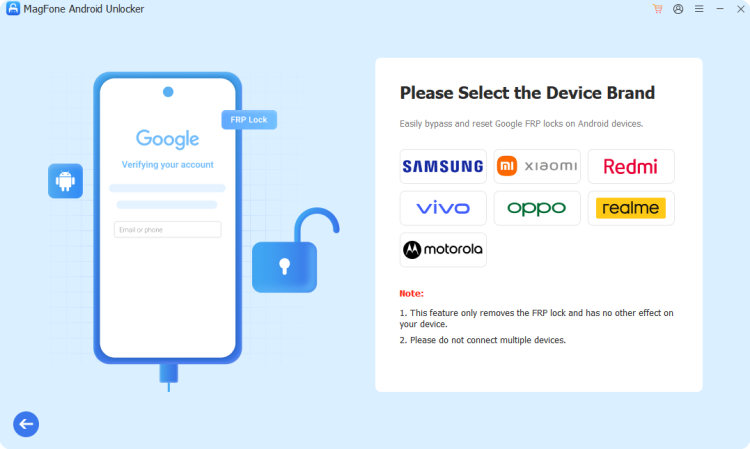
Allow the software to recognize your phone automatically, or manually select the Realme brand if needed. Then click the start button and carefully follow the on-screen instructions to proceed.
Step 3 Finish Unlocking the FRP Lock
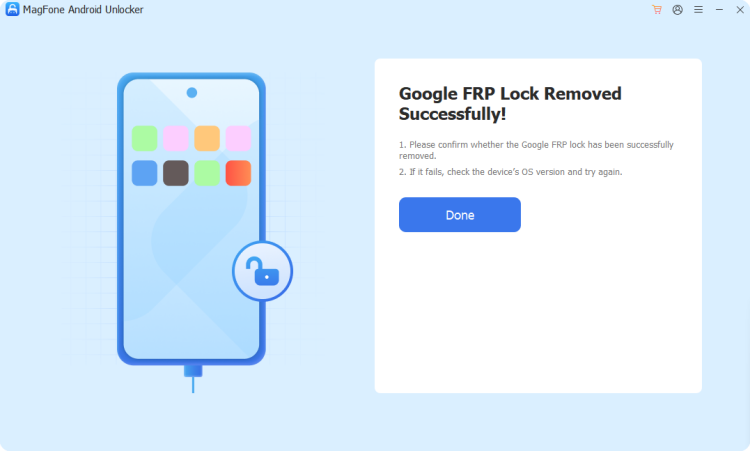
Once the process is finished, disconnect the device and restart your phone. Follow the final prompts to confirm the operation, and the FRP lock will be successfully removed.
Part 6. Conclusion
The ZeroKnox Removal Tool helps Samsung users bypass FRP locks and remove Knox restrictions with features such as ADB activation and factory reset support. While the tool is functional, MagFone FRP Unlocker is considered a more reliable alternative that efficiently supports multiple Android devices.

Teresa Miller
Editor in chief





