








Picture this: you sit down at your PC, type your password, and Windows refuses to let you in. Maybe you changed it last week, inherited an old laptop, or got locked out of a server. That's when people start searching for PCUnlocker. In this full review, we'll cover everything you need to know about it: what it does, its price, whether it's safe, how to get it, and how to use it.
- Part 1. What Is the PCUnlocker Tool Used For?
- Part 2. Is PCUnlocker Free and Safe to Use?
- Part 3. How to Download PCUnlocker for Free
- Part 4. How to Use PCUnlocker Step by Step
- Part 5. Bonus Tip: How to Unlock Android Phone
- Part 6. Conclusion
Part 1. What Is the PCUnlocker Tool Used For?
PCUnlocker is mainly used to reset or bypass forgotten passwords for local user accounts. It also supports Microsoft accounts and can reset Active Directory and domain administrator passwords on servers. Additionally, it can unlock disabled, locked, or expired accounts and promote standard users to administrators. Since it runs from a bootable CD, DVD, or USB drive, you don't need to log in to Windows first.
It's built for situations like a forgotten password, an unknown password on a second-hand computer, or an IT admin who needs back into a domain controller. It works on Windows 11, 10, 8, 7, Vista, and XP, plus Windows Server editions from 2000 through 2025. The software has been around for many years and has been updated to cover UEFI Secure Boot machines, including Surface devices.
Part 2. Is PCUnlocker Free and Safe to Use?
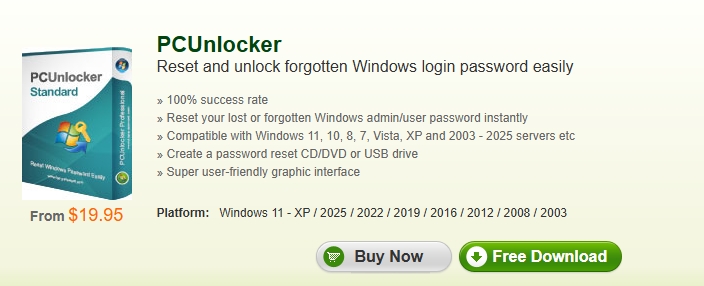
Is PCUnlocker free? Not really. The full tool is a paid product sold in three editions: Standard ($19.95), Professional ($29.95), and Enterprise ($49.95). Each edition supports a different range of systems and tasks, as the table below shows. A free download is available on the official site, but it works as a trial. The complete version arrives by email after purchase, along with free upgrades and technical support.
| Feature | Standard ($19.95) | Professional ($29.95) | Enterprise ($49.95) |
|---|---|---|---|
| Reset/bypass local admin and user passwords (Windows 11/10/8/7/Vista/XP) | ✔ | ✔ | ✔ |
| Reset Microsoft account login (Windows 11/10/8) | ✔ | ✔ | ✔ |
| Burn a password reset CD or USB | ✔ | ✔ | ✔ |
| Create a new local admin account | ✔ | ✔ | ✔ |
| Support UEFI Secure Boot computers | ✔ | ✔ | ✔ |
| Reset local passwords on Windows Server (2000–2025) | ✘ | ✔ | ✔ |
| Reset domain administrator password (Windows Server) | ✘ | ✘ | ✔ |
| Load extra SATA/RAID/SCSI drivers on the fly | ✘ | ✘ | ✔ |
As for safety, the picture is generally positive but needs some context. In user discussions on YouTube or Reddit, people mostly describe PCUnlocker as a dependable tool that did what it promised, especially on home PCs where the account was forgotten. The most common complaints are a clunky, outdated interface and inconsistent functionality.

Also, there are some users who report success, although the process can be a little complex to follow.

Part 3. How to Download PCUnlocker for Free
Getting the trial version takes just a few minutes. The key is to use the developer's own website so you avoid tampered copies. Here's how to do it, and what to expect once the file lands on your computer.
Step 1. Open the official PCUnlocker website in your browser, using a computer you can already log in to.
Step 2. Click the Free Download button on the product page.
Step 3. Save the downloaded ZIP file to a folder you can find easily, such as your desktop.
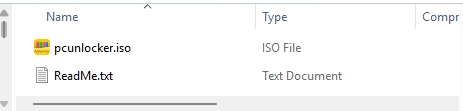
Step 4. Extract the ZIP. Inside you'll find an ISO image named pcunlocker.iso, which is the file you'll turn into a boot disk.
Step 5. Then you need to purchase a license to reset your passwords.
Part 4. How to Use PCUnlocker Step by Step
Using PCUnlocker means building a bootable disk on a working PC, then starting the locked computer from it. It may sound technical, but the process is fairly straightforward. Follow the steps below carefully, in order, and you'll be back in your account soon.
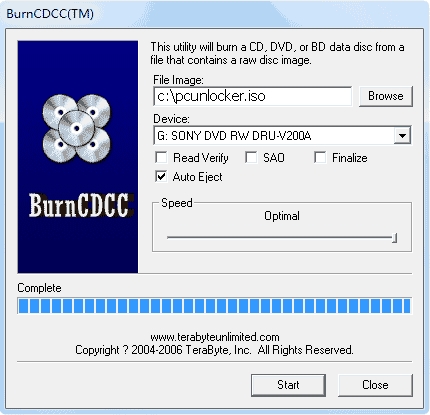
Step 1. On a working computer, burn the pcunlocker.iso file to a blank CD/DVD (a free tool like BurnCDCC works) or to a USB flash drive (ISO2Disc is one option).
Step 2. Plug the finished disk into the locked computer, then power it on and press the BIOS key shown on the startup screen, commonly Delete, F2, or F8.
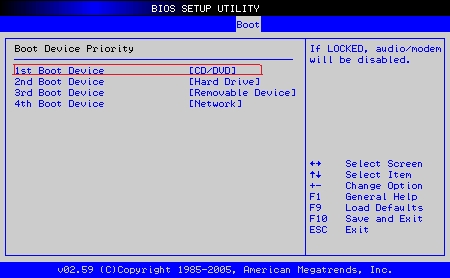
Step 3. In the BIOS, open the Boot menu and set your CD/DVD drive or removable USB device as the first boot device. Press F10 to save and exit.
Step 4. Let the computer restart from the disk. After the loading screen finishes, the main PCUnlocker window will appear.
Step 5. To reset a local account, select the Windows SAM registry file. PCUnlocker will list the user accounts. For a domain controller, choose the Active Directory database (ntds.dit) file instead.
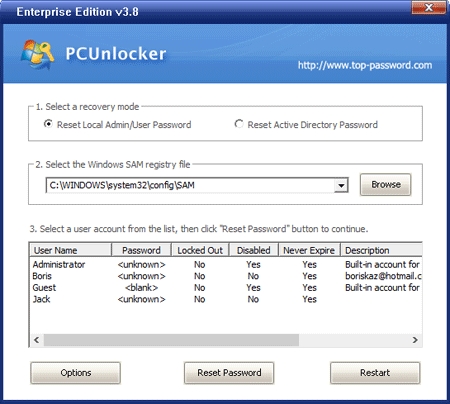
Step 6. Pick the account you're locked out of and click Reset Password. Local accounts are set to a blank password, while Active Directory accounts are changed to a default one shown by the program.
Step 7. Click Restart, remove the disk, and boot normally. You should now be able to sign in without the old password.
Part 5. Bonus Tip: How to Unlock Android Phone
So far we've looked at PCUnlocker, a tool for unlocking Windows computers. But what if the device you're locked out of is a phone? Next, we'll introduce MagFone Android Unlocker, which is designed to deal with two kinds of locks on Android: the screen lock and the FRP lock. Below are the steps to bypass a screen lock such as a PIN on an Android phone using MagFone Android Unlocker, shown here with a Samsung device.

MagFone Android Unlocker
Remove multiple kinds of screen locks on over 5000 Android devices and delete Google FRP lock without a password.
Step 1 Link Your Samsung Phone to the Program
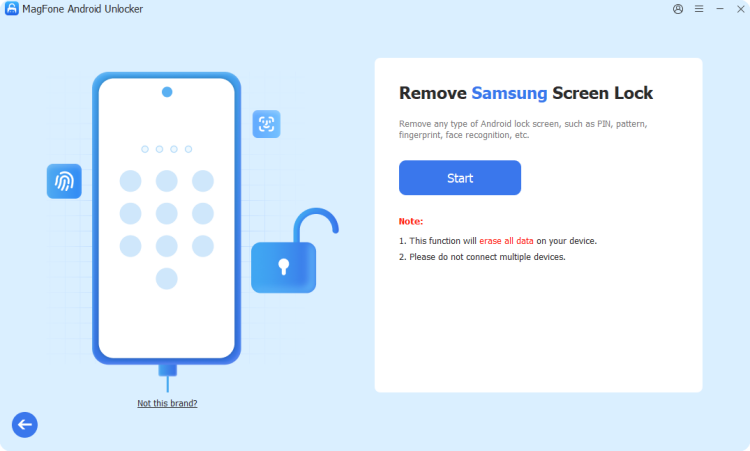
Install MagFone Android Unlocker on your computer and launch it. Use a USB cable to connect the Samsung phone, then choose the Remove Screen Lock option on the home screen.
Step 2 Boot the Phone into Recovery Mode
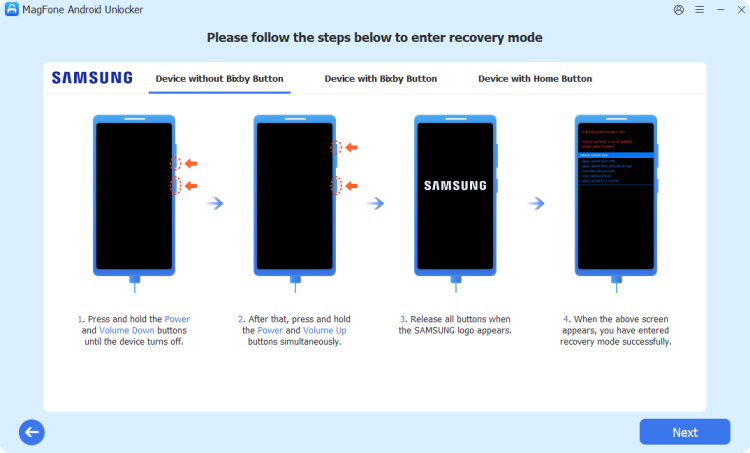
Follow the prompts shown in the software and press the required hardware buttons on the phone. This part can take a few minutes. When the phone is ready, click Next and then Continue.
Step 3 Clear the Forgotten Password
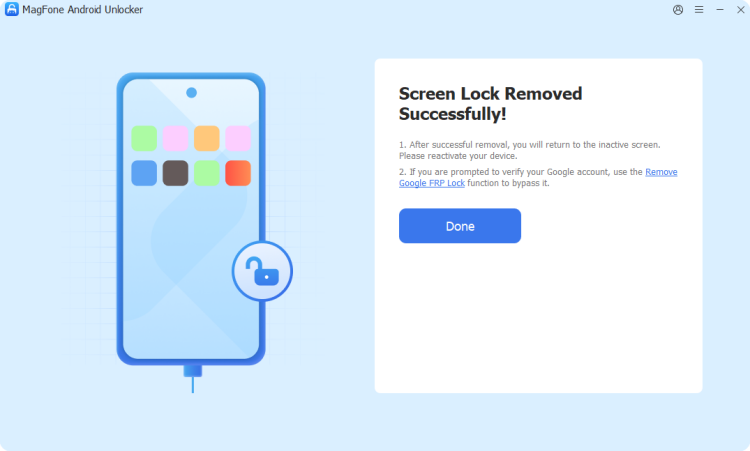
Keep following the instructions on screen so the software can remove the lock from your phone. Once it finishes, click Next to close out the process, and leave the phone plugged into the computer until then.
Part 6. Conclusion
PCUnlocker is a practical way to get back into a Windows PC or server when you've lost the password, with no reinstall and no data loss. It isn't free, but the $19.95 to $49.95 editions cover everything from home laptops to domain controllers. Download it only from the official site, and if your locked device turns out to be an Android phone, MagFone Android Unlocker is a handy alternative.

Teresa Miller
Editor in chief




