








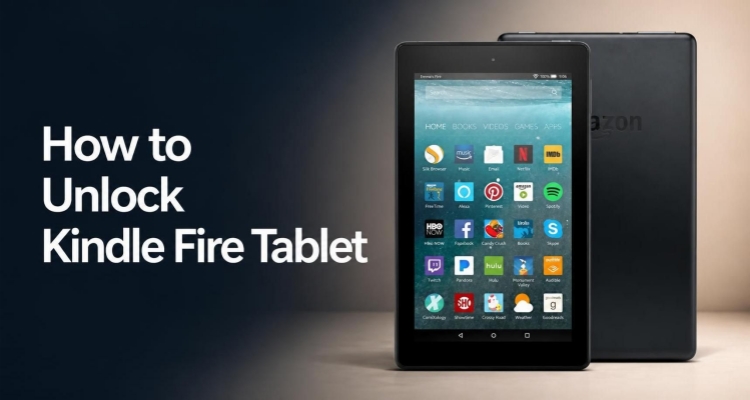
Amazon Fire tablets, often called Kindle Fire tablets, combine tablet features with access to books, apps, videos, games, and other Amazon services. Like other devices, a Fire tablet can become locked when you forget its PIN or password. Fortunately, you may be able to unlock it without erasing your personal content. This guide explains how to unlock a Kindle Fire tablet safely, followed by alternative methods if the first option does not work.
- Part 1. How to Unlock Kindle Fire Tablet Without Losing Data
- Part 2. How to Unlock Kindle Fire Tablet with One Click
- Part 3. How to Unlock Kindle Fire Tablet by Resetting It
- Part 4. FAQs about Unlocking Kindle Fire Tablet
- Part 5. Conclusion
Part 1. How to Unlock Kindle Fire Tablet Without Losing Data
If you've forgotten your screen lock but still remember your Amazon account credentials, you don't need to wipe your device. Kindle Fire tablets let you reset your PIN or password through your linked Amazon account, keeping all your apps, photos, and files intact.

Step 1. Enter an incorrect PIN or password on the lock screen five times in a row.
Step 2. After the fifth failed attempt, a prompt will appear offering to reset your credentials using your Amazon account.
Step 3. Tap the RESET PASSWORD option and sign in with your Amazon account email and password.
Step 4. Follow the on-screen prompts to create a new PIN or password.
Step 5. Confirm the new credentials, then use them to unlock your tablet as usual.
Note:
This method works only if the device is registered to an Amazon account and has an active internet connection, so make sure Wi-Fi is available before starting.
Part 2. How to Unlock Kindle Fire Tablet with One Click
When you're completely locked out and can't remember any recovery details, a dedicated unlocking tool can help. MagFone Android Unlocker is designed to remove various screen locks, including PINs, patterns, passwords, and fingerprint locks, with just a few clicks. It requires no advanced technical knowledge, making the process easier for beginners. Below, we'll walk you through the basic steps to unlock your Kindle Fire tablet using this tool.

MagFone Android Unlocker
Remove multiple kinds of screen locks on over 5000 Android devices and delete Google FRP lock without a password.
Step 1 Select the Unlock Option
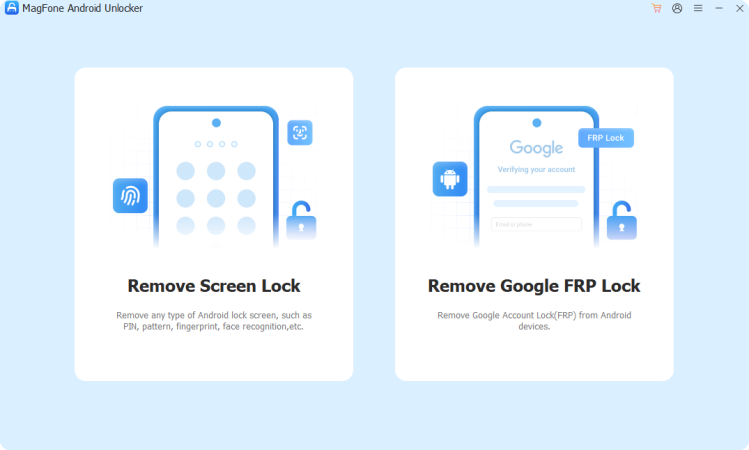
Install MagFone Android Unlocker on your PC and open the program. Plug your Kindle Fire into the computer using a USB cable, then pick the screen lock removal function from the main menu. The software will scan for your connected device. Once it's recognized, click to move forward.
Step 2 Boot into Recovery Mode
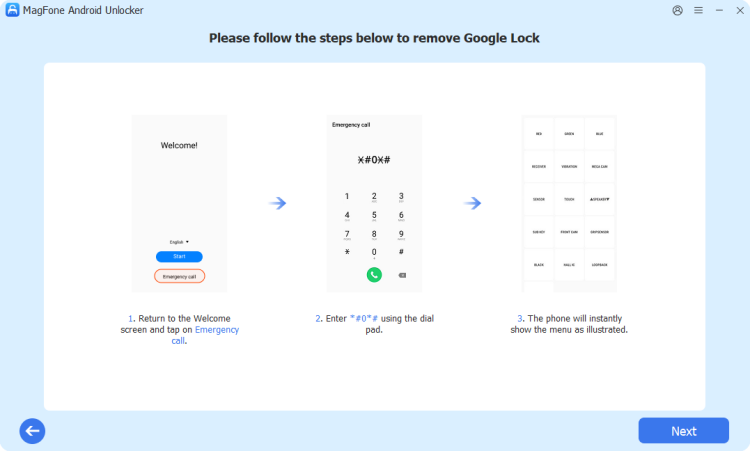
The tool will guide you through placing your tablet into recovery mode. This usually involves a specific button combination that varies by device model, so pay close attention to the instructions shown on your screen. Once your tablet enters recovery mode successfully, confirm within the software.
Step 3 Complete the Bypass Process
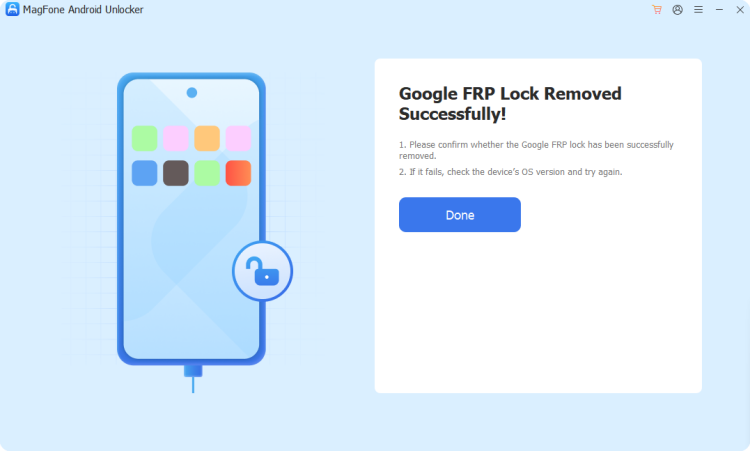
Continue following the prompts displayed by the program to strip away the screen lock. Keep your Kindle Fire plugged into the computer throughout, and don't disconnect until the tool confirms the job is done. Afterward, your tablet should boot up lock-free.
Part 3. How to Unlock Kindle Fire Tablet by Resetting It
When other options aren't available, a factory reset remains the most dependable fallback. Keep in mind this wipes everything on the device and returns it to its out-of-box state. It's best used as a last resort, and any content backed up to Amazon's cloud can be redownloaded afterward.
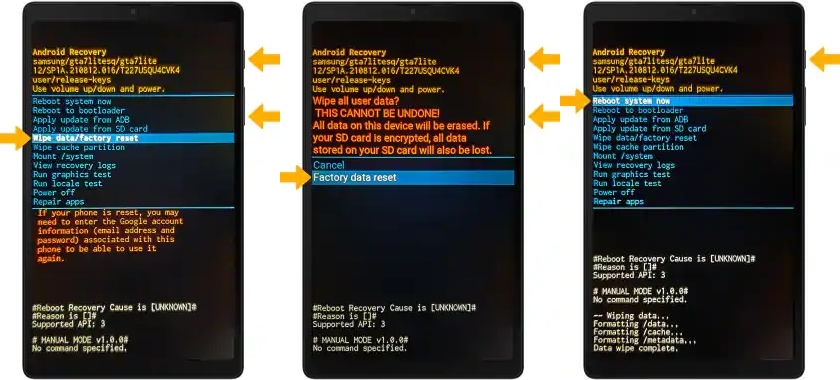
Step 1. Power down your Kindle Fire completely.
Step 2. Hold down the Power button and the Volume Up or Volume Down button until the Amazon logo appears.
Note:
The button combination varies by Kindle Fire model. For Kindle Fire HDX (3rd Gen), Fire (4th Gen), and Fire HD 10 (7th Gen), press and hold the Power + Volume Up buttons until the logo appears. For all other models, press and hold the Power + Volume Down buttons for about 5 seconds.
Step 3. Release the volume button once you see the logo. Then use the volume keys to scroll to "Wipe data/factory reset," then press Power to select it.
Step 4. Next, use the volume button to select Factory data reset and press Power again.
Step 5. Wait for the reset to finish and select Reboot system now. Then the tablet will restart without screen locks.
Part 4. FAQs about Unlocking Kindle Fire Tablet
How to unlock Kindle Fire tablet remotely?
Amazon doesn't offer a true remote unlock feature for screen locks, and your best bet remotely is resetting your password through your linked account when prompted on the device itself.
How to unlock Kindle Fire tablet without password?
If you don't remember your password and can't access your Amazon account details either, a factory reset (Part 3) is typically the only route. Alternatively, third-party tools like MagFone Android Unlocker (Part 2) can remove the screen lock without needing your original password at all.
How to unlock Kindle Fire tablet from another device?
There isn't a built-in way to unlock one Kindle Fire directly from a separate phone or tablet. From another device, log in to your Amazon account online to deregister it.
Part 5. Conclusion
Getting locked out of your Kindle Fire tablet doesn't have to mean losing your data. Try resetting your password through your Amazon account first, or use a tool like MagFone Android Unlocker for a quick bypass. Save the factory reset for situations where nothing else works, since it erases everything on the device.

Dylan Jones
Editor in chief





