








If your Amazon Fire tablet is slow, frozen, stuck on the logo, or you're preparing it for a new owner, a factory reset can often fix the problem. This guide explains every Amazon Fire tablet reset method, including what to do if you forgot your password, if your tablet won't turn on, or if you need to reset an Amazon Kids profile. Learn how to factory reset Amazon Fire tablet with or without a password here.

- Part 1. What Does An Amazon Fire Tablet Factory Reset Do?
- Part 2. How to Factory Reset Amazon Fire Tablet without Password
- Part 3. How to Reset Amazon Fire Tablet to Factory Settings with Password
- Part 4. FAQs about Amazon Fire Tablet Reset
- Part 5. Conclusion
Part 1. What Does An Amazon Fire Tablet Factory Reset Do?
A factory reset of Amazon Fire tablet will wipes all contents and settings, which can solve many tablet issues like freezing, slow performance, forgotten password, and software glitches or prepare the device for sale. But before resetting your Amazon Fire tablet, there is something you need to know and do.
1.1 Things about Amazon Fire Tablet Factory Reset to Know
A factory reset permanently deletes data from your device, but what kinds of data will be erased and reserved after reset? It's essential to understand the impact of factory reset clearly.
| What Gets Erased | What Stays Safe |
|---|---|
| All downloaded apps and app data | Kindle books stored in your Amazon accounto |
| Photos, videos, and files stored locally | Amazon Appstore purchases |
| Saved WiFi networks | Amazon Photos cloud-synced files |
| Parental control settings | Content saved to microSD card |
| Amazon Kid profiles | Game progress if games have that option |
| Browser data, downloads, and cache files | |
| All local user accounts |
1.2 Preparations Before Amazon Fire Tablet Factory Reset
Before factory resetting your Amazon Fire tablet, you should backup your vital data, remove the SD card, and check your Amazon account login. Learn more details below.
Save Your Important Files
You can backup your important files via settings in Amazon Cloud, or you can save it in a computer. After saving them correctly, you can restore your data easily after you perform a factory setting or buy a new device.
Option 1. Backup Files via Settings
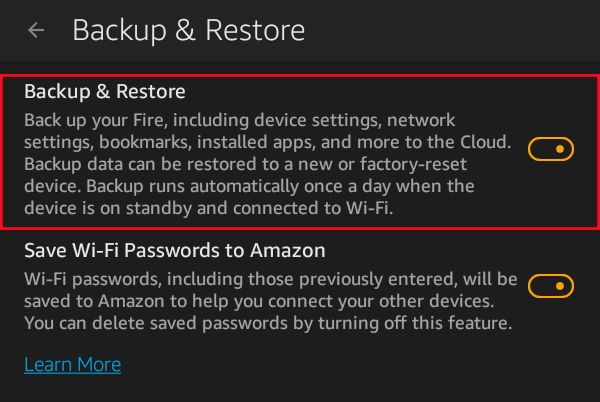
Step 1. Head to Settings > Device Options > Backup & Restore.
Step 2. Toggle the Backup & switch to ON.
Option 2. Backup Files via a Computer
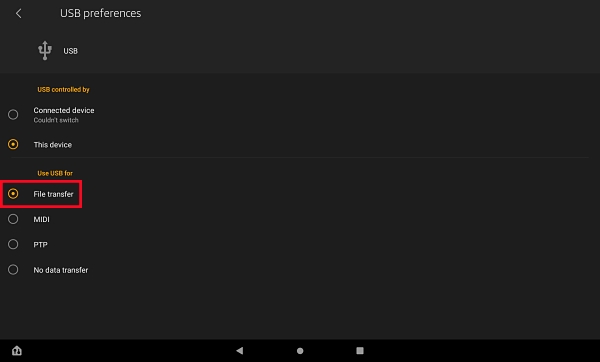
Step 1. Connect your tablet to a computer with a USB cable.
Step 2. Select File Transfer from USB options.
Step 3. Find This PC files on your computer, and copy the Kindle files into your computer.
Remove the SD Card
If unsure whether your SD card was set as internal storage, remove it to avoid accidental wiping. Follow the steps below to remove it successfully.
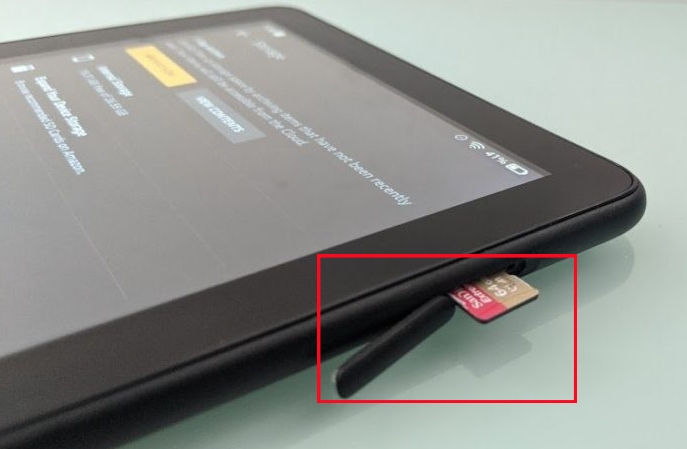
Step 1. Open Settings > Storage > Safely Remove SD Card > OK.
Step 2. Go to the right side of the tablet and then open the little plastic piece.
Step 3. Use your fingernail to press the SD card. Then the SD card will pop up.
Step 4. Then you can slide it out and keep it safe.
Check Your Amazon Account Login
To prevent the Factory Reset Protection lock, you should sign out of your Amazon account and remember it carefully. After factory resetting, you can sign in with your Amazon account successfully.
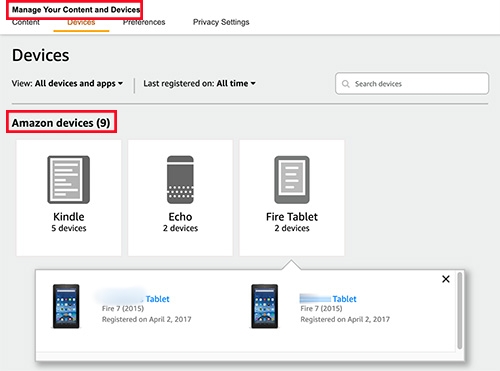
Step 1. Go to Amazon website in a browser.
Step 2. Click Account & Lists > Your Account in the Amazon website.
Step 3. Select Manage Your Content and Devices.
Step 4. Choose Devices to see all registered devices.
Step 5. Remove your Amazon Fire tablet from the registered devices.
Part 2. How to Factory Reset Amazon Fire Tablet without Password
If you can't access the locked Amazon Fire tablet, or you forget the password to open the Amazon Fire tablet, the methods below will help you factory reset your Amazon Fire tablet without a password or PIN. Choose one suitable method to factory reset your Amazon Fire tablet right now!
Method 1. Factory Reset Amazon Fire Tablet via Android Unlocker
It might be impossible to perform a standard factory reset when your Amazon Fire tablet is locked or you've forgotten the Screen PIN or password. In this case, a professional unlocking tool like MagFone Android Unlockerr can help you reset the device safely and quickly without needing the tablet's password. It is designed to remove various types of Android screen locks, which provides an accessible solution for users who want to reset their tablets without a password. Follow the steps below to reset your Fire tablet even if you're locked out.

MagFone Android Unlocker
Remove multiple kinds of screen locks on over 5000 Android devices and delete Google FRP lock without a password.
Step 1 Connect to Your Amazon Fire Tablet
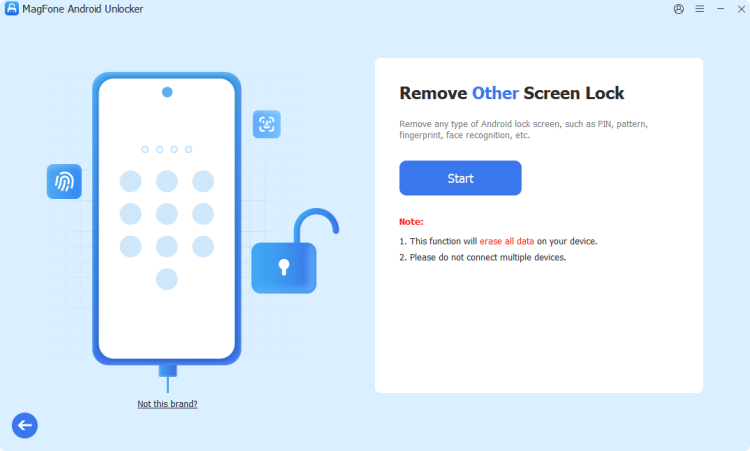
Download and install MagFone Android Unlocker on a computer. Use a USB cable to connect your Amazon Fire tablet to the computer. Then let the software detect your tablet automatically.
Step 2 Put Your Tablet into Recovery Mode
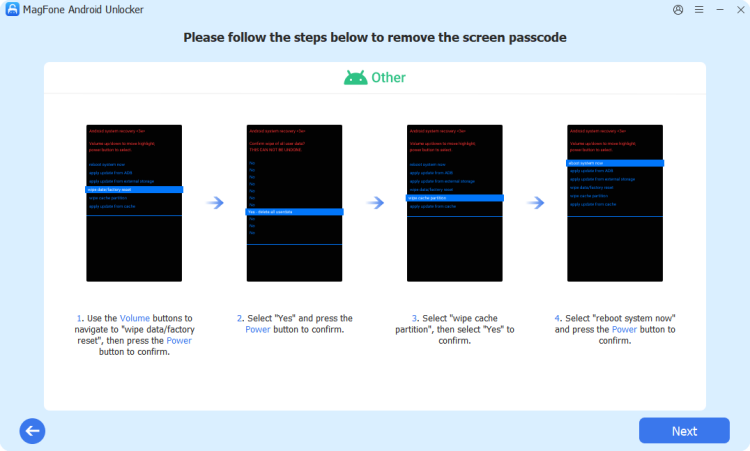
Following the instructions on the screen to put your tablet into Recovery Mode. After operating, click Next.
Step 3 Factory Reset Your Amazon Fire Tablet

Wait for MagFone to remove the screen lock on your Amazon Fire tablet, then you can factory reset it successfully.
Method 2. Factory Reset Amazon Fire Tablet via Reset PIN
You can also factory reset your Amazon Fire tablet via reset PIN on the locked interface. But you should remember your Amazon account and password. To reset your PIN from the lock screen, follow these steps.

Step 1. On the lock screen of your Amazon Fire tablet, enter the wrong passwords or PIN over five times.
Step 2. Select Reset Your PIN from the notification on the tablet screen.
Step 3. Input your Amazon account and password, then go to Continue.
Step 4. Create a new PIN or password, then tap Finish.
Step 5. Navigate to Settings and tap Device Options > Reset to Factory Defaults.
Method 3. Factory Reset Amazon Fire Tablet via Recovery Mode
If you forgot your Amazon password or you bought a second-hand tablet from someone else, you can factory reset your Amazon Fire tablet via Recovery Mode. You can through Recovery Mode to delete all download contents and gain the tablet like new.
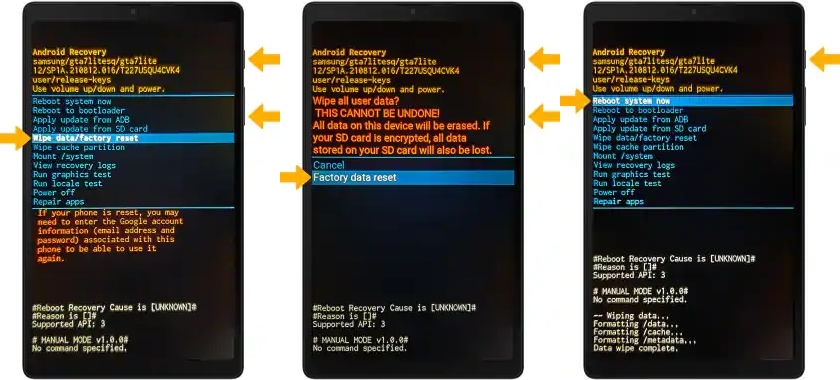
Step 1. Power off your Amazon Fire tablet.
Step 2. Press and hold Power and Volume Down buttons simultaneously.
Step 3. When you enter the Recovery Mode, use the Volume Up button to select Wipe data/factory reset, then press the Power button to confirm.
Step 4. Proceed to select Factory data reset > Reboot system now.
Part 3. How to Reset Amazon Fire Tablet to Factory Settings with Password
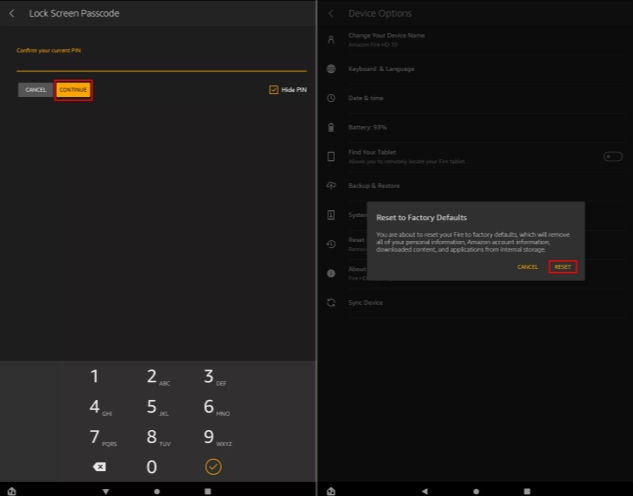
With the above methods, you can factory reset your Amazon Fire tablet without password. But if you remember the password, you can factory reset your Amazon Fire tablet straightforwardly. In settings, you can factory reset the Amazon Fire tablet quickly.
Step 1. From the top of the screen, swipe down twice to display Quick Settings.
Step 2. Tap the Settings icon > Device Options > Reset to Factory Defaults.
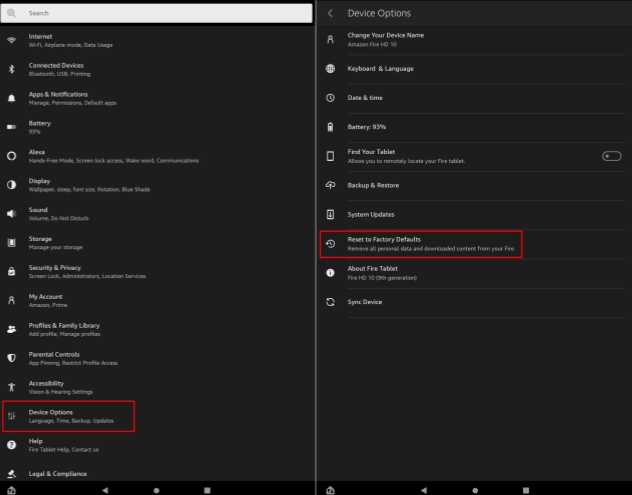
Step 3. Input your password and tap Continue. Then select Reset to confirm.
Part 4. FAQs about Samsung FRP Bypass
How to hard reset Amazon Fire tablet?
Hard resetting an Amazon Fire tablet means you should use the buttons to reset your Amazon Fire tablet. You can do a hard reset from Recovery Mode. The hard reset will also wipe all data from the Amazon Fire tablet, backup your data in advance.
How to reset Amazon Fire tablet with buttons?
Reset Amazon Fire tablet with buttons is equivalent putting your Amazon Fire tablet into Recovery Mode. By pressing the corresponding buttons, you boot your tablet into Recovery Mode to reset. If you are not familiar with the steps, you can refer to Part 2.
How to reset parental controls password on Amazon Fire tablet?
If you want to bypass the control of parental control password, you can reset your parental controls password by yourself. Scroll down from the top of the screen and tap the notification of Parental Controls. Like reset the PIN of the screen lock, you should input the wrong password five times. Then enter your Amazon Fire Tablet password to reset a new parental controls password.
How to reset PIN on Amazon Fire tablet without Wi-Fi?
There is no way to reset the PIN on an Amazon Fire tablet without Wi-Fi. You are required to reset the PIN when Wi-Fi is connected. So if you want to reset the PIN on your Amazon Fire tablet, find an environment with Wi-Fi connected.
Part 5. Conclusion
To factory reset an Amazon Fire tablet is not difficult, especially when you remember the password of the screen lock. If you forget the password, you can factory reset the Amazon Fire tablet by using MagFone Android Unlocker, booting the device into Recovery Mode, or resetting the PIN. To realize factory resetting an Amazon Fire tablet quicker and safer, you can choose MagFone Android Unlocker. Download and install it right now!

Dylan Jones
Editor in chief





