








Having trouble accessing your Kyocera flip phone and not sure what to do next? Whether you've forgotten your passcode or you're stuck tied to a single carrier's SIM restrictions, that little clamshell can suddenly feel like a paperweight. The good news: most Kyocera lock issues have simple unlocking options, no matter which type is blocking you. This guide walks through how to get a Kyocera flip phone step by step.
- Part 1. How to Unlock a Kyocera Flip Phone Screen Lock
- Part 2. How to Unlock a Kyocera Flip Phone SIM Lock
- Part 3. Bonus Tip: How to Unlock Android Screen/FRP Lock
- Part 4. Conclusion
Part 1. How to Unlock a Kyocera Flip Phone Screen Lock
A screen lock is the security barrier that keeps your Kyocera flip phone's home screen hidden until the correct PIN or password is entered. It exists to protect personal information (such as contacts, messages, and photos) from anyone who picks up the device without your permission.
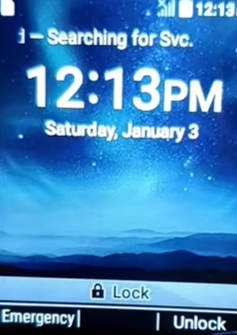
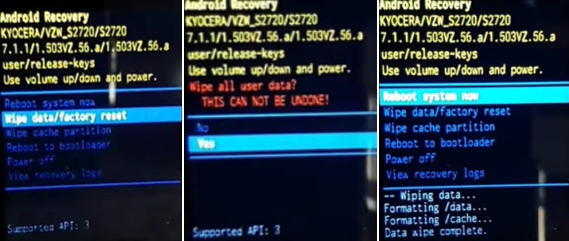
If you've forgotten your screen lock on a Kyocera flip phone, the most common fix is a factory reset, which wipes the device and removes the lock completely, though it also erases your data unless it's been backed up beforehand. Here's how to factory reset your Kyocera flip phone with buttons.
Step 1. Power off the phone completely. If the screen is frozen or won't turn off, remove the battery for a few seconds, then put it back in, or press and hold the Power/End button until it shuts down.
Step 2. Press and hold the button combination:
- For models like the DuraXV Extreme / Extreme+, press and hold the END and the Volume Up keys at the same time until the logo appears.
- For models like the DuraXV LTE, press and hold the PWR/END key and the Volume Down button together.
- For models like the DuraXE Epic, hold the Power, Call, and Volume Up buttons simultaneously.
Step 3. Release the buttons once the logo or the Android recovery screen appears on the display.
Step 4. Navigate the menu. Use the phone's volume buttons or the 5-way navigation pad to highlight Wipe data/factory reset, then press the Power/End button or the center select button to choose it.
Step 5. Confirm the reset. Highlight Yes and select it. Reboot the device. Once finished, select Reboot system now.
Part 2. How to Unlock a Kyocera Flip Phone SIM Lock
A SIM lock, sometimes called a carrier or network lock, restricts your Kyocera flip phone to working only with SIM cards from one specific provider. Pop in a SIM from a different network, and the phone will usually reject it or ask for an unlock code before granting any service.
Removing a SIM lock typically requires a unique unlock code linked to your phone's IMEI number. Your carrier may provide this code once you've met its eligibility requirements, such as completing payments or fulfilling your contract. Some third-party websites also offer unlock codes for a fee, but their reliability can vary, so check any unfamiliar service carefully before sharing your device details. Here's how to unlock the SIM lock on your Kyocera flip phone.
Step 1. Reach out to your carrier's customer service team and let them know you'd like to request the carrier unlock code for your Kyocera device.
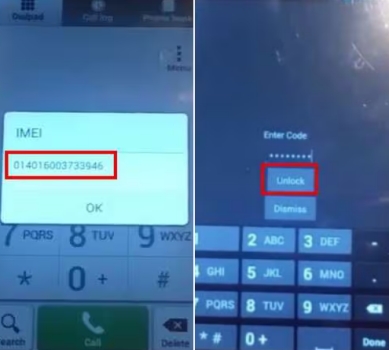
Step 2. Provide the representative with your phone number and IMEI number. To find your IMEI, dial #06# on your keypad; it will pop up automatically on the screen.
Step 3. Before doing anything else with the SIM, switch your Kyocera device completely off.
Step 4. Once your carrier sends over the unlock code, remove your current SIM and insert one from a different network.
Step 5. Power your Kyocera phone back on and type in the 15-digit unlock code you received, then tap Unlock.
Part 3. Bonus Tip: How to Unlock Android Screen/FRP Lock
Screen locks and Google's Factory Reset Protection aren't just a flip-phone problem; plenty of Android smartphone owners get locked out too. For those cases, MagFone Android Unlocker offers a fast, dependable way to bypass both screen and FRP locks and get back into your device. It runs smoothly on both Mac and Windows, and the whole process only takes a few guided clicks. Here's how to use MagFone Android Unlocker.

MagFone Android Unlocker
Remove multiple kinds of screen locks on over 5000 Android devices and delete Google FRP lock without a password.
Step 1 Select the Unlock Mode
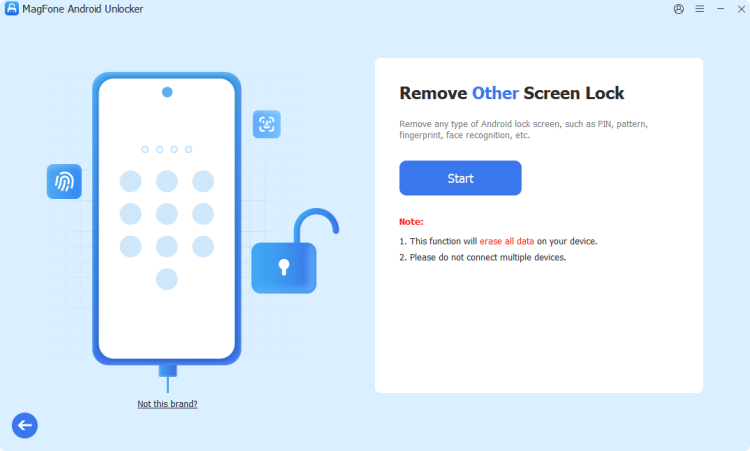
Download and open MagFone Android Unlocker on your computer, then connect your Android phone with a USB cable. From the main screen, choose the screen-unlock option, specify your device's brand and model, and click Continue.
Step 2 Boot Into Recovery Mode
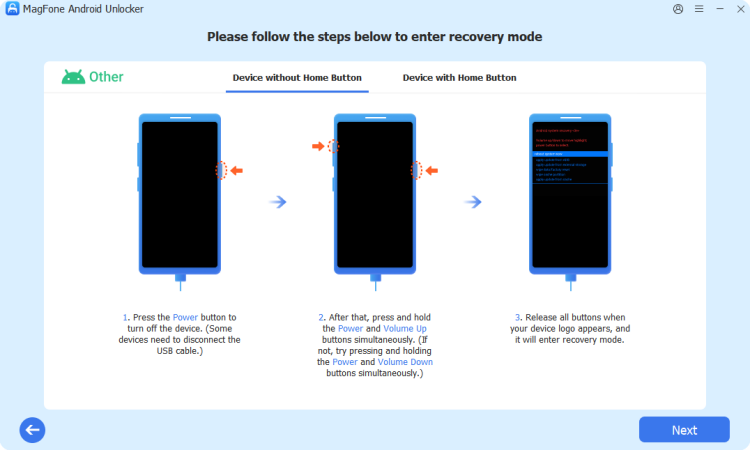
Once your device details are confirmed, click Start. A notice will appear warning that some data may be lost — accept it to continue. Then follow the on-screen prompts to put your phone into Recovery Mode using the correct button combination.
Step 3 Clear the Lock Screen
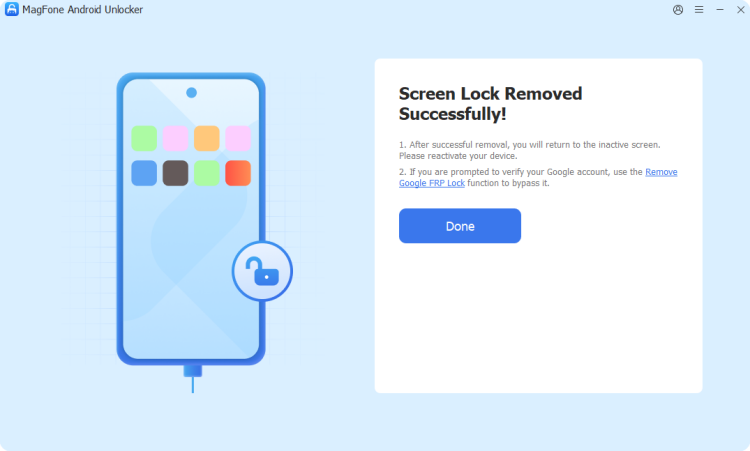
Keep following the guided prompts to finish configuring your device, then click Next and let the software handle the rest automatically. Once it's done, the old lock screen will be gone, and you'll have full access to your home screen again.
Part 4. Conclusion
Getting a locked Kyocera flip phone working again doesn't have to be complicated. Whether you're dealing with a forgotten screen lock or a carrier-restricted SIM, the methods above cover the most reliable paths forward, from factory resets to IMEI unlock codes. And if you run into similar trouble with a regular Android smartphone, a tool like MagFone Android Unlocker offers a quick way to regain access without the guesswork.

Dylan Jones
Editor in chief





