








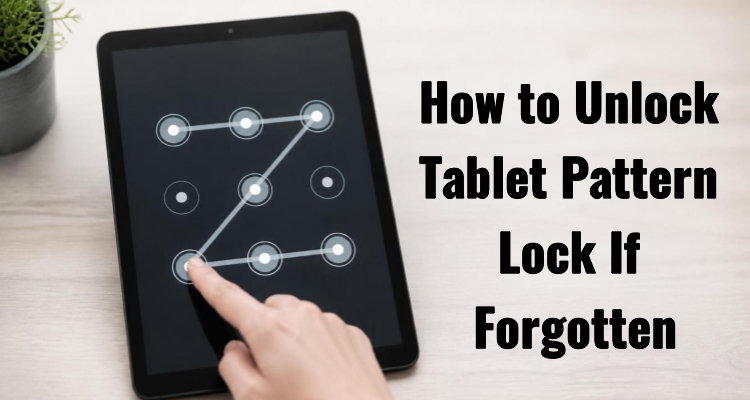
A forgotten pattern lock can turn your Android tablet into an expensive paperweight in seconds. Whether you set a pattern months ago and simply lost track of it, or a child scrambled the screen while playing, getting locked out is more common than you'd think. Fortunately, there are several proven ways to regain access — some preserve your files, others require a reset. Let's see how to unlock Android tablet pattern lock.
- Part 1. 3 Ways to Unlock Android Tablet Pattern Lock
- Part 2. How to Unlock Tablet Pattern Lock If Forgotten
- Part 3. How to Unlock Android Phone Pattern Lock If Forgotten
- Part 4. FAQs about Unlocking Tablet Pattern Lock
- Part 5. Conclusion
Part 1. 3 Ways to Unlock Android Tablet Pattern Lock
Depending on your Android version, internet connection, and whether you can accept potential data loss, there are several practical ways to regain access to your tablet. Below is a quick comparison of the most reliable options before we walk through each one in detail.
| Method | Password Required | Time Required | Best For |
|---|---|---|---|
| Forgot Pattern | Google account login | 3–5 minutes | Devices running Android 4.4 or earlier |
| Smart Lock | None | 1-5 minutes (It depends) | Devices running Android 5 or earlier |
| Find My Device | Google account login | 5–10 minutes | Tablets with internet access and Find My Device enabled |
| Recovery Mode Reset | None (Device access only) | 5–15 minutes | Older tablets or when Find My Device isn't set up |
Part 2. How to Unlock Tablet Pattern Lock If Forgotten
There isn't a single universal fix, since the right approach depends on your tablet's Android version and whether it's still connected to your Google account. The three methods below cover nearly every scenario, from a full remote wipe to a built-in recovery shortcut on older software.
Method 1. Unlocking the Tablet via Forgot Pattern
Tablets still running Android 4.4 (KitKat) or earlier include a built-in shortcut that lets you bypass a forgotten pattern using your Google credentials — no factory reset needed. This is the gentlest option, but it isn't available on newer Android releases.
Step 1. Enter an incorrect pattern on the lock screen five times in a row.
Step 2. Tap the Forgot Pattern link that appears beneath the pattern grid.
Step 3. Enter the credentials for the Google account connected to the tablet.
Step 4. Draw a new pattern when prompted and confirm the new pattern to finish and unlock the tablet.
Method 2. Unlocking the Tablet with Smart Lock
If you enabled Smart Lock before getting locked out, you may not need to reset anything at all. This feature keeps your tablet unlocked automatically when it recognizes a trusted place, a paired trusted device, or continuous motion suggesting you're carrying it.
For a trusted location, bring the tablet to that spot with GPS and Wi-Fi turned on.
For a trusted device, make sure the paired Bluetooth accessory is powered on and nearby.
For on-body detection, pick up and carry the tablet until it senses movement.
Method 3. Resetting the Tablet on Find My Device
If your tablet is signed into a Google account and has an active internet connection, Google's Find My Device tool lets you remotely erase the lock from any browser. This is usually the fastest option, though it wipes everything on the tablet in the process, so back up beforehand whenever possible.
Step 1. On a computer or another device, open a browser and go to Google's Find My Device page.
Step 2. Sign in with the same Google account that's linked to your locked tablet.
Step 3. Choose your tablet from the list of devices shown, select the Erase option, and confirm the action.
Step 4. Once the wipe finishes, set the tablet up again and sign back in with your Google account.
Method 4. Resetting the Tablet in Recovery Mode
When Find My Device isn't an option — say the tablet is offline or the feature was never turned on — you can trigger a factory reset directly from the device's recovery menu using its hardware buttons. This clears the pattern lock along with all stored data.
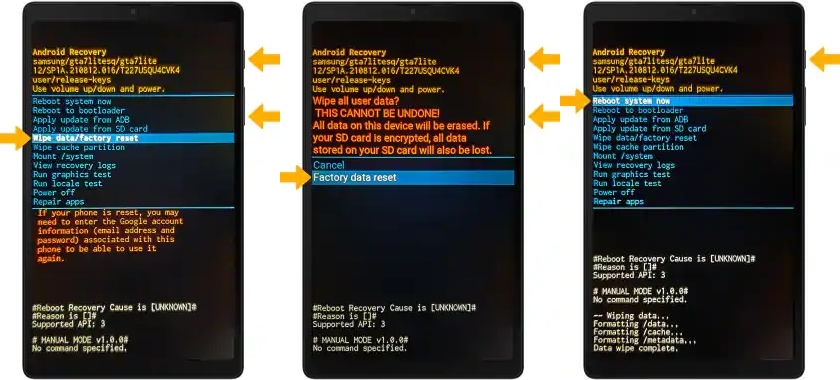
Step 1. Power the tablet completely off.
Step 2. Hold down the Volume Up and Power buttons together until the recovery screen appears.
Step 3. Highlight Wipe Data/Factory Reset using the volume buttons, then press Power to proceed.
Step 4. Select Yes to confirm the wipe when prompted and choose Reboot System Now once the process finishes.
Step 5. Finish the setup by following the prompts on the screen, then log in to your Google account.
Part 3. How to Unlock Android Phone Pattern Lock If Forgotten
If it's your phone rather than your tablet that's locked and the pattern, PIN, or password has slipped your mind, a dedicated unlocking tool like MagFone Android Unlocker offers a quicker path back in. It's built to remove screen lockouts within minutes and runs on both Mac and Windows, so you're not tied to one operating system. Here's how to use it to bypass the lock on an Android phone.

MagFone Android Unlocker
Remove multiple kinds of screen locks on over 5000 Android devices and delete Google FRP lock without a password.
Step 1 Link Your Phone to a Computer
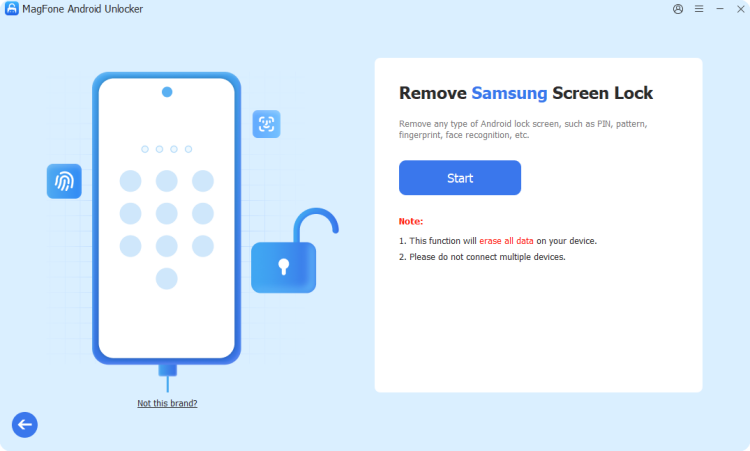
Launch MagFone Android Unlocker on your computer and plug your phone in with a USB cable. From the main screen, click Remove Screen Lock. The program will typically detect your device's brand automatically, though you can also select Samsung manually if needed.
Step 2 Boot the Phone into Recovery Mode
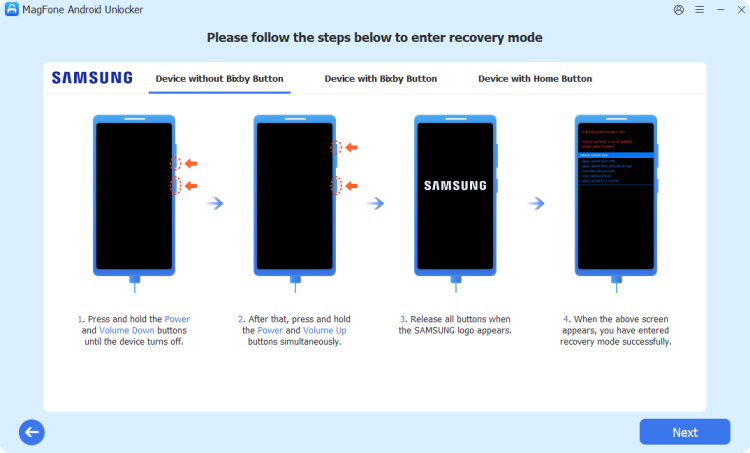
With the brand selected, click Start. A warning about potential data loss will appear — click Continue to proceed. The software will then walk you through placing your Samsung phone into Recovery mode using an on-screen guide. Once complete, click Next and then Continue.
Step 3 Bypass the Lock Screen on Android
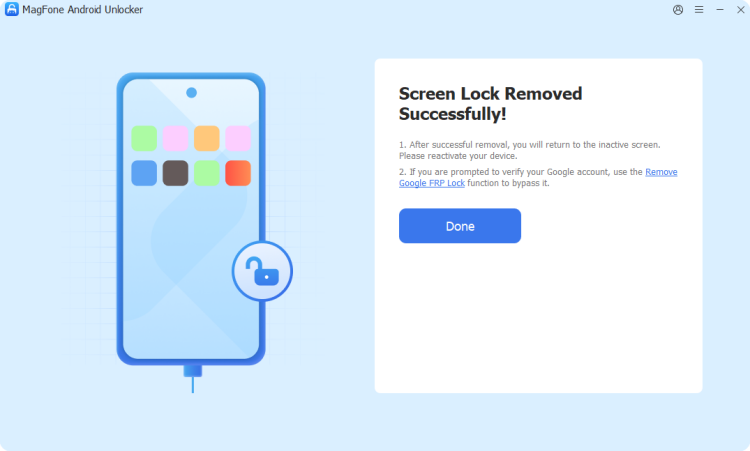
Keep following the prompts to finish configuring your device, then click Next and let the tool work through removing the screen lock. When it's done, your phone will boot up without the old pattern, PIN, or password in place.
Part 4. FAQs about Unlocking Tablet Pattern Lock
How to unlock Android tablet pattern lock without factory reset?
The only reliable way to skip a factory reset is if your tablet runs Android 4.4 or earlier, since it includes a Forgot Pattern shortcut tied to your Google account.
Step 1. Enter an incorrect pattern five times in a row until the Forgot Pattern option is displayed.
Step 2. Select Forgot Pattern, then log in using your Google account credentials.
Step 3. Set a new pattern to regain access immediately.
How to unlock Android tablet pattern lock without losing data?
If Smart Lock was configured with a trusted place, device, or on-body detection, simply meeting those conditions can unlock your tablet without touching your files.
How to unlock Android tablet pattern lock with pc?
A computer can be useful in two main ways: by using Google's Find My Device website to select Erase and reset the device, or by using third-party desktop unlocking software.
Part 5. Conclusion
Getting locked out of a tablet is stressful, but rarely permanent. Depending on your Android version and prior setup, you can recover access through Find My Device, a recovery mode reset, or the Forgot Pattern shortcut on older systems. For phones, dedicated tools like MagFone Android Unlocker offer another fast route back in. Choose the method that fits your situation and device version.

Dylan Jones
Editor in chief





