








A locked Huawei phone can turn a normal day into a frustrating standoff. Maybe a carrier restriction rejects your new SIM, a forgotten PIN blocks your own photos, or a Google verification screen appears after a reset. Whatever the cause, there is usually a way to unlock Huawei phone. This guide covers each common lock type, explains what each fix does to your data, and answers the questions people ask most often.
- Part 1. How to Unlock Huawei Phone Carrier Lock
- Part 2. How to Unlock Huawei Phone Screen Lock
- Part 3. How to Unlock Huawei Phone FRP Lock
- Part 4. FAQs about Unlocking Huawei Phone
- Part 5. Conclusion
Part 1. How to Unlock Huawei Phone Carrier Lock
Most Huawei phones sold directly by Huawei are already unlocked, but devices bought on a contract may be tied to one network. The easiest check is to insert a SIM from another carrier. If the phone asks for an unlock code or says "SIM network unlock PIN," the carrier lock is active and needs to be removed.
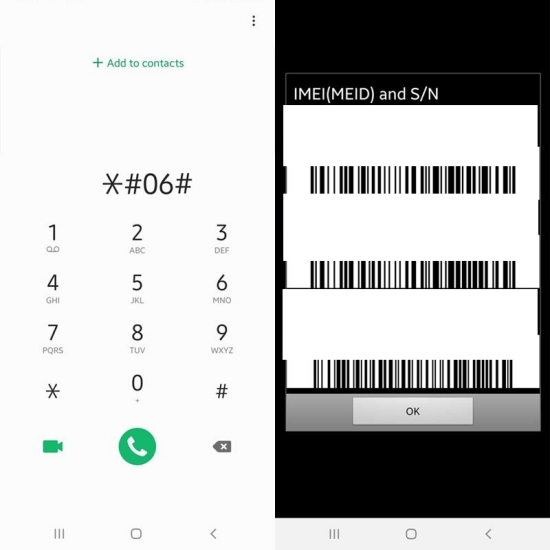
Step 1. Dial *#06# to display your phone's IMEI number and write it down.
Step 2. Confirm you meet your carrier's conditions, such as a paid-off balance and a minimum contract period.
Step 3. Contact your carrier by phone, chat, or online form and request a network unlock code for your IMEI.
Step 4. Wait for the code, which may take from a few minutes to several business days.
Step 5. Power off the phone and replace the SIM with one from a different carrier.
Step 6. Turn the phone on and enter the unlock code when prompted.
Step 7. Restart the phone and confirm that the new SIM gets a signal and mobile data.
Part 2. How to Unlock Huawei Phone Screen Lock
Forgetting a PIN, password, or pattern happens to everyone, and too many wrong guesses can lock you out for a long time. The right fix depends on your Android version, which features you set up beforehand, and whether you need to keep your files. Here are five methods, ranging from simple to technical.
Method 1. Use MagFone Android Unlocker
If you forget how to unlock your screen lock, whether it is a password, pattern, or PIN, you can try MagFone Android Unlocker. This software is designed to bypass the screen lock and FRP lock on different Android brands, including Huawei, Samsung, Xiaomi, and more. It works through a simple guided process on your computer, so you don't need technical skills. Here's how to run this software and get back into your Huawei phone in just minutes.

MagFone Android Unlocker
Remove multiple kinds of screen locks on over 5000 Android devices and delete Google FRP lock without a password.
Step 1 Select the Unlock Mode
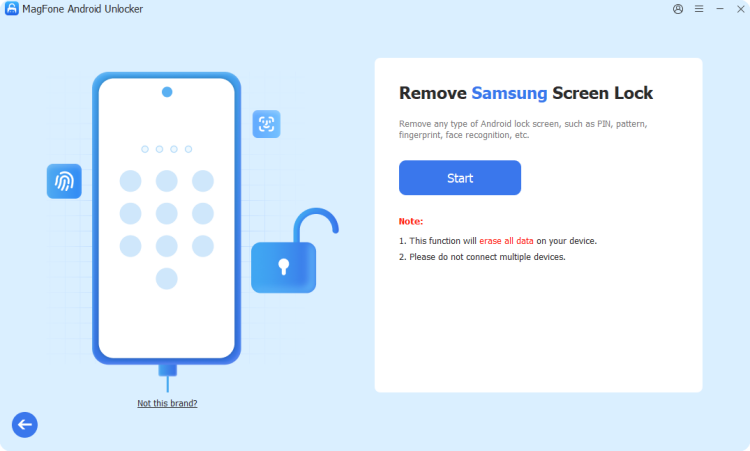
Download and launch MagFone Android Unlocker on your computer, then connect your Huawei phone with a USB cable. On the main screen, choose the screen unlock option, select your device's brand and model, and click Continue.
Step 2 Boot Into Recovery Mode
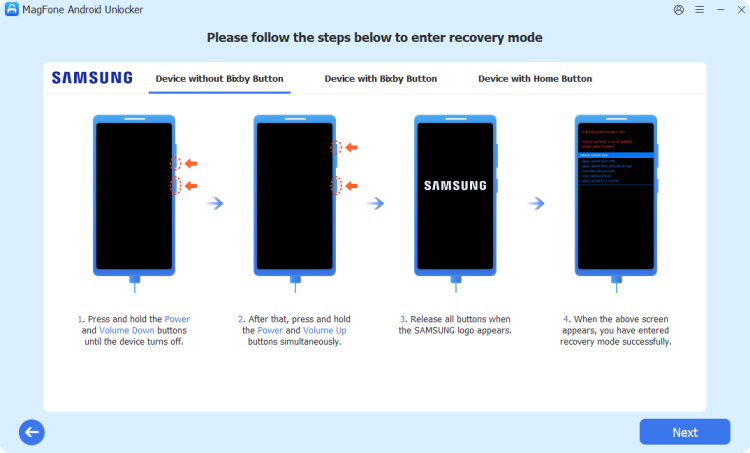
After your device details are confirmed, click Start. A notice will warn that some data may be erased, so accept it to proceed. Then follow the on-screen instructions to put your phone into Recovery Mode using the correct button combination.
Step 3 Clear the Lock Screen
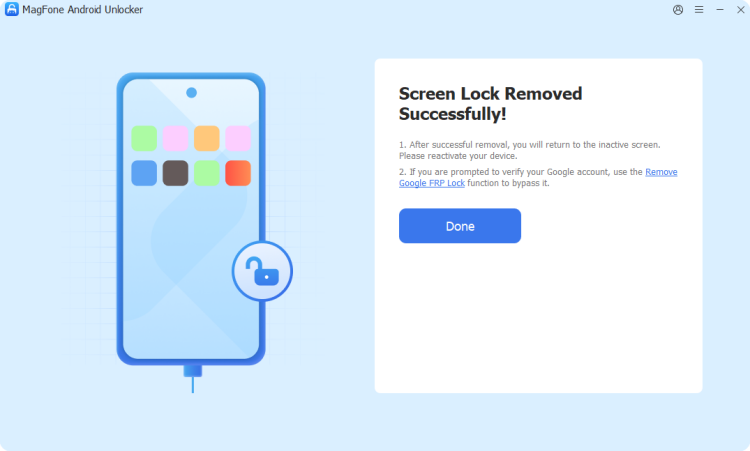
Continue following the guided prompts to finish setting up your device, then click Next and let the software do the rest automatically. When the process completes, the old lock screen will be removed, and you'll have full access to your home screen again.
Method 2. Use Google Credentials
Older Huawei phones running Android 4.4 or earlier include a built-in recovery route tied to your Google account. After several failed attempts, a "Forgot pattern" or "Forgot password" option appears. This method keeps your data intact, but it does not exist on most modern Huawei devices.
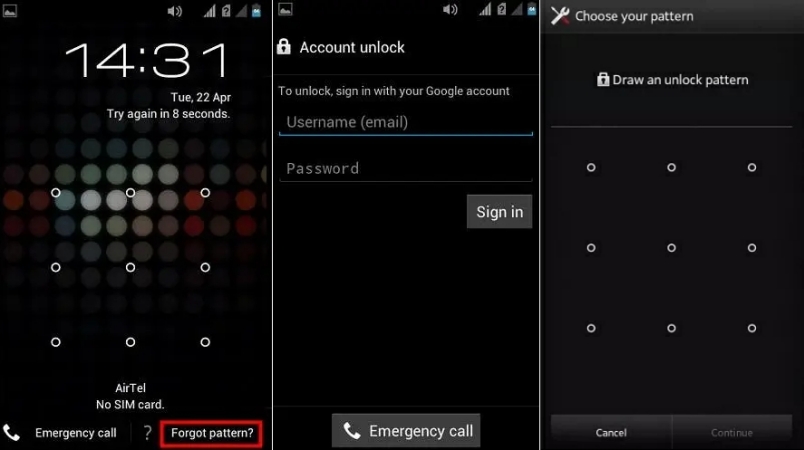
Step 1. Enter the wrong pattern or password five times in a row.
Step 2. Tap "Forgot pattern" or "Forgot password" when it appears on the screen.
Step 3. Choose the option to sign in with your Google account details.
Step 4. Enter the email address and password of the account linked to the phone.
Step 5. Create a new pattern, PIN, or password when prompted.
Step 6. Confirm the new lock and use it to open the phone.
Note:
Newer Huawei models no longer offer the "Forgot pattern" option. Instead, sign in to Google Find Hub on another device and select "Erase device" to remove the screen lock. This will delete all phone data.
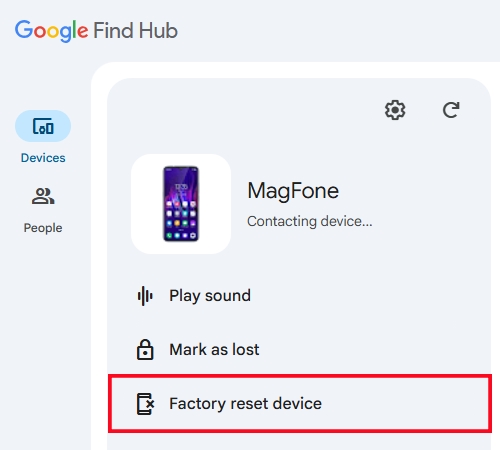
Method 3. Use Recovery Mode
Recovery Mode is the fallback when nothing else works. It reaches the phone's system menu without needing your password, then wipes the device so the lock disappears. Be aware that this erases everything stored on the phone, so it only makes sense if your data is backed up or expendable.
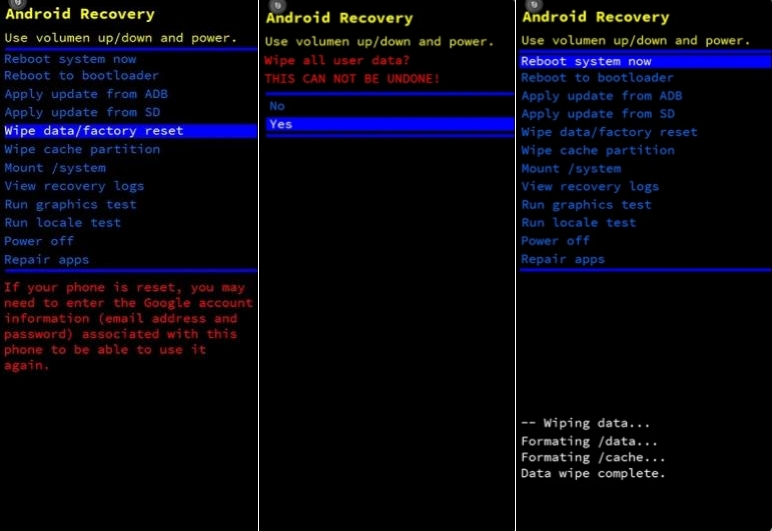
Step 1. Hold the power button and switch the phone off completely.
Step 2. Press and hold Power and Volume Up together until the Huawei logo or recovery screen appears.
Step 3. Use the volume keys to highlight "Wipe data/factory reset."
Step 4. Press the power button to select it, then confirm by choosing the option that deletes all user data.
Step 5. When the process finishes, choose the reboot option.
Step 6. Go through the setup wizard and create a new lock screen.
Method 4. Use Huawei Watch
If you previously paired a Huawei Watch and added it as a trusted device, your phone can recognize it and skip the lock screen. This preserves all your data, but it only works if the feature was enabled before the lockout. You cannot add a new trusted device to a phone that is already locked.
Step 1. Make sure the Huawei Watch is charged, nearby, and connected via Bluetooth.
Step 2. Wake the locked phone by pressing the power button.
Step 3. Look for a prompt saying the paired watch can unlock the device.
Step 4. Swipe up on the screen to continue.
Step 5. Once inside, open Settings and set a new screen lock you will remember.
Method 5. Use ADB Modes
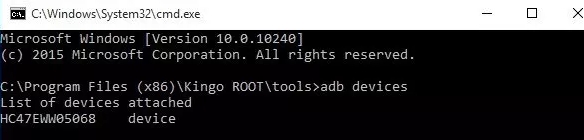
Android Debug Bridge lets a computer send commands to your phone. If USB debugging was turned on earlier and your computer was authorized, you can delete the file that stores the lock. This suits technically confident users, and it usually works only on older Android versions or unencrypted devices.
Step 1. Download the Android platform tools onto your computer and extract them.
Step 2. Connect the phone with a USB cable.
Step 3. Open a command window inside the platform tools folder.
Step 4. Type "adb devices" to confirm the phone is detected.
Step 5. Enter the command adb shell rm /data/system/gesture.key and press Enter.
Step 6. Restart the phone and see whether the lock has been cleared.
Part 3. How to Unlock Huawei Phone FRP Lock
Factory Reset Protection, or FRP, is Google's anti-theft safeguard. After a reset, the phone demands the Google account that was last used on it. If you cannot remember those details, setup stops at the verification screen. The legitimate solution is to prove the device is yours by recovering that account.
Step 1. On the verification screen, enter the Google email and password that were last used on the phone.
Step 2. If you forgot the password, use another device to open Google's account recovery page and reset it.
Step 3. Wait 24 to 72 hours after the password change, since Google may temporarily block new credentials for security.
Step 4. Return to the locked phone, connect to Wi-Fi, and sign in with the updated password.
Part 4. FAQs about Unlocking Huawei Phone
How to unlock Huawei phone without factory reset?
Try options that don't erase data: a registered fingerprint or face, a trusted Huawei Watch, the PrivateSpace password, or Google account recovery on Android 4.4 and earlier. If none are available, no method can reliably guarantee your data survives, so back up whenever possible.
How to unlock Huawei phone without Google account?
For a screen lock, you can use Recovery Mode, a computer-based unlocking tool, or Huawei's Find Device service through your Huawei ID. These do not need Google credentials. However, an FRP lock after a reset specifically requires the Google account, so recover it or seek help from Huawei support.
How to unlock a Huawei phone for free?
Start with free options: your carrier's official unlock code (often free once you meet its conditions), Google or Huawei account recovery, trusted devices, and Recovery Mode. Huawei service centers may also help for little or no cost. Paid software is optional and mainly saves time.
Part 5. Conclusion
Unlocking a Huawei phone depends on the type of lock. Carrier locks need a code from your provider, screen locks can be cleared with trusted devices, account recovery, software, or a reset, and FRP locks require the original Google account. Always back up your data first, choose the least destructive option, and only unlock phones you legitimately own.

Dylan Jones
Editor in chief




