








Being locked out of your Samsung tablet will make you helpless, especially when you need to use it urgently. Whether it's because the tablet has been unused for a long time and the password has been forgotten, or because a locked second-hand tablet was purchased, there are methods to unlock your Samsung tablet. The methods without losing data, without password or Google account, and with Find My Device can help you fix it. Learn more details and choose a solution that can unlock your Samsung tablets successfully.
- Part 1. How Do You Unlock a Samsung Galaxy Tablet?
- Part 2. How to Unlock Samsung Tablet Password without Losing Data
- Part 3. How to Unlock Samsung Tablet without Password or Google Account
- Part 4. How to Unlock Samsung Tablet Forgotten Password with Find My Device
- Part 5. Conclusion
Part 1. How Do You Unlock a Samsung Galaxy Tablet?
Unlocking a Samsung Galaxy tablet is not difficult, so don't worry. If you forget the screen lock or locked out by attempting too many wrong passwords, you can unlock the Samsung tablet with the methods below. To make it clear to you, you can look at the sheet below for reference.
| Method | Best for | Google or Samsung account | Data Loss | Difficulty |
|---|---|---|---|---|
| Previous Screen Lock | Change the lock within 72 hours | ❌ | ❌ | Easy |
| Smart Lock | Enabled Smart Lock before | ❌ | ❌ | Easy |
| ADB Commands | Enabled ADB debugging before | ❌ | ❌ | Medium |
| Google Account | Old Samsung tablets with older Android verisons | ✔️ | ❌ | Easy |
| Emergency Call | Old Samsung tablets with older Android verisons | ❌ | ❌ | Easy |
| Safe Mode | Download a third-party app before | ❌ | ❌ | Easy |
| MagFone Android Unlocker | All Samsung tablets | ❌ | ✔️ | Easy |
| Recovery Mode | All Samsung tablets | ❌ | ✔️ | Medium |
| SmartThings Find Site | Android 8 and later | ✔️ | ✔️ | Medium |
| Google Find Hub Site | Android 9 and later | ✔️ | ✔️ | Medium |
| Google Find Hub App | Android 9 and later | ✔️ | ✔️ | Medium |
Part 2. How to Unlock Samsung Tablet Password without Losing Data
Most Samsung tablet users discussed the methods of unlocking Samsung tablet with no data loss in the Samsung community. It can be seen that many users want to unlock their Samsung tablet without data loss. Fortunately, there are some methods to achieve it.
Method 1. Unlock Samsung Tablet via Previous Screen Lock
To use the previous screen lock to unlock your tablet, you should be sure that you just changed the lock recently. After inputting the wrong password within 72 hours, you can enter your old password to access your tablet with a Forgot PIN/Password/pattern link.
📝Requirements:
One UI 6.1 or later
Failed attempts within 72 hours
The Lock has been set recently
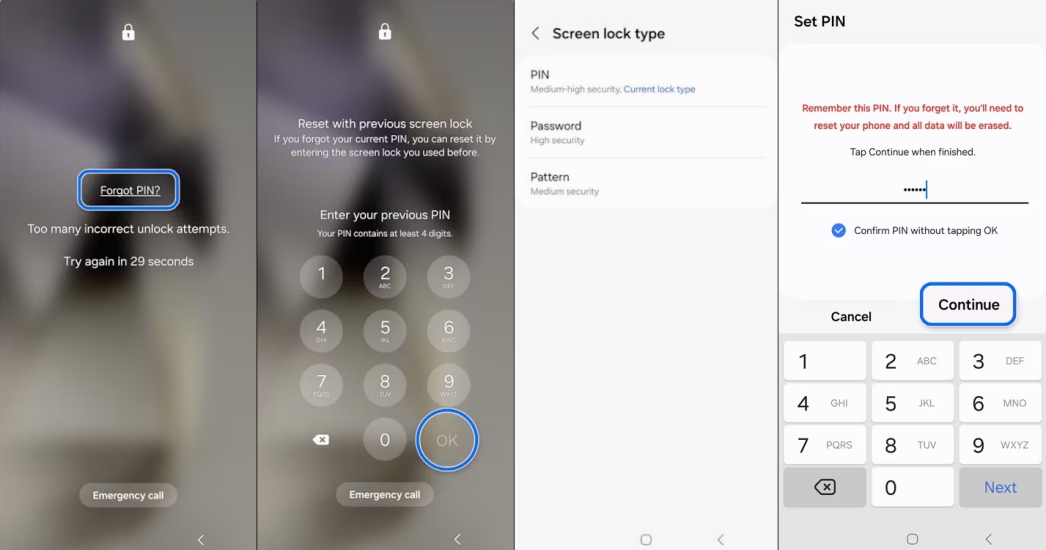
Step 1. Enter wrong passwords 5 times.
Step 2. After the Forgot PIN/Password/Pattern link appears, tap it.
Step 3. Input your previous password and tap OK.
Step 4. Enter the new screen lock and press the Continue button.
Step 5. Enter your new screen lock again, and confirm with OK.
 Pros
Pros- No request for Samsung or Google account
- No data loss
- Easy operating steps

- Limited time
- Need to remember the previous screen lock
- Constriction of device compatibility
Method 2. Unlock Samsung Tablet via Smart Lock
Smart Lock, also known as Extend Unlock, keeps your Samsung device unlocked in safe situations. You can unlock your Samsung tablet temporarily when it connects to your trusted device or in a trusted environment.
📝Requirements:
Android 10 and up
Enabled Smart Lock before
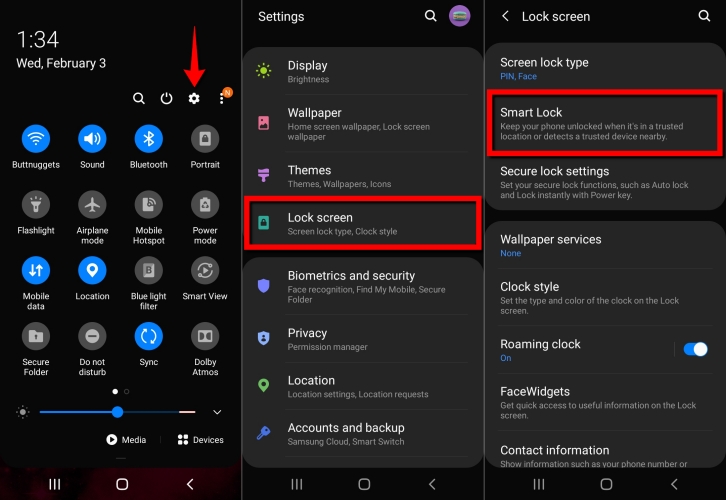
Step 1. Put your Samsung tablet in a trusted location or connect it to one of your trusted devices
Step 2. Your Samsung tablet will be unlocked after activating the Smart Lock.
Step 3. Head to Settings > Security and privacy > Lock screen.
Step 4. Set up a new screen lock for next access.
Pros- No data loss
- Easy and rapid steps
- Failed to unlock the tablet sometimes
- Require enabling Smart Lock before
Method 3. Unlock Samsung Tablet via ADB Commands
Similar to using Smart Lock, you should authorized ADB debugging on a computer before. You can delete the lock files via ADB commands on your Samsung tablet, then the screen lock will be removed.
📝Requirements:
Enabled ADB debugging before
Your Samsung tablet trusted your computer before
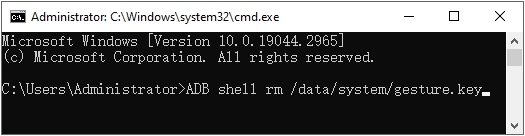
Step 1. Use a USB cable to connect your Samsung tablet to your computer.
Step 2. Press Win + R simultaneously, then open Command Prompt by pressing Enter.
Step 3. Execute the specific ADB commands like adb shell rm /data/system/pattern.key.
Step 4. Input adb reboot and hit Enter on your computer keyboard.
Step 5. Set a new screen lock on your Samsung tablet after removing the previous lock files.
Pros- No data loss
- No request for password or account
- Not friendly to newcomers
- Require enabling ADB debugging before
- Low success rate
Method 4. Unlock Samsung Tablet via Google Account
If your Samsung tablet is running Android 4.0 or lower, you can use your Google Account to unlock your Samsung tablet. To unlock your tablet, login to your Google account and then create a new screen lock.
📝Requirements:
Android 4.0 or lower
Google account and password
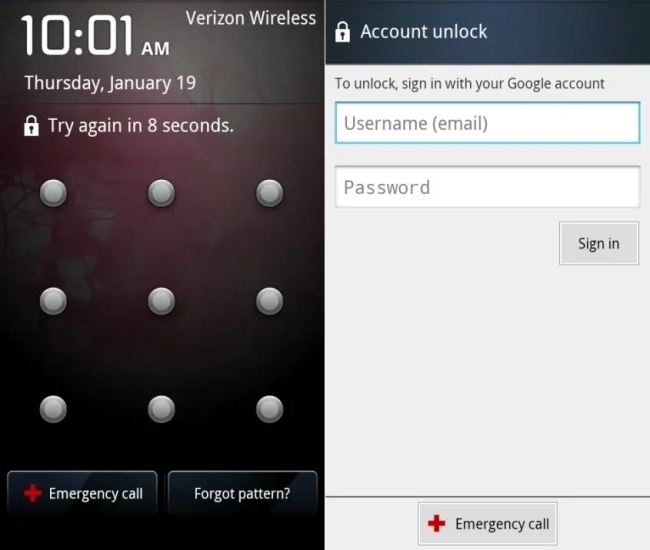
Step 1. Tap Fortgot pattern after inputting the wrong password over 5 times.
Step 2. Go through the steps to verify your identity with your Google account.
Step 3. Set up a new password after the verification.
Pros- No data loss
- Fast and effective steps
- Only supports Android 4.0 or lower
- Not suitable for all Samsung tablet models
Method 5. Unlock Samsung Tablet via Emergency Call
Similar to the method of using Google account, using Emergency call is also only capable for users of the old Android version. This is a method to break the screen lock, causing the device to crash and then allowing unauthorized access to the device. If you meet the requirements, try this method.
📝Requirements:
Android 10 or lower
Old Samsung tablet models
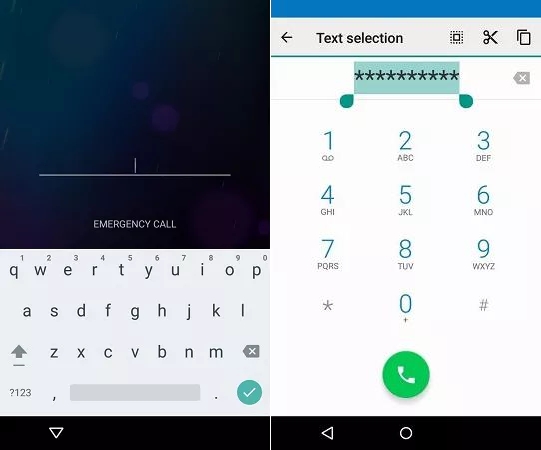
Step 1. Select Emergency call on the lock screen.
Step 2. Input 10 asterisks in the input text provided.
Step 3. Copy and paste the asterisks repeatedly until the characters are no longer highlighted.
Step 4. Back to the lock screen and tap camera to start the application.
Step 5. Swipe notification and press the Settings icon. Then, input asterisks repeatedly again until you need to enter the password.
Step 6. Your screen lock will be blocked, and you can access your Samsung tablet freely.
Pros- No data loss
- No Google or Samsung account needed
- Only supports Android 10 or lower
- Not suitable for all Samsung tablet models
- Not feasible on modern Samsung tablets
Method 6. Unlock Samsung Tablet in Safe Mode
The methods only suitable for the screen lock were set by a third-party app, because the Safe Mode is designed to disable most third-party apps and services. That means if your password was set in the Settings, you are not able to use the method.
📝Requirements:
The password was set by a third-party app
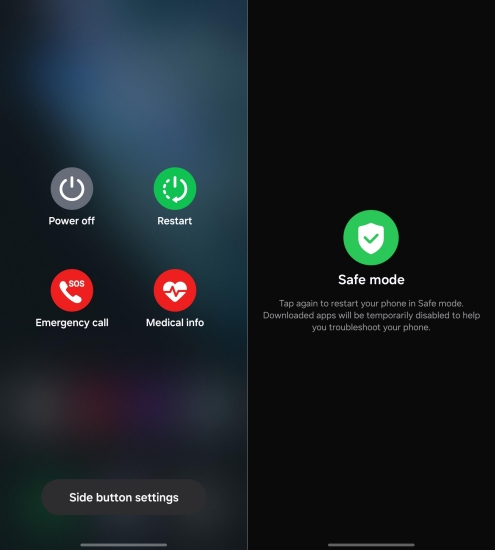
Step 1. Press and hold the Power button to display the Power Menu.
Step 2. Proceed to press the Power Off option until Reboot to Safe Mode appears.
Step 3. Reboot your Samsung tablet into Safe Mode with the OK option.
Step 4. Third-party apps will be disabled after entering Safe Mode.
Step 5. Navigate to SSettings, find and tap Apps, then uninstall the locking app.
Step 6. Exit Safe Mode by restarting your Samsung tablet.
Pros- No data loss
- No Google or Samsung account needed
- Unlock tablet directly and quickly
- Only effective when the password was set in a third-party app
- Not suitable for Samsung's built-in screen lock
- Not feasible on modern Samsung tablets
Part 3. How to Unlock Samsung Tablet without Password or Google Account
The above methods are not suitable for most Samsung tablet users and modern tablet models. If you are prepared to erase data on your tablet, you can try the methods below. And these methods are also appropriate for users without Google or Samsung account.
Method 1. Unlock Samsung Tablet via MagFone Android Unlocker
If you prefer a fast and safe method to unlock your Samsung tablet, MagFone Android Unlockeris definitely the best choice. Whether there is a password lock, a fingerprint lock, or a pattern lock on your Samsung tablet, MagFone can unlock it easily. With technological support and clear instructions, you can unlock the tablet in most scenarios. Follow the step-by-step operation.

MagFone Android Unlocker
Remove multiple kinds of screen locks on over 5000 Android devices and delete Google FRP lock without a password.
Step 1 Fire up MagFone and Connect to Your Tablet
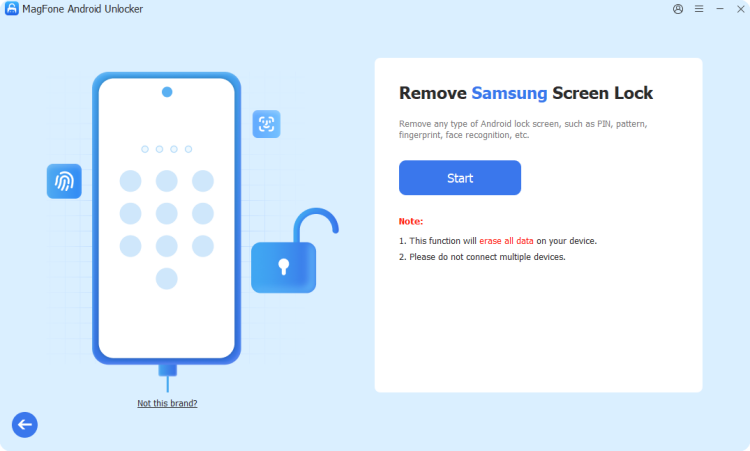
Install and fire up MagFone Android Unlocker on your computer. Then use a USB cable to connect your tablet to your computer. Select Remove Screen Lock from the beginning interface. Click Continue until your tablet is detected by MagFone.
Step 2 Boot Your Tablet into Recovery Mode
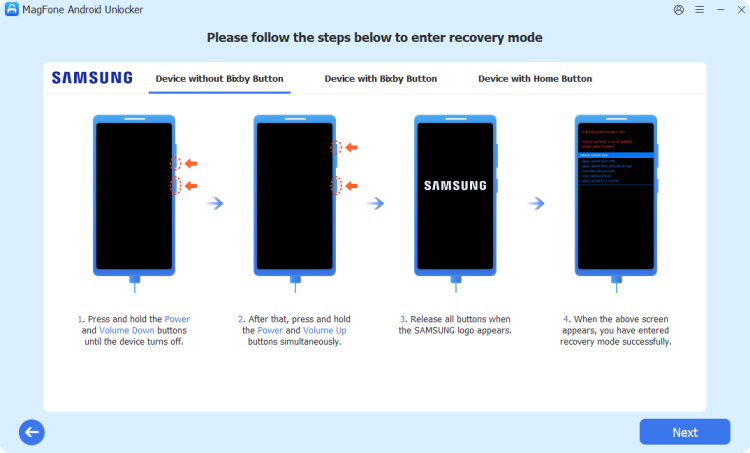
According to the steps on your computer, boot your Samsung tablet into Recovery Mode. Enter the Recovery Mode with the correct buttons, then you should click Next > Continue.
Step 3 Remove the Screen Lock Quickly

Continue to follow the on-screen instructions to set up your tablet. Then click Next. After operating the correct steps, MagFone will unlock your Samsung tablet soon.
Method 2. Unlock Samsung Tablet in Recovery Mode
Putting your Samsung tablet into Recovery Mode is the most immediate method to unlock your Samsung tablet that most users will pick. By pressing the corresponding physical buttons, you can unlock your Samsung tablet successfully. But you should be careful to follow a little complex guide.
📝Requirements:
Google or Samsung account
With more than 30% battery
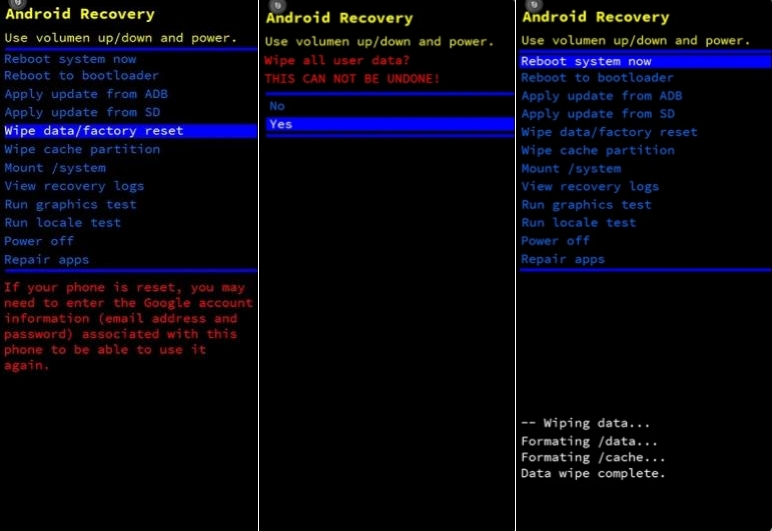
Step 1. Power off your Samsung tablet.
Step 2. Before the Recovery menu appears, don't release the Volume Up button and the Power button.
Step 3. Using the Volume Down button to choose Wipe data/factory reset, and confirm with the Power button.
Step 4. Proceed to select Factory data reset > Reboot system now.
Step 5. Sign in with your Google account after restarting.
Pros- Support offline operation
- Unlock the tablet directly
- Data loss
- A little complex instruction
Part 4. How to Unlock Samsung Tablet Forgotten Password with Find My Device
If you prefer a cost-free method by unlocking your Samsung tablet remotely, the SmartThings Find site, the Google Find Hub site, and the Google Find Hub app will help you practically. Before using the method, you need to make sure that you can remember your Google account and password. In addition, all the methods below will cause data loss through a factory reset of your Samsung tablet.
Method 1. Unlock Samsung Tablet on SmartThings Find Site
SmartThings Find is designed to locate lost Samsung devices, help you track, ring, lock, or even unlock your Samsung device remotely. Now, disable the screen lock on your tablet by the steps.
📝Requirements:
Samsung tablet with Samsung account signed in
Find My in enabled status
A network-connected device
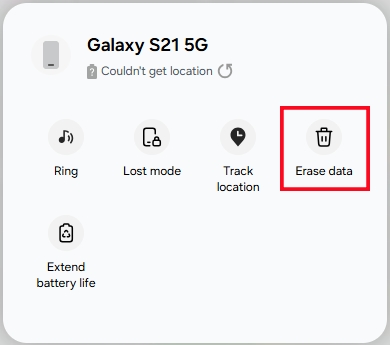
Step 1. Log in with your Samsung account on the official SmartThings Find site.
Step 2. From the list of Devices, choose your locked Samsung tablet.
Step 3. Click Erase data with verification code, then click Verify.
Step 4. Click Erase data > Erase.
Step 5. After inputting your Samsung account password, click Next. Your Samsung tablet will be unlocked.
Pros- Support most Samsung models
- Official and workable
- Data loss
- Require enabled Find My before
Method 2. Unlock Samsung Tablet on Google Find Hub Site
Similar to the function of SmartThings Find, Google Find Hub helps users locate their devices with a Google account login. It can erase all data on your Samsung tablet remotely. After the factory reset, you should access the tablet by inputting your Google account, or your tablet will be locked by the Factory Reset Protection.
📝Requirements:
Google account and password
Find My in enabled status
A network-connected device
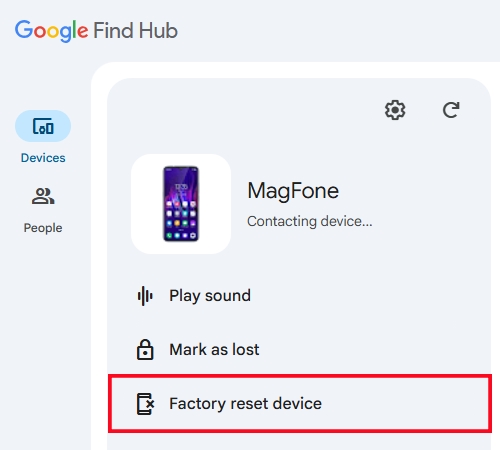
Step 1. Sign in with your Google account on the Find Hub site.
Step 2. Choose your Samsung tablet from Devices.
Step 3. Click Factory reset device > Next, then input your Google account password.
Step 4. Click Reset to confirm your choice.
Pros- Support most Samsung models
- Safe and convenient
- Data loss
- Require enabled Find My before
- May encounter the FRP lock
Method 3. Unlock Samsung Tablet via Google Find Hub App
If you have another Android device linked with the same Google account of your locked Samsung tablet, you can unlock it via the Google Find Hub app. Pick the method if you have another Android device.
📝Requirements:
Google account and password
Find My in enabled status
Another network-connected Android device
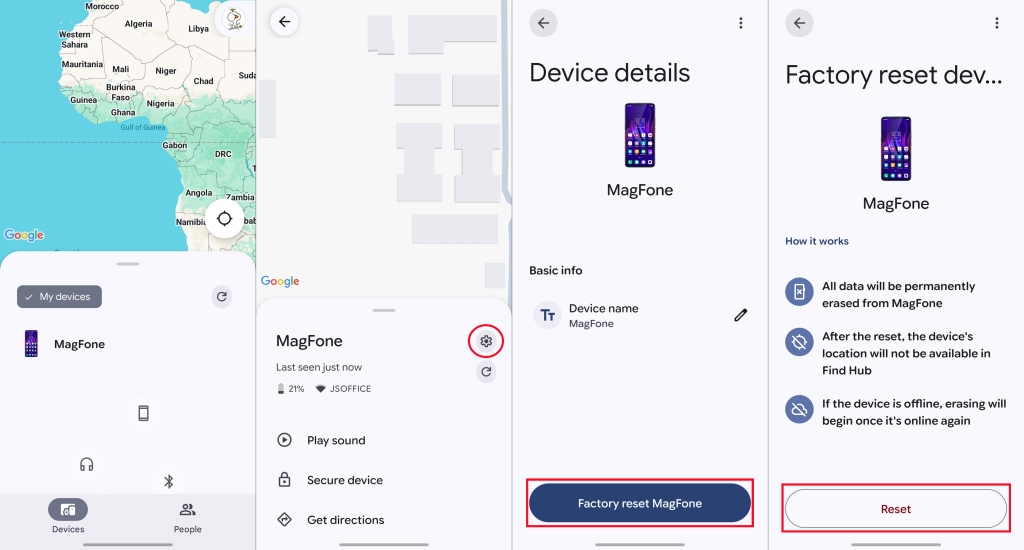
Step 1. Open the Find My app on another Android device.
Step 2. Sign in with the same Google account on your Samsung tablet.
Step 3. Pick your Samsung tablet on the list of Devices.
Step 4. Tap Settings icon > Factory reset device > Next, confirm with your Google account.
Step 5. Choose Reset to factory reset your Samsung tablet.
Step 6. After a factory reset, log in with your Google account to prevent the FRP lock.
Pros- Work on most Samsung models
- Safe and easy steps
- Data loss
- Require enabled Find My before
- May encounter the FRP lock
Part 5. Conclusion
Unlocking a locked Samsung tablet is possible and not difficult. If you want to keep the data, you can choose the methods without data loss. If you don't mind the data loss, you can unlock it with the help of third-party programs or boot it into Recovery Mode directly. But unlock your Samsung tablet quickly and easily, choose the professional tool -- MagFone Android Unlocker now!

Dylan Jones
Editor in chief





