








Have you ever tried to move an app icon or delete a shortcut, only to see a small message pop up saying "Can't move item. Home screen layout locked." or "Home screen layout is locked. You can unlock it in Settings."? It is a common frustration, often caused by a setting toggled deep in your phone's menu or even an accidental gesture in your pocket. Don't fret! This guide will show you exactly how to unlock home screen layout on Android devices, including Samsung, Motorola, Xiaomi, and more. Also, a way to unlock Android pattern lock if forgotten is shared here.
- Part 1. What Does Home Screen Layout Locked Mean?
- Part 2. How to Unlock Home Screen Layout on Android
- Part 3. Troubleshooting: Android Home Screen Layout
- Part 4. Bonus Tip: How to Unlock Android Pattern Lock
- Part 5. Conclusion
Part 1. What Does Home Screen Layout Locked Mean?
Many Android devices like Samsung, Motorola, and more include a home screen layout lock feature. This feature is actually a security measure designed to keep your carefully organized apps exactly where you want them. When this is enabled,
- You cannot move, resize, or delete app icons and widgets.
- Installing new apps might not automatically place shortcuts on your home screen.
- Accidental changes are prevented, which can be useful for some users.
However, sometimes, the "lock home screen layout" feature can feel like a digital roadblock. At this point, unlocking the home screen layout restores the ability to edit your home screen freely.
Part 2. How to Unlock Home Screen Layout on Android
Rather than unlocking a locked Android phone without a password, it is easier to unlock the home screen layout lock. Because Android is highly customized by different manufacturers, the button you need to press depends on who made your phone. If you're ready to change the home screen layout on your Android phone, here are the precise paths for the most popular brands.
| Device/Brand | Path to Unlock Home Screen Layout | Notes/Tips |
|---|---|---|
| Samsung One UI | Long-press → Home screen settings → Toggle off | Also available in Settings → Home screen |
| Stock Android / Motorola | Settings → Home and lock screen → Toggle off | No dedicated toggle on some devices |
| Xiaomi / MIUI | Pinch gesture → Home settings → Toggle off | Long press works on some versions |
| Other Brands / Huawei | Pinch gesture → Home settings → Toggle off | May vary by firmware version |
2.1 How to Unlock Home Screen Layout on Samsung
Samsung users encounter this more than anyone else because Samsung devices running One UI have a dedicated option to lock or unlock the home screen layout. The "Lock" toggle is very easy to find in the settings. If you are using a Galaxy device running One UI, follow these steps.
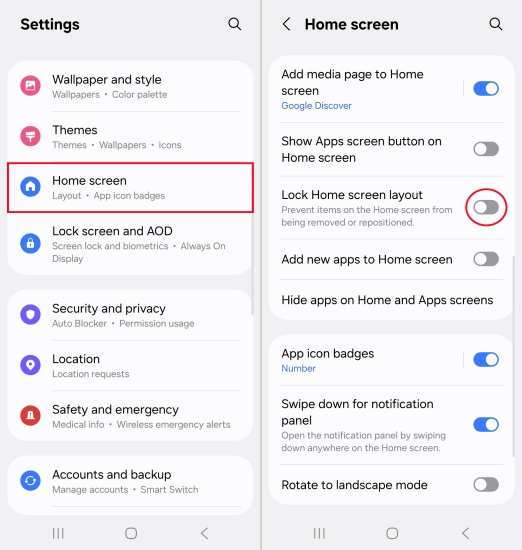
Step 1. Long-press an empty space on your home screen.
Step 2. Tap Settings or Home screen settings.
Step 3. Look for the option labeled Lock Home screen layout.
Step 4. Turn the switch to Off.
2.2 How to Unlock Home Screen Layout on Motorola
Standard "Stock" Android like Motorola handles things a bit differently. For some Motorola users, the path is tucked inside the "Home and lock Screen" sub-menu, while others don't have a native "Lock Layout" toggle. Start with the usual steps.
Step 1. From the Home screen, open the Settings app.
Step 2. Tap Home and lock screen > Home settings.
Step 3. Find Lock home screen layout, then turn the toggle to Off.
2.3 How to Unlock Home Screen Layout on Xiaomi
Xiaomi devices, including Redmi and POCO phones, offer a very similar security feature. Whether you are on the older MIUI or the newer HyperOS, the process is straightforward. Perform the following steps to disable the home screen layout lock.
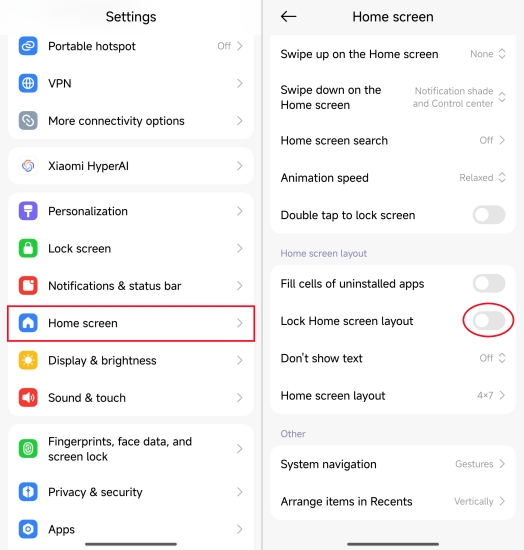
Step 1. Pinch inward with two fingers on the home screen.
Step 2. Tap the Settings icon, then find Lock Home screen layout.
Step 3. Turn the switch to Off.
Step 4. Tap Done or the back button to save your changes.
2.4 How to Unlock Home Screen Layout on Huawei
Some other manufacturers like Huawei, Oppo, Realme, and Vivo include similar home screen locks. The layout lock is found in the personalization menu. If you cannot move icons on a Huawei phone, follow the steps below to unlock layout lock.
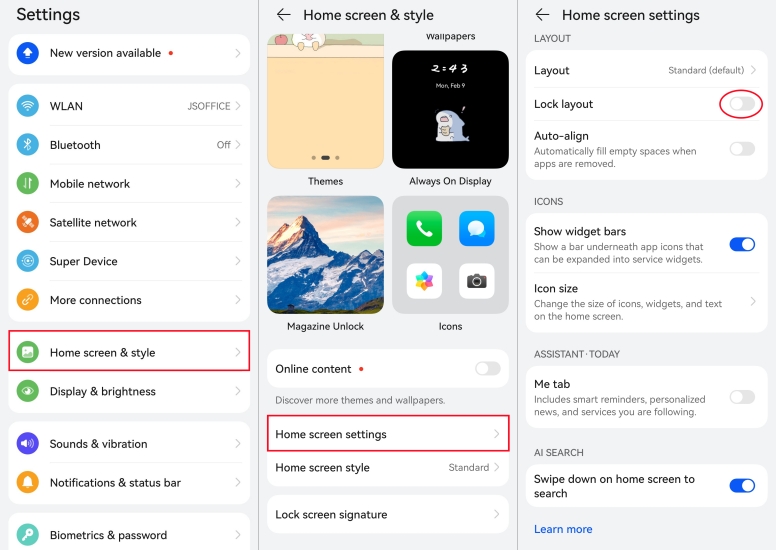
Step 1. Pinch two fingers together on the home screen.
Step 2. Go to Home screen settings mode.
Step 3. Disable Lock layout.
Part 3. Troubleshooting: Android Home Screen Layout
When apps or widgets are unresponsive on your home screen, it is often due to Home screen layout is locked. But in addition to the Home screen layout lock feature, other problems like third-party launchers and restriction modes would restrict home screen modifications. Let's look further into more solutions.
Problem 1. Third-Party Launcher Conflicts
If unlocking the layout doesn't work, the issue may be third-party launcher. Launchers like Microsoft Launcher or Smart Launcher may have their own lock settings. When you use such a custom launcher to give your Android a fresh lock, the system-wide settings might not work. Go to unlock the layout within the launcher's own internal settings.
Microsoft Launcher:
Step 1. Long-press the home screen and tap Launcher Settings.
Step 2. Go to Home screen and tap Customize.
Step 3. Toggle off Lock home screen.
Nova Launcher:
Step 1. Open Nova Settings and tap Home screen.
Step 2. Scroll to the bottom and tap Advanced.
Step 3. Toggle off Lock layout.
Problem 2. Layout Option Greyed Out or Missing
If you have followed the steps above and your home screen is still locked, there are two common "hidden" culprits. Some devices hide the toggle of Home screen layout lock in certain modes like Kids Mode, Easy Mode, or Work Profile. In this case, you have to turn to different solutions to troubleshoot hidden locks.
Managed Work Profiles
If your Android phone has a "Work Profile", the IT administrator may have locked the layout. In this case, you won't be able to toggle the setting without their permission.
Digital Wellbeing & Kids Mode
Check if Kids Mode or a Third-party App Locker is active. These apps often freeze the home screen to prevent children from accidentally deleting important work apps or moving widgets.
Part 4. Bonus Tip: How to Unlock Android Pattern Lock
In some situations, the home screen layout isn't locked by a setting, but by device access restrictions. For example, you forgot the Android pattern lock or the phone was previously used by someone else. In these cases, you must first regain full access to the device before you can unlock or customize the home screen.
MagFone Android Unlocker can help when a forgotten pattern lock blocks access to system and home screen settings. If you can't unlock the phone itself, you won't be able to open Home screen settings and disable Lock Home Screen Layout. Unlocking the pattern lock restores normal system access, allowing you to adjust the home screen layout afterward. Follow basic steps to unlock Android pattern lock with MagFone Android Unlocker.

MagFone Android Unlocker
Remove multiple kinds of screen locks on over 5000 Android devices and delete Google FRP lock without a password.
Step 1 Launch MagFone and Connect Android Phone
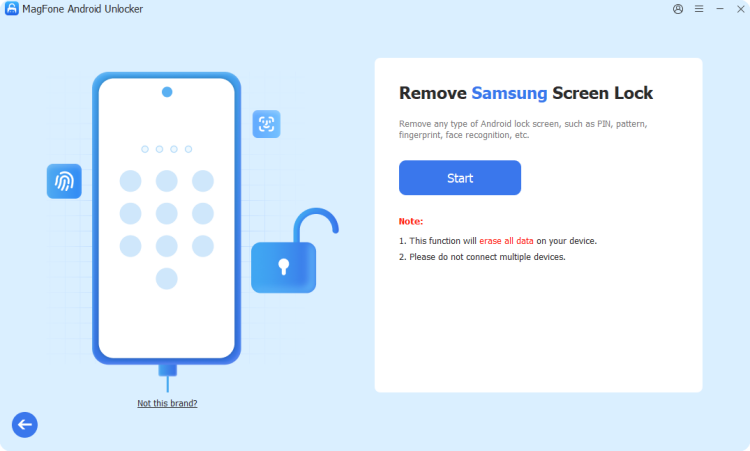
Install and open MagFone Android Unlocker on a computer, then connect your Android device via a USB cable. From the main interface, select Remove Screen Lock, then click Next.
Step 2 Put Locked Android Device into Recovery Mode
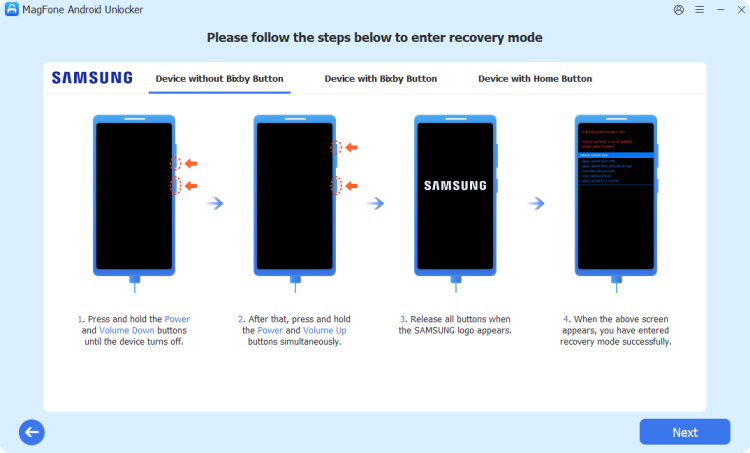
Once the device is detected, you'll see some instructions to let you put the device into recovery mode. After putting the device into recovery mode, click Next > Continue.
Step 3 Start to Remove Pattern Lock on the Device

Proceed to follow onscreen instructions to remove the forgotten pattern lock on the device. After completing the steps, click the Next button on the MagFone software.
Part 5. Conclusion
Unlocking your home screen layout on Android is usually straightforward once you know where the settings are. Once unlocked, you'll regain full control over your home screen customization and can move apps, widgets, and shortcuts as you like. But if you cannot get into a locked Android phone, consider using a third-party unlocking tool like MagFone Android Unlocker to regain access to the device.

Dylan Jones
Editor in chief





