







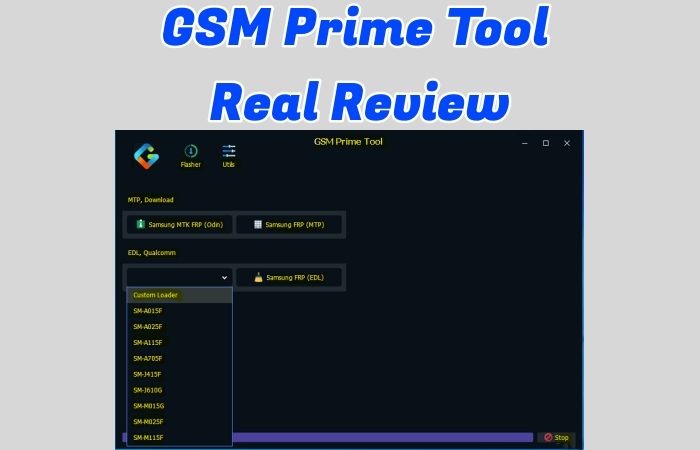
GSM Prime Tool is a widely circulated mobile servicing utility known for FRP bypass, network unlocking, flashing, and factory reset. Many users search for it because it is free, lightweight, and capable of removing the Google FRP lock on Android devices. However, since the tool is distributed by the community rather than an official developer, users must evaluate its features, limitations, safety risks, and better alternatives before relying on it. Here's a full review of GSP Prime Tool. Let's dive into details!
- Part 1. Full Review of GSM Prime Tool
- Part 2. How to Download GSM Prime Tool
- Part 3. How to Use GSM Prime Tool for FRP Bypass
- Part 4. Best Alternative to Prime Tool FRP Bypass
- Part 5. Conclusion
Part 1. Full Review of GSM Prime Tool
GSM Prime Tool, currently named as Prime ToolX, is a Windows-based service software mostly used by technicians to fix common Android issues, such as FRP lock, screen lock, boot errors, firmware glitches, and network restrictions. This tool is compatible with devices running Android 5 to 13. The following is a full review of GSM Prime Tool.
01Main Features of GSM Prime Tool
As an all-in-one software for fixing issues on Android devices, GSM Prime Tool offers users many features from unlocking FRP and screen lock to fix system issues. Here are main features of GSM Prime Tool.
Main Features of GSM Prime Tool
- FRP Lock Bypass: Remove Google account verification and factory reset protection on most Android devices.
- Screen Lock Removal: Allow to remove screen locks like PIN, pattern, and password on specific Android models.
- System Issues Repair: Fix bootloop and system issues on Android devices, as well as soft-bricked Android phone.
- Device Information Check: Read IMEI information, device logs, system data, battery information, and application status.
- Multiple Modes: Support fixing issues on Android devices in different modes like MTP Mode, ADB Mode and more.
02User Reviews of GSM Prime Tool
As a well-known FRP bypass tool, many people may have downloaded and used it before. It is widely discussed in different communities.
 Product rating:⭐⭐⭐⭐
There are only a few GSM Prime Tool reviews online, but most feedback from Reddit, X, and YouTube is positive. Many users say it works well for FRP bypass and device unlocking. If you want to try it, it may be worth a shot. Still, check the pros and cons below for a deeper understanding before deciding.
03Pros and Cons of GSM Prime Tool
Not all tools are perfect, including GSM Prime Tool. Based on the real user reviews of GSM Prime Tool, we have summaried the pros and cons of the GSM Prime Tool. Help you understand the tool comprehensively before use.
 Pros
Pros- Supports most Android brands like Samsung phone
- Compatible with different processors and phone modes
- Free to use and easy to install

- Only supports Windows OS
- Often blocked by Google Chrome
- Limited support for popular Android devices
- Poor compatibility with updated Android versions
- Not suitable for beginners without technical knowledge
04Supported Devices of GSM Prime Tool
After having a basic understand of GSM Prime Tool, you can decide whether to use it to fix issues on your Android phone. Please note that GSM Prime Tool is only compatible with certain Android devices and versions. Before getting started, make sure you meet the following requirements.
| Supported Brands | Supported Models | Supported Android Versions |
|---|---|---|
| Samsung | Galaxy A02, A02s, A03, A03s, A04, A04e, A05, A05s, A06, A10s, A11, A20s, A32 | Android 5-13 |
| Xiaomi | Redmi A1, A2, A3, 9A, 10, 12C, 13C, 14C; Redmi Note 12S | Android 11-15 |
| Motorola | Moto E22, E22i, G05, G15 | Android 12-15 |
Part 2. How to Download GSM Prime Tool
There are several sources for you to download GSM Prime Tool. The safest approach is to download it from the official source. So, how to download it correctly and safely? The method have been prepared below.
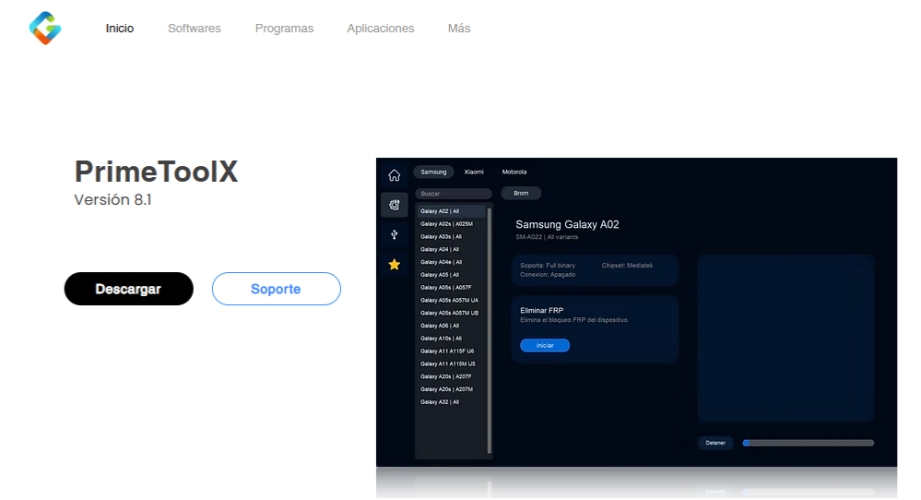
Step 1. Navigate to the official website of GSM Prime Tool in a browser on your computer.
Step 2. Click Desacragr to download version 8.1, then click Programs > Prime Tool to download version 3.5.
Step 3. After downloading, find the downloaded the ZIP file and extract it.
Step 4. Install the software on your computer and run it.
Part 3. How to Use GSM Prime Tool for FRP Bypass
After downloading it successfully, you can use it for free. And you must be sure your phone brand and version are suitable for using the software. Now let's look at the instructions on how to use GSM Prime Tool.
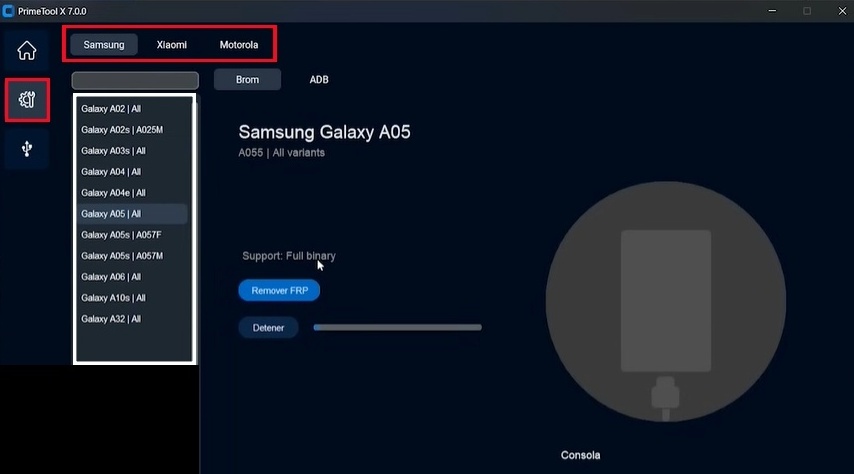
Step 1. Click the Settings icon and select your phone model from the list on your screen.
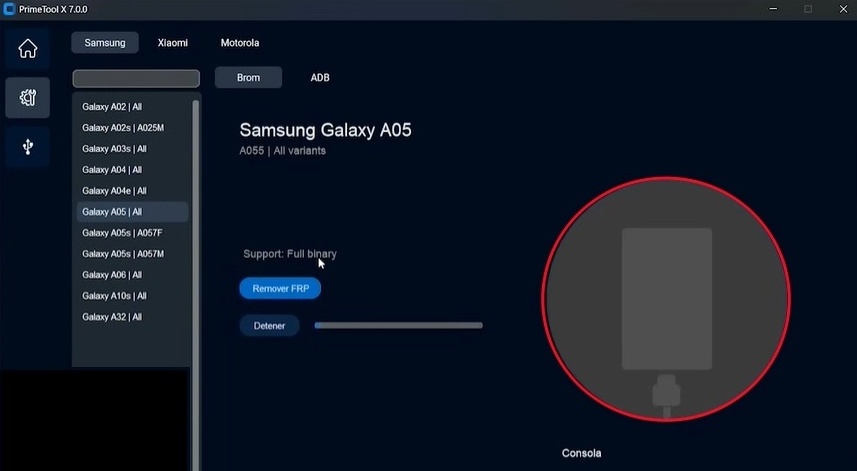
Step 2. Click Remove FRP, connect your phone to the computer when the Waiting connection icon appears.
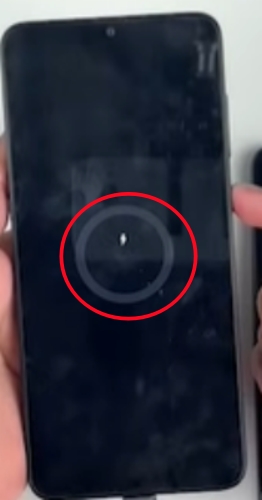
Step 3. Press the Power button for 4 seconds until the Loading icon appears on your phone.
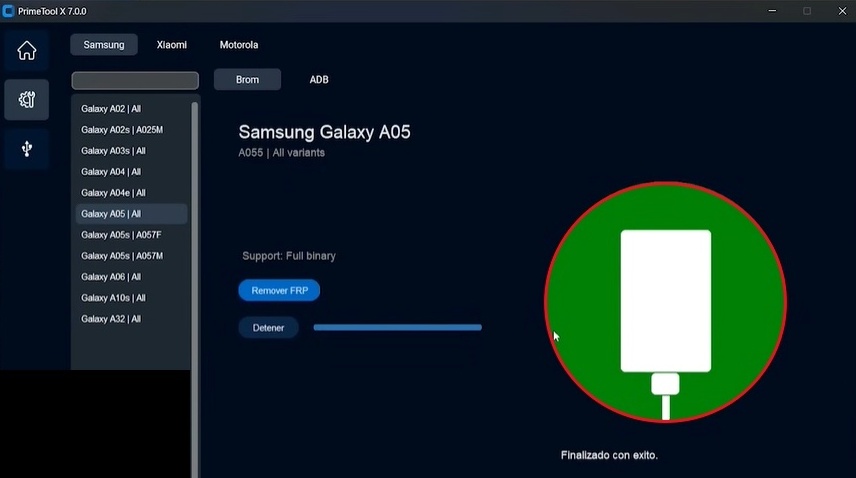
Step 4. When the Connection icon turns green, that means the FRP lock is bypassed successfully. And you can unplug the USB cable and restart your phone freely.
Note:
In the process of using Prime Tool, you may find something wrong. The following are common issues happening while using GSM Prime Tool.
Error 1. Device Not Detected / Waiting for Device: The tool cannot detect the phone connection.
Fix: Try another USB cable or USB port, and make sure the phone is connected in the correct mode.
Error 2. Operation Failed / Bypass Failed: The FRP reset or bypass process could not complete.
Fix: Check the device compatibility again or try another FRP alternative method like MagFone Android Unlocker.
Error 3. Activation Failed / Loader Not Working: The GSM Prime tool cannot open or activate.
Fix: Download and use a newer working version because the current loader or activation server may be outdated or offline.
Part 4. Best Alternative to Prime Tool FRP Bypass
As you see, there are many issues with GSM Prime Tool. Also, it comes with clear limitations like inconsistent compatibility and frequent reliability issues. For users who want a safer, easier, and more effective solution, MagFone Android Unlocker stands out as a far better alternative. Unlike the too much uncertainty of GSM Prime Tool, you can download and install MagFone Android Unlocker smoothly without any security issues. Most importantly, it supports screen unlocking on over 6000 Android phone models and FRP removal on most popular Android devices. With it, you can bypass the FRP lock with several clicks. Let's move into a comparative sheet.
| Tool | Supported System | FRP Removal | Restriction | Easy to Operate | Safety | Success Rate |
|---|---|---|---|---|---|---|
| MagFone Android Unlocker | Windows and Mac | Samsung: Android 6-16 Xiaomi/Redmi: Android 6-13 Motorola: Android 11-12 Vivo: Android 10-12 Oppo: Android 5-16 |
❌ | ✔️ | High | High |
| GSM Prime Tool | Windows | Samsung: Android 5-13 Xiaomi: Android 11-15 Motorola: Android 12-15 |
✔️ | ❌ | Low | Low |

MagFone Android Unlocker
Easily bypass Motorola FRP lock, highly efficient and convenient operation.
After comparing GSM Prime Tool and MagFone Android Unlocker, you may be interested in how to use MagFone to bypass FRP lock conveniently. Here are the operating steps.
Step 1 Link Your Phone to MagFone
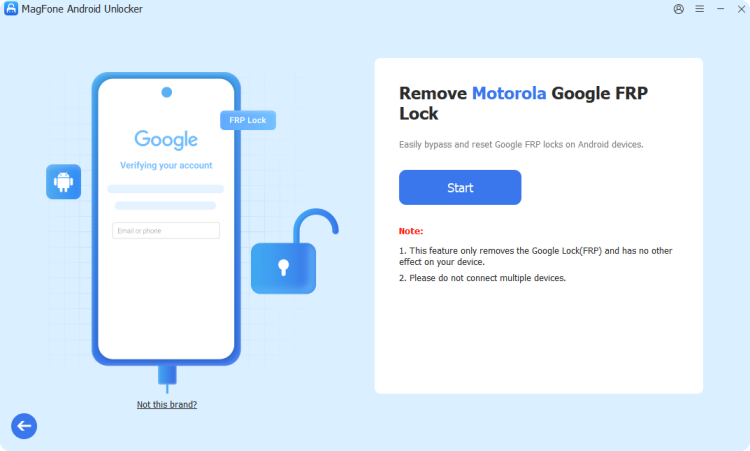
Download and fire up MagFone Android Unlocker, open the interface, and choose Remove Google FRP Lock. Your device and Android versions will be detected automatically, and you can also choose yourself. Then, click Start.
Step 2 Follow the On-screen Steps to Operate
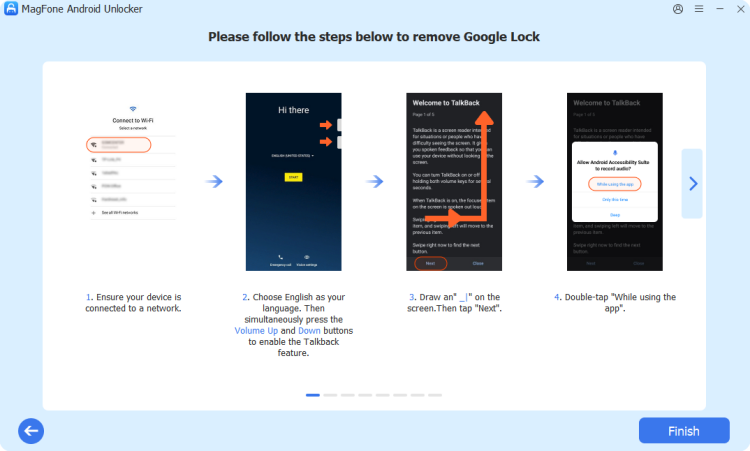
Different device models have different operating steps; just follow the on-screen steps to set up your phone. After operating, select Finish.
Step 3 Remove FRP Lock Successfully
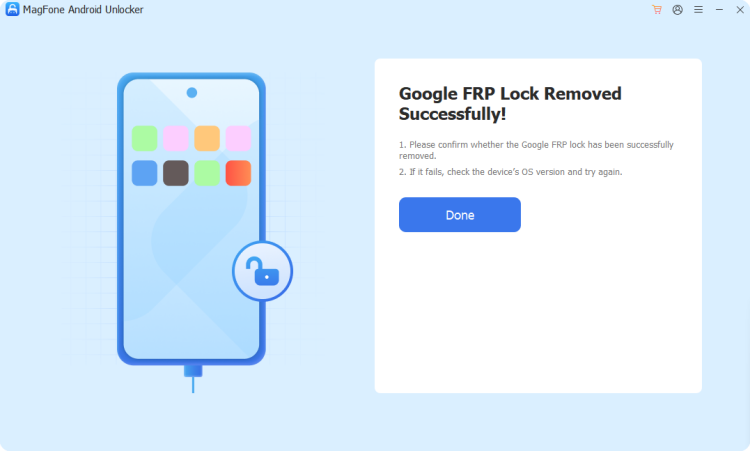
Wait for the tool bypasses the Google FRP lock on your phone. When the screen appears Google FRP Lock Remove Successfully, you can set up your phone without Google account freely.
Part 5. Conclusion
GSM Prime Tool offers a professional service for bypassing the Google FRP lock, but it's not suitable for all Android models and versions. It's an ideal option for most Samsung users, but not all. Due to the low success rate and many restrictions, GSM Prime Tool can't solve most phone issues successfully. But MagFone Android Unlocker, a firmly recommended third-party tool, can bypass FRP lock with easy steps and a high success rate. Download and install it now!

Dylan Jones
Editor in chief





