








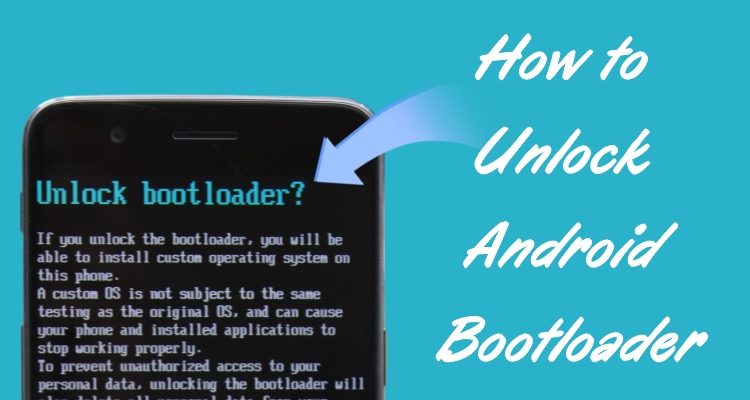
Think of a bootloader as your phone's gatekeeper. It's the first piece of code that wakes up when you press the power button, checking everything before letting Android step onto the stage. It ensures only trusted software runs, keeping your device safe and stable. But sometimes, users want more freedom than security allows. That's when unlocking comes in, and if you're ready to take control, here's how to unlock Android Bootloader with or without a pc.
- Part 1. What Is Bootloader Unlock in Android?
- Part 2. How to Unlock Bootloader on Android with PC
- Part 3. How to Unlock Android Bootloader without PC
- Part 4. How to Check If Android Bootloader Is Unlocked
- Part 5. Bonus Tip: How to Unlock Android without Root
- Part 6. Conclusion
Part 1. What Is Bootloader Unlock in Android?
A bootloader unlock in Android is the process of removing the manufacturer's restrictions on your device's bootloader (the program that starts up the operating system when you turn on your phone). By default, Android devices come with a locked bootloader to ensure the system only runs official, signed software. When you unlock it, you gain permission to modify the system. These are what unlocking the bootloader allows you to do:
- Install custom ROMs (modified versions of Android).
- Gain root access (full control over system files).
- Install custom recoveries like TWRP.
- Remove bloatware or tweak performance.
Important things to know:
(1) Unlocking usually wipes all your data.
(2) It may void your warranty.
(3) It can reduce device security (e.g., disables some protections).
(4) Some apps (like banking apps) may stop working.
Part 2. How to Unlock Bootloader on Android with PC
It's a widely used method to unlock your bootloader using a Fastboot tool on a PC. It works by sending special commands from your computer to your Android device through tools like ADB and Fastboot. These tools communicate directly with your phone's system at a low level, allowing you to trigger the unlocking process safely.
Step 1. Download and install ADB and Fastboot tool on your computer, preferably lightweight package.
Step 2. Open phone Settings, go to About phone, and tap Build number seven times.
Step 3. Access Developer options and enable both OEM unlocking and USB debugging features.
Step 4. Connect your phone to the computer using a USB cable securely.
Step 5. Open command prompt as administrator from the ADB and Fastboot installation folder.
Step 6. Enter adb devices command to verify your phone is properly detected.
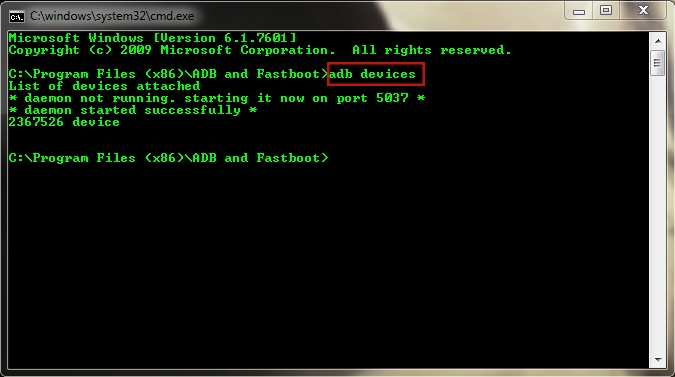
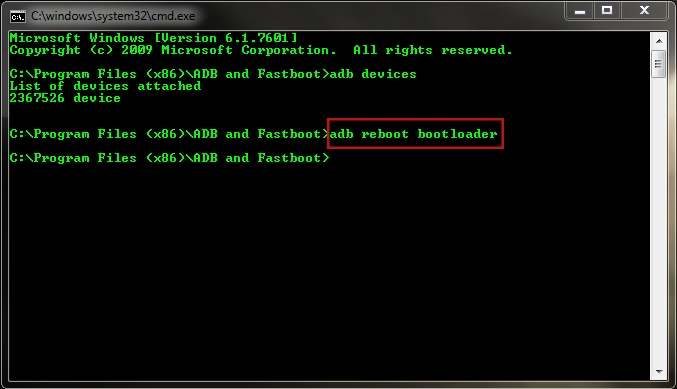
Step 7. Type ADB reboot bootloader and wait for device to enter Fastboot mode.
Step 8. Once in Fastboot mode, input fastboot OEM unlock command and click Enter to execute it.
Step 9. Confirm unlocking action on your phone screen if any prompt appears.
Step 10. After completion, type fastboot reboot to restart device into Android system.
Part 3. How to Unlock Android Bootloader without PC
If you don't have access to a computer, you can also choose to unlock the bootloader using another Android device. This method relies on enabling OEM unlocking first, then triggering a special boot mode using physical buttons. While it's more limited and device-specific, it can be a convenient method when done correctly.
Step 1. Open your phone's Settings app and navigate to the About phone section menu.
Step 2. Scroll down to find Build number and tap it repeatedly to allow development settings.
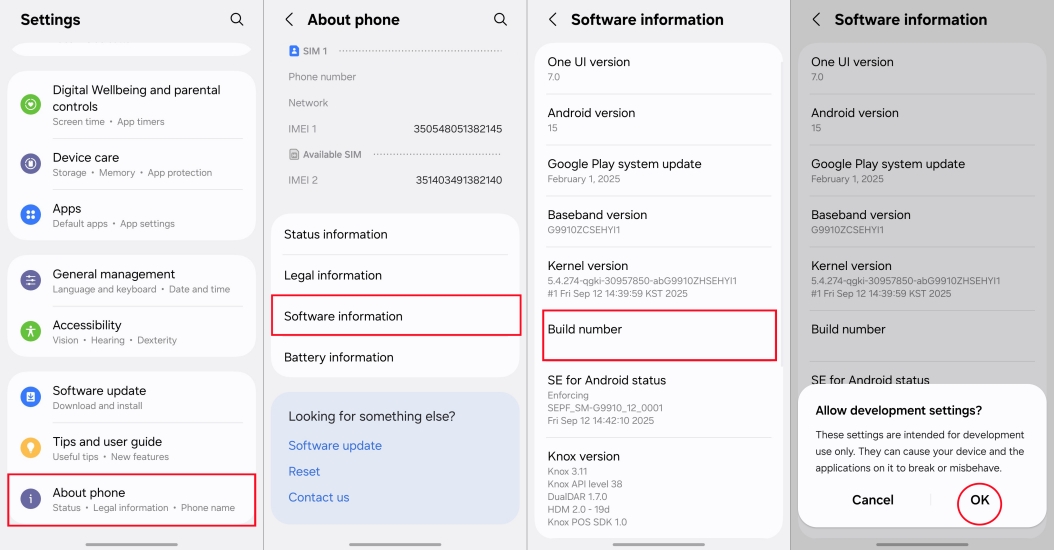
Step 3. Enter your device password if prompted to activate developer options successfully.
Step 4. Return to Settings and enter the Developer options on your screen.
Step 5. Find OEM unlocking part and switch it on to allow bootloader unlocking capability.
Step 6. Scroll further and enable USB debugging for device communication with external systems.
Step 7. Go back to Settings and open Accounts and backup to manage registered accounts.
Step 8. Tap Manage accounts and remove both Samsung and Google accounts from device.
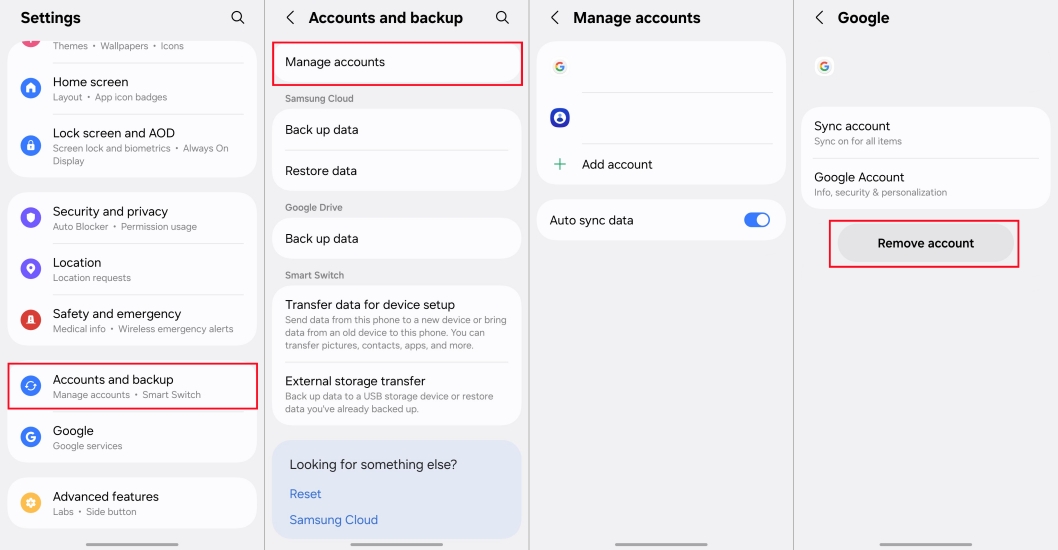
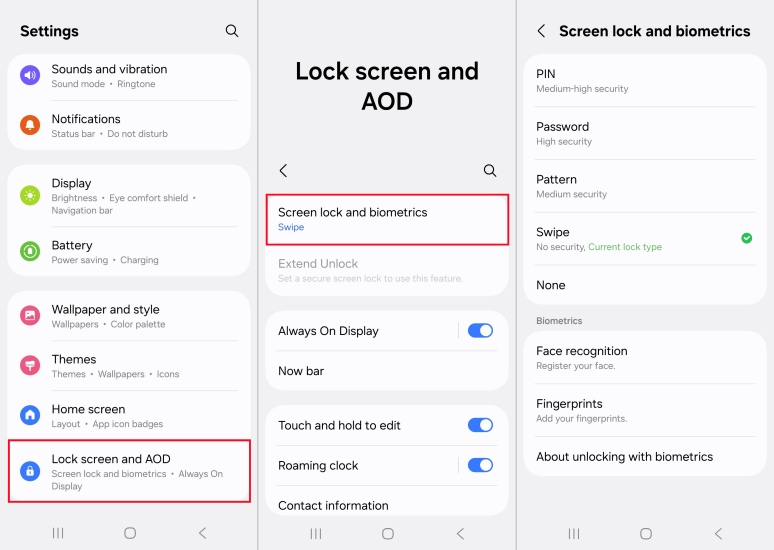
Step 9. Return again and open Lock screen and AOD settings to change security method.
Step 10. Select Screen lock type and choose None to disable lock protection temporarily.
Step 11. Connect your phone to any Android device using a USB Type-C cable.
Step 12. Once charging indication appears, restart your primary Android device.
Step 13. As logo disappears, quickly press and hold both volume up and down buttons.
Step 14. When blue screen appears, continue holding volume up button to proceed further.
Step 15. Confirm the bootloader unlock page by pressing volume up button.
Step 16. Device will automatically wipe all data and unlock the bootloader.
Part 4. How to Check If Android Bootloader Is Unlocked
To check whether an Android device bootloader is unlocked, you can use simple visual checks, system settings, or a PC-based method. Each option provides increasing accuracy, from quick restart to Developer Options and finally ADB and Fastboot commands for confirmation in a reliable way.
01Check Bootloader by Restarting
Step 1. Restart phone and watch boot screen for warning or open padlock.
Step 2. Look for bootloader unlocked or insecure boot message during startup.
Step 3. If warning appears, bootloader is unlocked. If not, likely locked.
02Check Bootloader Using Developer Options
Step 1. Open Settings, go to About phone and tap Build number 7 times.
Step 2. Open Developer options in Settings > System or Additional settings.
Step 3. Find OEM unlocking option in menu.
Step 4. If toggle is grayed out, bootloader is likely unlocked.
03Check Bootloader Using ADB and Fastboot
Step 1. Install ADB tools on computer and connect phone via USB.
Step 2. Run adb devices to confirm device connection.
Step 3. Run adb reboot bootloader to enter fastboot mode.
Step 4. Run fastboot getvar unlocked or fastboot oem device-info.
Step 5. Read result: yes/true = unlocked, no/false = locked.
Part 5. Bonus Tip: How to Unlock Android without Root
If you forget to remove your Google account before unlocking the bootloader, your device may get stuck on the Factory Reset Protection (FRP) verification screen. Don't worry. MagFone Android Unlocker can help you bypass this lock easily. Besides FRP removal, it also unlocks screen locks like PINs, patterns, or passwords, making it helpful when you're locked out of your device. Here's how to use MagFone Android Unlocker for FPR bypass.

MagFone Android Unlocker
Remove multiple kinds of screen locks on over 5000 Android devices and delete Google FRP lock without a password.
Step 1 Connect Device and Launch Tool
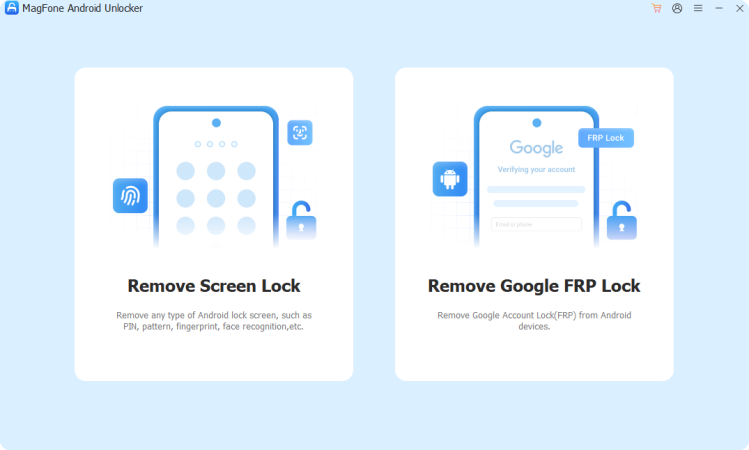
Use a USB cable to link your Android phone to a computer. Open MagFone Android Unlocker and choose the option for removing the Google FRP lock.
Step 2 Select Device Information
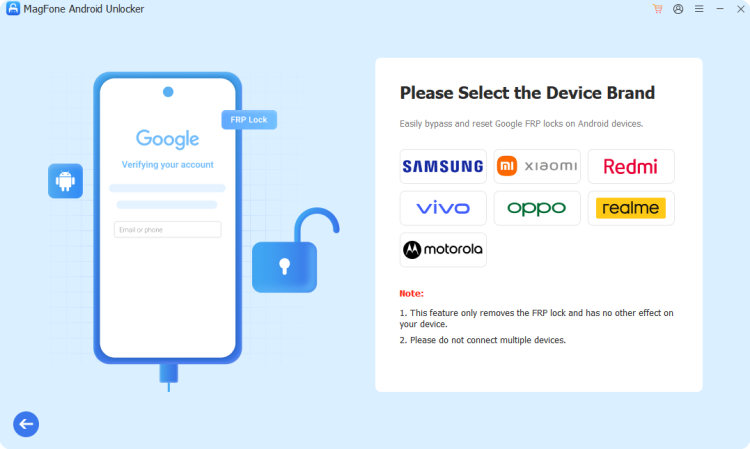
Allow the program to automatically detect your device, or manually select your Android brand and system version. Then, proceed by clicking the appropriate start option.
Step 3 Complete FRP Removal
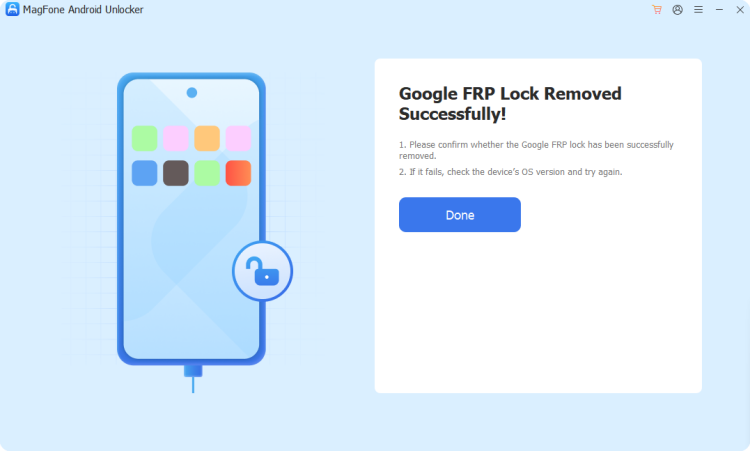
Carefully follow the instructions shown on the screen to interact with your phone. Once the process finishes, the FRP lock will be removed, and you can access your device again.
Part 6. Conclusion
Unlocking your Android bootloader opens the door to customization, control, and advanced features, but it also comes with risks like data loss and reduced security. Whether you choose to use a PC or go without one, following the correct steps is essential. Always back up your data and understand the consequences before proceeding to ensure a smooth and safe experience.

Dylan Jones
Editor in chief





