








Getting locked out of your Google Pixel phone can be stressful, especially when you urgently need access to calls, photos, or work apps. If you're searching for ways to unlock a Google Pixel phone without a password, chances are you're feeling frustrated or even a little panicked. Maybe you forgot your PIN, maybe your phone says "Try again later," or maybe you just bought a second-hand Pixel that won't let you in. This guide is built around real-life scenarios, so you can quickly unlock your Google Pixel phone with the right method.
- Part 1. Can You Unlock a Google Pixel Phone?
- Part 2. How to Unlock Google Pixel without Losing Data
- Part 3. How to Unlock Google Pixel without PIN or Password
- Part 4. Conclusion
Part 1. Can You Unlock a Google Pixel Phone?
Yes, you can get your Google Pixel unlocked using several methods. But before jumping into solutions, it helps to understand the common causes of Google Pixel locked.
- Forgotten PIN, pattern, or password
- Too many incorrect attempts leading to a disabled lock screen
- Biometric lock temporarily unavailable after restarting phone
- Bought a used Pixel still tied to someone else's account
- Screen damage preventing input
Understanding your scenario makes it easier to pick the right method. There are several methods available to help you unlock a Google Pixel phone without PIN or password. Here's a clear overview of ways to unlock a Google Pixel without a password.
| Method | Data Loss | Difficulty | Best For |
|---|---|---|---|
| ADB Commands | Maybe | Hard | Developers or advanced users only |
| Emergency Call | ❌ | Medium | Device running in Android 10 or below |
| Google Account | ❌ | Medium | Device running in Android 4 or below |
| Android Unlocker | ✔️ | Easy | Fast and easy to get device unlocked |
| Recovery Mode | ✔️ | Medium | Users locked out completely |
| Google Find My Device | ✔️ | Medium | Users with Google account access |
| Update and Software Repair | ✔️ | Medium | Users locked out completely |
Part 2. How to Unlock Google Pixel without Losing Data
Some methods such as biometric locks or Extend Lock can help unlock a Google Pixel phone while preserving the device data. Provided that you are not prepared and want to unlock your Google Pixel phone without data loss, here are other methods you can try. But these methods have some limitations, not suitable for all Google Pixel users.
Method 1. Unlock Google Pixel Phone via ADB Commands (Limited and Technical)
Some advanced users mention Android Debug Bridge as a way to unlock a Google Pixel without data loss. However, this only works if USB debugging was enabled before the lockout and your computer was previously authorized. For most users, this method is not practical, but it's worth mentioning for transparency. Follow the steps below to unlock a Google Pixel via ADB commands.
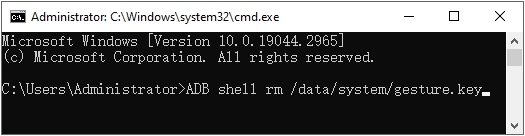
Step 1. Download and install Android SDK Platform Tools on your computer.
Step 2. Connect your Google Pixel phone to the computer with a USB cable.
Step 3. Press Win + R, type cmd, and hit Enter to launch a Command Prompt window.
Step 4. Type adb devices and press Enter on the keyboard.
Step 5. Execute the following commands one by one with Enter after each one.
adb shell
cd /data/data/com. Android.providers.settings/databases
sqlite3 settings.db
update system set value=0 where name='lock_pattern_autolock';
update system set value=0 where name='lockscreen.lockedoutpermanently';
.quit
exit
adb reboot
Step 6. Reboot the device and execute the following commands in turn with Enter after each one.
adb shell
rm /data/system/gesture.key
exit
adb reboot
Limitations:
If you cannot meet those conditions, this approach usually won't work. Besides, it's mainly useful for developers and advanced users, not for most everyday situations.
Method 2. Unlock Google Pixel Phone via Emergency Call
If your Google Pixel phone is running Android 10 or below, you may still be able to use Emergency Call to unlock your device without entering the password while not worrying about the data loss. This method helps users to unlock a Google Pixel phone by making use of the security hole, but doesn't remove the lock screen and is not suitable for modern Google Pixel phones.
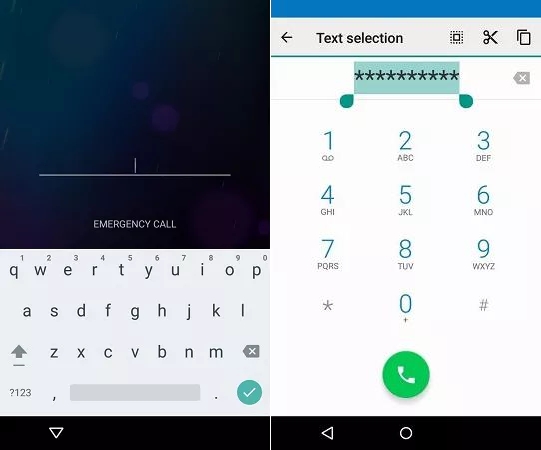
Step 1. On the lock screen of your Google Pixel, tap Emergency Call.
Step 2. Enter a long string of characters, such as *************.
Step 3. Repeatedly input ************* until the input field crashes or freezes.
Step 4. Go back to the lock screen and wait to get into the home screen.
Limitations:
Unlocking a Google Pixel phone using Emergency Call doesn't work for those modern models. Unfortunately, it doesn't work in all situations and fails to unlock the device sometimes.
Method 3. Unlock Google Pixel Phone via Google Account
For older Google Pixel phones, you can remove the forgotten pattern by entering your Google account credentials on the lock screen. This won't erase any data on the device, but it only works on the device running Android 4 or below. It is because the Forgot Pattern feature was removed from Android 5 or later. Here's how to unlock a Google Pixel phone with Google account.
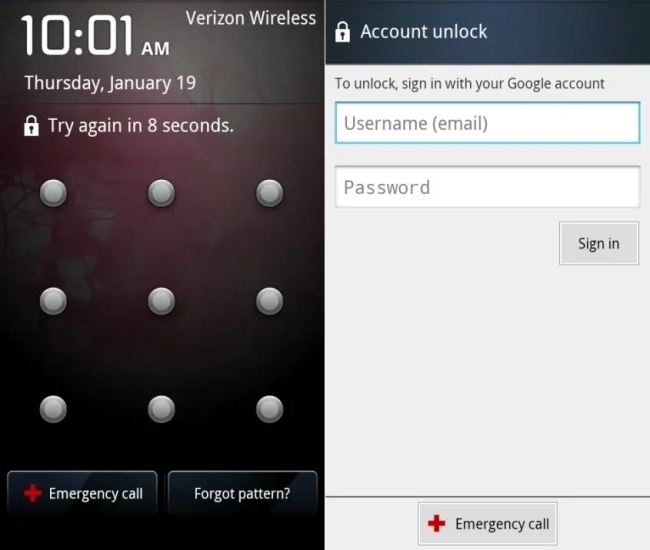
Step 1. Draw the incorrect pattern until the Forgot pattern? option appears.
Step 2. Enter your Google account and password, then tap Sign in.
Step 3. After logging into your Google account, draw a new pattern.
Part 3. How to Unlock Google Pixel without PIN or Password
It is a bit difficult to unlock a Google Pixel phone without PIN or password while keeping the data. If preserving data is no longer possible, the following methods are the most reliable. With the following methods, you can unlock a wide range of Google Pixel models, no need to worry about the compatibility. Choose one of the following methods to unlock a Google Pixel phone.
Method 1. Unlock Google Pixel Phone via Android Unlocker
If you prefer a simpler, guided solution instead of manual resets, you may want to consider using a professional unlocking tool like MagFone Android Unlocker. It is designed for everyday users who feel uncomfortable with technical steps such as Recovery Mode or ADB commands. MagFone Android Unlocker focuses on making the unlocking process more accessible, especially for people who are not tech experts. The process of unlocking a Google Pixel with the MagFone software is designed to feel straightforward.

MagFone Android Unlocker
Remove multiple kinds of screen locks on over 5000 Android devices and delete Google FRP lock without a password.
Step 1 Run MagFone and Connect Google Pixel
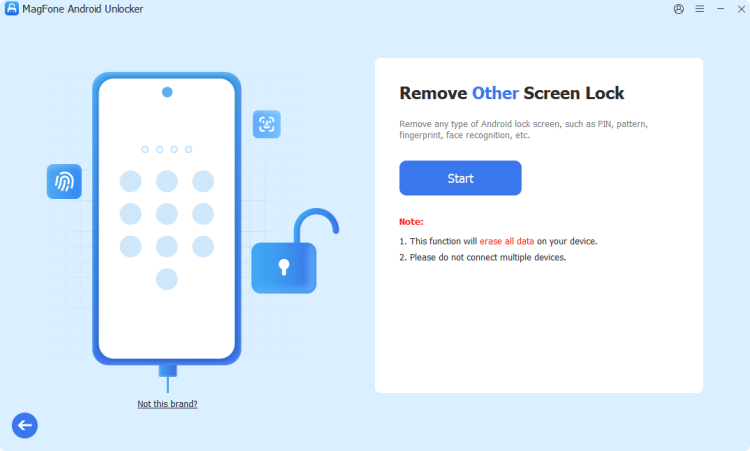
First, download and launch MagFone Android Unlocker on your computer. Then choose Remove Screen Lock from the main interface and connect your Google Pixel phone to the computer through a USB cable.
Step 2 Put Locked Google Pixel into Recovery Mode
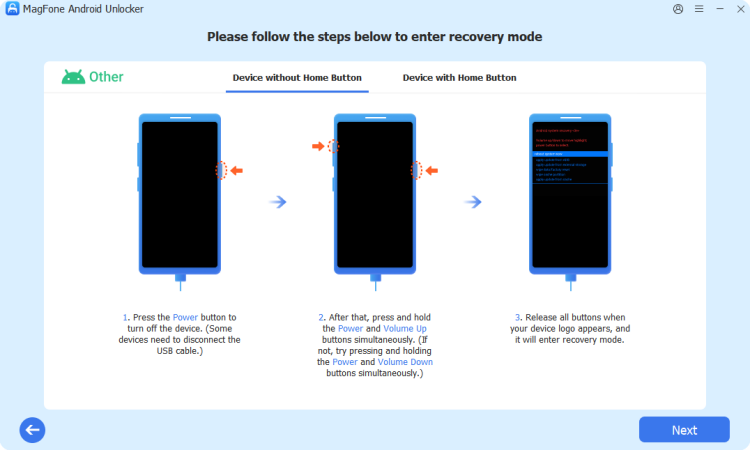
Go to follow the onscreen instructions to boot your locked Google Pixel phone into Recovery Mode. Once Recovery Mode is displayed, go back to click the Next button on the MagFone software. After that, click the Continue button.
Step 3 Start to Unlock Google Pixel Phone without PIN

Perform the onscreen instructions to remove PIN, pattern, or password on your device. Wait for a while, and click the Next button after completing the unlocking. Now you can set up your device and set up a new screen lock.
Method 2. Unlock Google Pixel Phone in Recovery Mode
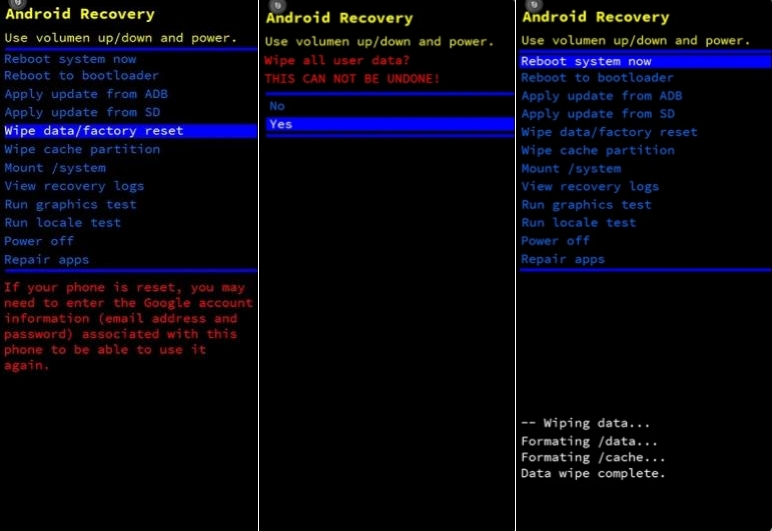
Unlocking a Google Pixel phone without a password using Recovery Mode is another reliable way. If you have physical access to your Google Pixel phone, you can press hardware buttons to initiate Recovery Mode, then wipe all the settings, including the lock screen on the device. Here's how to unlock a Google Pixel phone without PIN or password in Recovery Mode.
Step 1. Power off your Google Pixel phone.
Step 2. Press and hold the volume down and power buttons at the same time for up to 30 seconds until Fastboot Mode shows.
Step 3. Press the volume down button to change the menu options until Recovery Mode appears.
Step 4. Press the power button to select Recovery Mode.
Step 5. When the screen shows No command, press and hold the power button, then the volume down button.
Step 6. Press the volume down button to scroll down Wipe data/factory reset, then press the power button to select.
Step 7. Select Factory data reset > Reboot system now.
Limitations:
After the reset, Android will ask you to sign in with the Google account previously used on the device. This means that you need to have your Google account credentials.
Method 3. Unlock Google Pixel Phone via Google Find My Device
If you can't access your Google Pixel phone physically, Google's Find My Device can help you unlock your device remotely. But this method only works if your Google Pixel phone meets some conditions. On the one hand, the device is linked to a Google account and has Find My Device enabled previously; on the other hand, the locked device is connected to WiFi or mobile data.
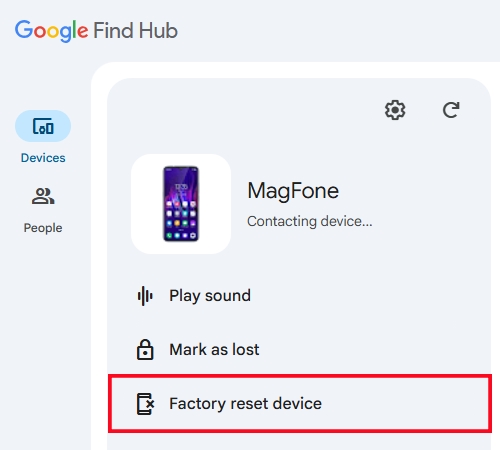
Step 1. Navigate to Google's Find My and sign in with your Google account.
Step 2. Select your locked Pixel from the device list and choose Factory reset device.
Step 3. Click Next and enter your Google account credentials.
Step 4. Click Reset to confirm the action of resetting the device.
Limitations:
This removes the lock screen like PIN, pattern, or password but also deletes all local data. Afterward, you need to enter your Google account credentials to bypass FRP lock.
Method 4. Unlock Google Pixel Phone via Update and Software Repair
When nothing else works, an online platform from Google Pixel called Update and Software Repair maybe helpful for you. With Google Pixel Update and Software Repair, you can reinstall the software on your Pixel phone, which will erase all the settings and data on the device. Then you can access the device without PIN or password.
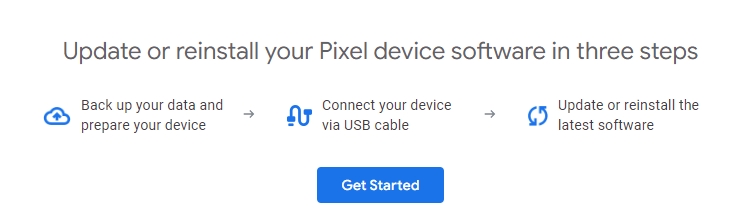
Step 1. Go to Google Pixel Update and Software Repair.
Step 2. Click Get Started, then turn off your device and click Next.
Step 3. Press and hold the power and volume down buttons until Fastboot Mode displays.
Step 4. Use the power and volume down buttons to choose Rescue Mode.
Step 5. Connect your Google Pixel phone via a USB cable.
Step 6. Go back to the website and click Connect device.
Step 7. Click Factory reset to reinstall the software on the device.
Part 4. Conclusion
Being locked out of your phone can feel overwhelming, but there are several ways to unlock a Google Pixel phone without a password. Some methods protect your data, others trade data for access. By choosing the method that fits your scenario, you can unlock your device safely and without falling for misleading promises. If you simply need quick access back to the device, third-party unlocking tools like MagFone Android Unlocker are the most reliable options.

Dylan Jones
Editor in chief





