








Locked out of your own digital life? It's a sinking feeling when that familiar pattern or PIN suddenly slips your mind. While the internet is flooded with rumors of a "master code," finding a legitimate universal unlock PIN or pattern for Android can feel like searching for a myth. This guide cuts through the noise, offering authentic, secure strategies to regain access to your device while prioritizing the safety of your precious photos and contacts.
- Part 1. Universal Unlock PIN/Pattern for Android Without Losing Data
- Part 2. Can I Still Use Universal Unlock PIN/Pattern for Android?
- Part 3. Universal Screen Lock Unlock Options for Android
- Option 1. Unlock PIN/Pattern for Android via MagFone Android Unlocker
- Option 2. Unlock PIN/Pattern for Android with Find My Mobile
- Option 3. Unlock PIN/Pattern for Android Through Forgot Pattern
- Option 4. Unlock PIN/Pattern for Android with a Backup PIN
- Option 5. Unlock PIN/Pattern for Android in Safe Mode
- Part 4. Conclusion
Part 1. Universal Unlock PIN/Pattern for Android Without Losing Data
Many people believe there is a universal unlock pin for Android free or a universal unlock pattern for Android that works on all devices. Below are some common guesses.
01Universal Unlock PIN for Android Without Losing Data
What is a universal unlock PIN? In some forums or videos, people claim there is a universal code or PIN that can unlock many different Android phones without losing data, such as "* # * # 7780 # * # *" and "* # * # 4636 # * # *." They claim entering these codes via emergency call can unlock devices.
02Universal Unlock Pattern for Android Without Losing Data
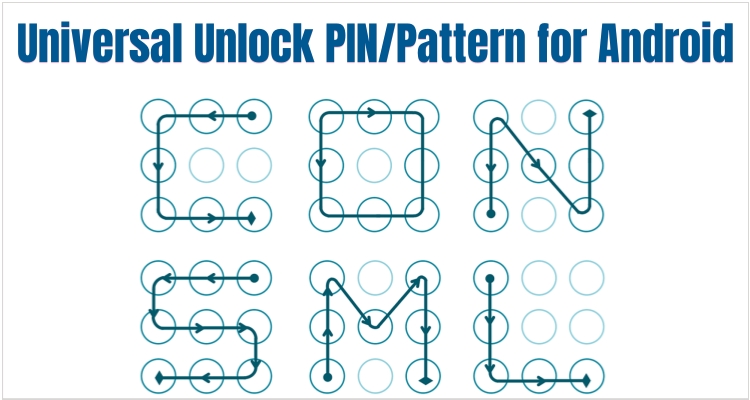
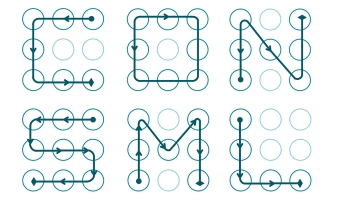
Unlike the unlock PIN, many Android users may choose similar unlock patterns. If you've forgotten yours, it might help to look at some of the most commonly used patterns, because seeing them could jog your memory. Here are a few popular ones people often use.
Easy Universal Unlock Patterns:
Stronger Universal Unlock Patterns:

Part 2. Can I Still Use a Universal Unlock PIN/Pattern for Android?
No. Although many users search for a free universal unlock PIN or pattern, modern Android security (version 5.0 and above) has eliminated so-called "master codes" to prevent unauthorized access. Today, there is no single code that works across all devices.
Instead, there are other "universal" unlock options, including authorized recovery methods or professional unlocking tools. These approaches are designed to protect your data and privacy while still helping you regain access safely when credentials are forgotten. Read on to find more details.
Part 3. Universal Screen Lock Unlock Options for Android
When no universal unlock pin for Android works, these practical and secure alternatives can help you regain access without losing data.
01Unlock PIN/Pattern for Android via MagFone Android Unlocker
MagFone Android Unlocker is a powerful solution for bypassing screen locks without hassle. It helps remove PIN, pattern, password, fingerprint, and face lock from Android devices. The software supports various brands, including Samsung, Xiaomi, Huawei, and more. It is designed for users who need a reliable unlocking method without complicated procedures. Here's how to use MagFone Android Unlocker to unlock PIN or pattern on Android phones.

MagFone Android Unlocker
Remove multiple kinds of screen locks on over 5000 Android devices and delete Google FRP lock without a password.
Step 1 Choose Remove Screen Lock
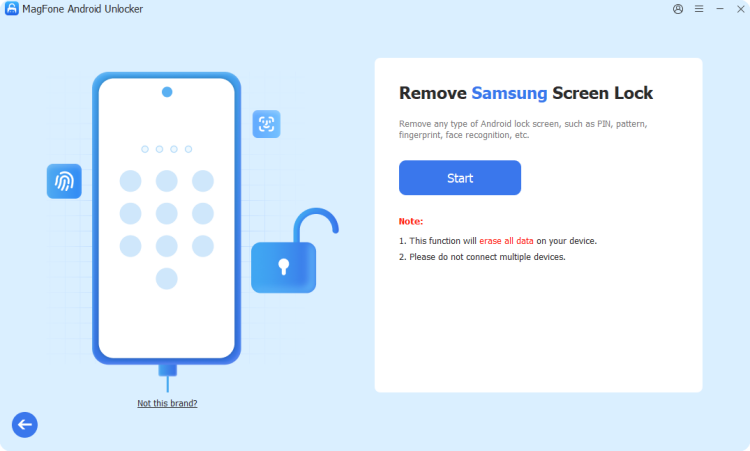
Set up MagFone Android Unlocker on your computer, launch it, and link your Android phone to the computer with a USB connection. Once the software recognizes your device, select the option to remove the screen lock and proceed by clicking the continue button displayed on the interface.
Step 2 Force Phone into Recovery Mode
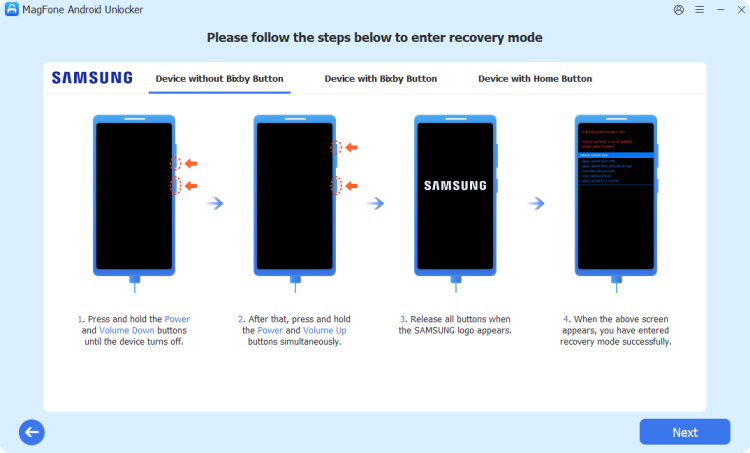
Follow the instructions on the program to switch your device into recovery mode. The key combination varies depending on your phone model, so carefully press the required buttons. After successfully entering recovery mode, confirm your action and continue to the next step for further processing.
Step 3 Bypass PIN or Pattern on Android

Continue with the on-screen prompts to initiate the unlocking process. The tool will begin removing the lock from your device. Ensure your phone stays connected throughout the procedure. Once completed, your device will restart, and you will regain access without needing a PIN or pattern.
02Unlock PIN/Pattern for Android with Find My Mobile
For Samsung owners, the "Find My Mobile" suite is a lifesaver. This web-based portal allows you to manage your device's security remotely. If you enabled "Remote Unlock" in your settings previously, you can wipe the lock screen clean from any web browser.
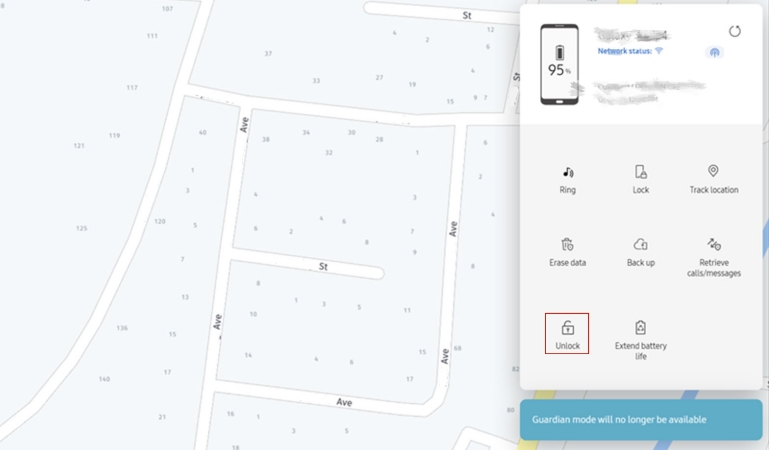
Step 1. Access the official Samsung Find My Mobile website on a computer.
Step 2. Sign in using the credentials of the account linked to the locked phone.
Step 3. Choose the Unlock icon from the remote command menu.
Step 4. Re-enter your password to verify your identity, and the phone will unlock instantly.
03Unlock PIN/Pattern for Android Through Forgot Pattern
Older Android versions include a "Forgot Pattern" feature that allows users to unlock their device using a Google account. This is one of the simplest ways to recover access without losing stored data.
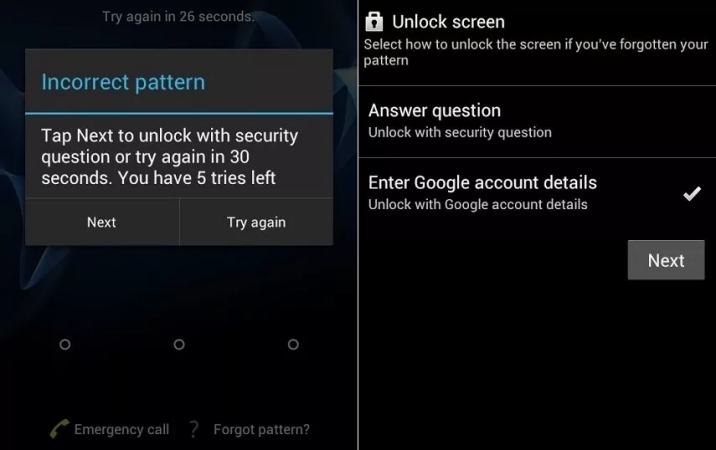
Step 1. Enter an incorrect pattern multiple times until the option appears.
Step 2. Then tap on the Forgot Pattern option displayed on the screen.
Step 3. Choose to log in using your Google account credentials.
Step 4. Provide the email and password linked to your Android device.
Step 5. After verification, create a new lock and access your phone again.
04Unlock PIN/Pattern for Android with a Backup PIN
Some Android devices require setting a backup PIN when creating a pattern lock. This feature acts as a secondary method to unlock the device when the primary pattern is forgotten.
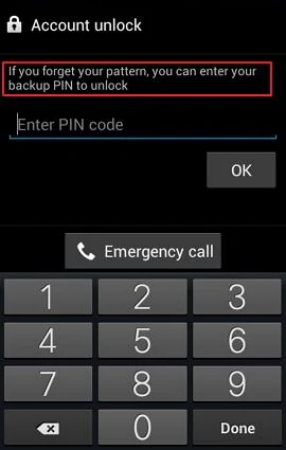
Step 1. Try unlocking the phone with incorrect patterns several times.
Step 2. Wait until the backup PIN option appears on the screen.
Step 3. Tap the backup PIN option to proceed. Then enter the PIN you created earlier during setup.
Step 4. Once verified, your phone will unlock successfully without data loss.
05Unlock PIN/Pattern for Android in Safe Mode
Safe Mode allows you to disable third-party lock screen applications temporarily. If your device is locked by an external app rather than the system lock, this method can temporarily disable it and restore access.
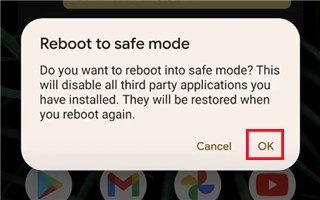
Step 1. Hold the power key until the screen shows power options.
Step 2. Tap and hold the power off option until the Safe Mode prompt shows.
Step 3. Select OK to reboot the device into Safe Mode.
Step 4. Uninstall the third-party lock screen app.
Part 4. Conclusion
While a secret "one-size-fits-all" code doesn't exist for modern devices, you still have several powerful avenues to explore. Whether you use the manufacturer's remote tools, a backup code, or specialized software like MagFone Android Unlocker, regaining access is achievable. Always remember to back up your data regularly moving forward to ensure that a forgotten PIN never becomes a digital disaster again.

Teresa Miller
Editor in chief





