








Many OPPO users may stuck on wiping data in Recovery Mode by asking for a password. This problem may make you stressed and frustrated, especially when you don't know your OPPO wipe data password. But this full guide will explain what the OPPO wipe data password is and how to wipe data in OPPO phone with or without a password successfully.

- Part 1. What Is OPPO Wipe Data Password?
- Part 2. How to Wipe OPPO Phone with Wipe Data Password
- Part 3. How to Wipe OPPO Phone without Wipe Data Password
- Part 4. Conclusion
Part 1. What Is OPPO Wipe Data Password?
When you choose Wipe Data on your OPPO phone through Recovery Mode, you will be asked to input a password before allowing the reset. And this special password is named OPPO wipe data password. An OPPO wipe data password is usually a random code on the interface in Recovery Mode. But it will be your screen lock password, Google password, or OPPO password in certain cases. So why is there an OPPO wipe data password? Reasons may be included below:
- Preventing theft-related data wipes
- Protecting personal information
- Ensuring only the real owner can wipe the data from the device
- Supporting Android’s anti-theft mechanisms
Part 2. How to Wipe OPPO Phone with Wipe Data Password
Wiping data through Recovery Mode is a common and effective method, but you will be asked for a wipe data password. Based on the information of wipe data password, let's go to how to wipe data in Recovery Mode.

Step 1. Put off your OPPO phone completely.
Step 2. Press and hold the Volume Down and Power buttons to enter Recovery Mode.
Step 3. Choose a familiar language, and then select Wipe data.
Step 4. Input the on-screen verification code. In other scenarios, enter your screen lock password, Google password, or OPPO password.
Step 5. Tap Format data > Format to confirm your choice. All data will be removed.
Part 3. How to Wipe OPPO Phone without Wipe Data Password
An OPPO wipe data password is random, but sometimes, you will be requested by another password like the screen lock password or Google password when you wipe data in Recovery Mode. What to do if you forget the wipe data password? Indeed, you can wipe an OPPO phone without a password. A third-party tool or Google Find Hub can help you practically. Methods of wiping an OPPO phone without a wipe data password will be shown below. Learn more detailed solutions.
Method 1. Wipe OPPO Phone via MagFone Android Unlocker
If you want to wipe an OPPO phone without a wipe data password quickly and easily, MagFone Android Unlocker is a helpful choice. With MagFone Android Unlocker, you can remove a wide range of locks, like PIN, pattern, password, or even FRP lock. When you forget your screen lock password or Google password, MagFone Android Unlock can help you perform a factory reset on an OPPO phone without entering the wipe data password. By following the instructions, all data on the OPPO phone will be removed by the MagFone program successfully.

MagFone Android Unlocker
Remove multiple kinds of screen locks on over 5000 Android devices and delete Google FRP lock without a password.
Step 1 Chooee Remove Screen Lock

Launch and install MagFone Android Unlocker on your computer. Connect your OPPO phone to a computer with a USB cable. After entering the software, select Remove Screen Lock. Your OPPO phone will be automatically detected, then click Continue.
Step 2 Go to Recovery Mode

Put your OPPO phone into Recovery Mode by following the on-screen steps. By pressing the corresponding buttons, you will see the Recovery Mode menu. Then click Next when the step is finished and click Continue to confirm.
Step 3 Wipe An OPPO Phone Easily

Go through the following steps to set up your OPPO phone. After finishing the operation, click Next. Wait for a few minutes. MagFone will factory reset your OPPO phone and wipe all data.
Method 2. Wipe OPPO Phone on Google Find Hub Site
Besides using MagFone Android Unlocker, you can also wipe your OPPO phone on the Google Find Hub site. With a networked device, you can remotely erase all data and settings on an OPPO phone that was linked to an Google account and has Find My enabled. Before using the methods, you should ensure that you remember your Google account login.
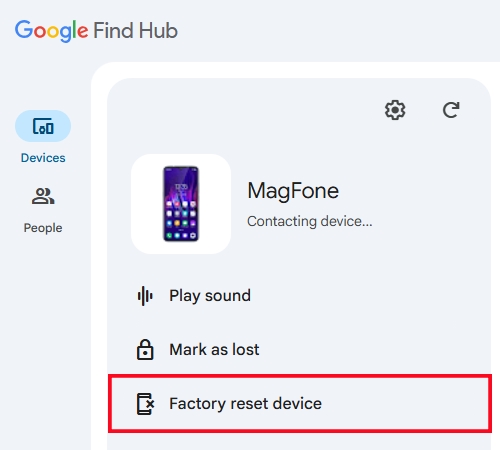
Step 1. Using the same Google account to log in the Find Hub site in a browser.
Step 2. Choose the OPPO phone that needs to wipe all data.
Step 3. Click Factory reset device > Next > Reset. Then, the data will be wiped.
Method 3. Wipe OPPO Phone via Google Find Hub App
If you have another Android device with the Find Hub app installed, you can also remotely wipe your OPPO phone in the app. As this method uses the Google Find My network, you should log into your Google account on your OPPO phone and enable Find My before. Then you use the Find Hub app to wipe your OPPO phone with your Google account credentials.
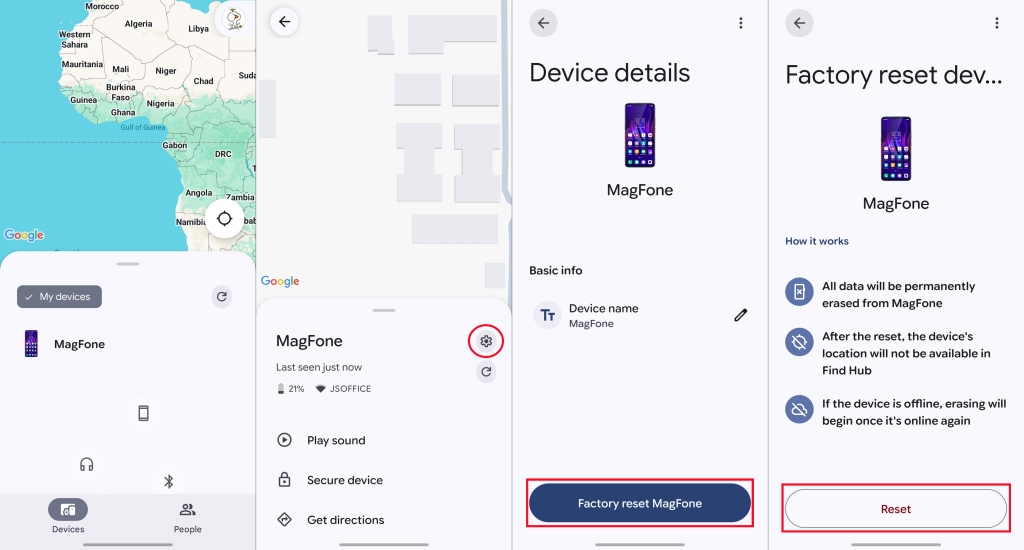
Step 1. Input your Google account and password to enter the Find Hub app.
Step 2. Choose your OPPO phone from Devices.
Step 3. Tap Factory reset device in the Settings menu.
Step 4. Select Reset to confirm.
Part 4. Conclusion
When you wipe data on your OPPO phone in Recovery Mode, you will be asked for a wipe data password. The OPPO wipe data password is a random four-digit code. However, it is not ruled out that other passwords may be required, like screen lock password, Google password, or OPPO password. It is easy and quick to wipe an OPPO phone with an on-screen wipe data password in Recovery Mode. But if you need to input other passwords but forget them, you can choose to use MagFone Android Unlocker and Google Find Hub to wipe data. Wiping an OPPO phone without wipe data password, MagFone Android Unlocker is the best option.

Dylan Jones
Editor in chief





