








BLU phones are popular in many regions for its simplicity and budget-friendly features. These devices commonly come with multiple security and network restrictions. The three main locks are screen lock (PIN, pattern, or password), Google FRP (Factory Reset Protection), and carrier lock. If you are looking to unlock any of these, you are in the right place. Follow each section below to find the solution you need and learn how to unlock a BLU phone step by step.
- Part 1. How to Unlock BLU Phone Screen Lock
- Part 2. How to Unlock BLU Phone Google FRP Lock
- Part 3. How to Unlock a BLU Phone for Any Carrier
- Part 4. FAQs about Unlocking a BLU Phone
- Part 5. Conclusion
Part 1. How to Unlock BLU Phone Screen Lock
A screen lock on a BLU phone protects your personal data using PIN, pattern, or password authentication. BLU devices support different lock types that prevent unauthorized access. When you forget these credentials, the system blocks entry until verification is completed. Below are methods to regain access safely and effectively.
Method 1. Unlock BLU Phone Screen Lock via MagFone Android Unlocker
MagFone Android Unlocker is a professional tool designed to bypass PIN, pattern, and password locks when you cannot access your BLU phone. It works by connecting your device to a computer and removing screen security through recovery-based processes. With only a few steps, you can unlock your BLU device and regain full access without needing the original password. Here's how to bypass the BLU screen lock with MagFone Android Unlocker.

MagFone Android Unlocker
Remove multiple kinds of screen locks on over 5000 Android devices and delete Google FRP lock without a password.
Step 1 Choose Remove Screen Lock
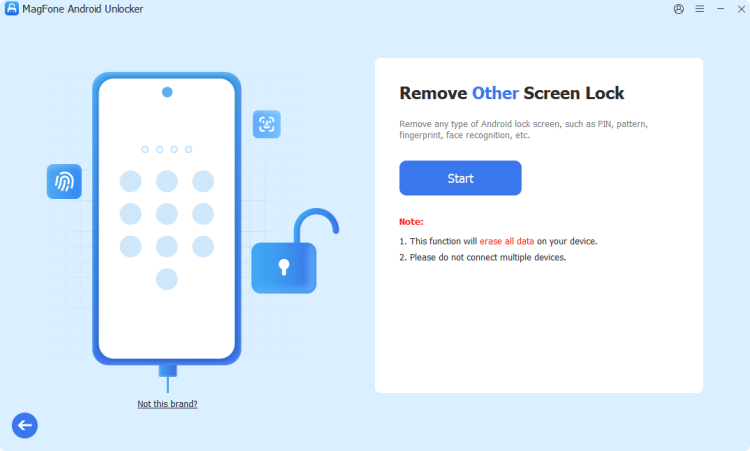
Install MagFone Android Unlocker on your computer and launch the program. Connect your BLU phone using a USB cable. From the main interface, select Remove Screen Lock. Select Other and click Continue to proceed with the unlocking setup.
Step 2 Start to Remove the Screen Lock

Follow the on-screen instructions to enter recovery mode on your BLU phone. Once in recovery mode, click Next, then confirm with Continue. Keep the device connected while the tool removes the screen lock and completes the unlocking process.
Method 2. Unlock BLU Phone Screen Lock in Recovery Mode
Recovery Mode is a built-in Android feature that allows you to reset your BLU phone when you are locked out. By performing a factory reset through this mode, you can remove the screen lock without needing the password. This method is especially useful when other options fail or the device is unresponsive.
Step 1. Power off your BLU phone completely before starting the process.
Step 2. Press and hold the Power and Volume Up buttons together until Recovery Mode appears.
Step 3. Use the volume buttons to navigate to Wipe Data/Factory Reset.
Step 4. Press the Power button to confirm your selection.
Step 5. Choose Factory Data Reset and wait for the process to complete.
Step 6. Select Reboot System Now to restart your device.
Step 7. After rebooting, set up your phone from the beginning.
Notes:
(1) This method erases all data on the device.
(2) FRP lock will be triggered after reset.
(3) Requires functional hardware buttons to access recovery mode.
Part 2. How to Unlock BLU Phone Google FRP Lock
Google FRP lock is a security feature on BLU phones that activates after a factory reset. It requires the previously synced Google account to verify ownership. This prevents unauthorized access if the device is reset without permission. If you can't remember the Google account password, you can factory reset your BLU phone on the Google Find Hub page.
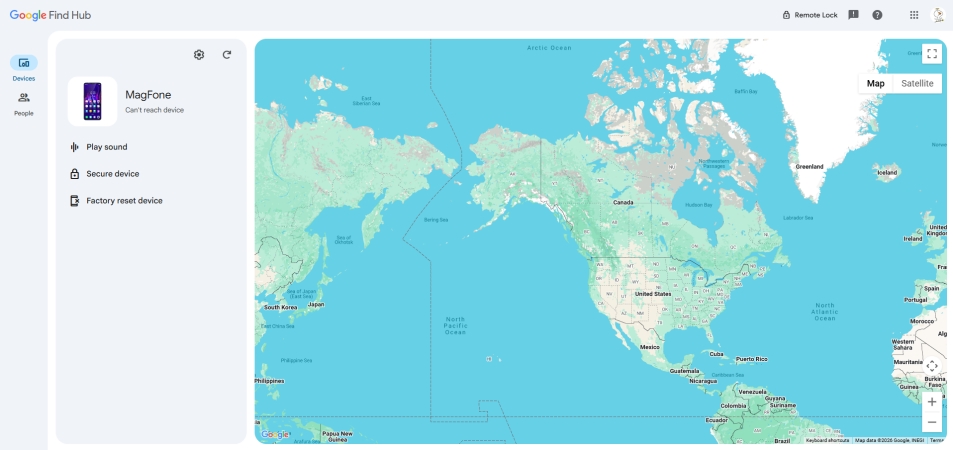
Step 1. Open the Google Find My Device website on another device.
Step 2. Select your locked BLU device from the available list.
Step 3. Choose the Factory reset device option and tap Next to confirm.
Notes:
(1) Need to sign in using the same Google account linked to your BLU phone.
(2) Requires the BLU phone to be powered on and connected to the internet.
(3) Cannot unlock if the device is offline or in airplane mode.
Part 3. How to Unlock a BLU Phone for Any Carrier
Carrier lock restricts a BLU phone to a specific network provider. This means the device only works with approved SIM cards. Once locked, inserting another carrier's SIM will not provide service. However, there are still two possible ways to remove this carrier restriction.
Method 1. Unlock a BLU Phone Carrier Remotely Using doctorSIM
DoctorSIM is an online unlocking service that provides remote carrier unlock codes for supported devices, including BLU phones. It works by submitting your device details such as IMEI, then generating an official unlock code. Once succeed, the phone becomes free from carrier restrictions.
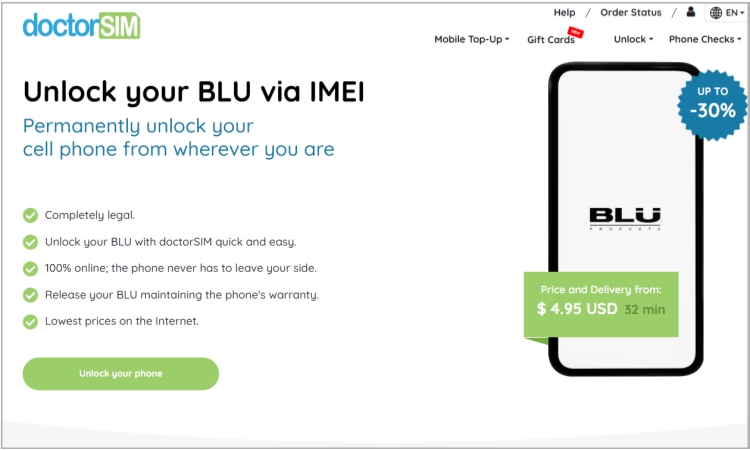
Step 1. Visit the DoctorSIM website and select BLU phone unlock service.
Step 2. Click Unlock your phone > Unlock your BLU to enter your origianl carrier here.
Step 3. Continue to finish the requirements and payment and submit the unlock request.
Step 4. Receive your unlock code via email. Follow the instructions to finish the rest steps.
Notes:
(1) Service may take time depending on carrier approval.
(2) Requires payment for most BLU unlock services.
(3) Not all provider and carrier are supported.
Method 2. Unlock a BLU Phone Carrier Through Customer Support
You can also request carrier unlocking directly from your mobile network provider. Customer support can check your account eligibility and provide an unlock code if requirements are met. This is often the most official and secure method for removing carrier restrictions on a BLU phone.
Notes:
(1) Must meet carrier eligibility requirements.
(2) May require contract completion or full device payment.
(3) Processing time and success rate can vary depending on provider policies.
Part 4. FAQs about Unlocking a BLU Phone
How to unlock a BLU Phone for free?
You can try free methods like Google account recovery or Find My Device. However, it will erasing everything on your BLU phone.
How to unlock BLU phone without losing data?
The only way is using the correct PIN, password, or Google account credentials. Most reset-based methods, including recovery mode or Find My Device, erase data.
Can I use a BLU phone unlocked with TracFone?
Yes, once a BLU phone is carrier-unlocked, it can generally be used with other compatible networks, including TracFone-supported SIM cards. It's noted that the compatibility still depends on network bands and device model support.
Part 5. Conclusion
Unlocking a BLU Products phone involves different approaches depending on the type of lock involved. Screen locks can be removed using tools or Google services, while FRP locks require account verification or reset methods. Carrier locks often need official unlocking through services or providers.

Dylan Jones
Editor in chief




