








Stuck with a Boost Mobile phone that refuses to accept any other SIM card? You're not alone. Whether you're switching carriers, heading abroad, or simply want more freedom with your device, unlocking it opens up a world of options. This guide breaks down every practical route, official and otherwise, so you can pick what fits your situation. Let's check how to unlock Boost Mobile phone.
- Part 1. Requirements to Unlock Boost Mobile Phone
- Part 2. How to Unlock a Phone for Boost Mobile Carrier
- Part 3. How to Check If Boost Mobile Phone Is Unlocked
- Part 4. Bonus Tip: How to Bypass Android Screen Lock
- Part 5. Conclusion
Part 1. Requirements to Unlock Boost Mobile Phone
Before diving in, it helps to know that not every unlocking route works the same way. Some methods rely on Boost Mobile's own approval process, while others let you take matters into your own hands. Here's a quick breakdown of what each approach demands.
| Method | Requirements |
|---|---|
| Boost Mobile Customer Support | Active account in good standing Device active 12+ months No unpaid balance or reported lost/stolen |
| My Boost App | Signed-in account |
| Unlock Codes | Models Supporting Manual Code Entry Valid unlock code from Boost |
| Online/Third-Party Services | Device IMEI number Service fee Phone not blacklisted |
Part 2. How to Unlock a Phone for Boost Mobile Carrier
There's more than one way to free your device from Boost's network, and the right choice depends on your eligibility, patience, and budget. Below are four practical methods, ranging from official carrier support to independent unlocking tools.
Method 1. Unlock Boost Mobile Phone with Customer Support
Going straight to Boost Mobile is usually the safest bet if your account checks the right boxes. This method costs nothing when you qualify, and the carrier handles the technical side for you—no guesswork involved.
Step 1. Dial 1-888-266-7848 to reach Boost Mobile's customer care line.
Step 2. Tell the representative you'd like to unlock your device.
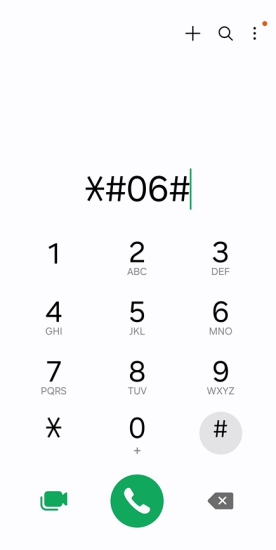
Step 3. Share your account number, phone number, and device IMEI for verification. (Dial *#06# to view your IMEI number)
Step 4. Allow the agent to confirm your account meets the unlock criteria.
Step 5. Wait for approval, which typically arrives within one to two business days.
Step 6. Insert a SIM card from another network to confirm the unlock worked.
 Pros
Pros- Completely free of charge
- Handled directly by the carrier
- No technical skills needed

- Strict eligibility rules apply
- Can take a couple of days
- Older devices sometimes excluded
Method 2. Unlock Boost Mobile Phone via My Boost App
For those who'd rather avoid a phone call, the My Boost app offers a more hands-off way to request an unlock. It's not available on every device, but when it works, it's fast and doesn't require speaking to anyone.
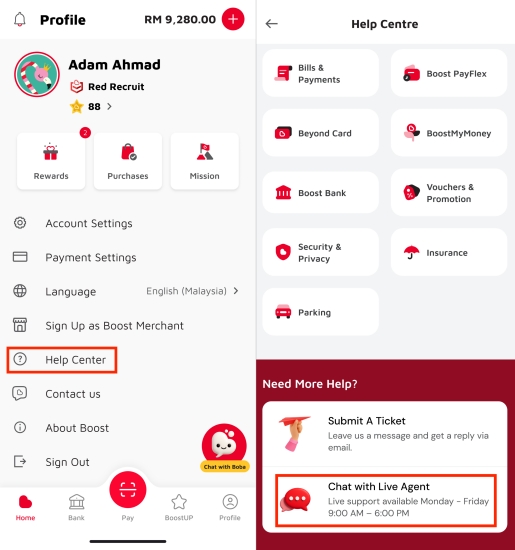
Step 1. Open the My Boost or Boost One app and sign in.
Step 2. Navigate to the Help Center section on the profile page.
Step 3. Ask the virtual agent to process a SIM or carrier unlock.
Step 4. Provide any account details requested for identity verification.
Step 5. Wait for the app to confirm your device has been unlocked.
Pros- No phone call required
- Fast when device is supported
- Easy to track progress
- Not all phones support it
- App bugs can interrupt process
- Still needs account eligibility
Method 3. Unlock Boost Mobile Phone Using Unlock Codes
Older devices from brands like Samsung, LG, and Motorola often accept a manual unlock code instead of a remote server unlock. This method puts you in control, provided you can get your hands on a valid code.
Step 1. Obtain an unlock code from Boost, the manufacturer, or a trusted provider.
Step 2. Switch off the phone, then insert a SIM card from a different carrier.
Step 3. Turn the phone back on and wait for the unlock prompt to appear.
Step 4. Type in the unlock code exactly as provided and let the device search for the new network.
Pros- Works without contacting support
- Good for older device models
- Unlock is permanent once done
- Limited attempts before lockout
- Not all phones accept codes
- Sourcing a valid code takes effort
Method 4. Unlock Boost Mobile Phone Through Online Services
If your device isn't eligible through Boost, or you simply don't want to wait, independent IMEI unlocking services can step in. These providers work directly with your phone's IMEI number to lift the carrier restriction remotely.
Step 1. Choose a reputable IMEI unlocking provider and visit their site.
Step 2. Enter the device brand, model name, and IMEI.
Step 3. Select Boost Mobile as the current carrier.
Step 4. Pay the service fee, usually a modest one-time charge.
Step 5. Wait for either a remote unlock confirmation or a manual code by email.
Step 6. Apply the code or restart the phone with a new SIM inserted.
Pros- Works even without Boost approval
- Often faster than carrier requests
- Handles secondhand devices too
- Requires a paid fee
- Quality varies between providers
- Risk of unreliable services
Part 3. How to Check If Boost Mobile Phone Is Unlocked
Once you've gone through an unlocking method, it's worth confirming the change actually took effect. Your phone's settings menu can usually tell you the answer without needing a second SIM card at all, and the exact steps differ slightly between iPhone and Android.
For iPhones
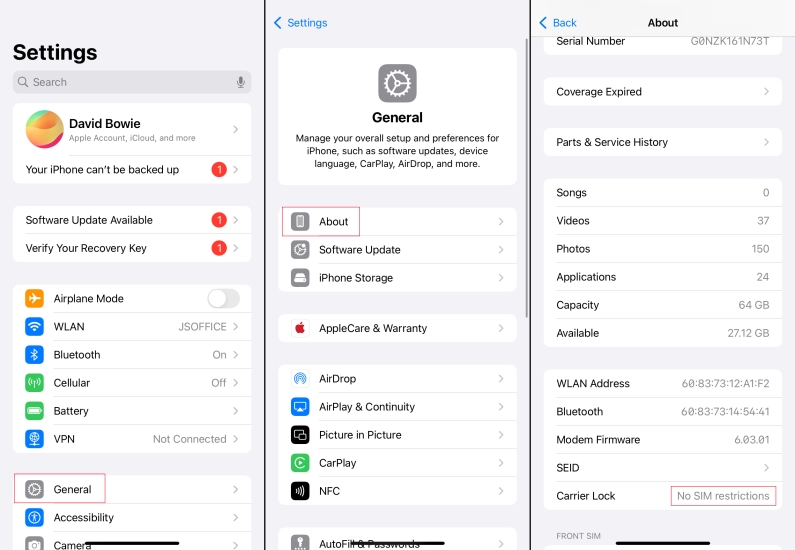
Step 1. Open the Settings app from your device's main screen.
Step 2. Tap General, then scroll to About.
Step 3. Look for a line labeled Carrier Lock (sometimes shown as Network Provider Lock).
Step 4. Read what it says:
If it reads "No SIM restrictions," your device is free to use with other carriers.
If it names a specific network instead, your phone is still tied to that carrier.
For Android Phones
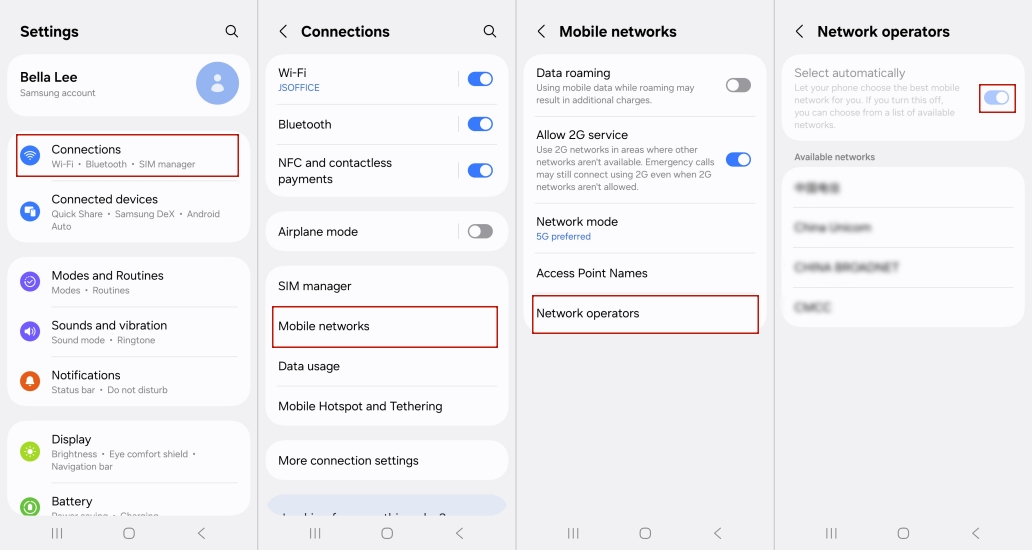
Step 1. Open your device's Settings app.
Step 2. Head into the Network & Internet or Connections menu, depending on your phone's manufacturer.
Step 3. Tap into SIM Status or Mobile Networks.
Step 4. Turn OFF Select automatically (this toggle is usually on by default). Then the phone will search and show a list of available carrier networks.
Part 4. Bonus Tip: How to Bypass Android Screen Lock
Locked out of your Android phone after forgetting the PIN, pattern, or password? A dedicated recovery tool can help you regain access in just a few simple steps. MagFone Android Unlocker works smoothly on both macOS and Windows and supports a wide range of Android brands and models. The process is straightforward, making it a convenient option for users who need to remove a screen lock and access their device again. Here's how to.

MagFone Android Unlocker
Remove multiple kinds of screen locks on over 5000 Android devices and delete Google FRP lock without a password.
Step 1 Select the Unlock Option
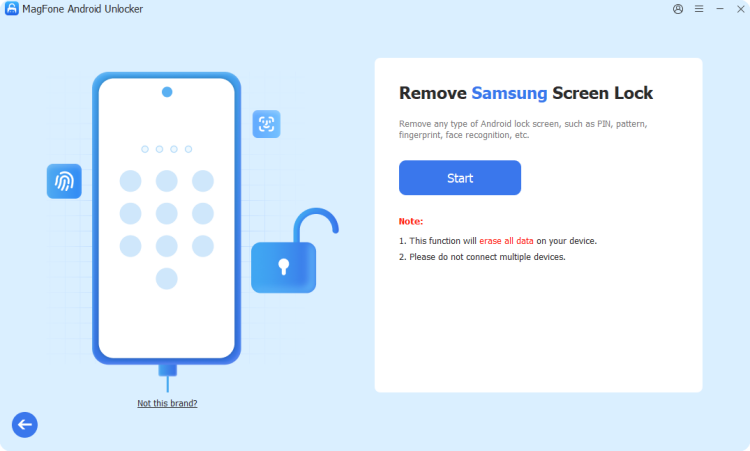
Install MagFone Android Unlocker on your desktop, open the program, and plug your Android device in with a USB cable. Select the screen lock removal option from the main menu, then wait while the software detects your phone, then hit Continue.
Step 2 Enter Recovery Mode
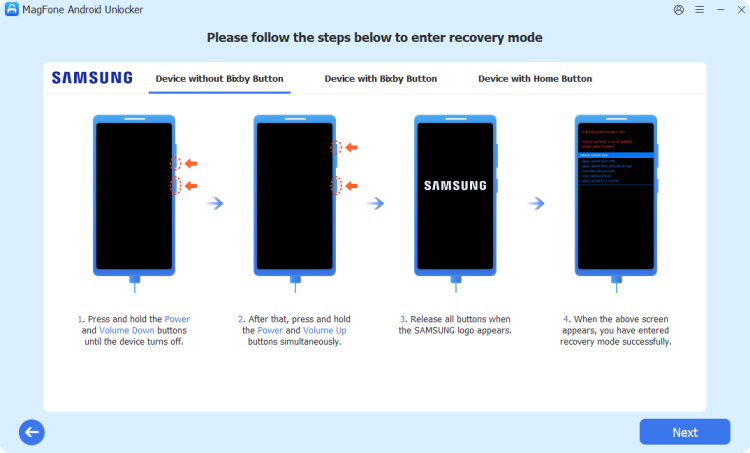
Once the unlocking sequence begins, the program walks you through placing your phone into recovery mode. The exact button combination varies by manufacturer, so follow the prompts carefully. After the device shows the recovery screen, click Next, then Continue to proceed.
Step 3 Finish Clearing the Lock
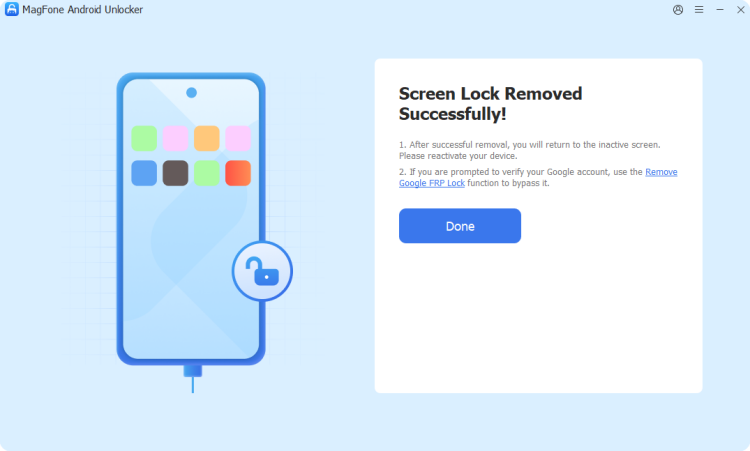
Follow the remaining on-screen guidance to strip away the existing screen lock. Once finished, return to the software and select Next. Keep your phone plugged in throughout so the process can complete without interruption.
Part 5. Conclusion
Unlocking a Boost Mobile phone doesn't have to be complicated. Whether you go through official customer support, the My Boost app, manual unlock codes, or a trusted third-party service, there's a path that fits nearly every situation. Once unlocked, don't forget to verify it worked—and if you ever get locked out of your Android device entirely, tools like MagFone Android Unlocker offer a quick way back in.

Dylan Jones
Editor in chief





