








A PIN lock is a common Android security option that protects your phone with a numeric code. Unlike patterns or passwords, PINs typically contain 4 to 16 digits, depending on device settings, and may include repeated or sequential numbers. Forgetting your PIN can lock you out, but the good news is that you're not stuck. In this guide, we'll walk you through how to unlock Android phone if forgot PIN in six reliable ways.
- Part 1. 6 Ways to Unlock Android Phone PIN If Forgotten
- Part 2. Quickest Way to Unlock Android Phone PINHOT
- Part 3. How to Unlock Android Phone If Forgot PIN for Free
- Part 4. Conclusion
Part 1. 6 Ways to Unlock Android Phone PIN If Forgotten
If you've forgotten your Android PIN and aren't sure how to get past the lock screen, don't panic. Below are five tested approaches, ranging from a dedicated unlocking tool to free built-in Android features. Take a look at the comparison table to figure out which option best fits your situation, your phone model, and how much time you're willing to spend.
| Method | Supported OS | Password Required | Time Required |
|---|---|---|---|
| MagFone Android Unlocker | Android 5–15 | No | 5–10 minutes |
| Google Find Hub (Find My Device) | Android 5.0+ | Google account login | 5–15 minutes |
| SmartThings Find | Android 8.0+ (Samsung only) | Samsung account login | 5–15 minutes |
| Recovery Mode | Android 4.0+ | No | 10–20 minutes |
| Smart Lock | Android 5.0+ (if pre-configured) | No | Instant (conditional) |
| Forgot PIN Option | One UI 6.1 or later | Google account login | 5–10 minutes |
Part 2. Quickest Way to Unlock Android Phone PIN
When you need to get back into your phone in the shortest time possible, a dedicated unlocking tool is generally your best bet. MagFone Android Unlocker is a widely used desktop program built to strip away PIN, pattern, and password locks, along with FRP restrictions, on a broad range of Android devices without needing any technical background from you. Here's how to bypass Android PIN using this program when you forget it.

MagFone Android Unlocker
Remove multiple kinds of screen locks on over 5000 Android devices and delete Google FRP lock without a password.
Step 1 Choose the Unlock Screen Function
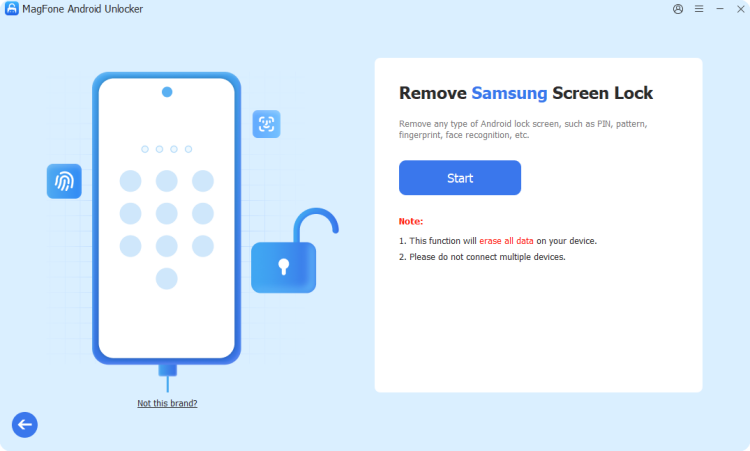
Install MagFone Android Unlocker on your computer and launch it, then connect your phone using a USB cable. On the main interface, pick the screen-unlock tool, select your device's brand from the list, and click Continue to begin.
Step 2 Boot Your Phone into Recovery Mode
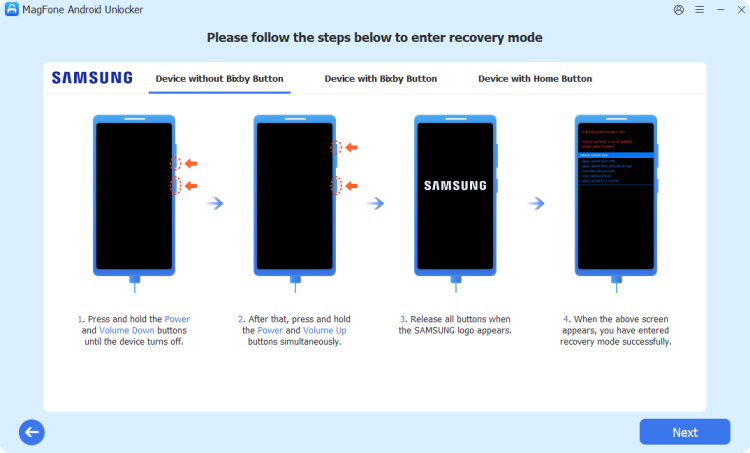
Once your brand is selected, click Start. A pop-up will warn you that data may be lost — confirm by clicking Continue. Follow the on-screen prompts to switch your device into Recovery Mode using the button combination shown.
Step 3 Bypass the Android Screen PIN
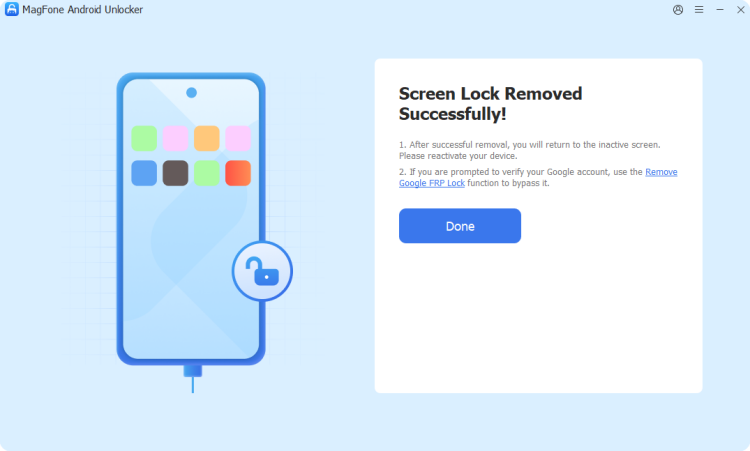
Follow the screen instructions to set up your phone continually, and then click Next to wait for the software to remove the screen lock on your Samsung phone. After the process, the screen lock will be removed successfully.
Part 3. How to Unlock Android Phone If Forgot PIN for Free
If you'd rather not install any third-party software, Android and its manufacturers offer several no-cost ways to regain access. The methods below rely on built-in Google or Samsung services, physical recovery options, or settings you may have already turned on.
Method 1. Unlock an Android Phone PIN with Google Find Hub
Google's Find Hub (previously known as Find My Device) is designed to help you locate a missing phone, but it can also wipe a device remotely and clear the lock screen in the process. It works from any browser as long as your phone was signed into a Google account and had location tracking enabled.
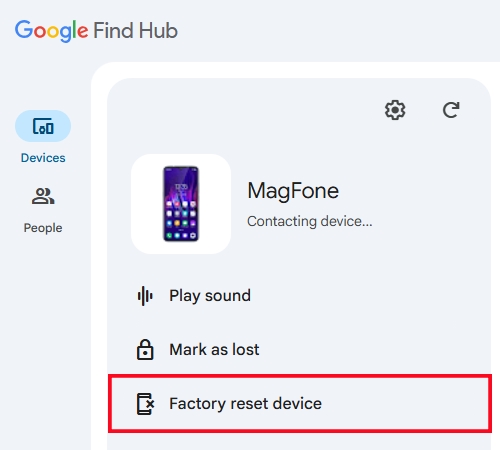
Step 1. Open the Find Hub website on another device and sign in using the same Google account linked to your locked phone.
Step 2. From the list of devices, select the phone you need to unlock.
Step 3. Choose the Factory reset device option and confirm. This clears the PIN along with all data stored on the phone.
Method 2. Unlock an Android Phone PIN with SmartThings Find
Samsung owners have access to SmartThings Find, a browser-based tool tied to their Samsung account. While the ability to remotely unlock without erasing data has been discontinued, you can still use the service to wipe the device and remove the forgotten PIN entirely.
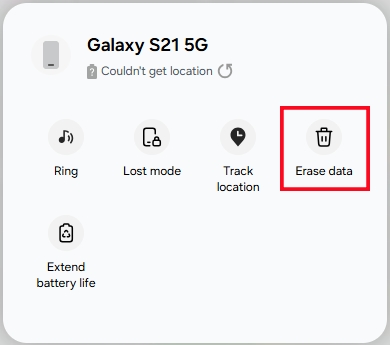
Step 1. Go to the SmartThings Find website and log in with the Samsung account registered on the locked phone.
Step 2. Select your locked device from the device list shown.
Step 3. Choose the Erase Data option, verify your identity when prompted, and confirm the erase to remove the PIN lock.
Method 3. Unlock an Android Phone PIN Using Recovery Mode
Recovery Mode is a built-in maintenance menu present on nearly all Android devices, accessible through a combination of physical buttons. It's a solid fallback for phones without an active Google account, though it does erase your data as part of the process.
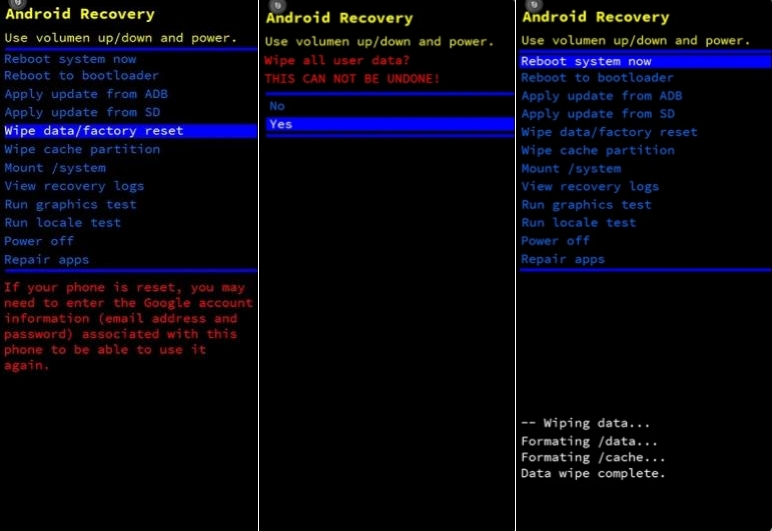
Step 1. Power off the phone completely, then hold the appropriate button combination (typically Power plus Volume Up or Volume Down) to boot into the Android Recovery menu.
Step 2. Use the volume buttons to navigate to Wipe Data/Factory Reset and confirm with the Power button.
Step 3. Once finished, select Reboot System Now and wait for the phone to restart without the old PIN in place.
Method 4. Unlock an Android Phone PIN Through Smart Lock
Smart Lock is a convenience feature that keeps your phone unlocked automatically under certain trusted conditions, such as being at home or connected to a paired Bluetooth device. If you had it configured before getting locked out, it might let you back in without entering anything at all.
Step 1. Bring your phone to the trusted location or near the trusted device you configured earlier, such as your home Wi-Fi network or a paired smartwatch.
Step 2. Wait for the lock screen to detect the trusted condition; the phone should unlock on its own without asking for the PIN.
Method 5. Unlock an Android Phone PIN via Forgot PIN
If you recently changed your screen lock on a Samsung Galaxy phone running One UI 6.1 or later, you may be able to use your previous lock to regain access. The Reset with previous screen lock feature keeps your data intact and is available for up to 72 hours after changing your PIN, password, or pattern.
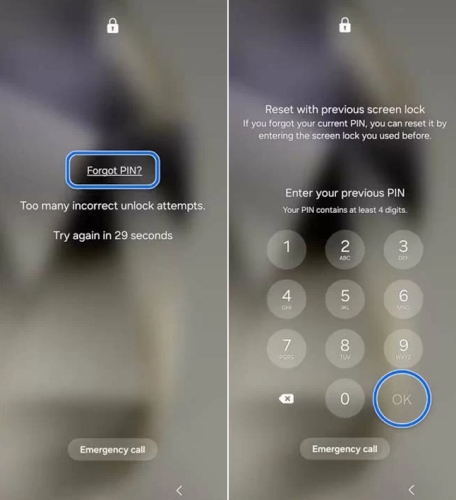
Step 1. Enter an incorrect lock five times on the lock screen. Then tap Forgot PIN?
Step 2. On the Reset with previous screen lock page, enter your previous PIN, password, or pattern.
Step 3. Enter the new PIN, password, or pattern again to confirm it. Then tap OK to finish.
Part 4. Conclusion
Forgetting your Android PIN doesn't have to mean losing access to your phone for good. Whether you choose a fast tool like MagFone Android Unlocker or a free built-in option like Find Hub, Recovery Mode, or Smart Lock, there's a solution suited to your device and situation. Pick the method that matches your priorities, and you'll be back in your phone in no time.

Dylan Jones
Editor in chief





