








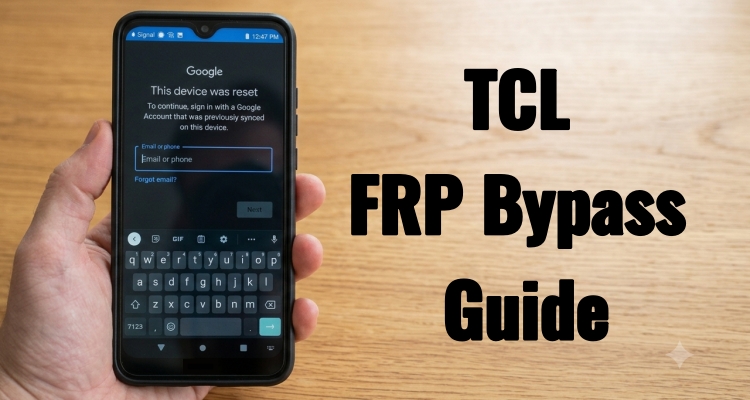
Encountering an FRP lock on your TCL phone? That Google verification screen can feel like an impossible barrier standing between you and your device. The good news is that some TCL FRP bypass methods can help you regain access when you're locked out. This guide walks you through five tested solutions, including options that require only your phone and others that use a computer, helping you unlock your TCL device without any hassle.
- Part 1. Quick Overview: Five Ways to Bypass TCL FRP
- Part 2. How to Bypass FRP Lock on TCL Phone Without PC
- Part 3. How to Bypass FRP Lock on TCL Phone with PC
- Part 4. Bonus Tip: How to Bypass FRP on Other Brands
- Part 5. FAQs about TCL FRP Bypass
- Part 6. Conclusion
Part 1. Quick Overview: Five Ways to Bypass TCL FRP
Not every method suits every situation. Some rely on remembering old login details, others exploit built-in accessibility tools, and one uses dedicated software. Before diving into the full instructions, here's a side-by-side look at how the five approaches stack up.
| Method | Password Required | PC Required | Time Needed | Best For |
|---|---|---|---|---|
| Reset Google Password | It Depends | No | About 5 min | Owners who still remember Google account password, or have recovery email/phone access |
| Smart Lock | No | No | About 10 min | Devices previously linked to a trusted Wi-Fi/Bluetooth |
| Carrier Unlock | No (proof of purchase) | No | 1 to 7 days | Carrier-branded TCL phones bought on installment |
| TalkBack Unlock | No | No | About 30 min | Users comfortable with accessibility menu navigation |
| TCL FRP Bypass Tool | No | Yes | About 15 min | Technically confident users with a computer |
Part 2. How to Bypass FRP Lock on TCL Phone Without PC
If you don't have access to a computer, three of the five methods below can be completed directly on your phone or with assistance from your mobile carrier. Each relies on a different loophole or official channel, so try them in order based on what information you still have access to.
Method 1. Reset Your Google Account Password
If you once linked a recovery email or phone number to the Google account on your TCL device, this is the safest and most official route. Recovering the account removes the FRP restriction naturally, without touching any system files or risking your warranty.
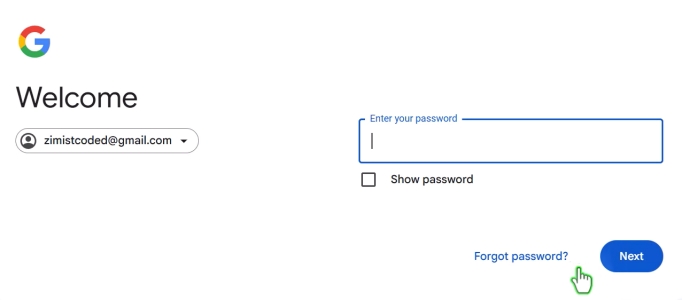
Step 1. On any browser, go to the Google Account Sign In page.
Step 2. Enter the email address associated with your locked TCL phone, then tap Forgot password.
Step 3. Verify your identity using your recovery phone number or email.
Step 4. After your password is reset, you can sign back into your TCL phone using the updated password to complete setup.
Method 2. Bypass TCL FRP Using Smart Lock
Smart Lock is a convenience feature that keeps a device unlocked in "trusted" conditions, like a familiar Wi-Fi network or paired Bluetooth accessory. If this was active before your reset, the phone may skip the Google verification step once it senses that trusted environment again.
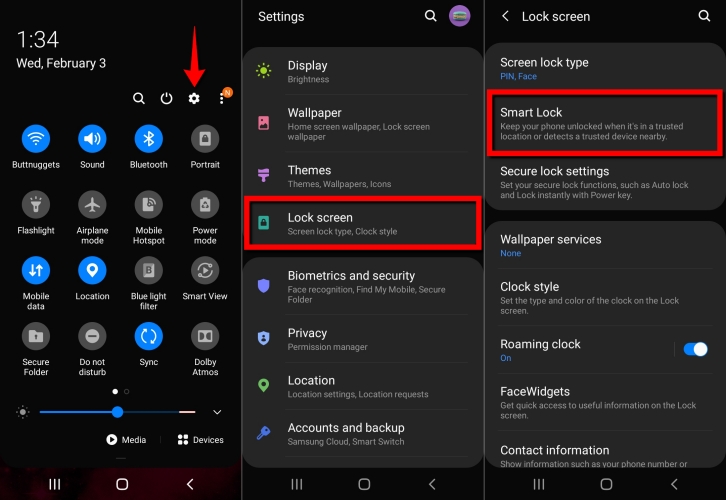
Step 1. Power on your TCL phone and proceed to the initial setup screen.
Step 2. Connect to the same Wi-Fi network the device used before it was reset, if prompted.
Step 3. Pair any Bluetooth device, such as a smartwatch or headset, that was previously trusted on the phone.
Step 4. Watch for the device to auto-skip or unlock the FRP screen once it recognizes the trusted signal.
Method 3. Bypass TCL FRP Through Carrier
Carrier-branded TCL models, especially those sold through prepaid providers, are often tied to extra account layers. Reaching out to the carrier directly with proof you own the device can get the lock cleared through official support channels rather than any workaround.
Step 1. Gather your proof of purchase, receipt, or the phone's IMEI number.
Step 2. Contact your carrier's customer support line or visit a retail store in person.
Step 3. Explain that the device shows an FRP lock and request their assistance with unlocking or verification.
Method 4. Bypass TCL FRP with TalkBack
TalkBack is Android's built-in accessibility screen reader, and on many TCL models it can be used to reach hidden menu paths that a standard setup screen doesn't expose. This method takes a bit more patience but works without any external hardware.
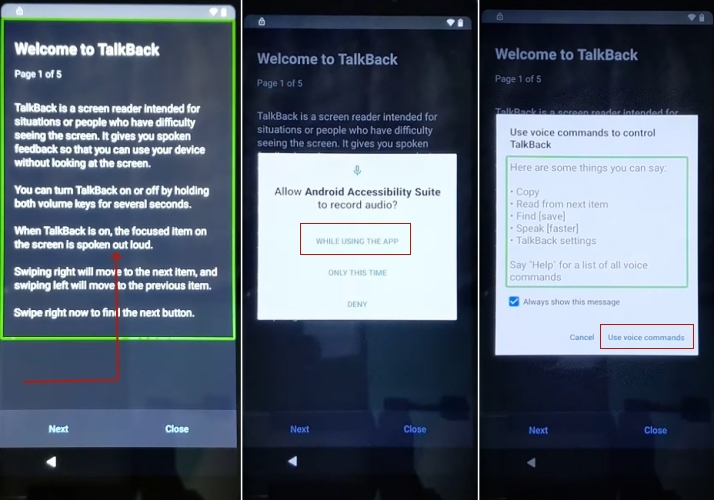
Step 1. Power on your Samsung phone and connect it to a reliable Wi-Fi connection to ensure all required services and features are available during the setup process.
Step 2. When you reach the initial setup screen, enable TalkBack by pressing and holding both volume buttons at the same time.
Step 3. Use an L-shaped swipe gesture on the display to bring up the TalkBack menu options.
Step 4. Select While using the app from the menu, then choose the voice command option to continue.
Step 5. Open the keyboard, then hold both volume buttons together again to turn off TalkBack mode.
Step 6. Tap the More button at the bottom and select Explore more from Assistant to open additional options.
Step 7. On the Explore screen, tap your account icon and select Help to access the support section.
Step 8. Use the search field and enter "Delete, disable & manage unused apps on Android" to find the required page.
Step 9. Open the result and select the link that says Tap to go to Application Settings.
Step 10. Scroll through the settings page, open Accessibility, and access the Accessibility Menu options.
Step 11. Turn on the Accessibility Menu shortcut. Then return to the app settings area and open the full list of installed applications.
Step 12. Locate Android Setup, open its information page, and choose Force Stop. Then return to the previous menu and disable Google Play Services.
Step 13. Return to Assistant Settings, access the necessary options, and turn Google Play Services back on.
Step 14. After completing these steps, continue with the phone setup process and check whether the previous restrictions have been removed.
Part 3. How to Bypass FRP Lock on TCL Phone with PC
When it comes to bypassing FRP lock on TCL phones with a PC, there are various FRP removal tools available, but not all of them support TCL devices. In this section, we will show you how to remove the FRP lock from TCL phones using the UNLOCKTOOL software.
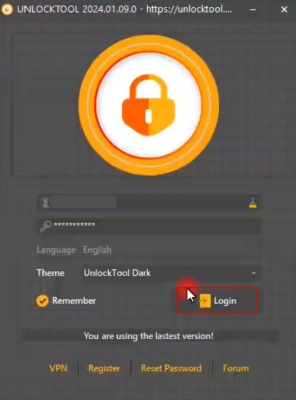
Step 1. Download and install the UNLOCKTOOL tool on your computer. Log in with your registered account details, then connect your TCL device to the PC.
Step 2. On the main interface, choose MediaTek from the available brand options. Navigate to the Generic section and select the ERASE FRP function.
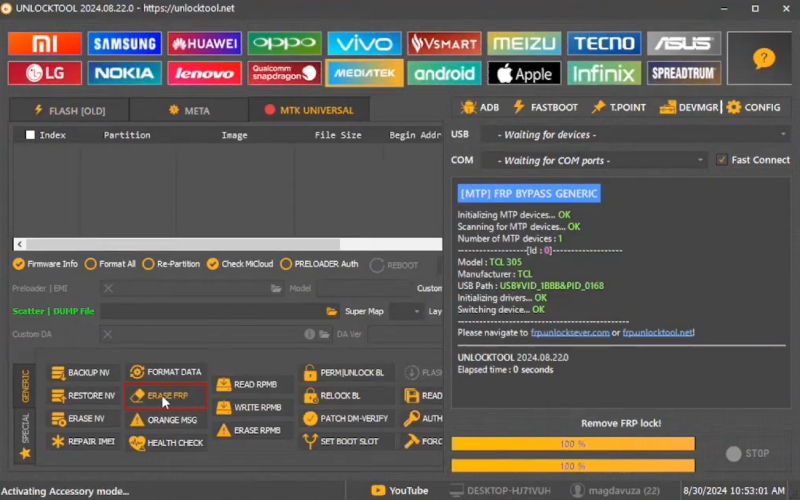
Step 3. Pause until the tool enters the "Waiting for device…" state. Turn off your TCL phone, then press and hold the Volume Down button while connecting it.
Step 4. Once the required operation screen appears, release the button and allow the tool to continue processing.
Step 5. After the process finishes, your TCL device will reboot automatically. You can then proceed past the FRP lock screen and set up your phone again.
Part 4. Bonus Tip: How to Bypass FRP on Other Brands
If you are not only looking for a way to bypass FRP on TCL devices but also need to remove Google FRP locks from other Android brands, including Samsung, Xiaomi, Redmi, vivo, Motorola, OPPO, and realme, MagFone Android Unlocker can be a helpful solution. With its high success rate, intuitive interface, and simple operation, it has become a trusted solution for users seeking to unlock their Android devices with minimal effort. Here's how to.

MagFone Android Unlocker
Remove multiple kinds of screen locks on over 5000 Android devices and delete Google FRP lock without a password.
Step 1 Connect an Android Phone to MagFone
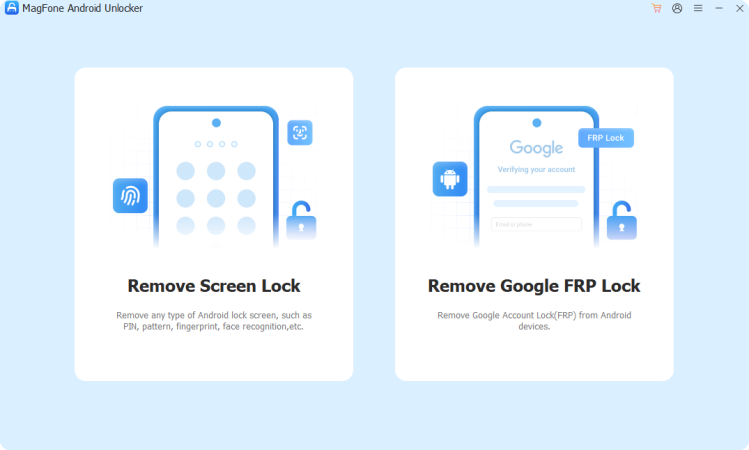
Download and install MagFone Android Unlocker, then run it and select Remove FRP Lock on the main interface. Use a USB cable to connect your Android phone to the computer.
Step 2 Wait for Detection and Select Android Version
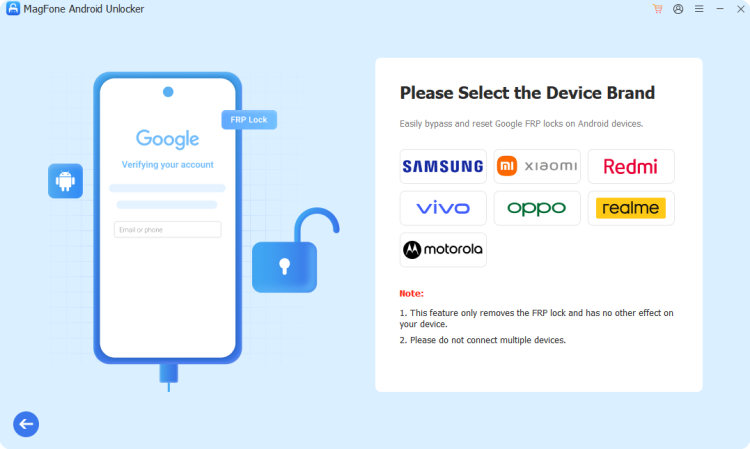
Wait for MagFone Android Unlocker to detect your device. If it fails to recognize your device, select your device brand and choose All Android Versions from the three options.
Step 3 Remove Google FRP on Android Phone
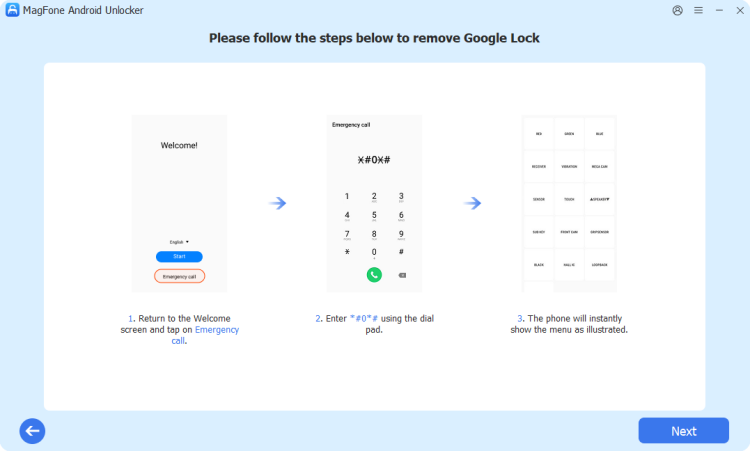
Proceed with the onscreen instructions on your device, then go back to click the Next button. In the removal process, tap Allow on your device to enable USB debugging.
Part 5. FAQs about TCL FRP Bypass
How can I bypass FRP on a TCL phone for free?
Options like the Smart Lock trick, the TalkBack accessibility exploit, or a free desktop bypass tool don't require any purchase. However, free methods may offer less consistent results due to differences between TCL models and Android versions.
Will bypassing FRP on a TCL phone erase my data?
It depends on the method. Reconnecting through your original Google account preserves your data completely. However, methods that involve a fresh factory reset will wipe the device, since FRP is usually triggered alongside a reset in the first place.
Is there a master code to unlock the FRP lock on a TCL phone?
Entering an FRP unlock master code from the dialer page is a widely used FRP bypass method. While it may work on some specific devices or older Android versions, it comes with strict brand and model limitations and is not a reliable solution for all TCL phones.
Part 6. Conclusion
Getting locked out of your own TCL phone is frustrating, but Factory Reset Protection isn't a dead end. Whether you recover your Google account, lean on a trusted Wi-Fi connection, contact your carrier, use TalkBack, or turn to a dedicated PC tool, one of these five methods should get you back to your home screen. Choose the option that matches what you still remember and the tools you have on hand.

Dylan Jones
Editor in chief




