








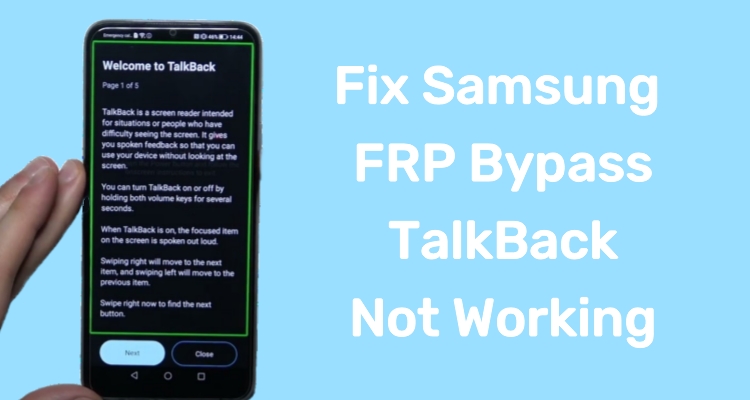
Many users search for FRP bypass TalkBack not working when older accessibility-based methods stop responding or no longer work. TalkBack, once seen as a workaround, is actually an accessibility feature that some users tried to repurpose for access recovery. Today, with recent security updates, these techniques have become far less reliable on newer devices. In this article, we introduce TalkBack FRP bypass and two alternative FRP bypass solutions to you.
- Part 1. What Is Samsung FRP Bypass TalkBack?
- Part 2. How to Bypass FRP with TalkBack Easily
- Part 3. Why Does FRP Bypass TalkBack Not Work?
- Part 4. How to Bypass FRP Without TalkBack
- Part 5. Conclusion
Part 1. What Is Samsung FRP Bypass TalkBack?
Factory Reset Protection (FRP) is a built-in Android safeguard. The TalkBack method was an unofficial workaround that relied on Android's accessibility feature to navigate system menus indirectly. In earlier Android versions, users could sometimes reach hidden system links through TalkBack gestures. The pros and cons of this method are listed below.
 Pros
Pros- No PC required
- No additional software needed
- Works on older Android versions
- Free FRP bypass method

- Blocked on updated devices
- Complex gesture navigation
- Security patches disable access
- High failure rate nowadays
Part 2. How to Bypass FRP with TalkBack Easily
This TalkBack FRP bypass method relies on accessibility menus to open system settings indirectly and reach a browser environment. Here's how to use TalkBack FRP bypass on an Android 11 phone.
Step 1. Turn on your Samsung device and connect it to a stable Wi-Fi network so the necessary accessibility and system features can load correctly.
Step 2. On the welcome screen, activate TalkBack by pressing both volume buttons simultaneously.
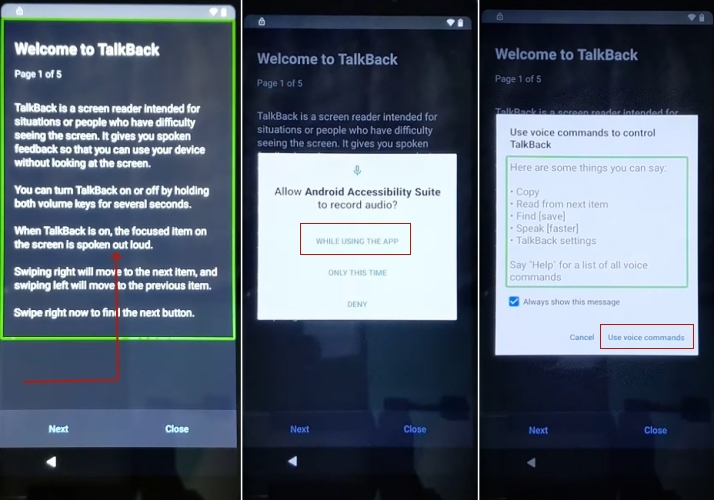
Step 3. Draw an L-shaped gesture on the screen to open the TalkBack global menu.
Step 4. From the menu, tap WHILE USING THE APP, then select Use voice command.
Step 5. Tap the keyboard icon, then press and hold the volume keys together to disable TalkBack.
Step 6. Tap the More icon at the bottom of the screen and select Explore more from Assistant.
Step 7. On the Explore page, tap the profile icon and choose Help to access the Support page.
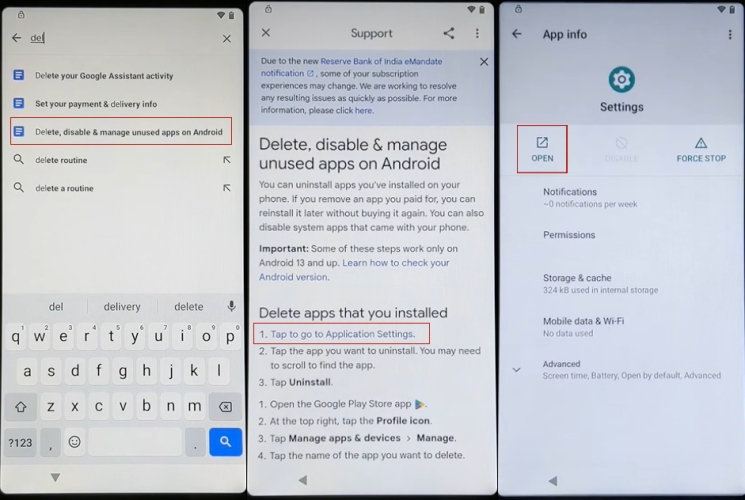
Step 8. Tap the search bar and type Delete, disable & manage unused apps on Android.
Step 9. Locate and tap the note labeled Tap to go to Application Settings.
Step 10. Scroll down to enter Settings, then tap OPEN. Swipe up and navigate to Accessibility > Accessibility Menu.
Step 11. Enable the Accessibility Menu shortcut. Return to Settings, locate Apps & notifications, and tap SEE ALL APPS.
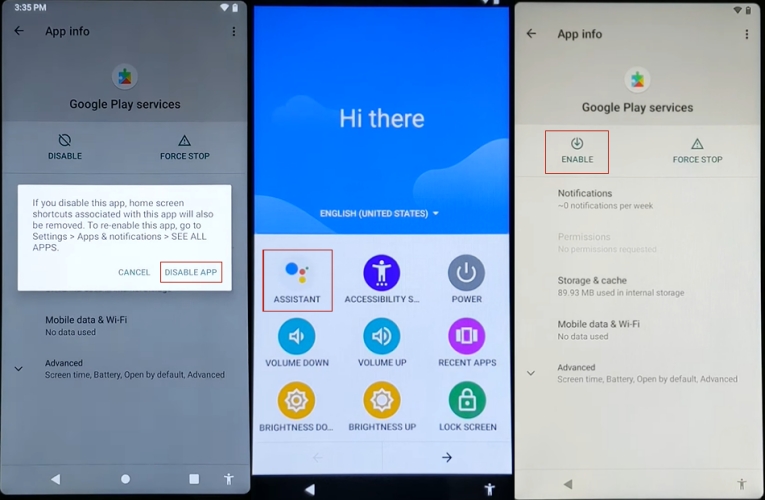
Step 12. Find and open Android Setup, then tap FORCE STOP. After that, go back and disable Google Play Services.
Step 13. Return to the previous screen and tap ASSISTANT > Settings to re-enable Google Play Services.
Step 14. You can now continue setting up your Android phone without restrictions.
Part 3. Why Does FRP Bypass TalkBack Not Work?
Many users are confused when they see that TalkBack-based methods fail on newer devices. This is due to stronger security architecture and system restrictions introduced in recent Android versions.
Reason 1. Security Patch Improvements
Google and Samsung continuously patch vulnerabilities, closing old accessibility loopholes.
Reason 2. Restricted Accessibility Access
TalkBack can no longer open system-level settings during setup screens.
Reason 3. Blocked Unknown App Installation
Even if a browser is reached, installation of external APK files is restricted.
Reason 4. Samsung Knox Protection
Samsung Knox adds an extra security layer that prevents unauthorized modifications.
Part 4. How to Bypass FRP Without TalkBack
MagFone Android Unlocker is a powerful desktop tool designed to remove Google FRP locks without relying on outdated exploits like TalkBack. It supports a wide range of Android brands, including Samsung, Xiaomi, and others. This makes it a dependable solution for users facing locked screens after a reset. Here are instructions on how to bypass the FRP lock with MagFone Android Unlocker.

MagFone Android Unlocker
Remove multiple kinds of screen locks on over 5000 Android devices and delete Google FRP lock without a password.
Step 1 Connect Device and Open Software
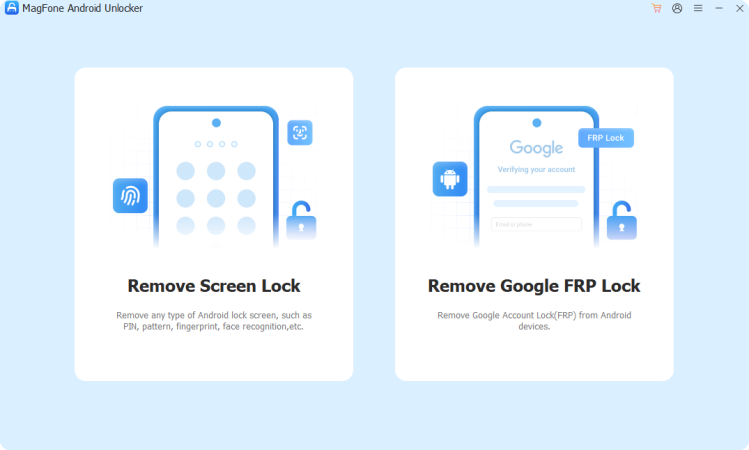
Install and launch MagFone Android Unlocker on your computer. Use a USB cable to link your Samsung phone to the PC. Select the feature labeled for Google FRP removal from the main interface.
Step 2 Identify Your Device Information
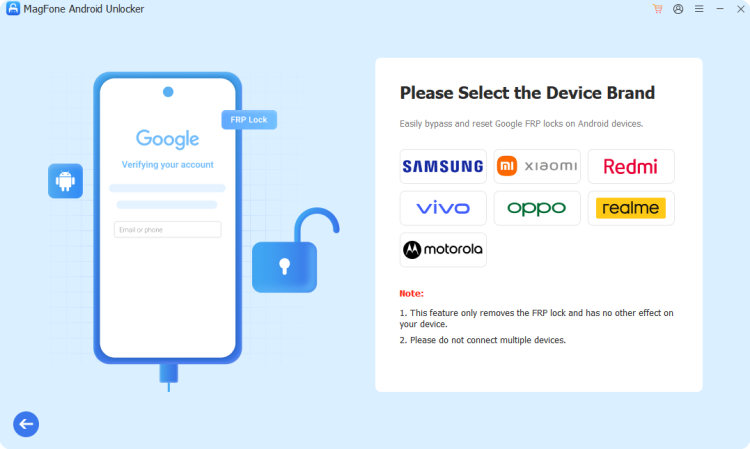
Allow the program to detect your phone automatically. If detection fails, manually select your device brand and Android version from the available list. Confirm your selection and proceed by clicking the start option.
Step 3 Complete FRP Unlocking Process
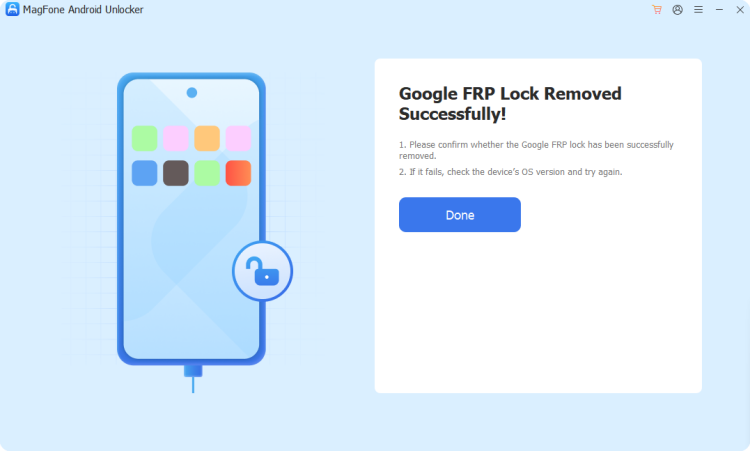
The software will display step-by-step instructions tailored to your device. Carefully follow each prompt on your phone and computer screen. Once completed, the tool will confirm that the FRP lock has been successfully removed.
Part 5. Conclusion
Samsung FRP TalkBack bypass was once a popular method for unlocking devices without Google credentials, but modern security updates have made it largely ineffective. Accessibility restrictions, system patches, and Knox protection now block most exploit paths. Fortunately, alternative solutions like desktop unlocking tools and keyboard-based tricks provide more reliable options for regaining access efficiently.

Teresa Miller
Editor in chief





