








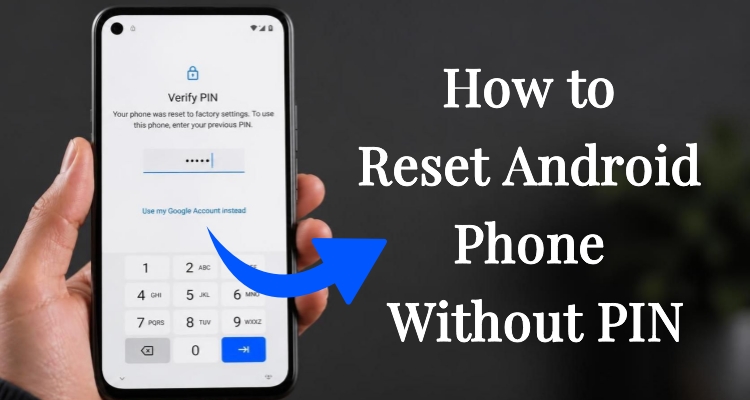
Android asks for your PIN before letting you wipe the device in Settings. This is a safety net that becomes a headache the moment you can't remember that code. Maybe it's an old handset you're about to sell, or a second-hand phone that still carries someone else's lock. Whatever the reason, this guide walks through four practical ways to factory reset Android without PIN.
- Part 1. Pre-Read: Android Factory Reset Without PIN
- Part 2. Best Method to Reset Android Phone Without PIN
- Part 3. How to Factory Reset Android Phone Without PIN
- Part 4. Conclusion
Part 1. Pre-Read: Android Factory Reset Without PIN
Before jumping into any of these fixes, it helps to know that not every method suits every situation. Some need an internet connection, others need the phone to already be linked to an account, and one works purely with hardware buttons. Below is a quick side-by-side look at what each approach demands, so you can pick the one that actually fits your phone right now.
| Method | Network Needed | Requirements |
|---|---|---|
| MagFone Android Unlocker | √ | A computer and a USB cable |
| Google Find Hub | √ | Google account and password |
| SmartThings Find | √ | Samsung account and password |
| Recovery Mode | Not required | None |
Part 2. Best Method to Reset Android Phone Without PIN
Forgot your Android PIN but still need to wipe the device? MagFone Android Unlocker is the most dependable pick. It gets around the screen lock (PIN included) and carries the phone straight through to a full factory reset. It's also handy if you skipped removing the Google account beforehand, since the tool can tackle the FRP lock that follows. Below is a walkthrough for clearing an Android PIN with MagFone Android Unlocker.

MagFone Android Unlocker
Remove multiple kinds of screen locks on over 5000 Android devices and delete Google FRP lock without a password.
Step 1 Select the Remove Screen Lock Feature
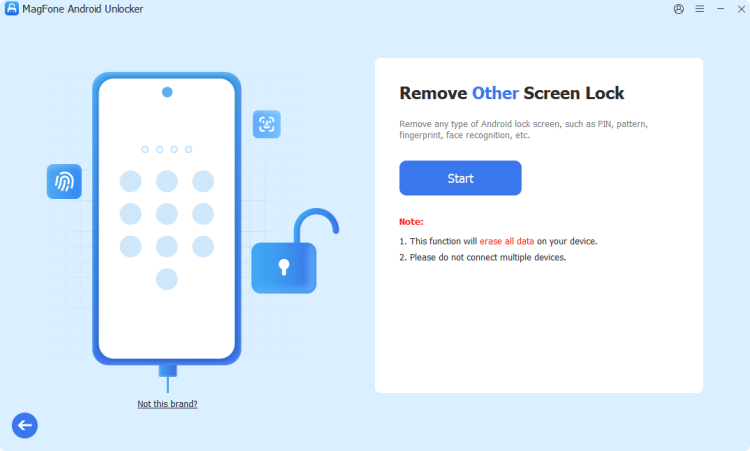
Install MagFone Android Unlocker on your computer and launch it, then connect your phone using a USB cable. On the main screen, select the unlocking function, find your phone's brand and model in the list provided, and click Continue to move on.
Step 2 Put Phone Into Recovery Mode Manually
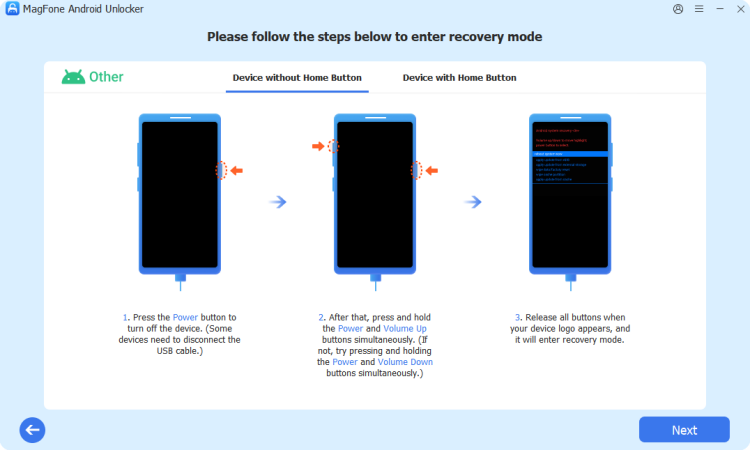
Once the software has verified your phone's details, press Start. A pop-up will warn that some data on the device may not survive the process. The program will then walk you through the exact button combination needed to switch your phone into Recovery Mode.
Step 3 Factory Reset Android Phone Without PIN
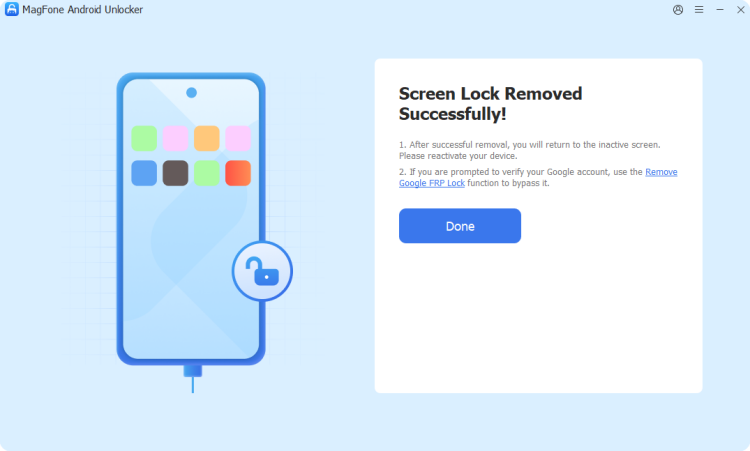
Keep following the on-screen prompts to finish setting up the connection between your phone and the software, then hit Next and allow the tool to complete the unlock automatically. When it's finished, the PIN will be cleared and you'll have full access again.
Part 3. How to Factory Reset Android Phone Without PIN
If installing extra software isn't an option, Android and its manufacturers already provide a handful of built-in routes to a factory reset. The three methods below rely on tools already available to most users: a linked Google account, a Samsung account, or nothing more than the phone's own hardware buttons.
Method 1. Reset Android Phone Without PIN via Google Find Hub
Google's device-tracking service, now often labeled Find Hub (previously Find My Device), lets you locate, lock, or wipe an Android phone remotely. As long as the feature was switched on beforehand and the phone has signal, you can trigger a full reset from any browser without ever touching the lock screen.
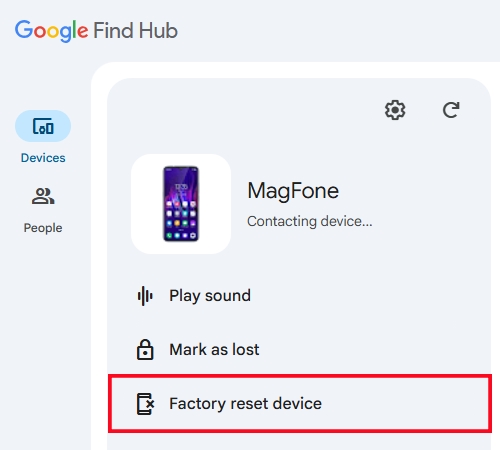
Step 1. Open the Google Find Hub website on any device, then sign in using the same Google account that's active on the locked device.
Step 2. Wait for your devices to load, then click on the specific phone you want to reset in the Devices section.
Step 3. Among the options shown, click Factory reset device to erase all content.
Method 2. Reset Android Phone Without PIN via SmartThings Find
Samsung owners have their own remote option through SmartThings Find, a service tied to the Samsung account rather than Google's. It functions much like Find Hub but is built specifically around Galaxy devices, and it also supports remote erasure when the phone is locked.
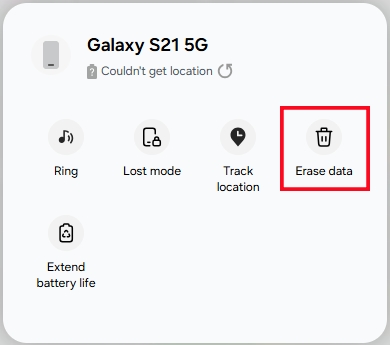
Step 1. Go to the SmartThings Find site from any browser and log in with the Samsung account.
Step 2. Locate your device in the list on the left-hand side and click it to open its controls.
Step 3. Choose the Erase data option to erase the device's data from the menu that appears.
Method 3. Reset Android Phone Without PIN in Recovery Mode
When there's no internet connection or no account signed in, Recovery Mode is the fallback that still works. It's a low-level boot screen built into nearly every Android device, reachable through a specific combination of hardware buttons that varies slightly by brand.
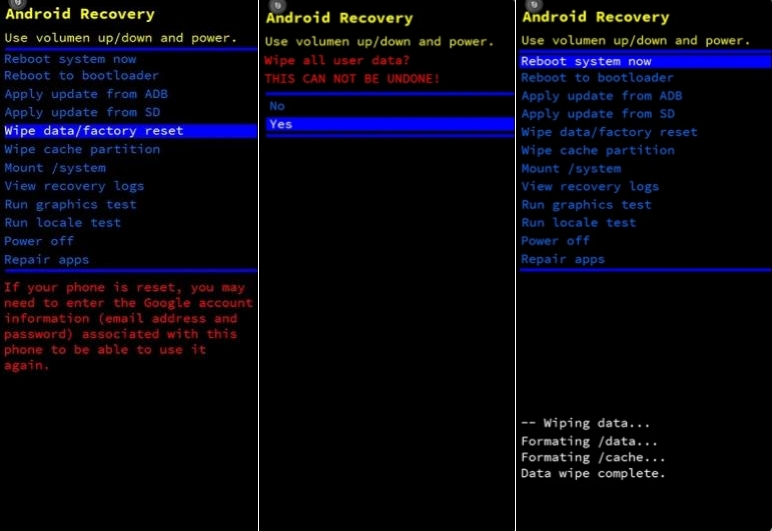
Step 1. Power the phone off completely, waiting a few seconds after the screen goes dark.
Step 2. Hold down the Power button together with Volume Up button until a logo or menu appears.
Step 3. Use the volume buttons to select the wipe data/factory reset option, and press the Power button to confirm.
Step 4. Continue to select Yes. After that, locate and choose Reboot system now.
Part 4. Conclusion
Losing track of your Android PIN doesn't have to mean losing the device along with it. Whether you reach for a dedicated tool like MagFone Android Unlocker, rely on Google or Samsung's remote account services, or fall back on Recovery Mode's button combinations, there's a route suited to almost any situation — connected or not, with or without extra software.

Teresa Miller
Editor in chief




