








Not sure if your Android phone is restricted to one carrier or can connect to different mobile networks? Whether you're planning an overseas trip, switching network providers, or buying a secondhand device, knowing your phone's unlock status can save you time and trouble. Fortunately, finding out doesn't require advanced technical skills. In this guide, we'll explain how to check if Android phone is unlocked using three simple methods and introduce a solution for removing Android screen locks.
- Part 1. What Is an Unlocked Android Phone?
- Part 2. How to Know If Android Is Unlocked
- Part 3. How to Unlock Android Screen Lock
- Part 4. Conclusion
Part 1. What Is an Unlocked Android Phone?
An unlocked Android phone is a device that isn't restricted to one mobile network provider. Unlike carrier-locked phones, which generally accept SIM cards or eSIMs only from an approved carrier, unlocked devices can connect to different compatible networks. This flexibility allows you to change providers, explore affordable mobile plans, or use local SIM cards when traveling internationally.
Part 2. How to Know If Android Is Unlocked
Not sure whether your Android device is tied to a particular network? There are several practical ways to find out without installing additional software. You can explore your phone's network settings, insert a SIM card from another provider, or request confirmation from your carrier. Below, we'll explain how to know if Android is unlocked using each approach.
Method 1. Check Your Phone Settings
One quick way to check if your Android phone is unlocked is through its built-in settings. Some Android devices provide information about carrier restrictions, while others allow you to search for available mobile networks. Although this method isn't completely reliable, it offers a quick initial indication of whether your device may support SIM cards from other providers.
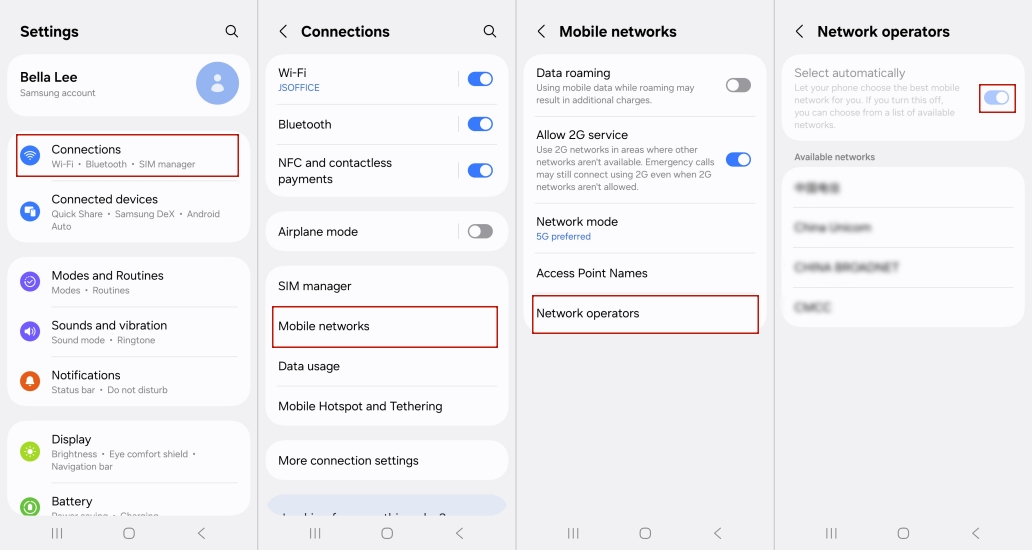
Step 1. Navigate to the Settings menu on your Android device.
Step 2. Find and open Connections or Network & internet, depending on your phone model.
Step 3. Pick the Mobile networks section, then hit Network operators.
Step 4. Disable the Select automatically feature or choose the option to scan for available networks manually.
Note:
Android menus vary across Samsung, Google Pixel, Motorola, and other brands. Some devices don't provide manual network selection or a dedicated carrier lock indicator.
Method 2. Try a Different SIM Card
Testing another carrier's SIM card is among the most practical ways to determine whether your Android phone is unlocked. This method checks whether your device can actually connect to a different provider rather than relying on network information alone. You'll need an active SIM card from another carrier and a phone that supports that carrier's network technology.
Step 1. Obtain an activated SIM card from a mobile carrier different from your current provider.
Step 2. Power off your Android phone and locate its SIM card tray.
Step 3. Carefully remove your existing SIM card and replace it with the alternative one.
Step 4. Restart your phone and allow it a moment to connect to the new network.
Step 5. Try making a call or sending a text message. If the new SIM works successfully, your Android phone is generally carrier-unlocked. If a network unlock code is requested, the device is likely locked.
Note:
This approach works with most Android phones that support removable SIM cards. However, some devices use eSIM technology instead. A failed connection doesn't always indicate a carrier lock: incompatible network bands, inactive service, or SIM problems can produce similar results.
Method 3. Contact Your Mobile Carrier
If you'd rather avoid changing SIM cards or navigating unfamiliar settings, contacting your mobile carrier is another useful option. Network providers can often check your device's unlock status using its unique IMEI number. This approach is especially useful if you bought your phone through a carrier payment plan or want to confirm whether it qualifies for unlocking.
Step 1. Open your Android phone's Settings app and select About phone.
Step 2. Find the IMEI number by dialing *#06# to view your IMEI on supported Android devices.
Step 3. Contact the carrier that originally sold or locked your phone through its official support channel.
Step 4. Provide your IMEI number when requested and ask whether your device is currently carrier-unlocked.
Step 5. If the phone remains locked, ask about the carrier's unlocking requirements and available procedures.
Note:
Carrier support procedures differ, and not every provider can verify devices originally sold by another company. Some carriers also require outstanding payments to be settled or minimum service periods to be completed before approving an unlock request.
Part 3. How to Unlock Android Screen Lock
Checking your phone's carrier status is different from removing its screen lock. If you can't remember your Android device's PIN, password, or unlock pattern, MagFone Android Unlocker may help you regain access to compatible devices. The software is designed to remove various Android screen locks and also provides Google Factory Reset Protection (FRP) removal functionality for supported situations after a factory reset. Here's how to use it to unlock your Android phone.

MagFone Android Unlocker
Remove multiple kinds of screen locks on over 5000 Android devices and delete Google FRP lock without a password.
Step 1 Select the Screen Lock Removal Feature
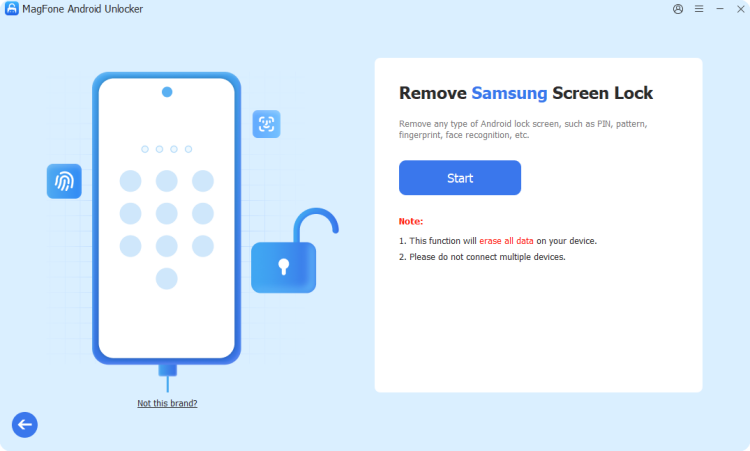
Download MagFone Android Unlocker to your computer. Connect your locked Android phone using a compatible USB cable. From the main interface, select the screen lock removal feature. Choose your device's manufacturer and model when prompted, and click Continue to proceed with the unlocking process.
Step 2 Instructions for Entering Recovery Mode
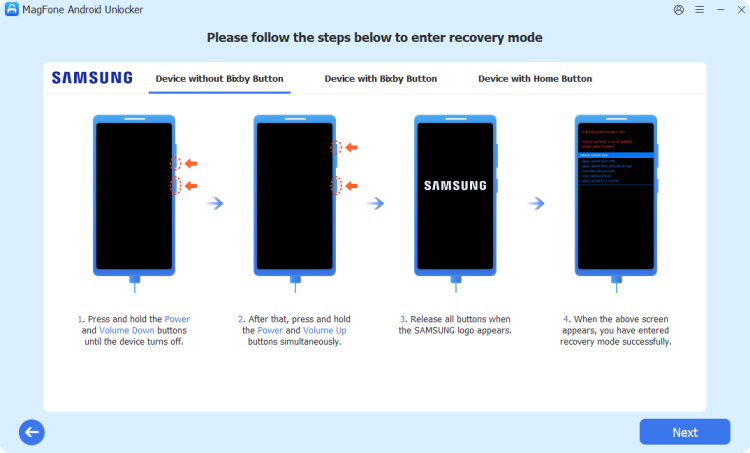
After the software identifies your device, click Start to begin. Carefully read the displayed warnings, particularly those concerning possible data loss. MagFone will provide device-specific instructions for entering Recovery Mode.
Step 3 Bypass the Screen Lock on Android Phones
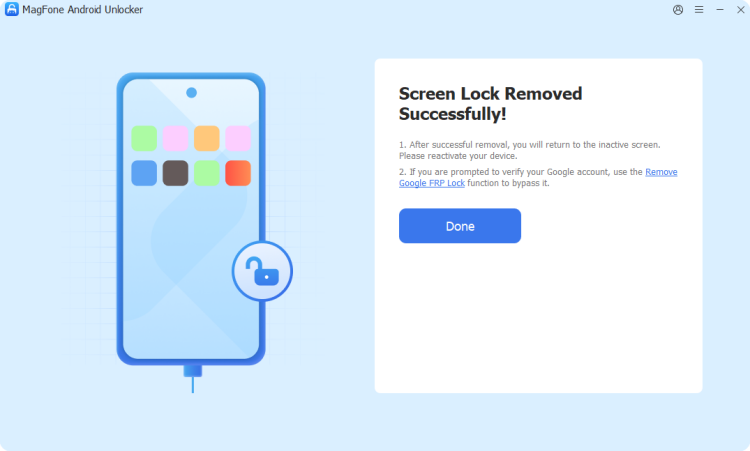
Once your Android phone is in the appropriate mode, follow the remaining instructions displayed by MagFone Android Unlocker. Click Next when prompted and allow the software to complete the supported removal procedure. Afterward, restart your device and follow any necessary setup instructions.
Part 4. Conclusion
Understanding how to check if Android phone is unlocked helps you switch carriers, travel internationally, and avoid unexpected network restrictions. You can examine your phone settings, test another SIM card, or contact your mobile provider for confirmation. If you're dealing with a forgotten screen password instead, MagFone Android Unlocker offers a separate solution for supported devices, although compatibility and potential data loss should be considered carefully.

Dylan Jones
Editor in chief




