








Locked out of your own phone is one of those moments that turns a normal day upside down. Maybe a child mashed the screen with sticky fingers, maybe you switched phones and forgot the new PIN, or maybe a second-hand device arrived still guarded by someone else's passcode. Whatever the reason, you don't need to remember the original lock screen credentials to get back in. In this guide, we'll show you several proven routes to unlock Android lock screen.
- Part 1. Quick Check: 7 Ways to Unlock Andriod Screen Lock
- Part 2. How to Unlock Android Lock Screen Without Password
- Part 3. How to Unlock Android Lock Screen with Password
- Part 4. FAQs about Android Phone Screen Lock Unlock
- Part 5. Conclusion
Part 1. Quick Check: 7 Ways to Unlock Andriod Screen Lock
Before diving into the step-by-step instructions, it helps to see the bigger picture. Each method below comes with its own trade-offs in terms of speed, data safety, and what tools you'll need, so use the comparison table to pick the option that fits your situation best.
| Method | Time Required | Password Needed | PC Required | Data Loss | Rating |
|---|---|---|---|---|---|
| MagFone Android Unlocker | 5-10 minutes | No | Yes | Yes | ★★★★★ |
| Recovery Mode Reset | 5-15 minutes | No | No | Yes | ★★★ |
| Smart Lock | Instant (if pre-set) | No | No | No | ★★★★ |
| Resetting Password | About 5 minutes | No | No | No | ★★★★ |
| ADB Commands | 10-20 minutes | No | Yes | Sometimes | ★★ |
| Google Find Hub | 5-10 minutes | Google account | Optional | Yes | ★★★ |
| SmartThings Find | 5-10 minutes | Samsung account | Optional | Yes | ★★★ |
Part 2. How to Unlock Android Lock Screen Without Password
Now that you have a general sense of what's available, let's look closer at each approach. From dedicated unlocking software to built-in Google and Samsung services, the following methods cover almost every scenario you might run into, whether your phone is online, offline, branded, or unbranded.
Method 1. Unlock Android Lock Screen via MagFone Android Unlocker
For anyone who wants a straightforward, dedicated fix rather than juggling recovery menus, MagFone Android Unlocker is built specifically for wiping out screen locks and FRP restrictions. It's compatible with both Mac and Windows machines and supports a wide range of Android brands and models, making it a versatile pick regardless of what device you're holding. Curious how it actually works? Here's the process broken down.

MagFone Android Unlocker
Remove multiple kinds of screen locks on over 5000 Android devices and delete Google FRP lock without a password.
Step 1 Choose the Screen Lock Removal Option
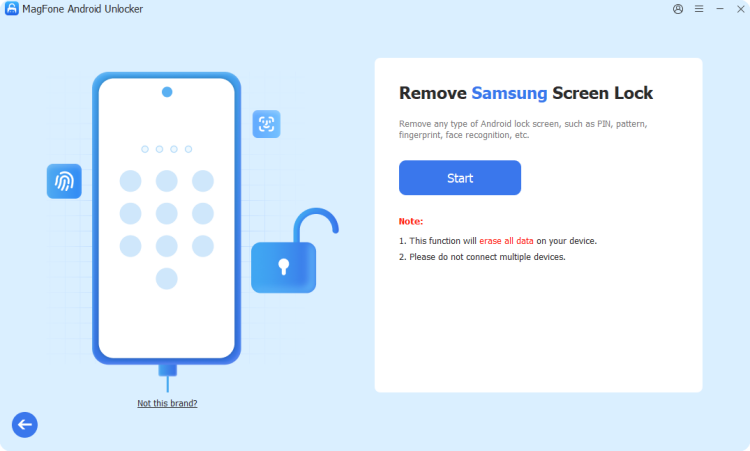
After downloading and opening MagFone Android Unlocker on your computer, plug your phone in with a USB cable. From the home screen, pick the unlock tool, then locate your device's brand and model from the menu, and press Continue.
Step 2 Manually Enter Recovery Mode
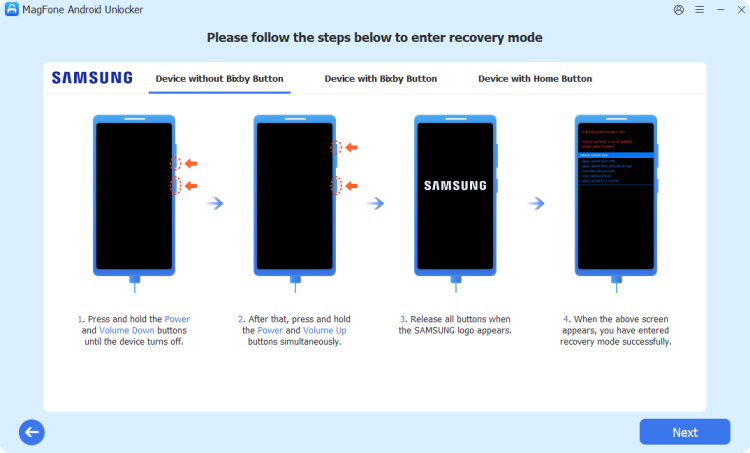
Once the software confirms your device details, click Start. You'll see a warning that part of your stored data could be wiped during the process. From there, the program gives you the precise sequence of buttons to press so your phone boots into Recovery Mode.
Step 3 Complete the Reset Without a PIN
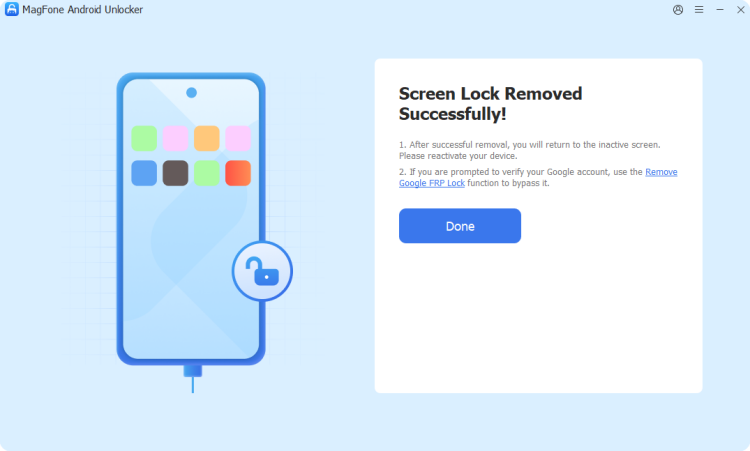
Continue following the prompts on screen until your phone and the software are fully linked, then click Next and let the tool handle the rest automatically. Once it's done, the lock screen code is gone and your device is accessible again.
Method 2. Unlock Android Lock Screen in Recovery Mode
Every Android phone has a built-in recovery menu that can wipe the device and clear the lock screen along with it. This option doesn't need any software or internet connection, just physical access to the phone and its buttons, though it does erase everything stored locally.
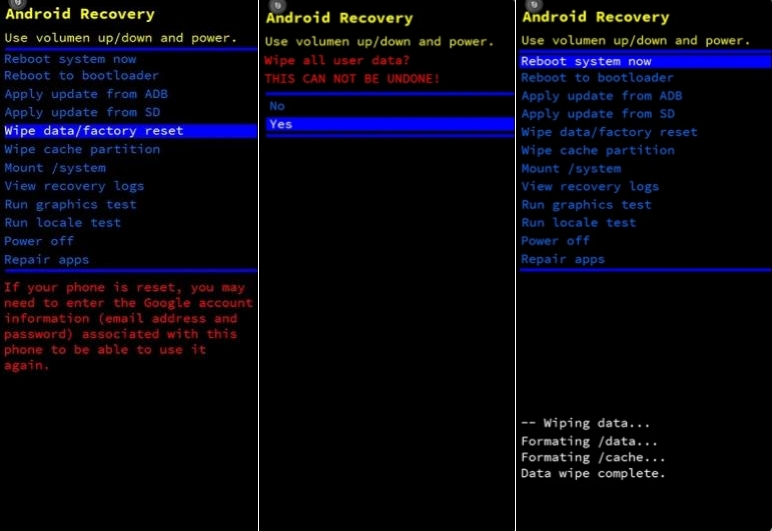
Step 1. Power the phone off completely, then hold down the Power button together with the Volume Up button until a boot menu appears.
Step 2. Use the volume keys to scroll to Wipe data/factory reset and confirm with the Power button.
Step 3. Confirm the wipe, then choose Reboot system now. The phone restarts without any lock screen set.
Method 3. Unlock Android Lock Screen Through Smart Lock
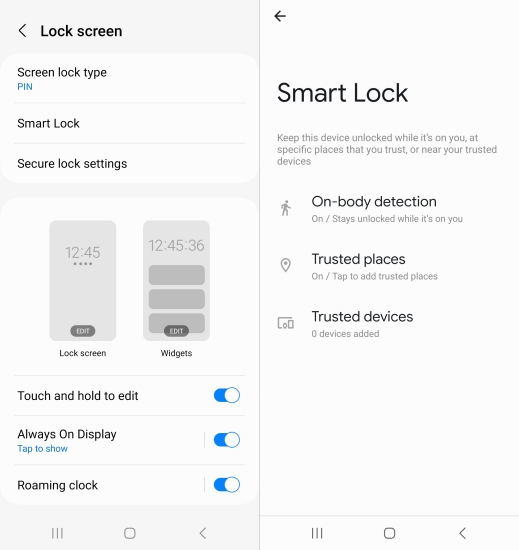
Smart Lock is a convenience feature that keeps your phone unlocked automatically under certain conditions, such as being carried on your body, connected to a paired device, or located somewhere you've marked as trusted. It only works if it was switched on before you got locked out, so it's more of a preventive safeguard than an emergency fix.
Method 4. Unlock Android Lock Screen by Resetting Password
If you've simply forgotten your PIN but your device still has an internet connection and is tied to a Google account, several Android versions let you reset the passcode directly through a "Forgot Pattern" or similar prompt after a few unsuccessful attempts, avoiding any data loss.
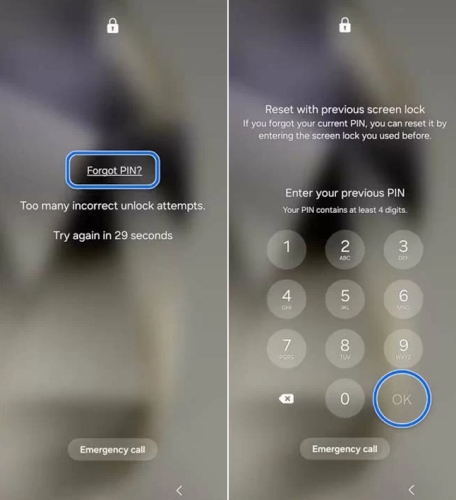
Step 1. Enter the wrong PIN or pattern repeatedly until a message appears offering a "Forgot Pattern" or "Forgot PIN" link.
Step 2. Tap that link and sign in with the Google account associated with the device.
Step 3. After verifying your identity, you'll be prompted to create a brand-new PIN, password, or pattern.
Step 4. Use the new credentials to unlock your phone going forward.
Method 5. Unlock Android Lock Screen with ADB Commands
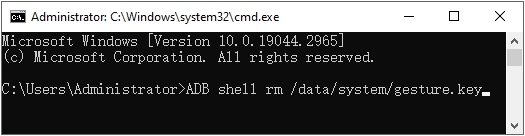
For users comfortable with a bit of technical tinkering, Android Debug Bridge (ADB) can remove the lock screen's underlying data file through command-line instructions, provided USB debugging was previously turned on and the phone is connected to a computer.
Step 1. Connect your Android phone to a computer that already has ADB installed, using a USB cable.
Step 2. Open a command prompt or terminal window in the folder where ADB is installed.
Step 3. Type the adb shell rm /data/system/gesture.key command to access the device, then run the command that deletes the gesture or password key file stored on the phone.
Step 4. Restart the phone. The lock screen should be cleared, so set a new password right away to keep your device secure.
Part 3. How to Unlock Android Lock Screen with Password
If you still remember your Android screen lock password, unlocking your phone is usually straightforward. Built-in services such as Find My Hub and SmartThings Find may also help you access or manage your device remotely. Below, we'll explore these options and explain how to use them to unlock your Android lock screen.
Method 1. Unlock Android Lock Screen from Find My Hub
Google's Find My Device (sometimes referred to as the Find Hub) lets you erase a lost or locked phone remotely, as long as the device was previously signed into a Google account with location tracking enabled. It only takes a browser and internet connection to pull off.
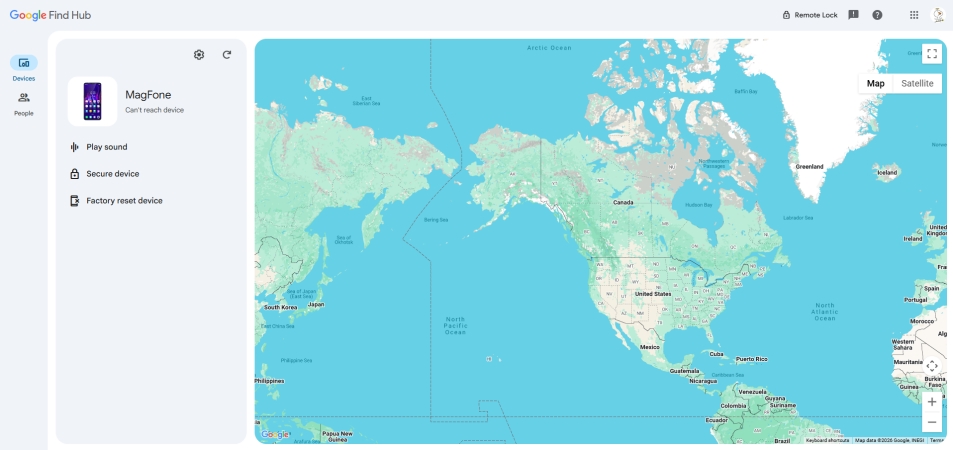
Step 1. On any computer or phone, open a browser and go to Google's Find Hub page, then log in with the Google account linked to the locked phone.
Step 2. Select the locked device from the list shown on the left device panel.
Step 3. Select the Factory reset devicfe option to erase the device and confirm when prompted.
Step 4. Wait for the phone to finish erasing; once complete, the passcode is gone and you can set the device up as new.
Method 2. Unlock Android Lock Screen on SmartThings Find
Samsung owners have their own equivalent service, SmartThings Find (previously called Find My Mobile), which works much like Google's option but is tied to a Samsung account instead. It's especially handy for Galaxy devices that were registered before the lockout happened.
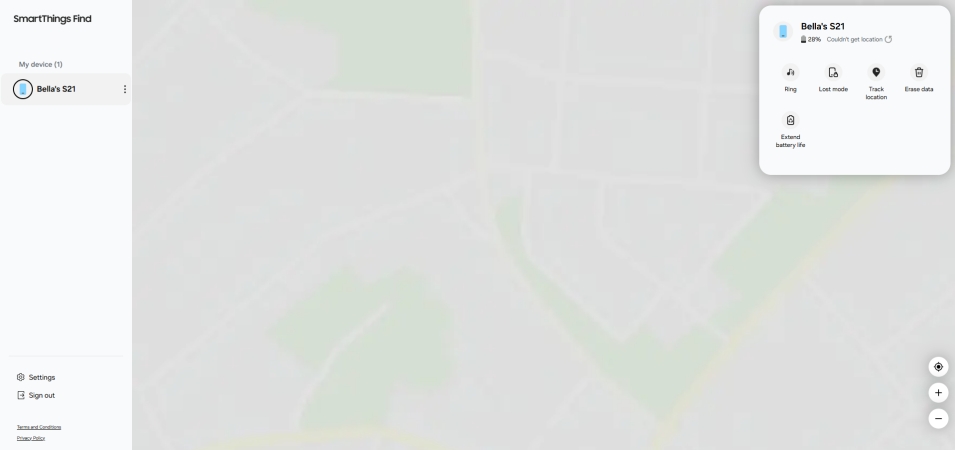
Step 1. Visit the SmartThings Find website from any browser and sign in using the Samsung account connected to your phone.
Step 2. If two-step verification is active, enter the code sent to your registered contact method.
Step 3. Select your locked device, then pick the Erase data option to erase its data.
Step 4. Enter your Samsung account password to confirm, and wait for the erase to finish.
Part 4. FAQs about Android Phone Screen Lock Unlock
How to unlock Android lock screen from pc?
From a computer, the simplest route is opening Google's Find My Device (or Find Hub) portal in a browser and erasing the locked phone remotely. Alternatively, dedicated software such as MagFone Android Unlocker can connect to your phone via USB and strip away the lock screen directly from your PC.
How to unlock Android lock screen without losing data?
To avoid data loss, you can unlock Android screen lock by resetting your password through the built-in "Forgot Pattern/PIN" prompt, or rely on Smart Lock if it was configured beforehand.
How to unlock screen lock Android for free?
There are a handful of no-cost options, and they generally fall into two categories: performing a factory reset, or using a built-in alternative unlocking method like Smart Lock.
Part 5. Conclusion
Getting locked out of an Android phone isn't the disaster it might feel like in the moment. Between dedicated tools like MagFone Android Unlocker, built-in recovery options, Google and Samsung's remote find services, and preventive features like Smart Lock, there's a solution suited to almost every situation.

Teresa Miller
Editor in chief




