








Many Samsung users may be overwhelmed when they want to factory reset their phone but have no password. No matter whether you are a second-hand phone owner or you forgot and can't find your password back, there are still methods that can help you factory reset your phone. This guide will cover several methods for factory resetting Samsung phone without password.

- Part 1. How Do I Factory Reset My Samsung Phone?
- Part 2. How to Reset Samsung Phone to Factory Settings Directly
- Part 3. How to Factory Reset Samsung Phone without Password and Email
- Part 4. How to Factory Reset Samsung Phone with Locked Screen
- Part 5. Conclusion
Part 1. How Do I Factory Reset My Samsung Phone?
Whether your Samsung phone is in locked or unlocked status, there are workarounds to factory reset your Samsung phone. To avoid losing some important data like contacts, you can make a backup of your Samsung phone in advance. Also, it is necessary to remove your Google or Samsung account before resetting.
1.1 How Do You Factory Reset a Samsung Phone?
There are several methods that can help you factory reset a Samsung phone. To make you clearer to each method, there is a comparison table for you to choose a better method conveniently.
| Method | Phone Password | Samsung or Google Account | Time-consuming | Difficulty |
|---|---|---|---|---|
| Factory Settings | ✔️ | ❌ | 5-10 minutes | Easy |
| Recovery Mode | ❌ | ✔️ | 10-15 minutes | Difficult |
| MagFone Android Unlocker | ❌ | ❌ | 5-10 minutes | Easy |
| SmartThings Find Website | ❌ | ✔️ | 10-15 minutes | Medium |
| Find Hub Website | ❌ | ✔️ | 10-15 minutes | Medium |
| Find Hub App | ❌ | ✔️ | 10-15 minutes | Medium |
1.2 What to Do before Factory Reset of Samsung Phone?
A factory reset can erase all personal data, settings, and apps from the device, returning it to the one you purchased for the first time. So before starting a factory reset, you should backup vital data and remove your Samsung or Google account to avoid being locked by Factory Reset Protection after resetting.
Backup Your Samsung Phone Data
You can backup your data in several ways, like Samsung Cloud, Google Drive, or Smart Switch. Each way can help you practically; take one method to operate.
Method 1. Backup data via Samsung Cloud
You can backup call logs, messages, and settings via Samsung Cloud. But it requires a Samsung account and a limit of 1GB file size.
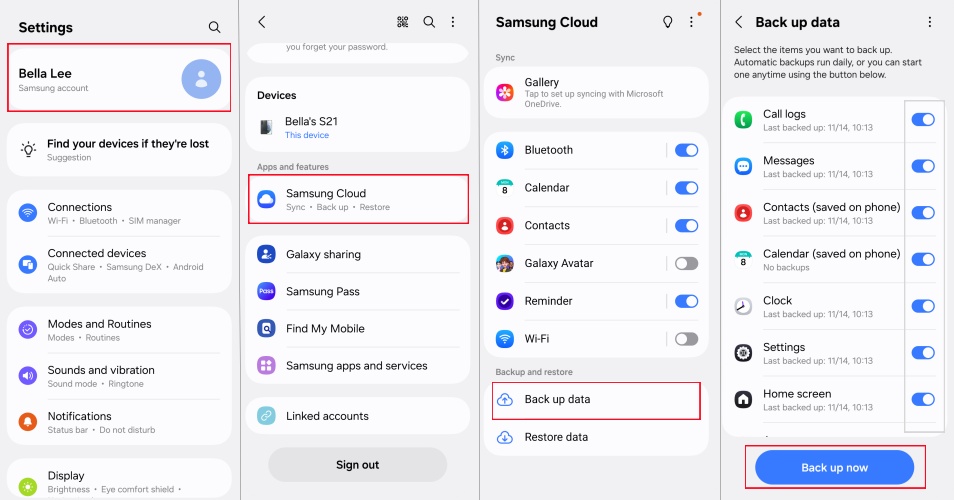
Step 1. Navigate to Settings, tap your account name at the top of the interface.
Step 2. Scroll down to find and tap Samsung Cloud, choose Back up data, and select the data you want to backup, then tap Back up now.
Method 2. Backup data via Google Drive
Similar to Samsung Cloud, Google Drive can sync your data across devices with the same Google account. If you have logged into your Google account on your Samsung phone, you can use this method.
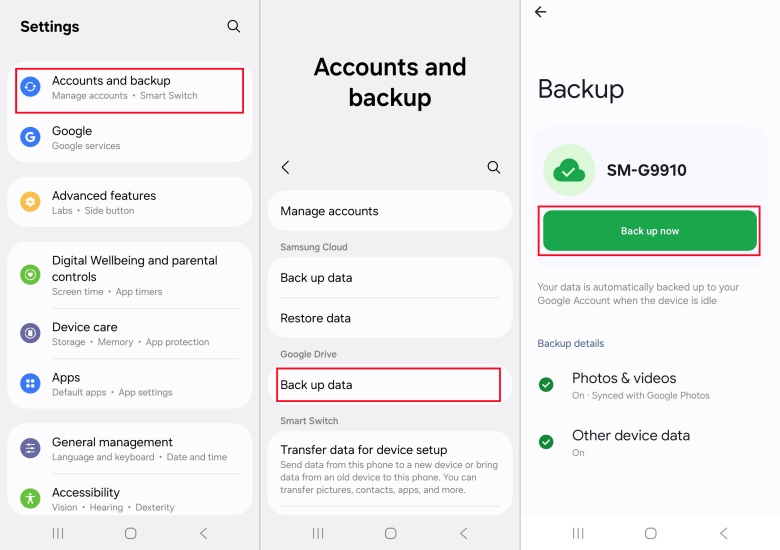
Step 1. Open Settings and scroll down to tap Account and backup.
Step 2. Find Google Drive and choose Back up data > Back up now.
Method 3. Backup data via Smart Switch
Different from cloud platforms like Samsung Cloud and Google Drive, Smart Switch is a tool that can transfer your data from your Samsung phone to a computer. So you can save your device data on a computer by using Smart Switch.
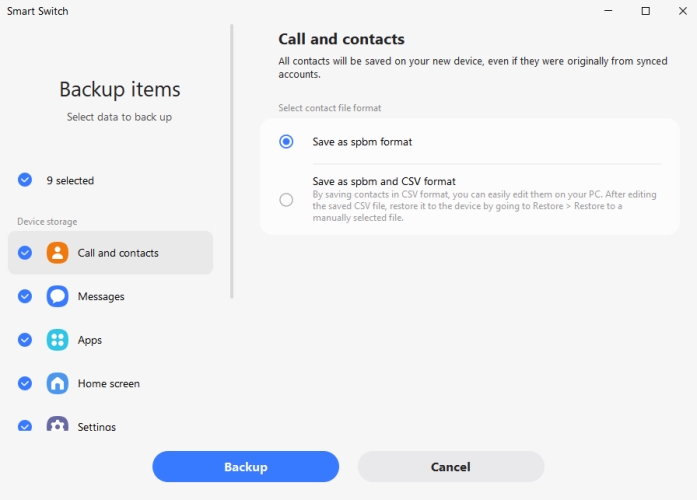
Step 1. Use a USB cable to connect your Samsung phone to a computer.
Step 2. Download and install Smart Switch on your computer and Samsung phone.
Step 3. Open Smart Switch on your computer and click Backup. When finished, click OK.
Remove Account to Avoid being Locked by FRP
To avoid your Samsung phone being locked out by Factory Reset Protection after a reset, you can remove your Google or Samsung account in Settings first. Follow the steps below to remove your account from your Samsung phone.
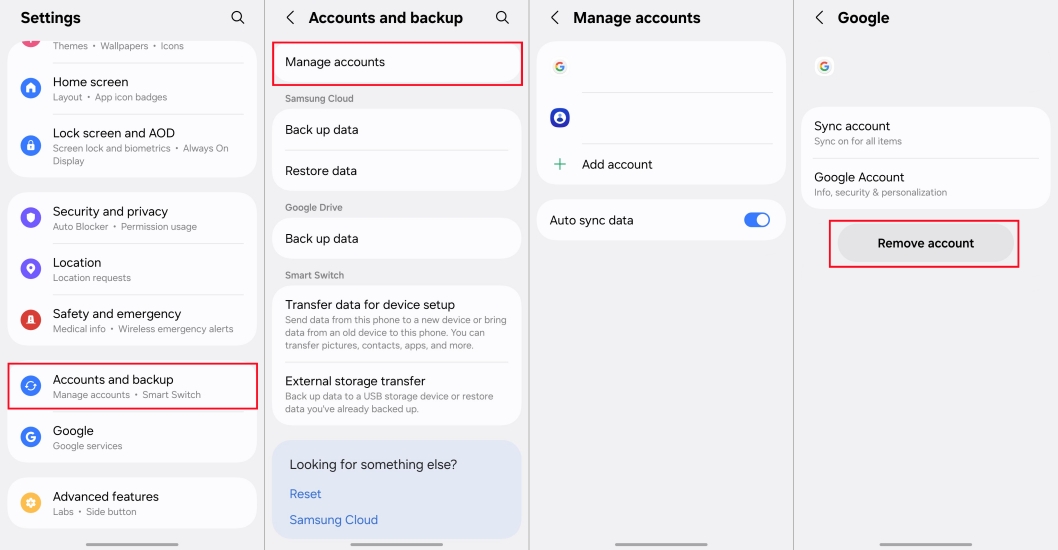
Step 1. Go to Settings, select Accounts and backup, and tap Manage accounts at the top of the interface.
Step 2. Select the Google account and Samsung account, and choose Remove account.
Part 2. How to Reset Samsung Phone to Factory Settings Directly
If you can access your Samsung phone and remember the screen lock password of your device, you can quickly factory reset the phone in the Settings. Here are the operating steps below.
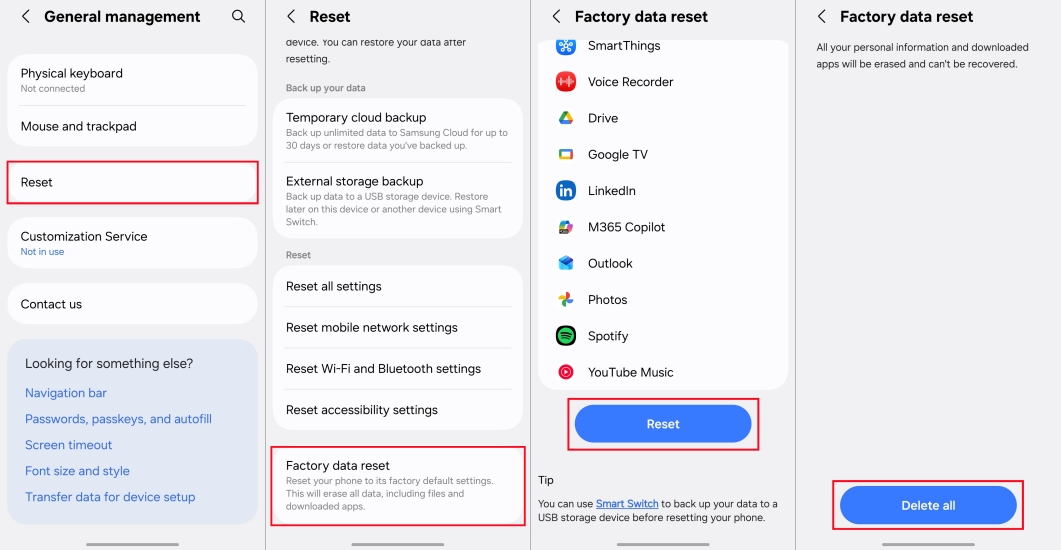
Step 1. Enter Settings, find General management at the bottom of the Settings menu.
Step 2. Scroll down to tap Reset > Factory data reset > Reset > Delete all.
Step 3. Input your PIN, password, or Samsung account to confirm your direction.
Part 3. How to Factory Reset Samsung Phone without Password and Email
If you forgot your password or bought a second-hand Samsung phone, you can factory reset your Samsung phone with hardware buttons or a third-party tool. Without your password and email, you can try the two methods to factory reset your Samsung phone successfully.
Method 1. Factory Reset Samsung phone with Buttons
Most users will choose Recovery Mode to factory reset their Samsung phone without a password. By pressing physical buttons, you can factory reset your Samsung phone in Recovery Mode, even if the screen is locked or the device can't boot normally.
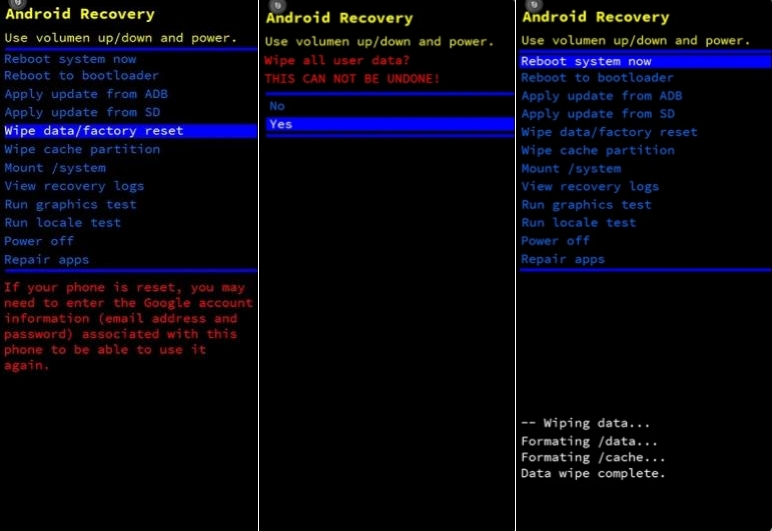
Step 1. Turn off your Samsung phone with the Power and Volume buttons.
Step 2. Hold and press the Volume Up and the Power button for several seconds until your phone enters Recovery mode with Samsung logo pop-up.
Step 3. Use the Volume Down button and the Power button to select Wipe data/ factory reset > Factory reset data > Reboot system now and confirm your choice.
Method 2. Factory Reset Samsung via Android Unlocker
If you are looking for a useful and practical method to factory reset Samsung phone without a password, MagFone Android Unlocker is the ideal choice. It can remove not only the screen lock but also the Google FRP lock on Android phones easily. According to its simple and detailed instructions, you can factory reset your Samsung phone without needing the screen lock password easily. Let>s move to the steps.

MagFone Android Unlocker
Remove multiple kinds of screen locks on over 5000 Android devices and delete Google FRP lock without a password.
Step 1 Launch MagFone and Connect to the Samsung Phone
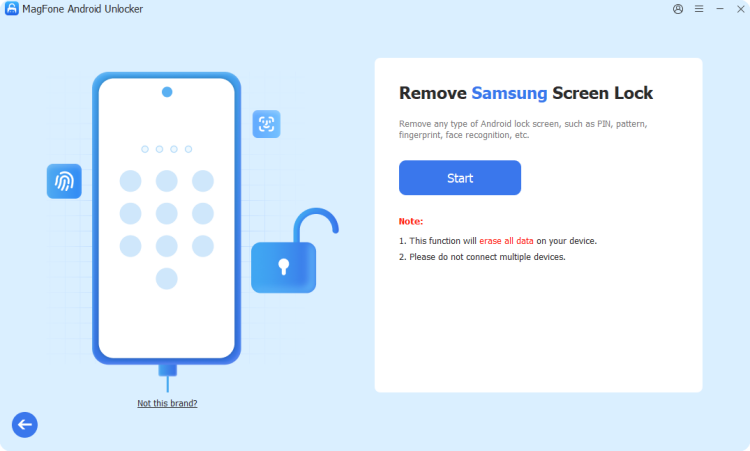
Download and install MagFone Android Unlock, using a USB cable to connect it to your Samsung phone. Choose Remove Screen Lock and let your phone be detected automatically.
Step 2 Put Samsung Phone into Recovery Mode
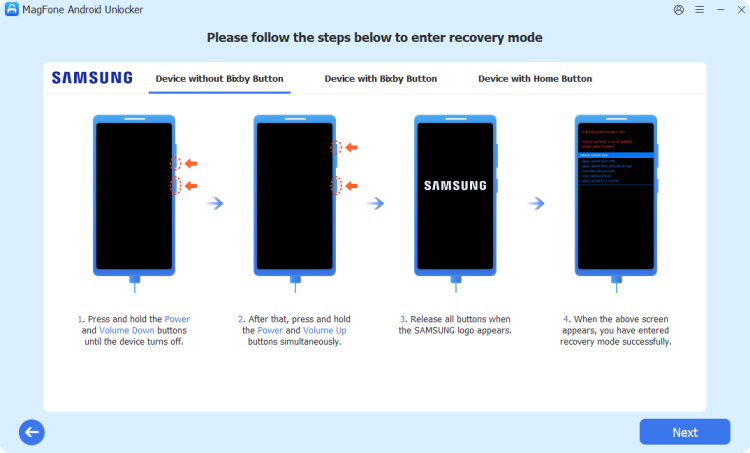
Follow the on-screen steps, put your Samsung phone into Recovery mode. After correct operating, click Next on your computer interface.
Step 3 Factory Reset Samsung Phone without Password

According to the instructions, remove the screen lock. After the whole process, your Samsung phone will be unlocked, and you can set up your Samsung phone like new.
Part 4. How to Factory Reset Samsung Phone with Locked Screen
Using MagFone Android Unlocker or Recovery Mode can factory reset your Samsung phone without password and email. Provide that you can remember your Google or Samsung account and have one logged in on your Samsung phone before, you can choose a method below for a factory reset. Look at the details together!
Method 1. Factory Reset Samsung Phone on SmartThings Find Website
SmartThings Find is integrated with Find My Mobile, which can help to find and reset Samsung devices remotely. If you have added your Samsung account to your Samsung phone and enabled Find My Device before, then follow the steps below to factory reset your phone without a password.
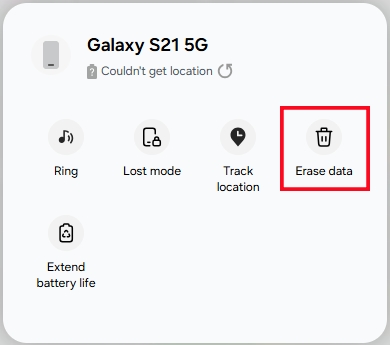
Step 1. Fire up the SmartThings Find website and log in with the same Samsung account on your phone.
Step 2. Find your locked Samsung phone and click Erase data > Verify.
Step 3. Input your password for verification and click Erase data > Erase.
Method 2. Factory Reset Samsung Phone on Find Hub Website
Like the Find My Mobile function of the SmartThings Find website, the Google Find Hub website can also allow you to erase your Samsung phone remotely through Find My Device on a computer or any internet-connected device. If you have logged in to your Google account before on your Samsung phone, you can try the method.
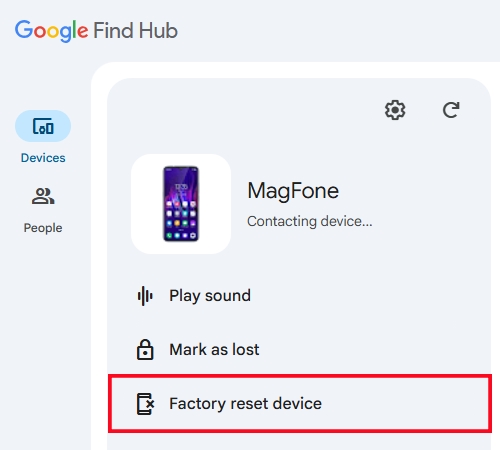
Step 1. Sign in to the Google Find Hub website with your Google account.
Step 2. Select your locked Samsung phone from the Devices on the left menu.
Step 3. Click Factory reset > Next > Reset.
Method 3. Factory Reset Samsung Phone via Find Hub App
The Google Find Hub app is an Android utility of the Google Find Hub site; the functions and operating steps are similar. If you have another Android device with the Google Find Hub app installed and the same Google account logged in, choosing this method will be more convenient.
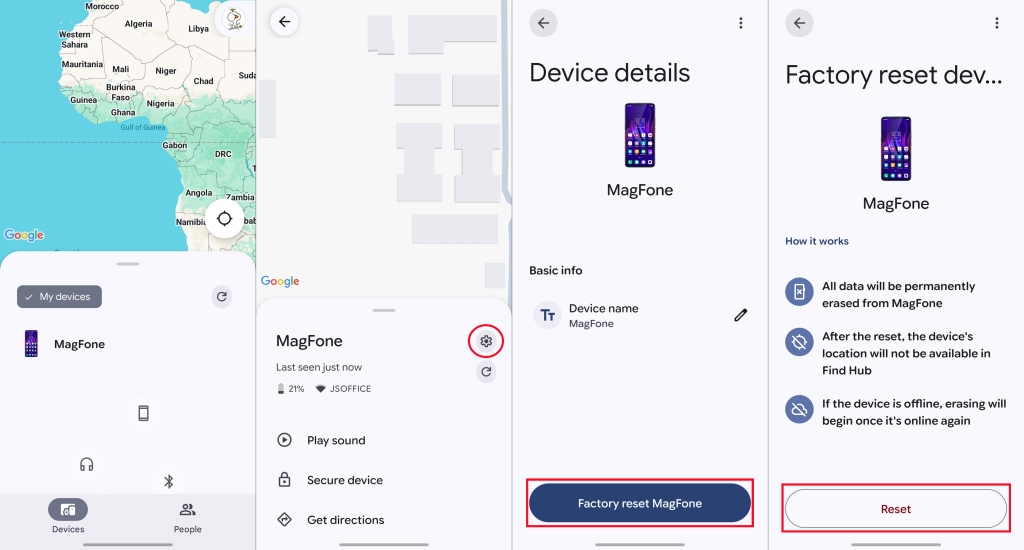
Step 1. Log in to the Find Hub app on another Android device.
Step 2. Tap the Samsung phone and go to the Settings icon.
Step 3. Choose Factory reset > Reset.
Part 5. Conclusion
And voila! That's all. Factory resetting a Samsung phone without a password is possible as long as you choose the right method for your situation. If you can remember your screen lock password, you can factory reset your Samsung phone in the Settings. Recovery Mode, SmartThings Find, and Google Find Hub can effectively help you to factory reset your Samsung phone when locked. In addition, the most excellent method is using MagFone Android Unlocker, a powerful software that can factory reset Samsung phone without password. If you prefer a guided process, try MagFone Android Unlocker now.

Dylan Jones
Editor in chief





