








Samsung Knox Mobile Enrollment is a cloud-based enterprise security and device management system used by organizations to automatically configure and control Samsung devices at scale. While it offers strong protection, remote management, and centralized policy enforcement, it can also limit user control and personalization. This passage explains what exactly Knox is, why users may want to remove it, and how to remove Samsung Knox effectively below.
- Part 1. What Is Samsung Knox Mobile Enrollment?
- Part 2. Can I Remove Knox from Samsung Phone?
- Part 3. How to Remove Knox Enrollment Service Samsung
- Part 4. Bonus Tip: How to Access Locked Samsung Without Password
- Part 5. Conclusion
Part 1. What Is Samsung Knox Mobile Enrollment?
Samsung Knox Mobile Enrollment is a cloud-based enterprise solution designed to automatically configure and deploy large numbers of Samsung devices. It is widely used by businesses for remote setup and security control. Here are its benefits and limitations.
 Benefits
- Automated bulk device setup process.
- Strong enterprise-level device protection system.
- Remote security policy enforcement capability.
- Secure app and data management.

- Restricts user control over device.
- Hard to remove without admin access.
- Can block factory reset freedom.
- Limits personalization and system changes.
Part 2. Can I Remove Knox from Samsung Phone?
Many users ask, "Can I remove Knox from Samsung?" when their device is locked under enterprise control or enrolled through Samsung Knox mobile enrollment. In some cases, removal is possible depending on whether the phone is personally owned or managed by an organization. However, restrictions may still apply. Next, we introduce several practical methods for removing or disabling Knox features, explained step by step below for clarity.
Part 3. How to Remove Knox Enrollment Service Samsung
Below are effective approaches for removing the Knox enrollment service on Samsung devices and regaining more control over your Samsung device.
Method 1. Remove Samsung Knox in Settings
This method works by disabling Knox-related system services directly through Android settings. It reduces background restrictions but may not fully uninstall Knox components. It is often used on older Samsung models or partially managed devices where system-level control is still available, without enterprise-level enforcement or persistent enrollment policies in place.
For older versions:
This approach is intended for older Samsung models such as the Galaxy S3, S4, S5, S6 Edge, and Galaxy Note 3, Note 4, and Note 5.
Step 1. Open the Samsung Knox app on your device, then go to Settings.
Step 2. Tap on Knox Settings, then select the Uninstall option.
Step 3. During the removal process, you may be prompted to back up your Knox data.
Step 4. Choose Back Up Now so your data is saved to the device's Knox folder, then confirm by tapping OK.
For newer versions:
On newer Android versions, the process is slightly different:
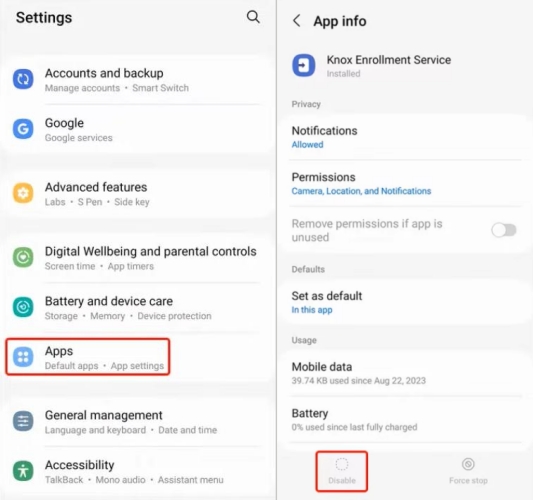
Step 1. Enter Settings, then Apps on your Samsung.
Step 2. Tap the menu icon (three dots) and enable Show system apps.
Step 3. Then search for Knox Enrollment Service from the list and disable it.
Step 4. Finally, restart your Samsung phone to complete the process.
Method 2. Remove Samsung Knox from Knox Portal
This method works through the Samsung Knox cloud portal used by IT administrators. It allows remote management of enrolled devices and can clear profiles or remove enterprise control. It is commonly used in organizations managing Samsung Knox mobile enrollment across multiple devices for centralized security and deployment purposes effectively.
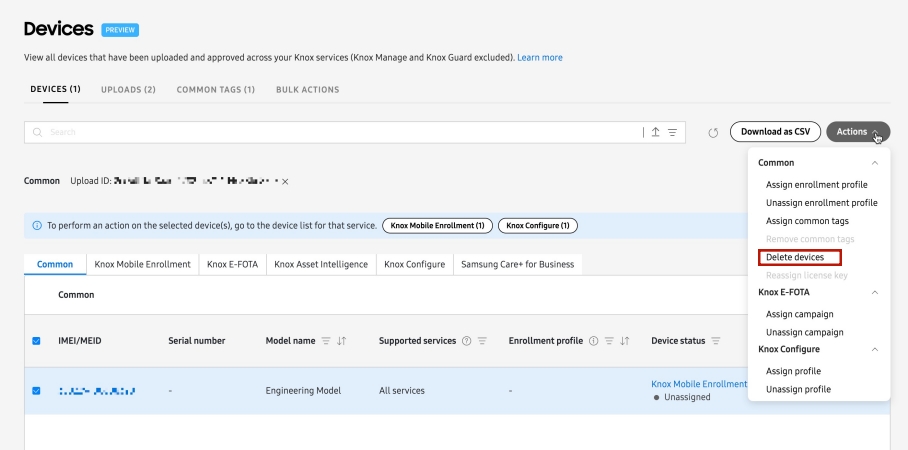
Step 1. Log in to the Samsung Knox administrator portal account.
Step 2. Navigate to Knox Mobile Enrollment and then enter Devices.
Step 3. Select the targeted device from the enrolled device list.
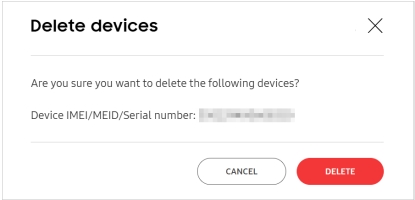
Step 4. Choose Actions > Delete devices and tap DELETE to remove the Knox enrollment services.
Method 3. Remove Samsung Knox via ADB Commands
ADB commands allow advanced users to communicate with Android system tools from a computer. This method can uninstall or disable Knox packages at the user level using command-line instructions. It requires USB debugging to be enabled and is commonly used by technicians for deeper system modification and removal of managed services.
Step 1. Enable Developer Options and USB Debugging on device.
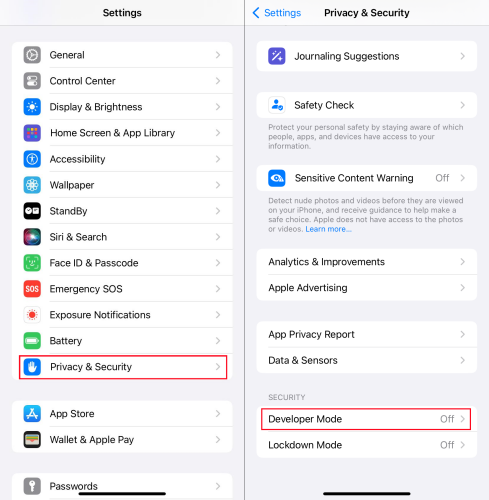
Step 2. Connect Samsung phone to computer using USB cable.
Step 3. Install ADB platform tools on your computer system.
Step 4. Open command window inside ADB installation folder and enter adb shell pm uninstall -k –user 0 com.samsung.knox.knoxenrollment.
Step 5. Run uninstall command for Knox enrollment package carefully.
Method 4. Remove Samsung Knox through Custom ROM
Installing a custom ROM replaces the original Samsung firmware with a modified Android system. This can eliminate Knox services entirely since the enterprise framework is removed with stock software. However, it requires technical knowledge and may void warranty or cause system instability if not done correctly during flashing process.
Step 1. Unlock bootloader and backup all personal data first.
Step 2. Download compatible custom ROM without Knox integration.
Step 3. Install custom recovery tool like TWRP on device.
Step 4. Flash new ROM using recovery installation process carefully.
Step 5. Reboot system and verify Knox removal status.
Method 5. Remove Samsung Knox Using Knox Remover APK
Some third-party applications claim to remove Knox services automatically by detecting and uninstalling related packages. These tools attempt to bypass system restrictions without manual commands. However, reliability varies, and they may not work on all devices, especially newer Samsung models with stronger security enforcement or enterprise-level protections installed.
Step 1. Download Knox remover APK from trusted source online.
Step 2. Turn on installation from unknown sources in settings.
Step 3. Open the Knox removal tool and tap Remove Knox.
Step 4. The tool will scan and display the list of removable Knox apps.
Step 5. Select the app you want to remove, tap the Remove option to uninstall it, then restart the device afterward.
Part 4. Bonus Tip: How to Access Locked Samsung Without Password
When users forget screen credentials or face lock restrictions after Knox enrollment, tools like MagFone Android Unlocker can help regain access. It can help remove pattern, PIN, or password locks from Samsung devices without requiring advanced technical knowledge. Many users rely on it when standard recovery methods fail. It helps restore control, especially when devices are second-hand or locked after enterprise policies. Here's how to use it.

MagFone Android Unlocker
Remove multiple kinds of screen locks on over 5000 Android devices and delete Google FRP lock without a password.
Step 1 Launch MagFone and Connect Device
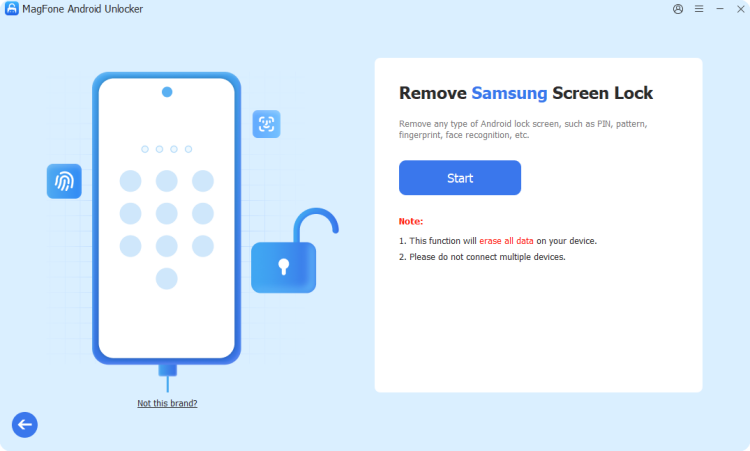
Install MagFone Android Unlocker on your computer, then open it and connect your locked Samsung phone using a USB cable. From the main dashboard, select the Remove Screen Lock option.
Step 2 Enter Your Phone into Recovery Mode
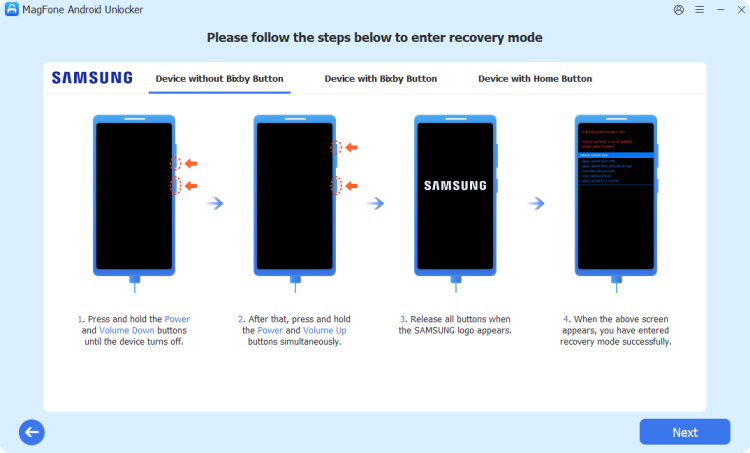
Follow the on-screen instructions to boot your Samsung device into Recovery Mode. Once it enters recovery successfully, return to the software interface, click Next, and then press Continue to move forward.
Step 3 Remove Screen Lock and Reconfigure

Proceed with the on-screen instructions to begin unlocking and removing the pattern lock from your Samsung device. Wait until the process finishes, then click Next. Afterward, set up your device again and create a new screen lock.
Part 5. Conclusion
Removing Knox from Samsung devices depends on the enrollment type, device condition, and access level available. Whether users choose system settings, ADB commands, or advanced tools, each method carries different risks and outcomes. Understanding how to remove knox from samsung helps users decide the safest approach. Always back up data before attempting changes, as removing Knox or disabling samsung knox manage may affect system stability or erase important device information permanently.

Dylan Jones
Editor in chief





