








Android OS typically allows five consecutive failed fingerprint attempts before temporarily disabling the sensor. Once this threshold is crossed, the device displays a notice such as "Too many attempts. Fingerprint sensor disabled," forcing the user to wait 30 seconds before trying again or prompting them to enter their backup PIN, pattern, or password. In this guide, we'll show you how to remove fingerprint from Android in several simple ways.
- Part 1. How to Remove Fingerprint Lock from Android
- Part 2. Can You Bypass Fingerprint Lock on Android?
- Part 3. How to Bypass Fingerprint Lock from Android
- Part 4. Conclusion
Part 1. How to Remove Fingerprint Lock from Android
The fingerprint scanner maps your fingertip's unique ridges and valleys, converting the data into an encrypted mathematical template stored in the device's secure enclave. Along with PINs and patterns, biometrics are a primary Android security method. If you no longer want biometric authentication or need to re-register your prints, you can disable fingerprint authentication in Android settings directly. Here's how to remove the fingerprint lock on a Samsung phone.
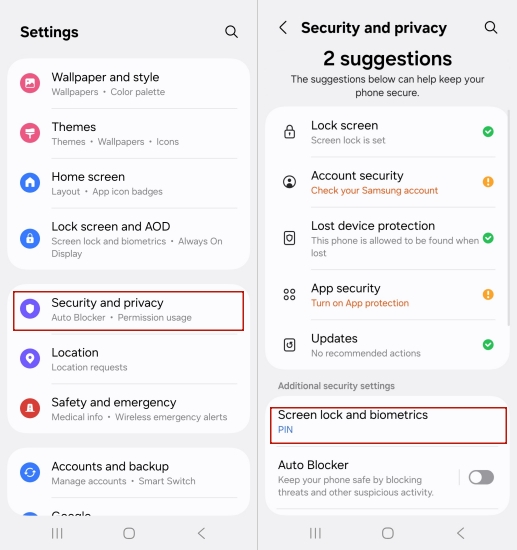
Step 1. Run the Settings app on your Android device.
Step 2. Scroll down and select Security & privacy (or Lock Screen and Security, depending on your device brand).
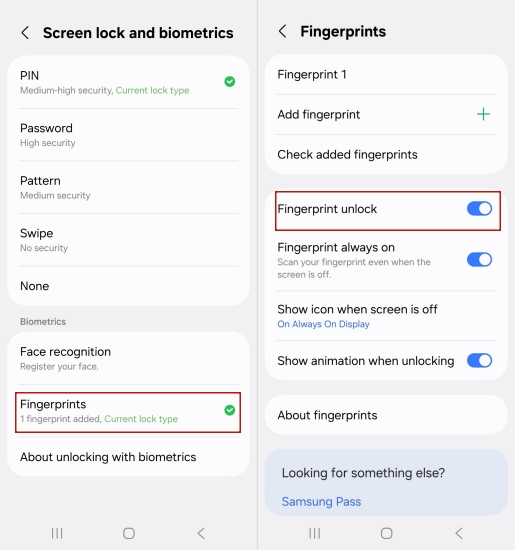
Step 3. Tap on Screen lock and biometrics. Then enter the Fingerprint section and toggle off the Fingerprint unlock option.
Part 2. Can You Bypass Fingerprint Lock on Android?
Under normal circumstances, you can bypass the biometric check by entering your secondary unlock method, such as a PIN, pattern, or password. However, if you have also forgotten this credential, specialized bypass methods may be necessary. In the next part, we introduced three ways to bypass the Android fingerprint lock, but all of them will result in complete data loss.
Note:
If your Android phone can't be recognized by the biometric scanner, try these quick maintenance tips before attempting a hard reset or software bypass:
1) Clean the fingerprint sensor module with a soft microfiber cloth.
2) Wash and thoroughly dry your hands to clear grease.
3) Restart your Android smartphone to refresh system background processes.
4) Remove thick protective screen guards covering the display sensor.
5) Re-register your primary finger from multiple distinct placement angles.
Part 3. How to Bypass Fingerprint Lock from Android
If the biometric reader fails completely and you are locked out of your phone without a working backup password, several administrative techniques can help restore access. Below are three distinct methods to bypass fingerprint lock restrictions on your device.
Method 1. Bypass Android Fingerprint via MagFone Android Unlocker
Can't detect fingerprint? Or forgot PIN, pattern, or password? MagFone Android Unlocker is designed to help you out of these troubles. This tool can be run on Mac and Windows, and is compatible with many Android phones running Android 4 to 16. Whether you are facing a broken screen, hardware failure, or a locked secondary password, this software streamlines the lock screen removal process into a few guided steps.

MagFone Android Unlocker
Remove multiple kinds of screen locks on over 5000 Android devices and delete Google FRP lock without a password.
Step 1 Choose the Unlock Screen Function
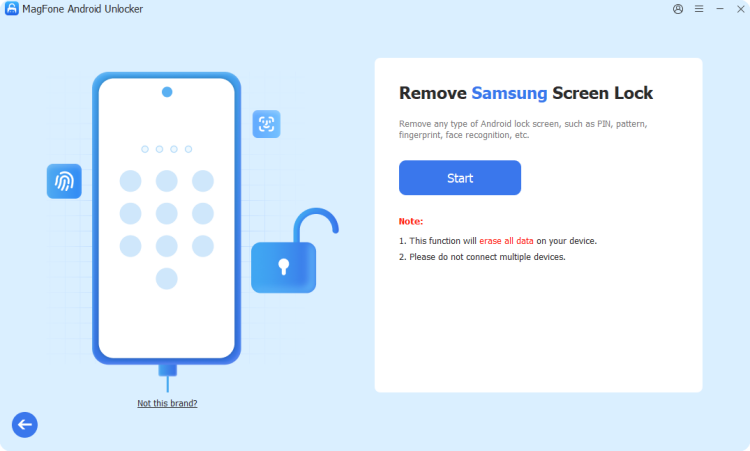
First, download and install MagFone Android Unlocker on your computer, then open the program and connect your phone via a USB cable. From the main screen, choose the screen-unlock option, select your phone's brand, and click Continue to proceed.
Step 2 Boot Your Phone into Recovery Mode
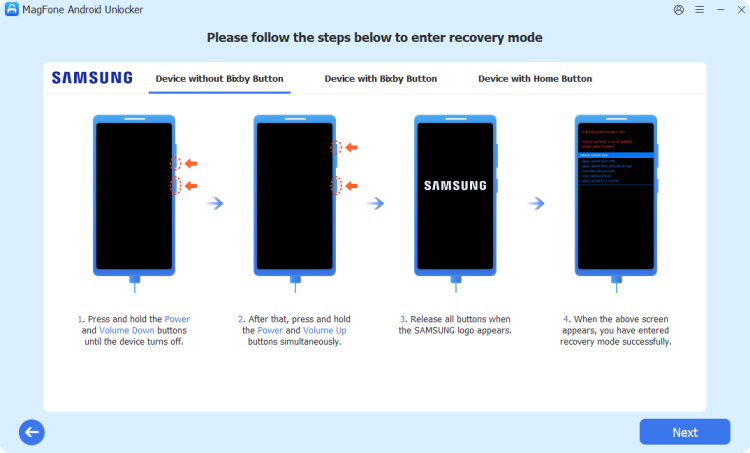
Once your brand is selected, click Start. A pop-up will warn you that data may be lost — confirm by clicking Continue. Follow the on-screen prompts to switch your device into Recovery Mode using the button combination shown.
Step 3 Bypass the Android Screen PIN
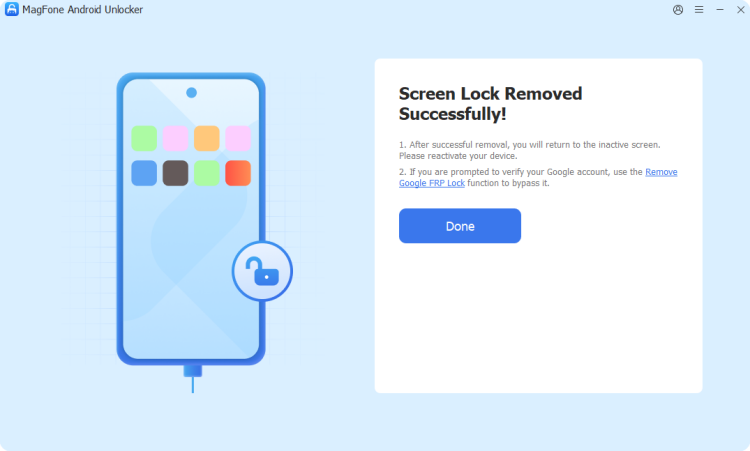
Continue following the on-screen instructions to complete the phone setup. Once finished, click Next and let the software proceed with removing the screen lock from your Samsung device. When the process is complete, the screen lock should be removed successfully.
Method 2. Bypass Android Fingerprint in Recovery Mode
Android incorporates an isolated environment known as Recovery Mode, which operates independently of the main operating system. Accessing this environment allows you to execute a system-wide wipe, erasing all security parameters including biometrics and screen locks.
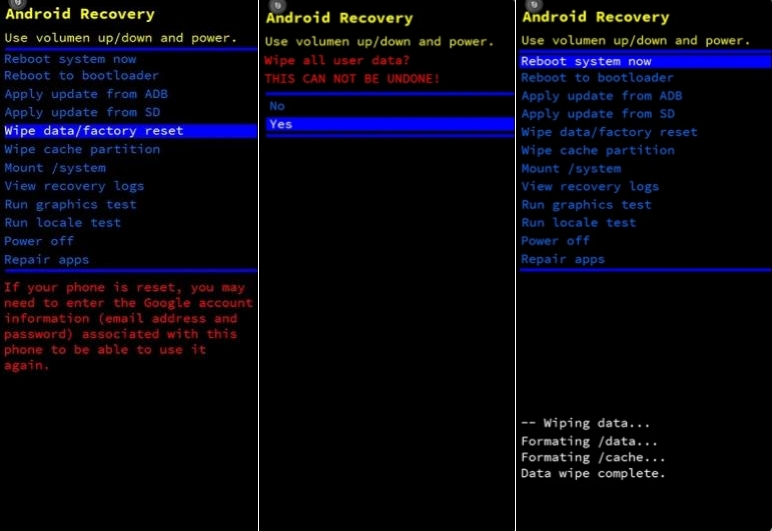
Step 1. Turn off your Android smartphone completely.
Step 2. Press and hold the Power + Volume Up keys simultaneously until the brand logo appears.
Step 3. Use the Volume Down button to move through the options and select Wipe data/factory reset.
Step 4. Press the Power button to confirm your choice.
Step 5. Select Factory data reset and wait for the wipe to complete, then choose Reboot system now.
Method 3. Bypass Android Fingerprint on Find My Hub
Google provides remote device management capabilities through its Find My Device service. If your locked phone is linked to an active account and has an active internet connection, you can remotely clear the device settings.
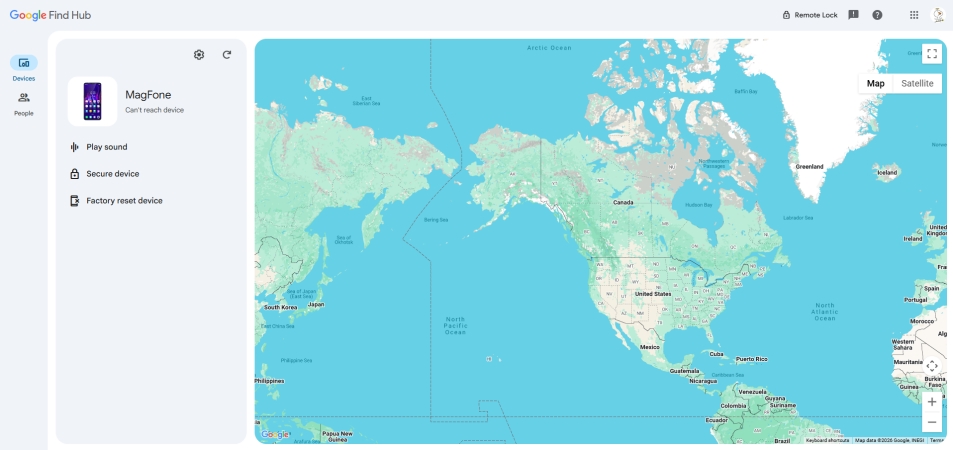
Step 1. Navigate to the Find My Hub web portal on a computer or secondary phone.
Step 2. Sign in using the exact Google Account registered on the locked Android device.
Step 3. Select your locked phone from the active device list on the screen.
Step 4. Select the Factory Reset Device option.
Part 4. Conclusion
Managing your device biometrics ensures both strong security and convenient access. Whether you need to adjust system settings to turn off fingerprint protections or utilize recovery tools like MagFone Android Unlocker, factory resets, or cloud management hubs when locked out, these approaches restore full functionality. Always maintain regular cloud backups to safeguard your valuable personal files against potential data loss during security overrides.

Dylan Jones
Editor in chief





